
Nutanix Image Service:
The Image service allows us to import Disk Images & ISO or disk type supported in Hyper-V & VMware directly in AHV Virtualization Management. Some of the supported formats are .qcow2, vmdk, VHD, raw, vdi, iso.
We can import the disk images directly using prism UI from Http / NFS Source.
Prism à Gear Icon à Image Configuration
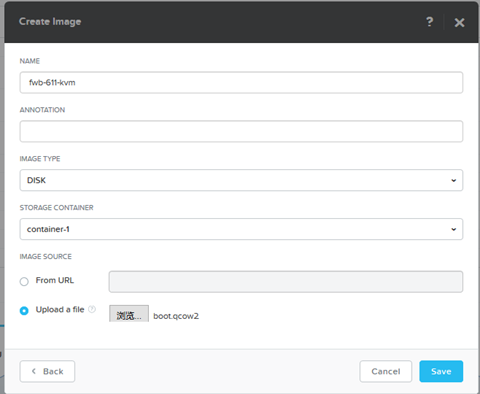
So the imported images will be available in repository for future use. Any prism user with permission can spin up the VM based on available images in images repository.
Note: Before importing Images to AHV, install VertiO to avoid VM boot failures.
Why we required Images:
- We can use disk images as temple, like install OS with latest patch and import it in Image service for future Use. Next time we can directly add bootable disk to newly create VM.
- Attach data disk to other VM
Create Image using existing vmdisk Attached to VM:
To create the Image using existing vmdisk, we have to use acli. Login to any CVM using SSH.
Get the vmdisk UUID from desire Virtual machine.
vm.list ‘VM Name’
image.create ‘Image Name’ source_url=nfs://127.0.0.1/<Source_Container_Name >/.acropolis/vmdisk/<vmdisk UUID> container=<Target_Container_Name> Image_type=kDiskImage
Image Name: new Image name
Source Container: Container having vmdisk stored
vmdisk UUID: vmdisk UUID you found using vm.get command
Target Container: Where you want to create new Image
Create vmdisk using available Images in Image Configuration:
Use Prism GUI > VM >Create new VM/Update existing VM. While adding disk, select “Clone from Image Service” and select the desire image and add the image as disk.
 The Hyperconverged Perspective