
As all we know VMWare has release the VSphere 7.0. In this article I will show how to upgrade VCenter Appliance 6.7 to 7.0.
Download VCenter Server Appliance from VMware Website. And mount the ISO. Browse to vcsa-ui-installer on Mounted Media and run installer.exe
Note: Before starting the upgrade, make sure DNS record and NTP is working fine. VCenter Appliance upgrade process will deploy the new VCenter appliance and copy the configuration and data from old appliance to newly deployed appliance. This means temporary you should the enough resources to accommodate the new VM.

Click Upgrade to start the Wizard. 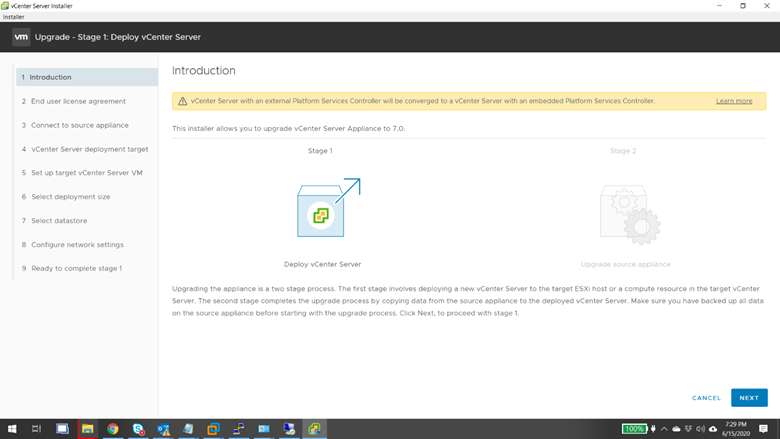
Click Next to continue 
Accept the license agreement and click Next
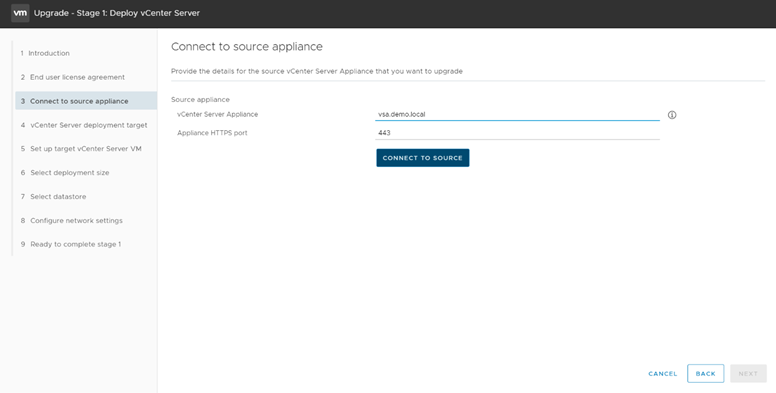
Connect the VCenter appliance 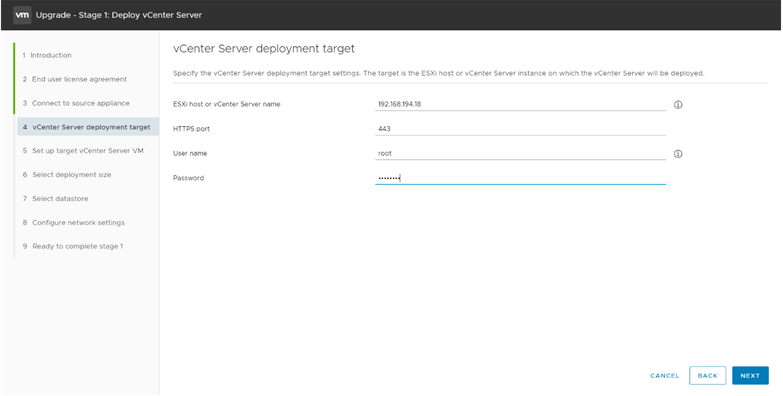
Provide the ESXi Server where you want to deploy the new VCenter VM.
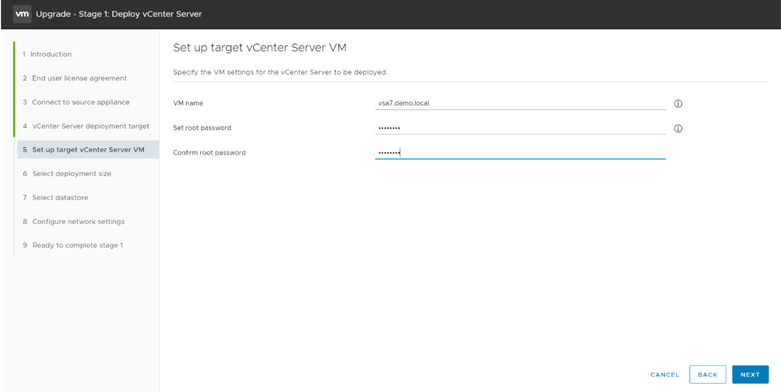
Provide the New VCenter VM name & provide the appliance Root Password.
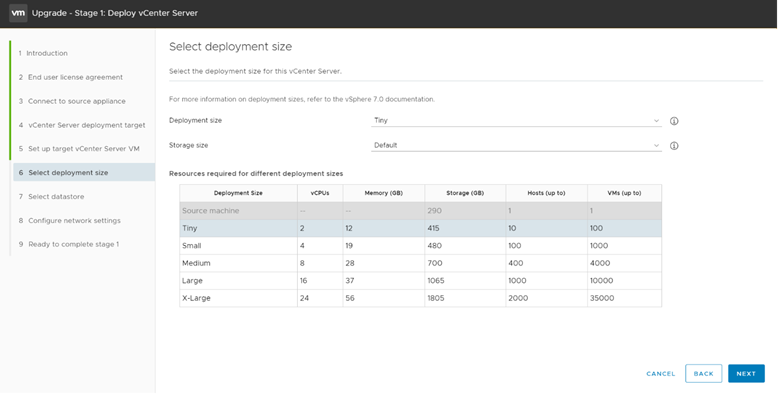
Select deployment size and click next.

Select the datastore, incase if you want to save the disk as thin format select enable thin disk mode.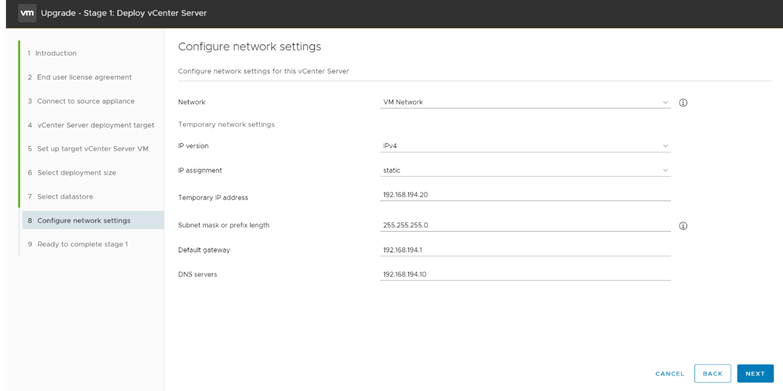
Provide the network information and temporary IP.
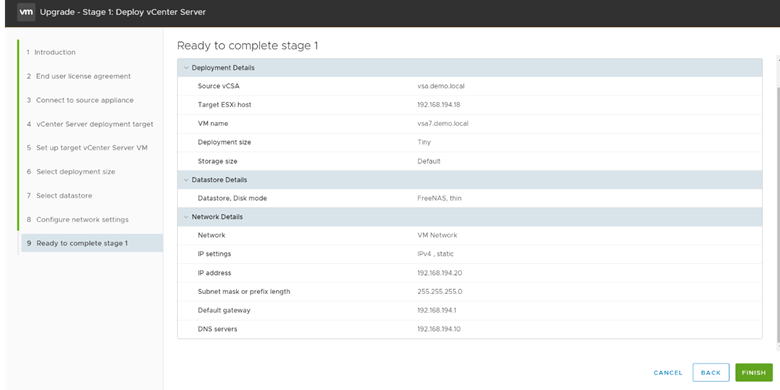
Review the configuration and click Finish to start the deployment.
In this Stage VM is already deployed, once deployment finished you can continue to start the Stage 2. In stage 2, VM will copy the data from old appliance and configure the new appliance. Click Continue
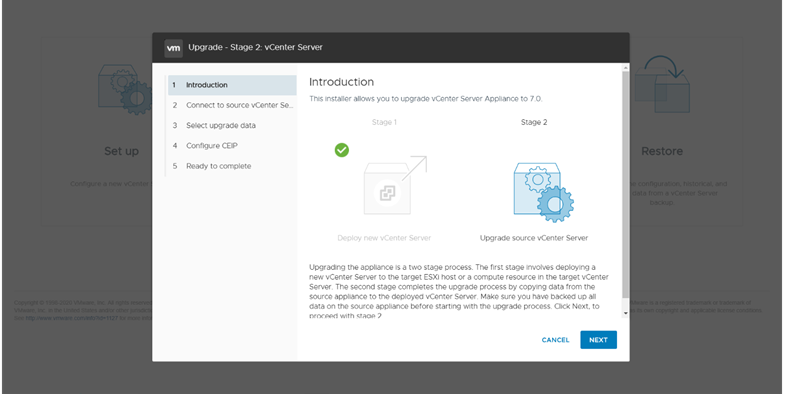
Click the next to start the wizard.

Select the upgrade data and click next.
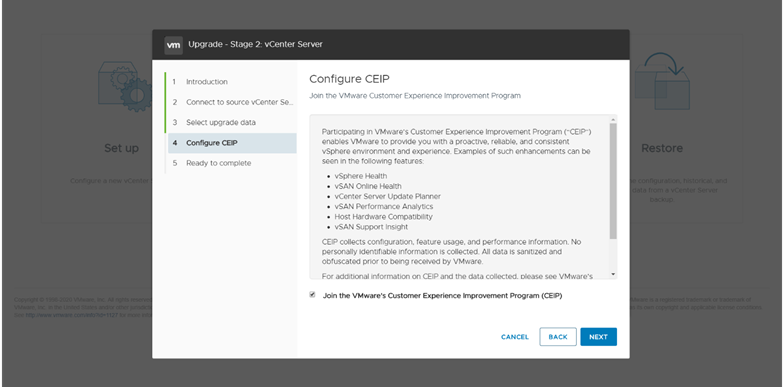
Select the desire CEP option and click next.
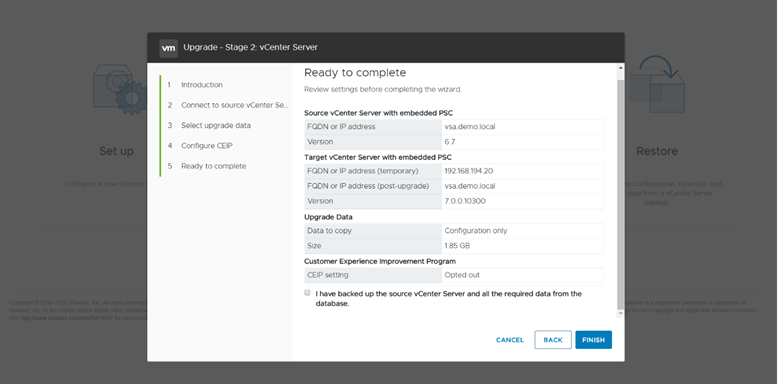
Review the configuration and click Finish to start the process.
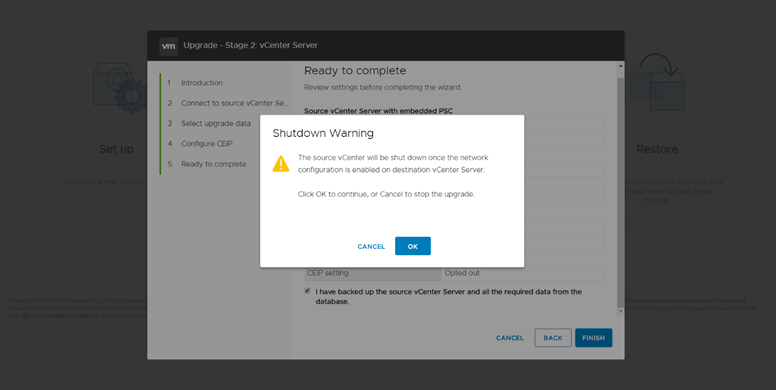
Accept the Warning, saying source VM will be shut down when new VM get the network configuration.
Whole process takes approx. 15-20 Min to finished.
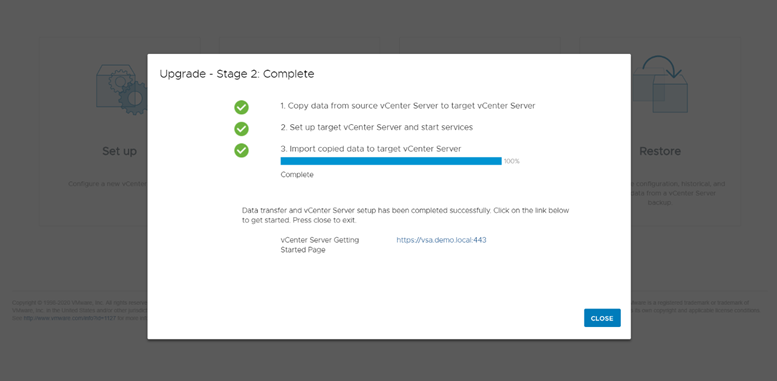
Upgrade finished, Click Close to close the installation wizard.
VCenter is upgraded. You can access the VCenter appliance

First thing to be noticed, HTML5 is only available GUI going forward.
 The Hyperconverged Perspective