
As we all know VMware WorkStation is a great solution for testing /home lab activities. Lots of guys ask me how to deploy VMware VCenter Appliance deploy in VMware Workstation as using VCenter Installer it looks for ESXi host to deploy the VCenter Appliance. So below is the procedure you can follow to deploy VCenter Server on VMware Workstation.
- Download the VCenter Appliance ISO
- Extract / Mount ISO
- Browse to folder VSA and double click on OVA file, wizard will be started to import the OVA to VMware Workstation.
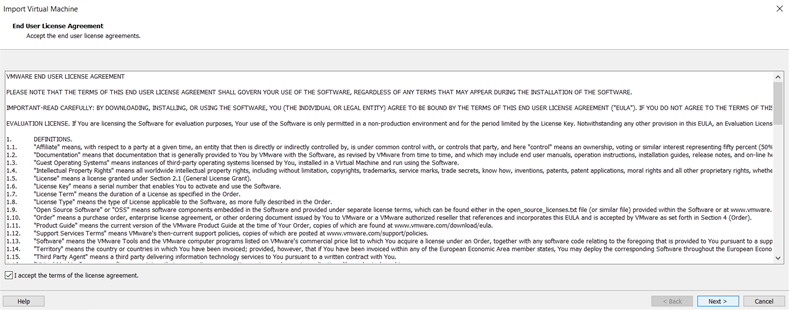
Accept the License Agreement and click Next

Specify the Virtual Machine name & location and click Next
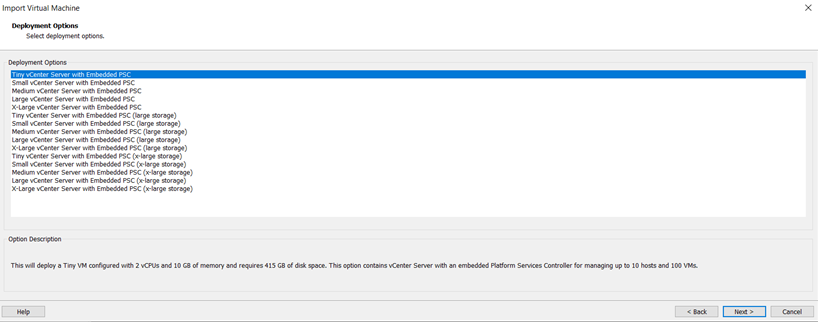
Specify the Deployment Type and click Next

- Specify the Network Configuration
- Host network Family: IPV4 or IPV6
- Host Network mode : Static / Dynamic
- Host IP Address:
- Host network Profex / Subnet
- Default gateway
- DNS Server IP
- Virtual machine DNS Name
Once provide the information Click next.
Once VCenter Appliance will be deployed. Logged into Virtual machines
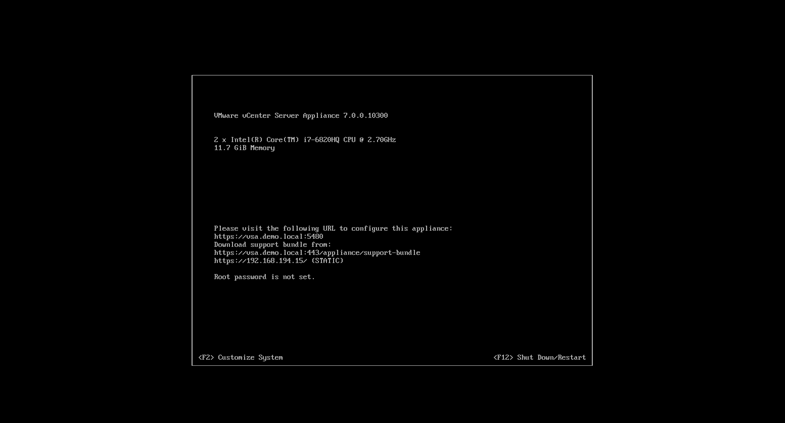
Set the VCenter Appliance IP and access the Virtual Machines Management using any explorer
https:// Virtual Appliance IP:5480
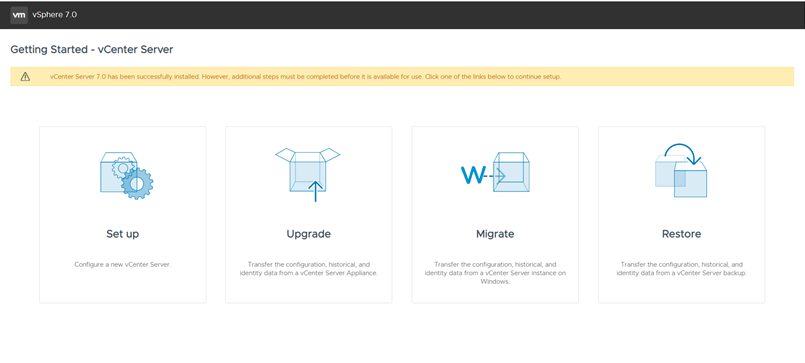
Now the Stage 2, will be started. Click Setup to proceed.
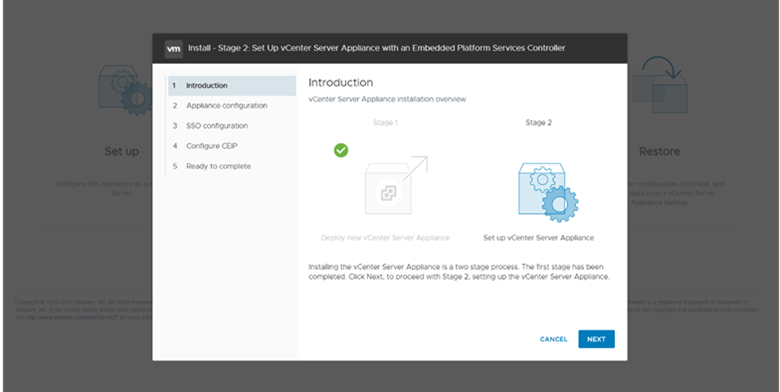
Click Next start the Stage 2

Provide the NTP information, Enable SSH Access incase if you want to configure VCenter Sever HA.

As I am planning to configure VCenter HA, hence enabling SSH Access. Click Next to continue.

Select the desire SSO Configuration, as I am going to setup the new SSO Domain. So I am providing the SSO domain name & Password for the Administrator. Click Next to continue.
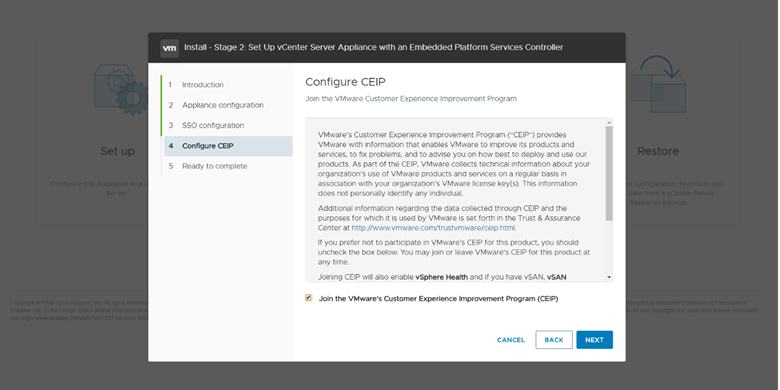
Select the CEP option you desire and click next.
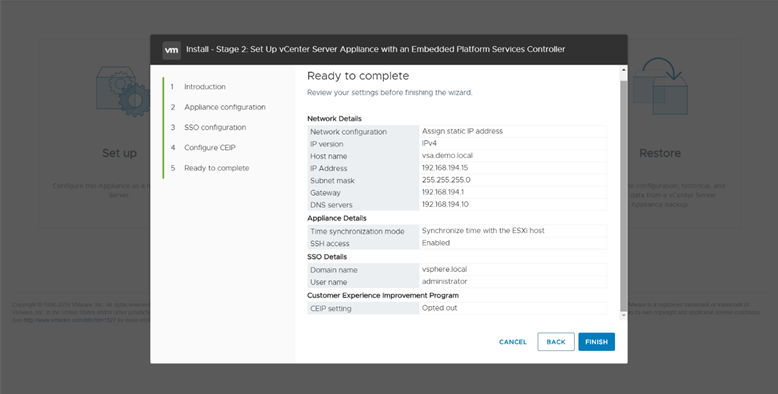
Confirm the Summary information and click finish to start the STAGE 2 Configuration. Please note that once you click Next you can’t stop the process.

Process will take upto 10-15 mins to finish the deployment.
Below will the URLs to access the appliance.
Appliance Management:
https://appliance_ip/hostname:5480
VCenter
 The Hyperconverged Perspective