
In the part 1 we had completed Nutanix Block Foundation process, today will proceed with the next activities like setting up Prism Initial Configuration and Nutanix Recommended settings on VMware Cluster end.
- Open Prism using any Browser
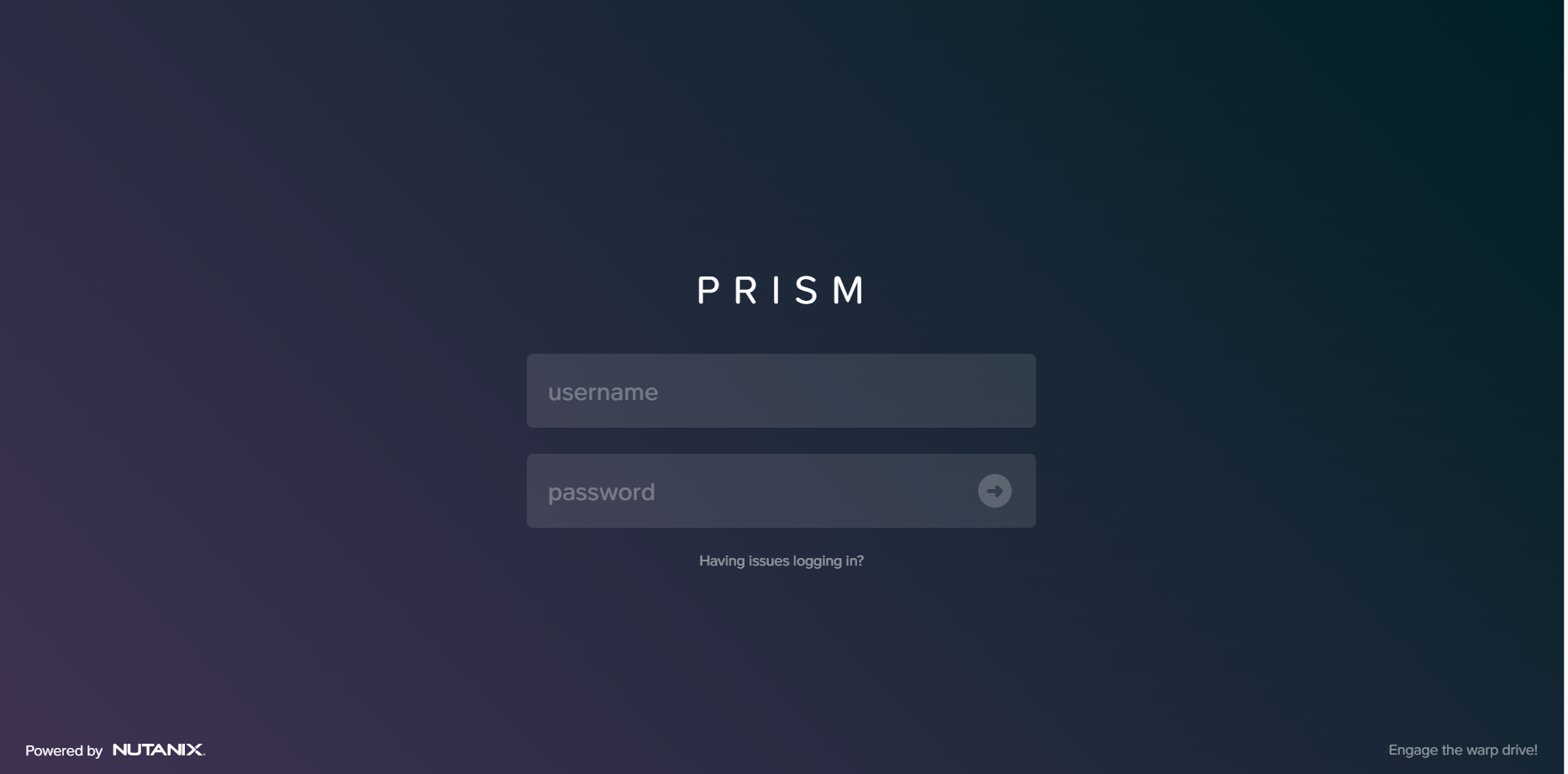
Login using Default Credentials, default credentials are as below
admin / Nutanix/4u
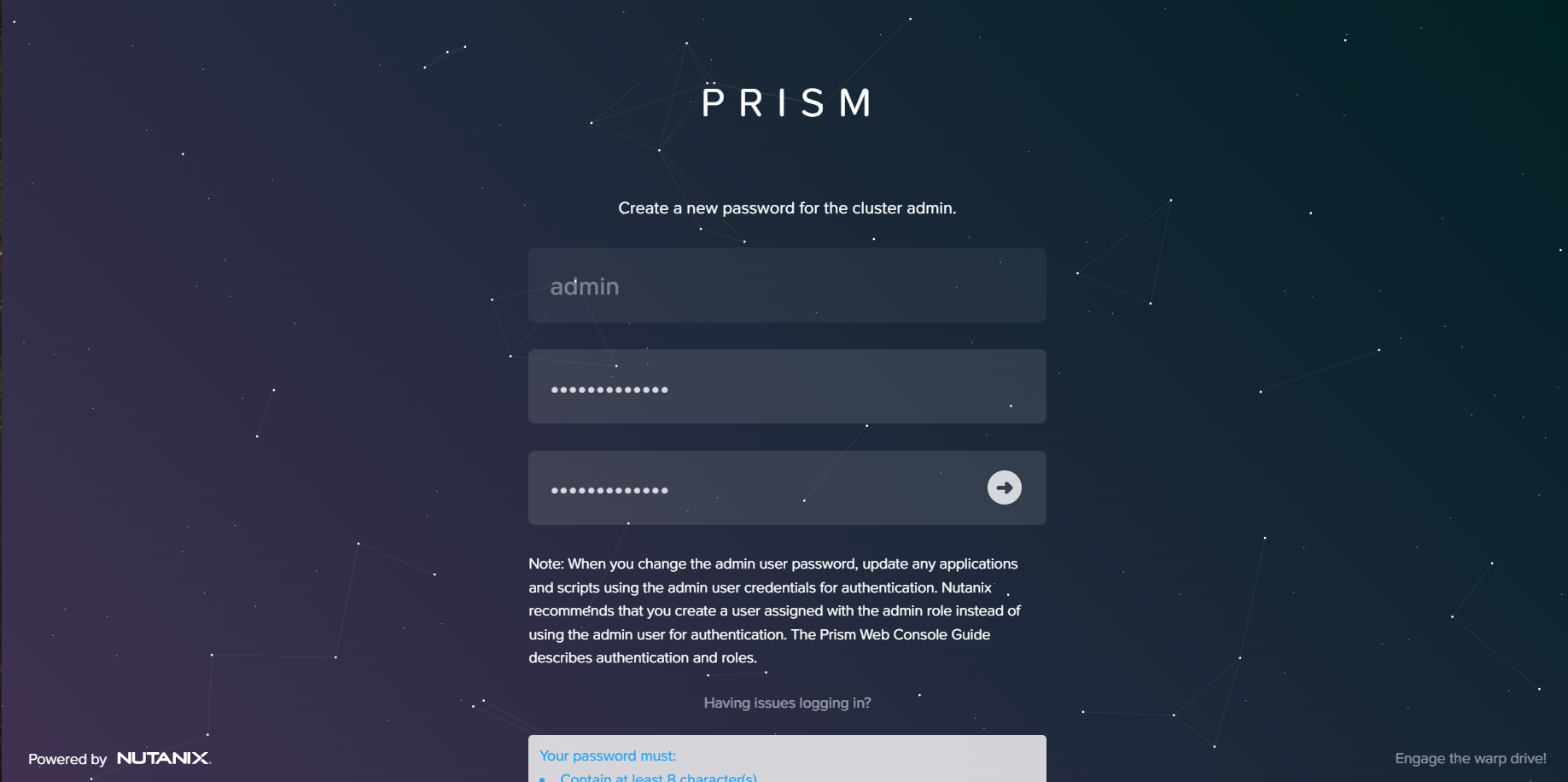
Specify new Password
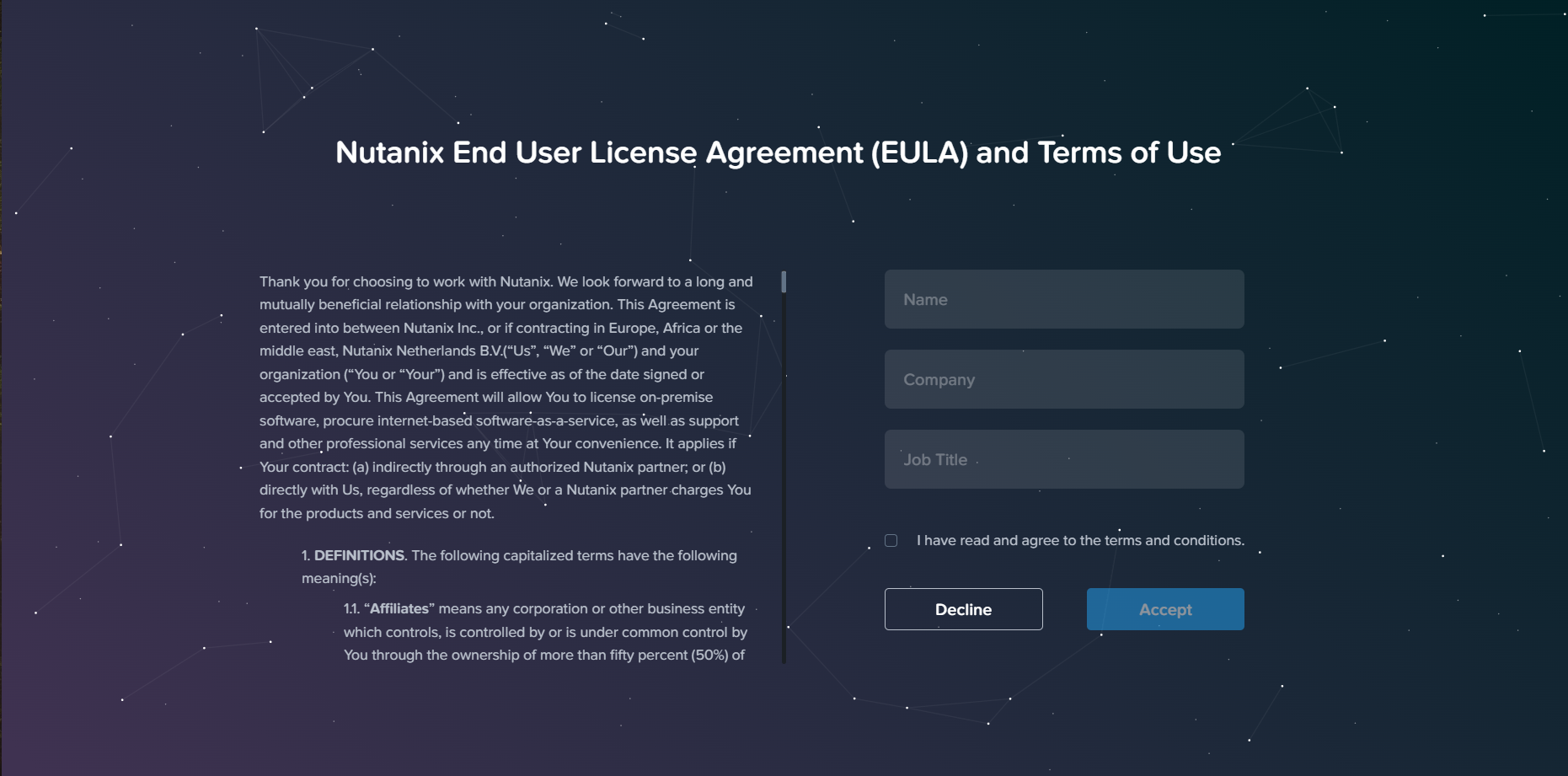
Accept User agreement , and click Accept to proceed further.
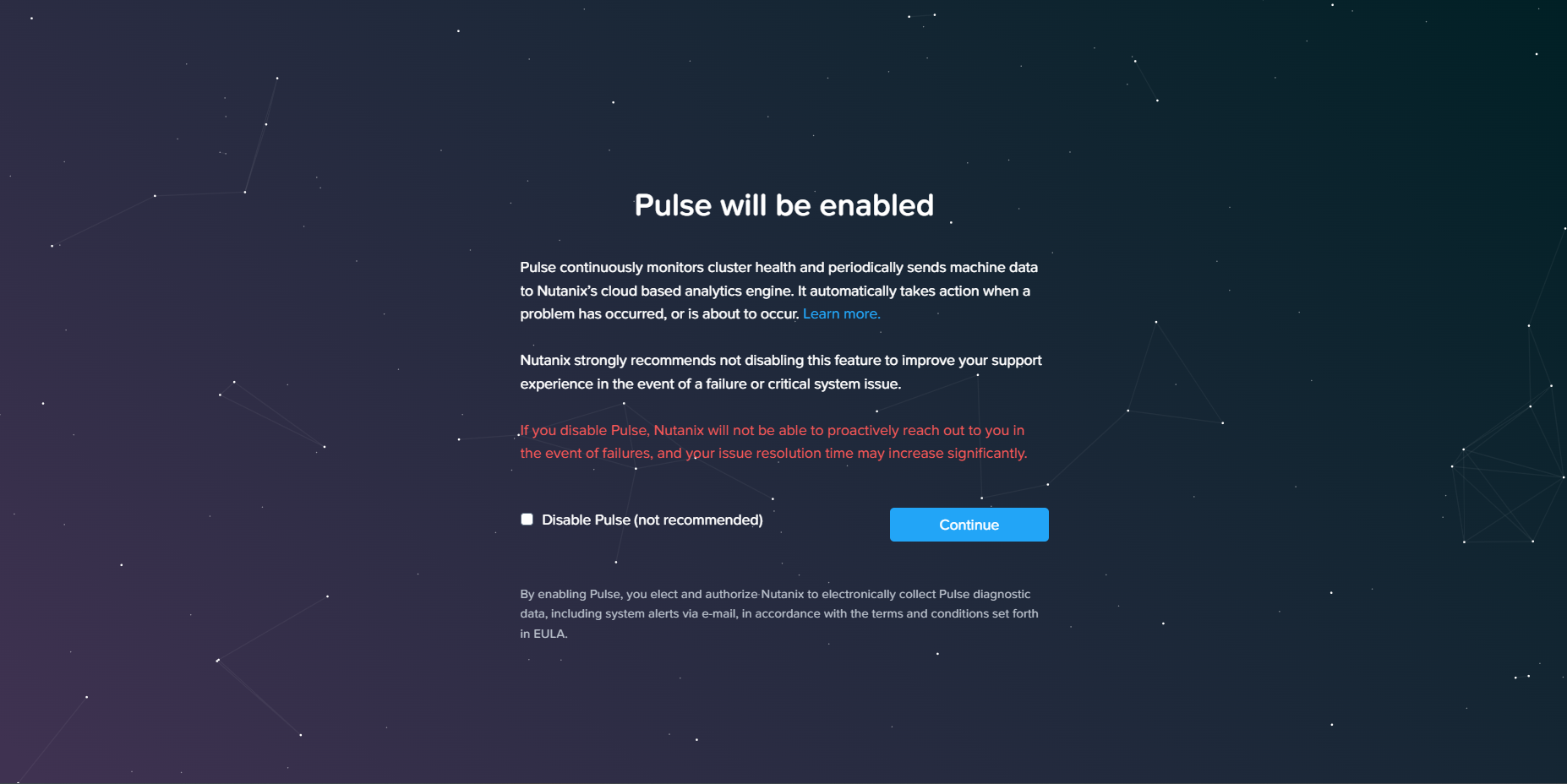
Enable / Disable Pulse and click continue
Nutanix Pulse:
Nutanix Pulse is the telemetry capability built into all Nutanix clusters that sends key health metrics to the Nutanix Insights service. Nutanix can use the diagnostic system information that Pulse sends to help build better products and provide a great customer experience.

Home Dashboard
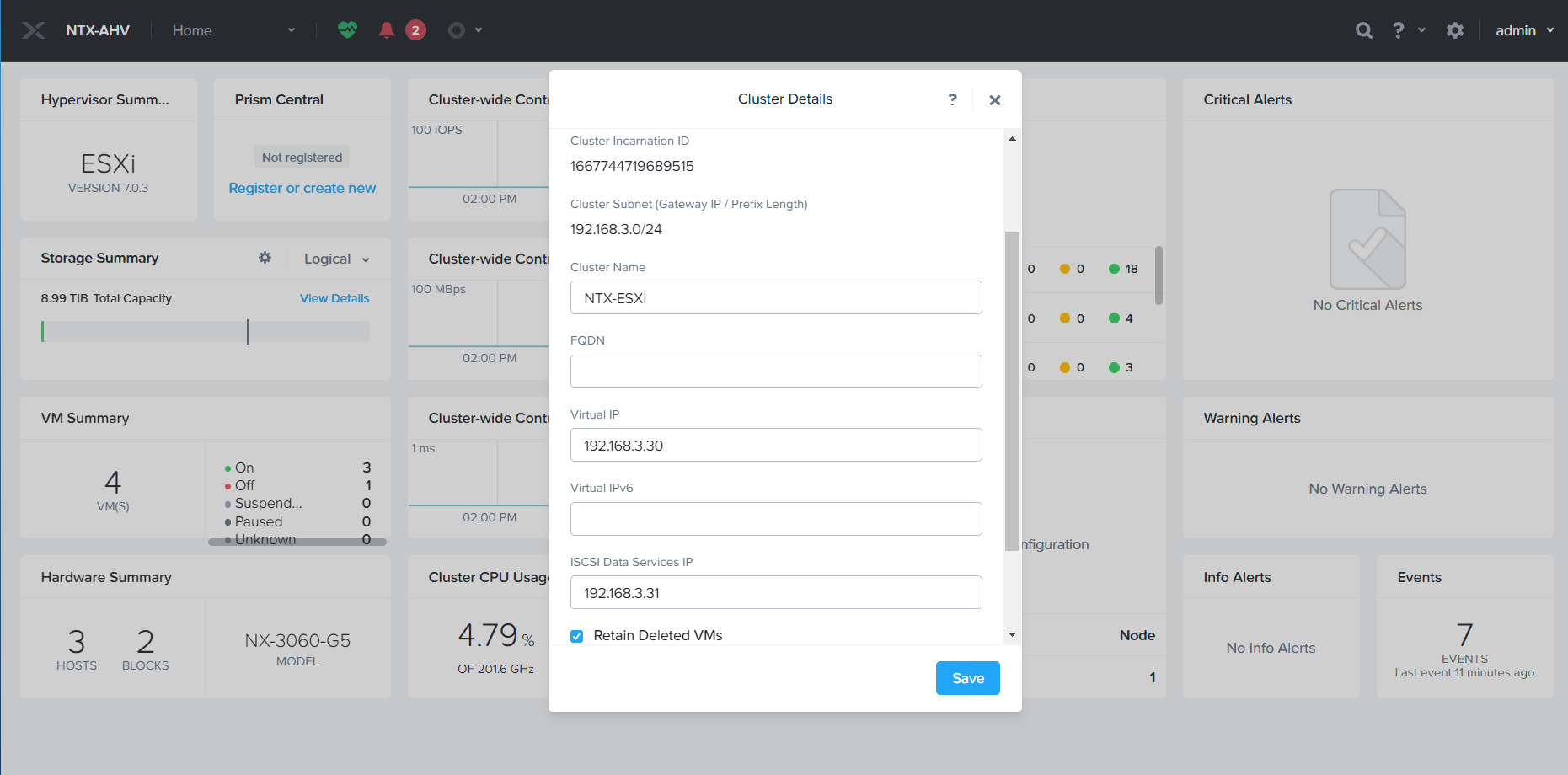
To Specify the Nutanix Cluster IP, Click on Cluster Name. Provide Cluster Virtual IP (Virtual IP should be in the CVM network).

Click on drop down Menu and click Setting to proceed with the setting menu.

To update name servers, Click Name Servers and add DNS Name Server IPs.

To update NFS Setting, Click NFS Servers and specify NTP Servers

To create Storage Container, Click Dropdown Menu à Storage

Click + Storage Container to create the storage container. Provide Datastore name, select Mount on all host and click Save.

Datastore has been Created.
Now we will proceed to add Nutanix Hosts in VCenter. Incase if you don’t know how to deploy VCenter please refer my VCenter Deployment Article.

Right Click on VCenter Root and Create VCenter Cluster.
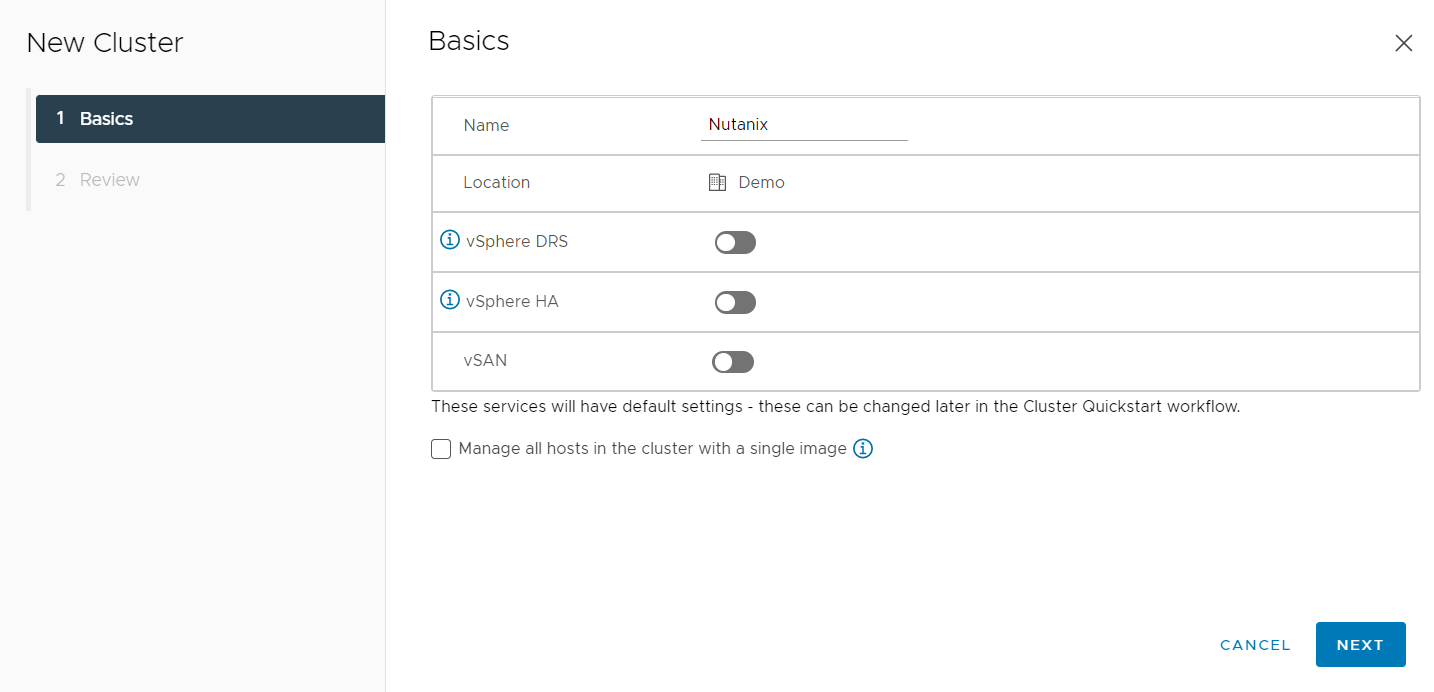
Specify Cluster Name and Click next

To Register Hosts in VCenter. Click Configure à Quickstart à Under Add Hosts à Click ADD

Provide Host IPs and username and password and click Next.

Accept Host SSL Certificate and click ok

Click Next to Proceed Further

Click Finish

Once Host has been added, we will proceed with the Nutanix Recommended HA , DRS and VM Override settings.
VMWare HA Settings:

Select Cluster à Configure à VSphere Availability
- Host Failure Response: Select Restart VMs from the drop-down list.
- This option configures the cluster-wide host isolation response settings.
- Response for Host Isolation: Select Power off and restart VMs from the drop-down list.
- Datastore with PDL: Select Disabled from the drop-down list.
- Datastore with APD: Select Disabled from the drop-down list.
- VM Monitoring: Select Disabled from the drop-down list.
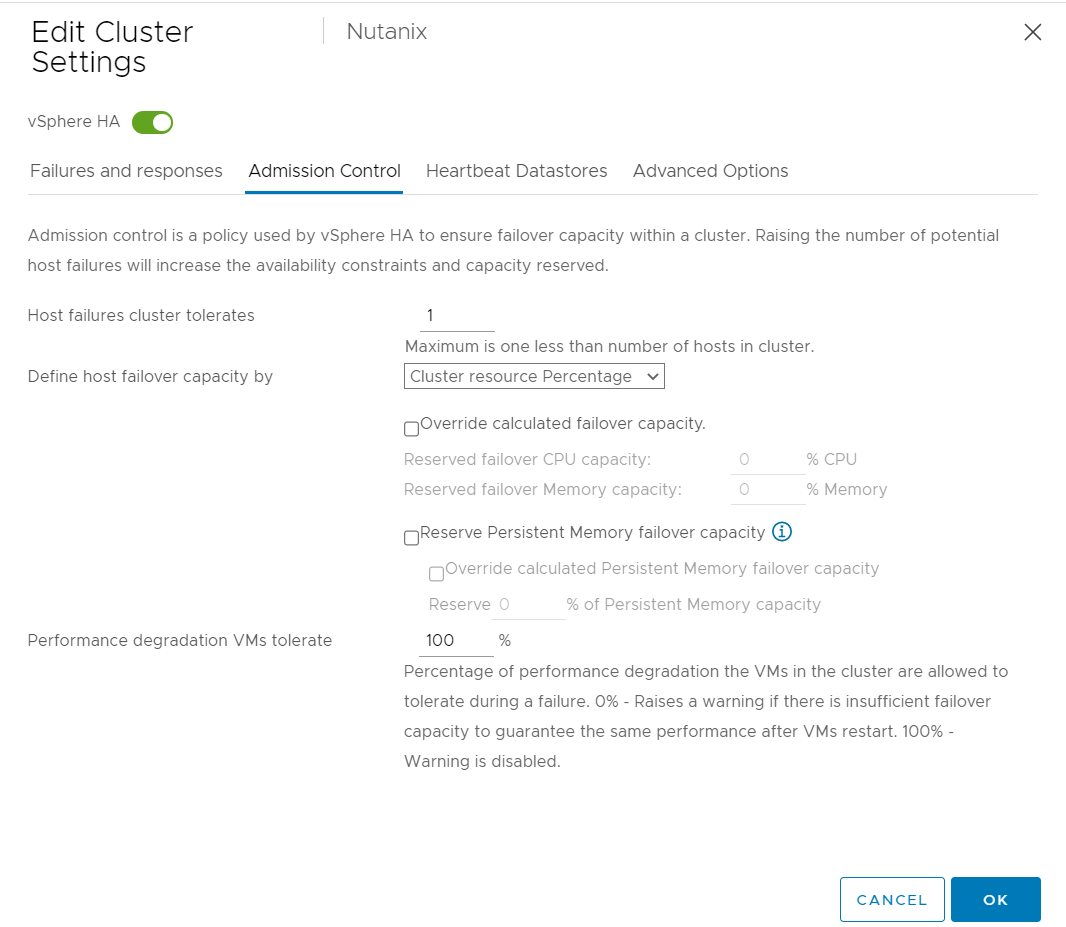
- Host failures cluster tolerates: Enter 1 or 2 based on the number of nodes in the Nutanix cluster and the replication factor.
- Define host failover capacity by: Select Cluster resource Percentage from the drop-down list.
- Performance degradation VMs tolerate: Set the percentage to 100.

Select the Nutanix Datastore. If the cluster has only one datastore, click Advanced Options tab and add das.ignoreInsufficientHbDatastore with Value of true.
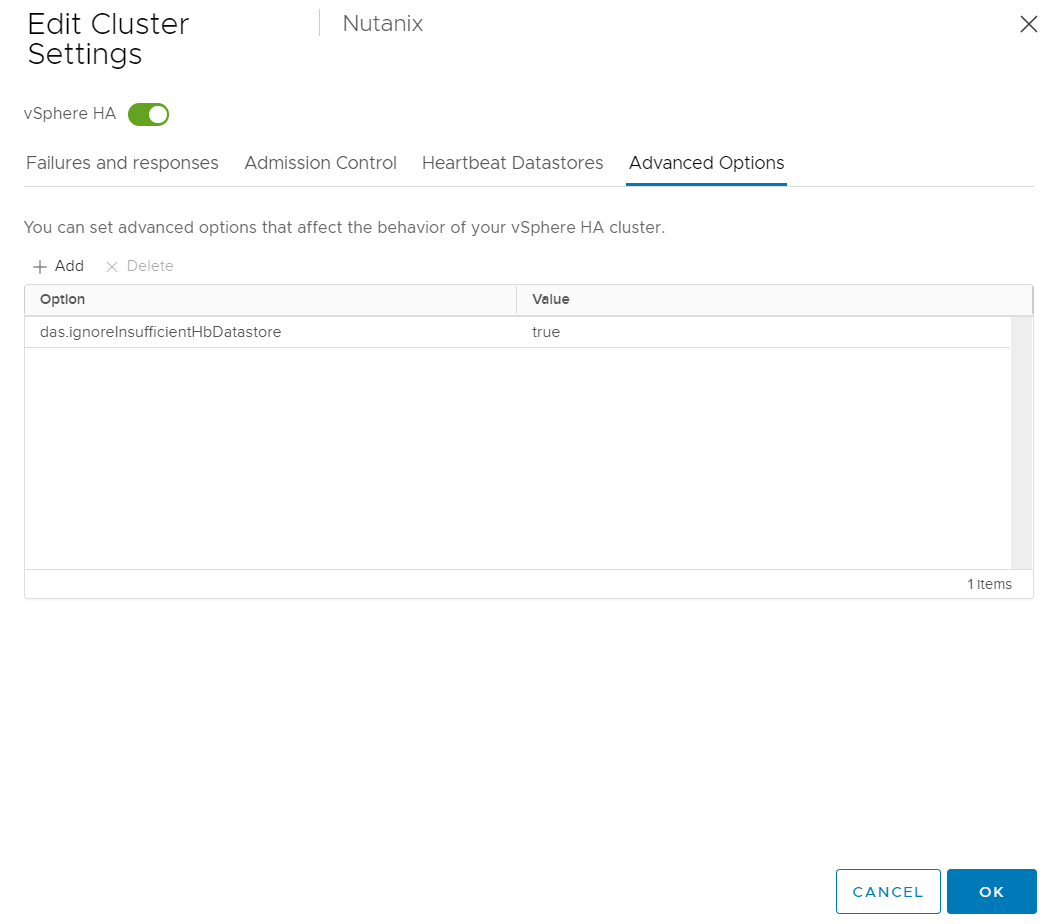
Click OK to apply the settings.
DRS Settings:

Select Cluster à Configure à VSphere Availability
Turn on the vSphere DRS switch.
Specify the following information under the Automation tab.
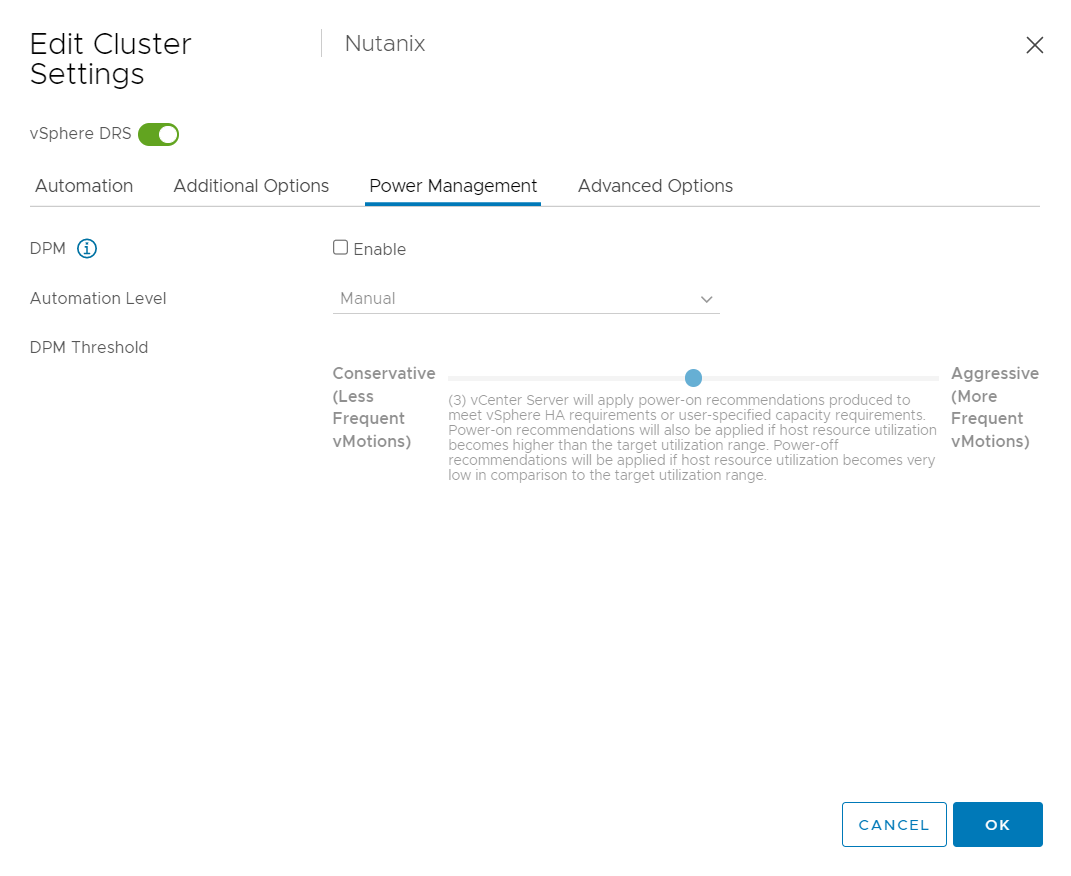
Leave DPM unchecked and click OK
EVC MODE :
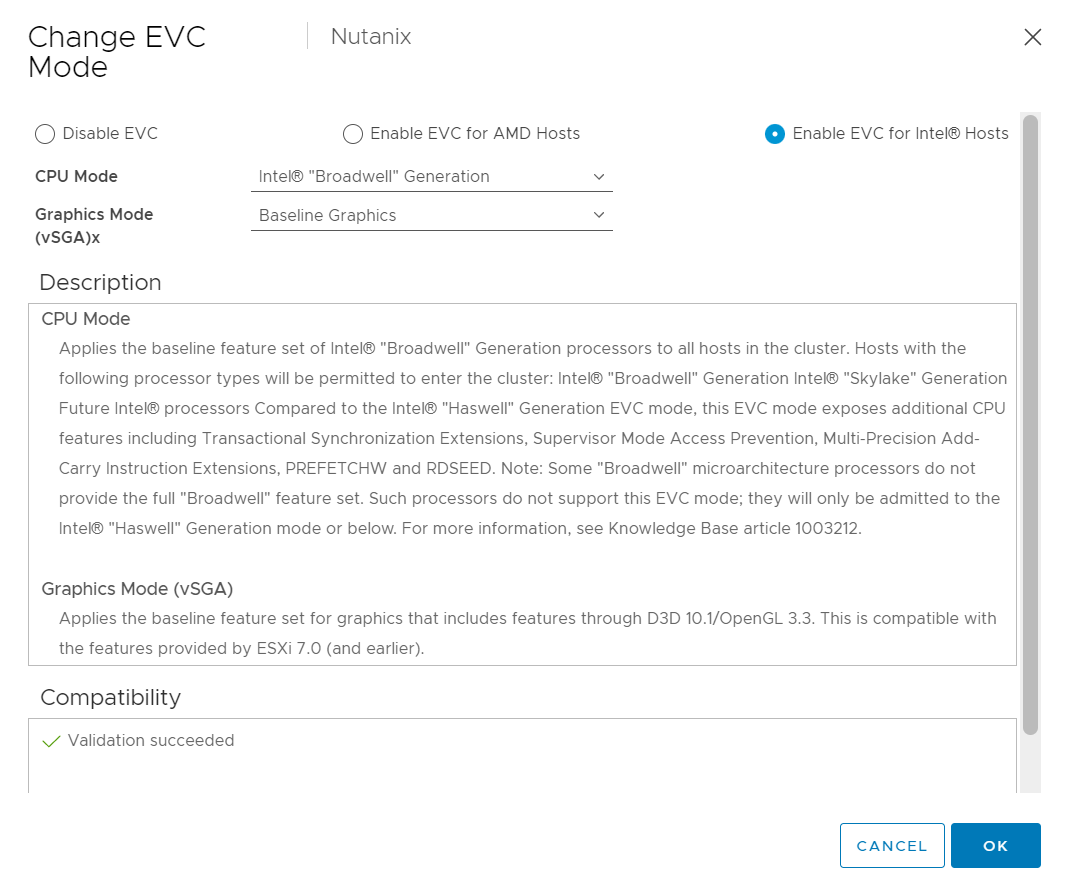
Click Configure, and go to Configuration > VMware EVC.
Enable EVC for the CPU vendor and feature set appropriate for the hosts in the Nutanix cluster, and click OK
VM Override:
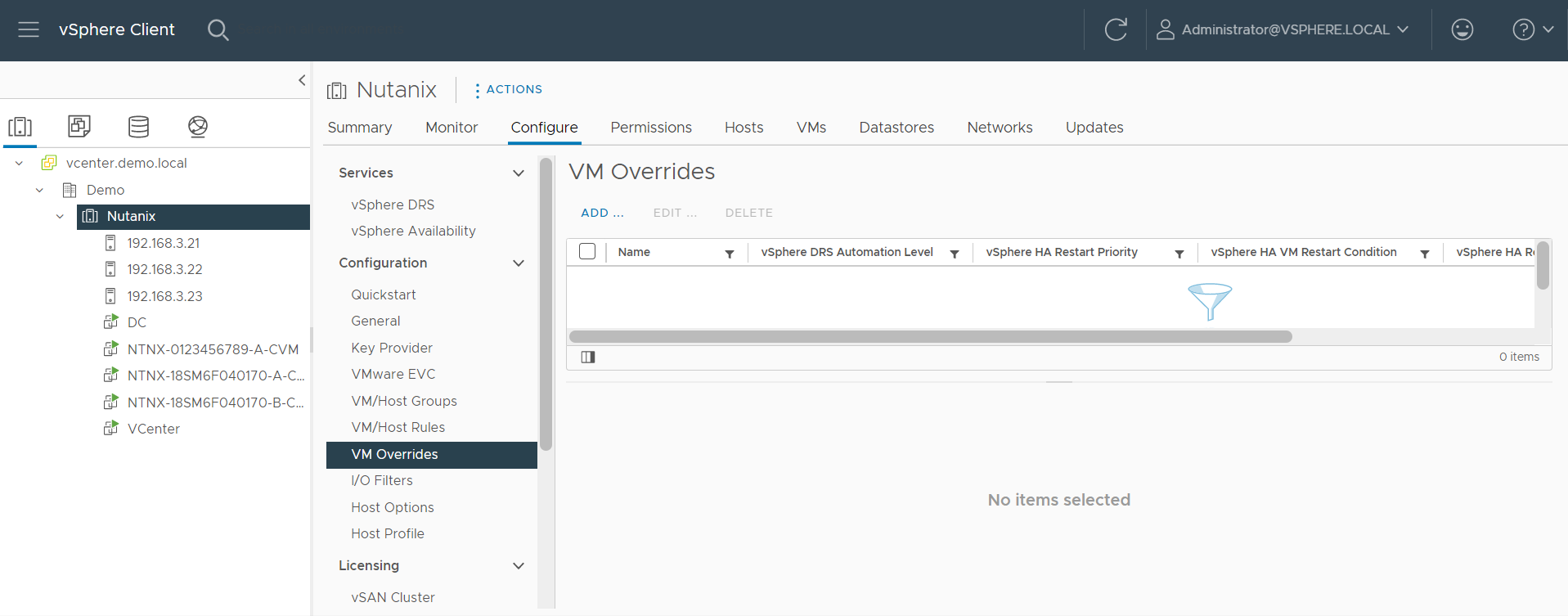
Click Add

Select CVM VMs and click Next
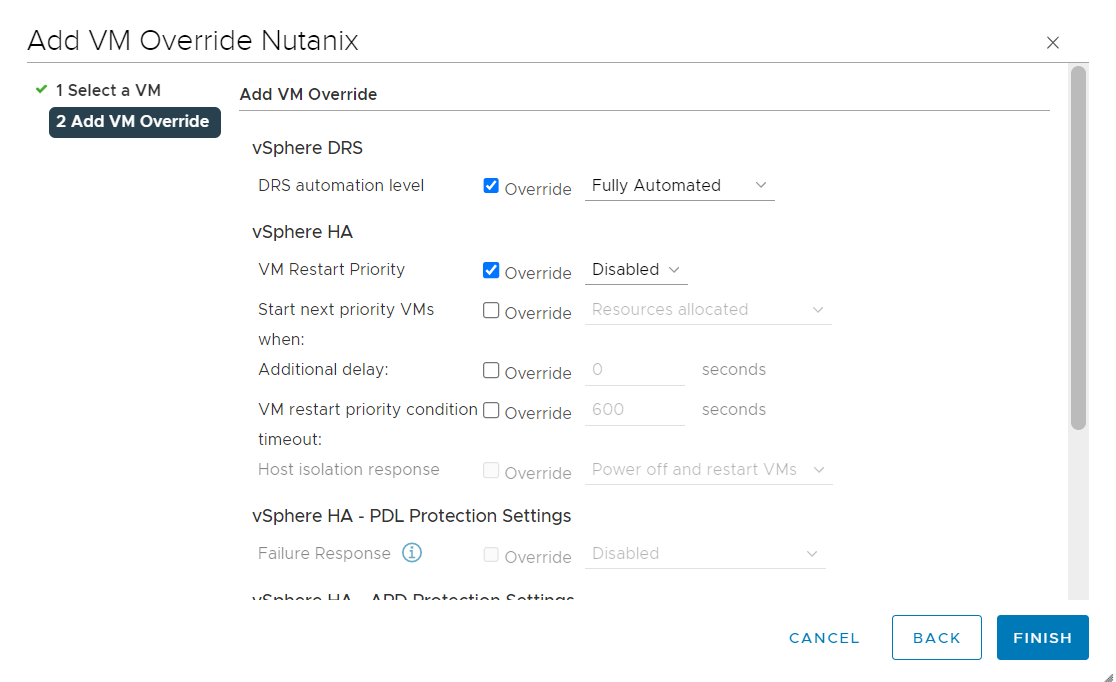
Select Below override settings.
- DRS Automation Level: Disabled
- VM HA Restart Priority: Disabled
- VM Monitoring: Disabled
Click Finish to Save the setting .
VCenter Registration:
It is required to register VCenter in Prism, To do the VCenter registration Settings à VCenter Registration
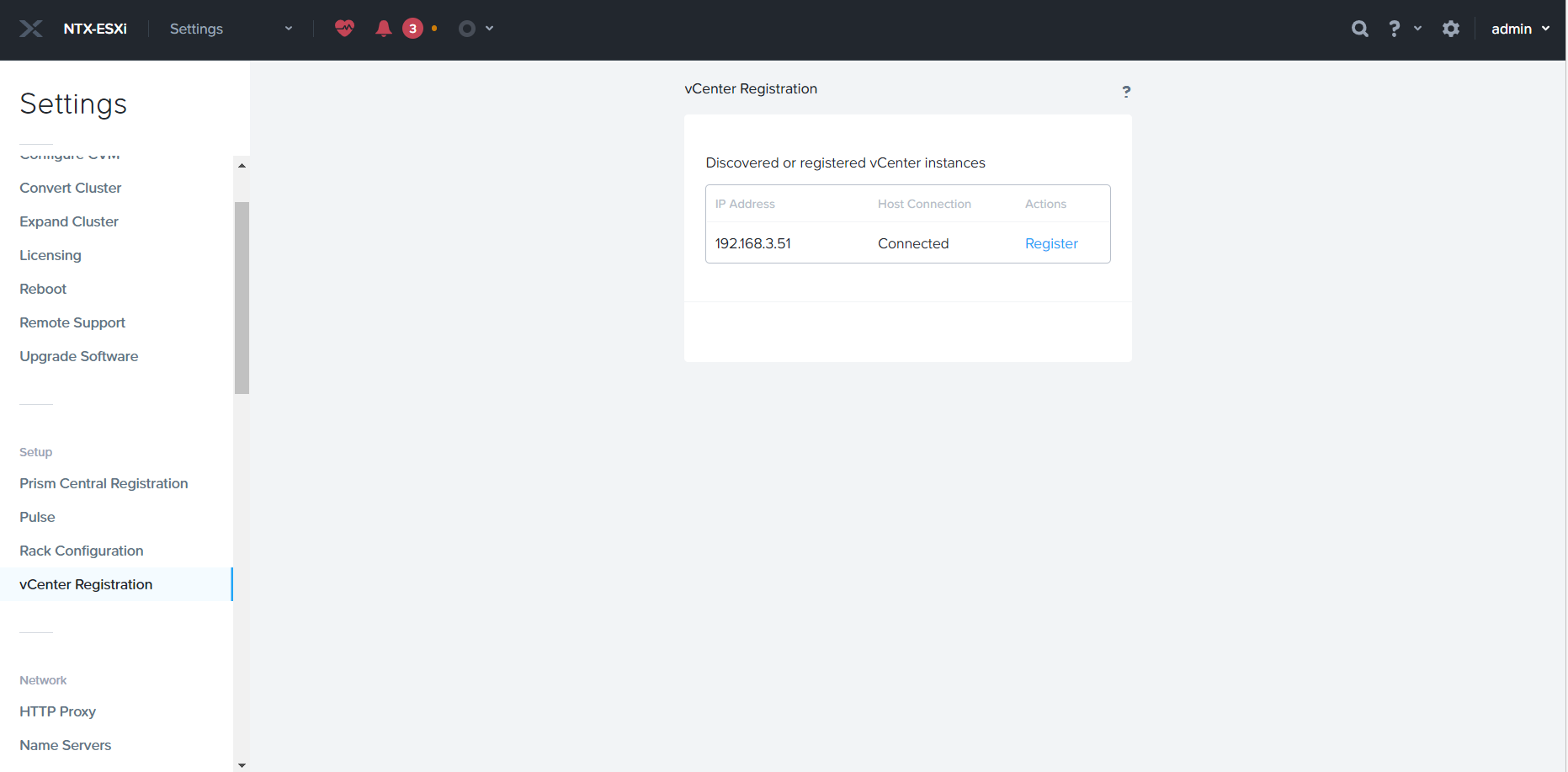
Click Register
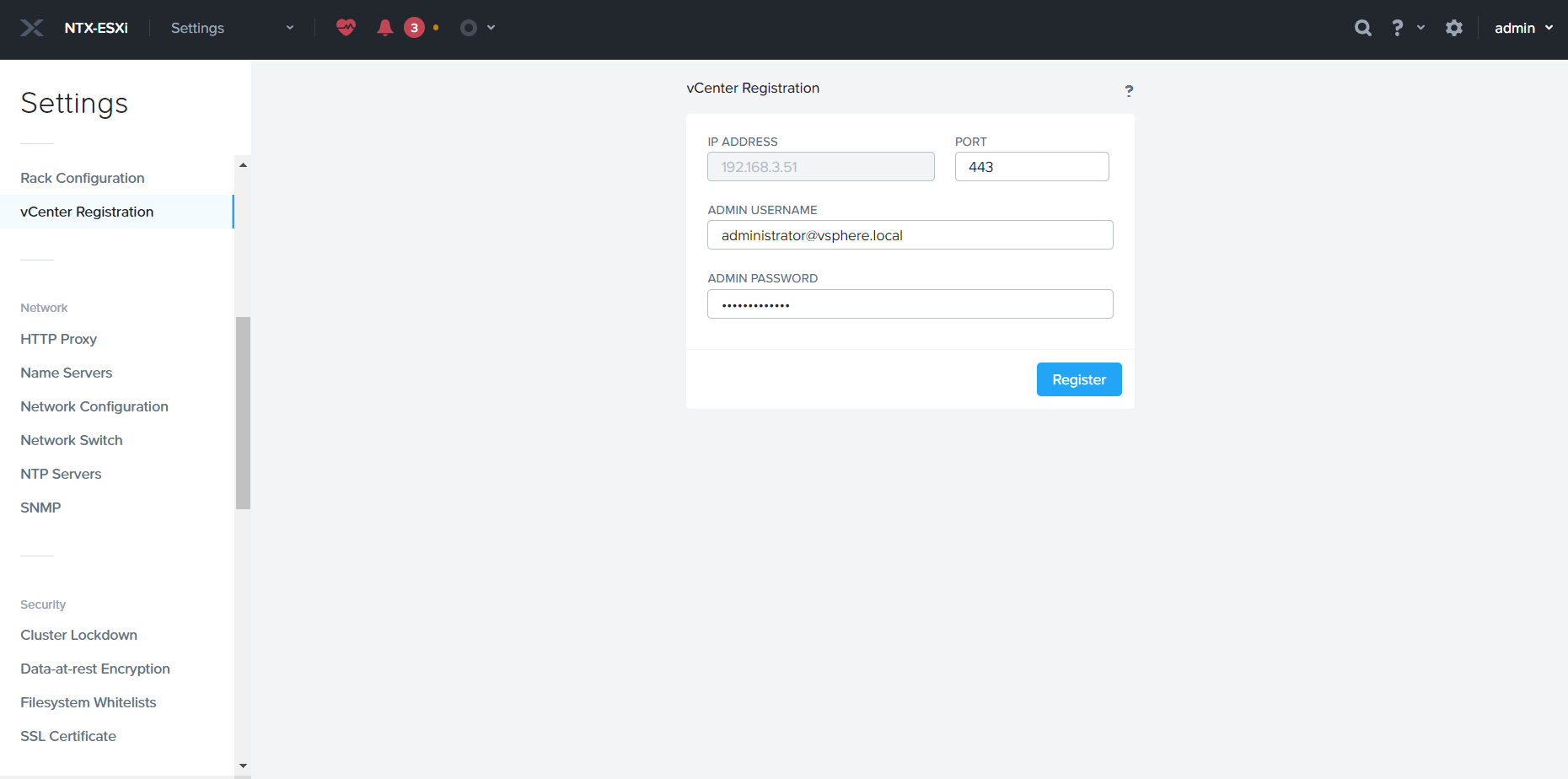
Specify VCenter Username and Password and click Register

 The Hyperconverged Perspective