Nutanix Move

Nutanix Move is a cross-hypervisor migration tool to migrate Virtual Machines workload to Nutanix & File Server to Nutanix Files. Below are the Supported Migration scenarios.

  • VMware ESXi (legacy infrastructure or Nutanix) to AHV
  • VMware ESXi (legacy infrastructure or Nutanix) to VMware ESXi on Nutanix
  • VMware ESXi to Nutanix Cloud Clusters (NC2) on AWS
  • VMware ESXi to NC2 on Microsoft Azure
  • Microsoft Hyper-V to AHV
  • Microsoft Hyper-V to VMware ESXi on Nutanix
  • Microsoft Hyper-V to NC2 on AWS
  • AWS EC2 to AHV
  • AWS EC2 to VMware ESXi on Nutanix
  • AWS EC2 to NC2 on AWS
  • Microsoft Azure Cloud to AHV
  • Microsoft Azure Cloud to VMware ESXi on Nutanix
  • Microsoft Azure Cloud to NC2 on Azure
  • Nutanix AHV to Nutanix AHV
  • Nutanix AHV to AWS EC2
  • Nutanix AHV to Microsoft Azure Cloud

Nutanix Move Can be downloaded from the link below.

https://portal.nutanix.com/page/downloads?product=move

Move VM Specifications:

  • vCPU: 2
  • Memory: 8GB
  • Storage: 50G

Move VM initial Configuration:

Create VM based downloaded Move OS image.

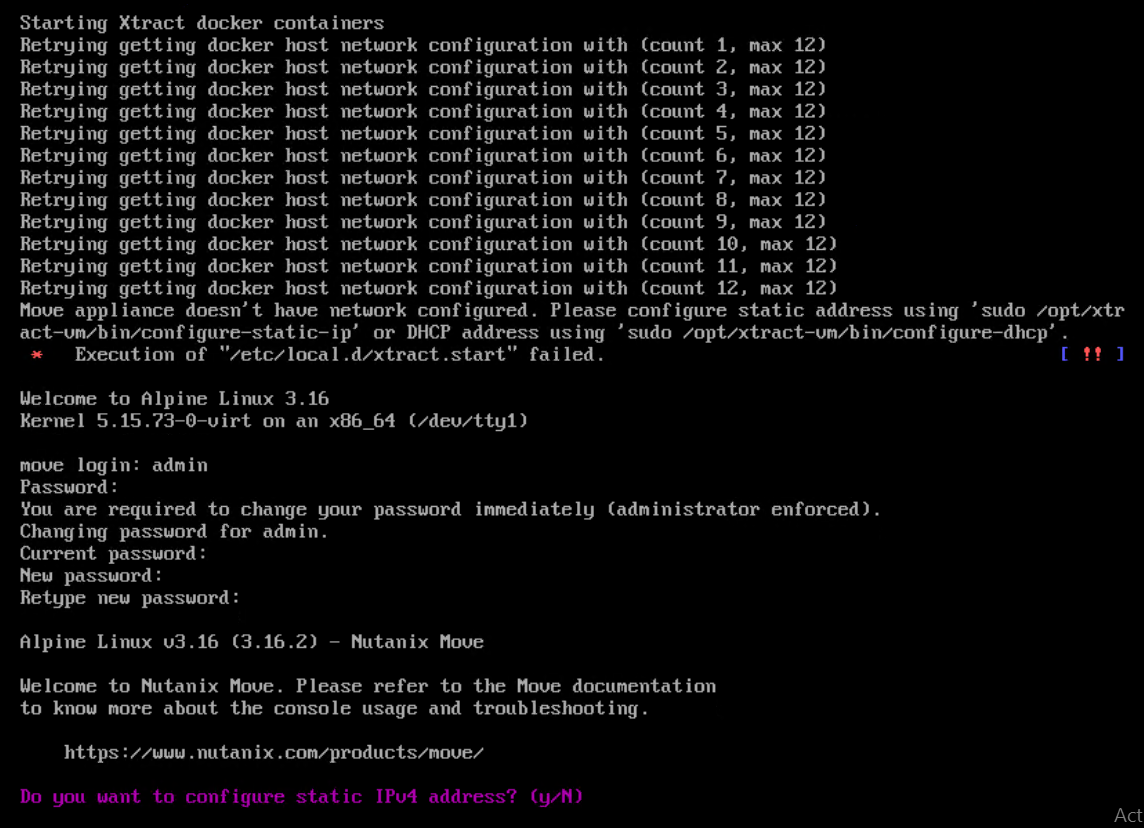
Login to Move VM with default credentials

  • User: admin
  • Password: Nutanix/4u

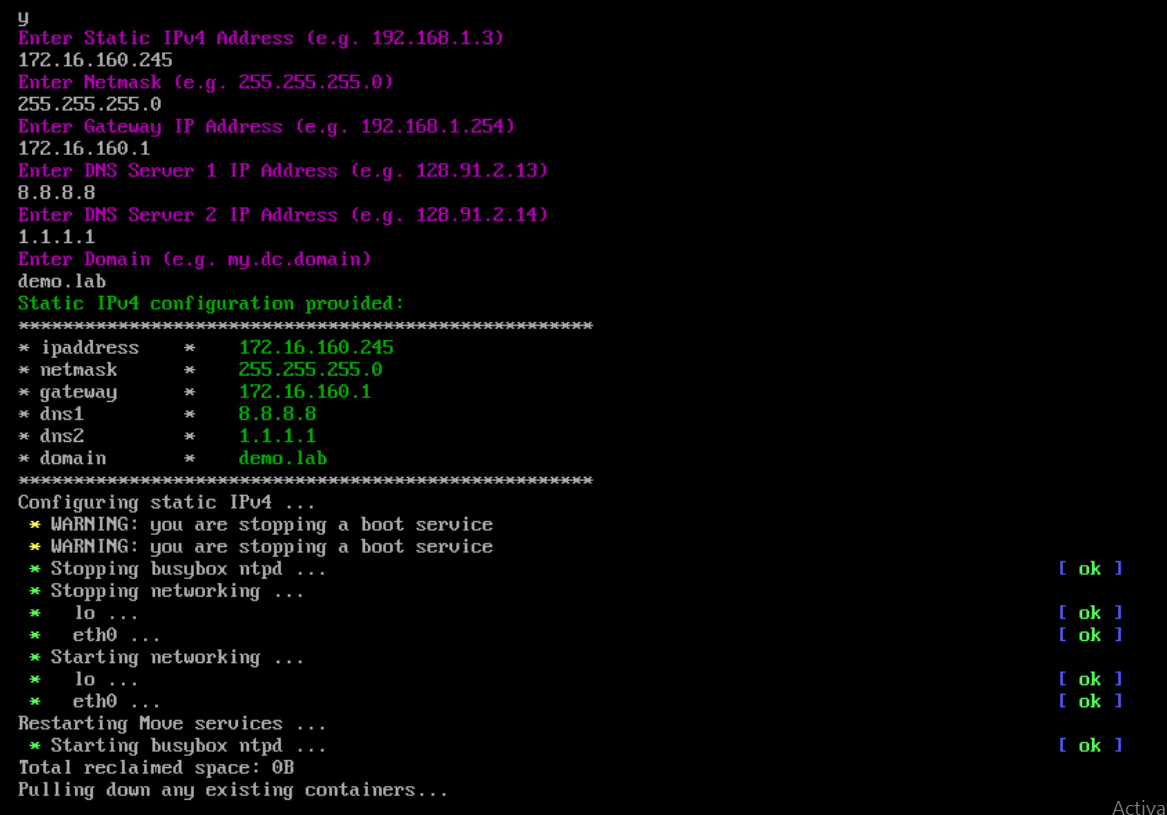
If you want to configure Static IP, press Y and enter.

Specify the IP Adress, Netmask, Gateway, DNS and domain and enter. Once IP is configured. Move can be accessible from any web browser.

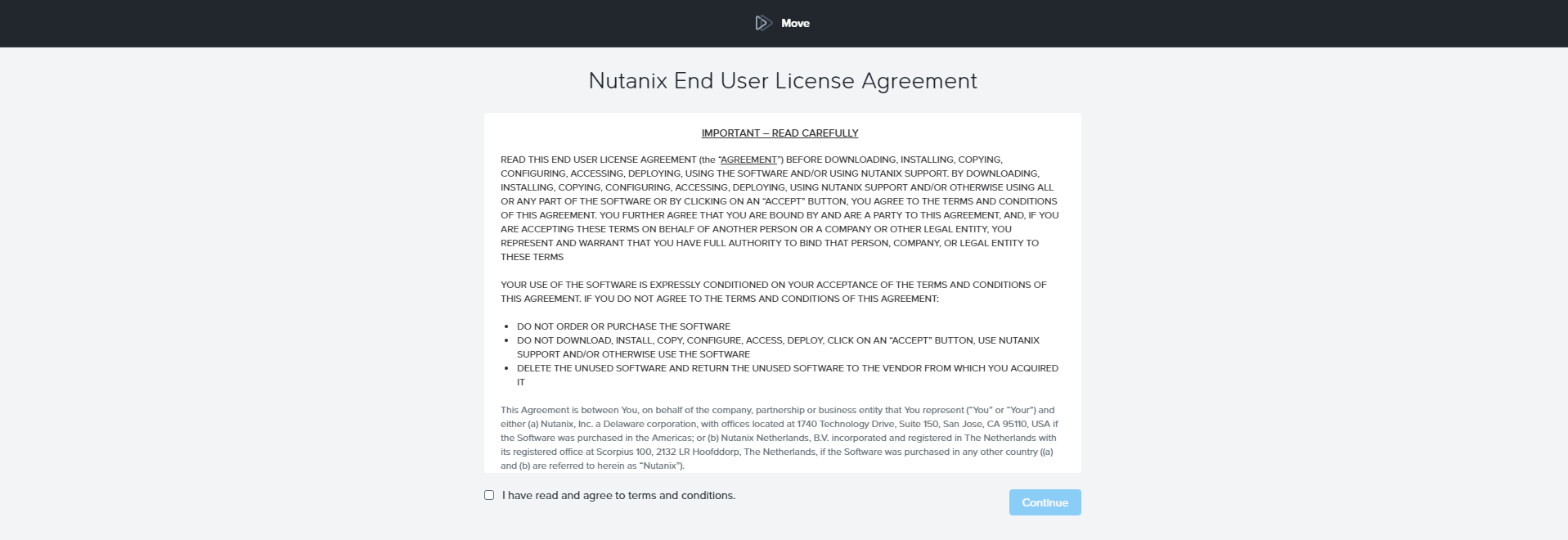
Accept the license agreement and click continue

Set Web password

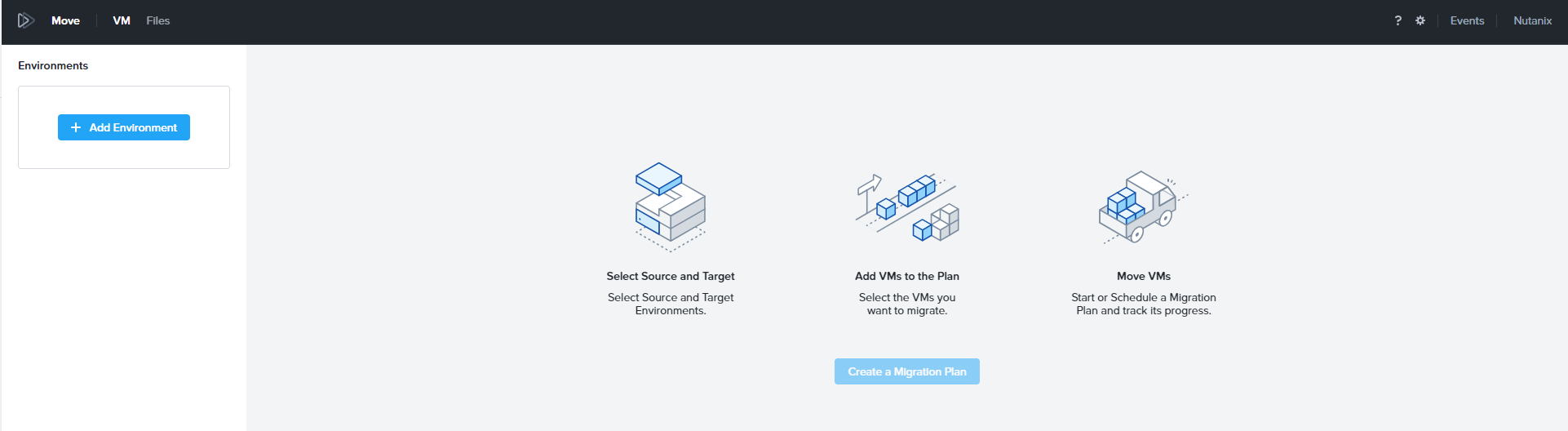
Add Environment Information

Select the Source Environment (VMware / Hyper-v / Azure etc)

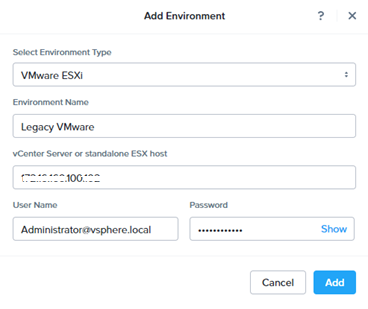
Provide environment name, IP address, Username , Password and click add

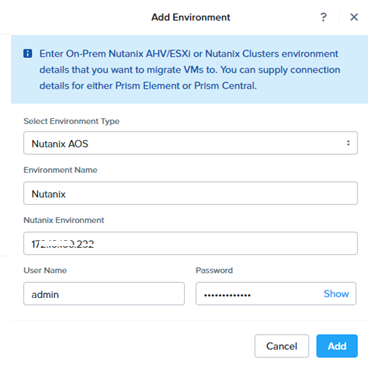
Nutanix Target (AHV /VMware) will be added as Nutanix AOS. Provide Nutanix Cluster IP, username and password and click ADD.

Create Migration Plan

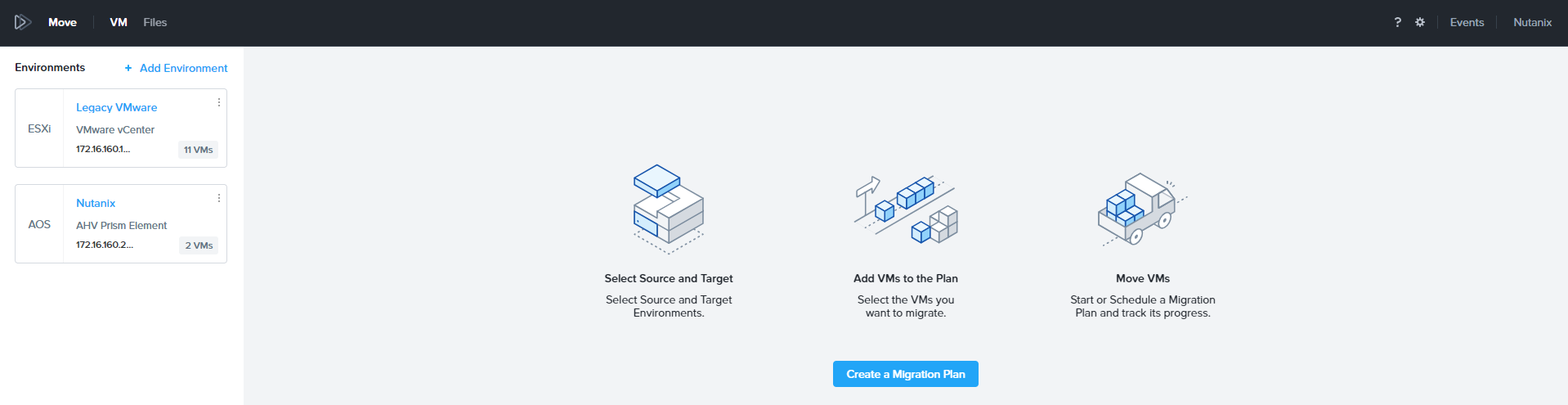
Click Create a Migration Plan.

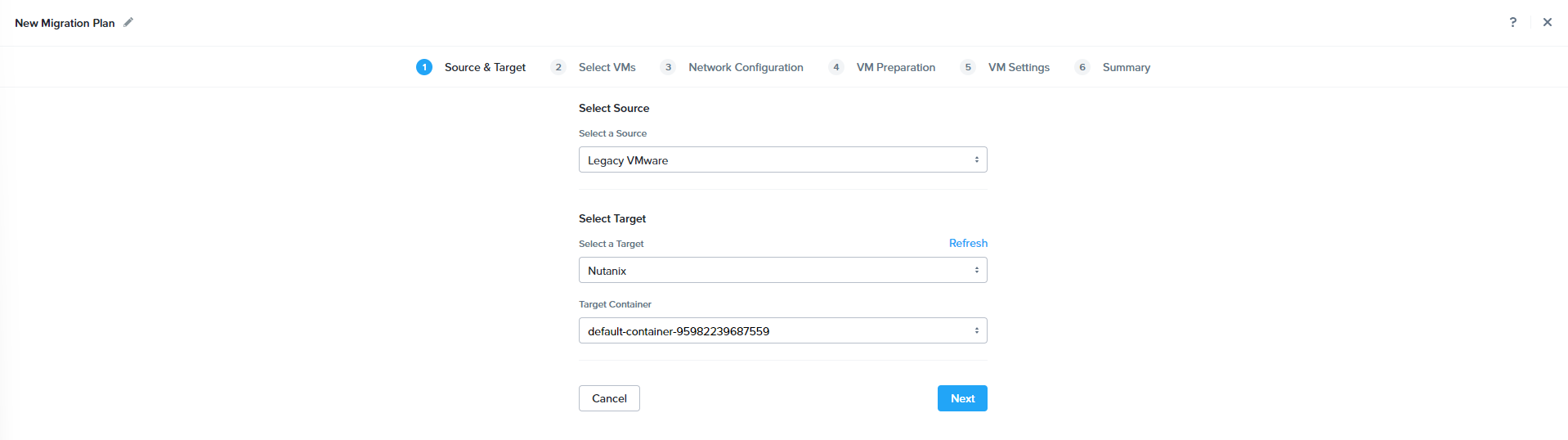
Select the Source , Target and Target Container and click Next

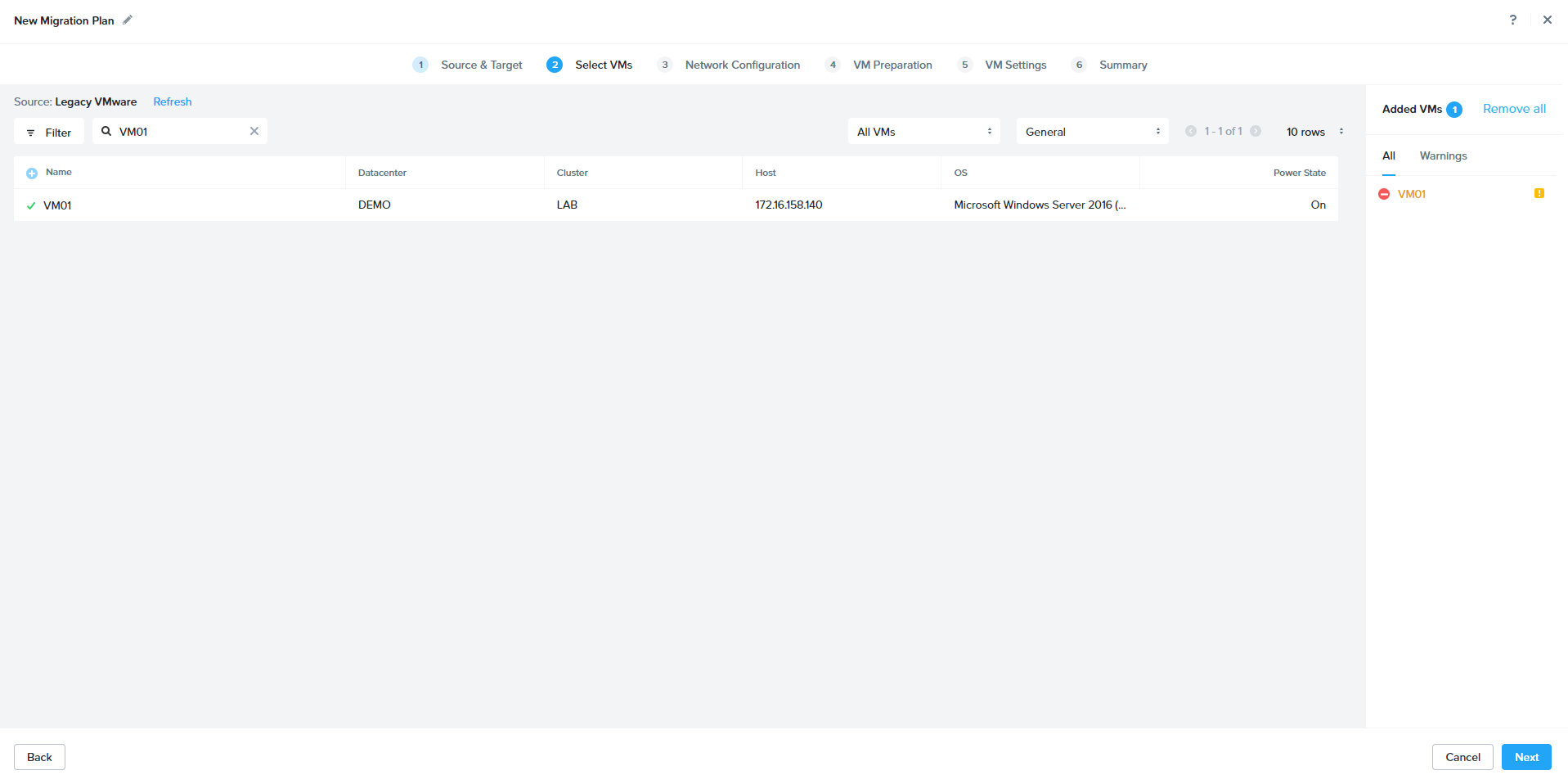
Select the Desire and Click + to add. Click next to proceed.

Specify the target network and click next to proceed.

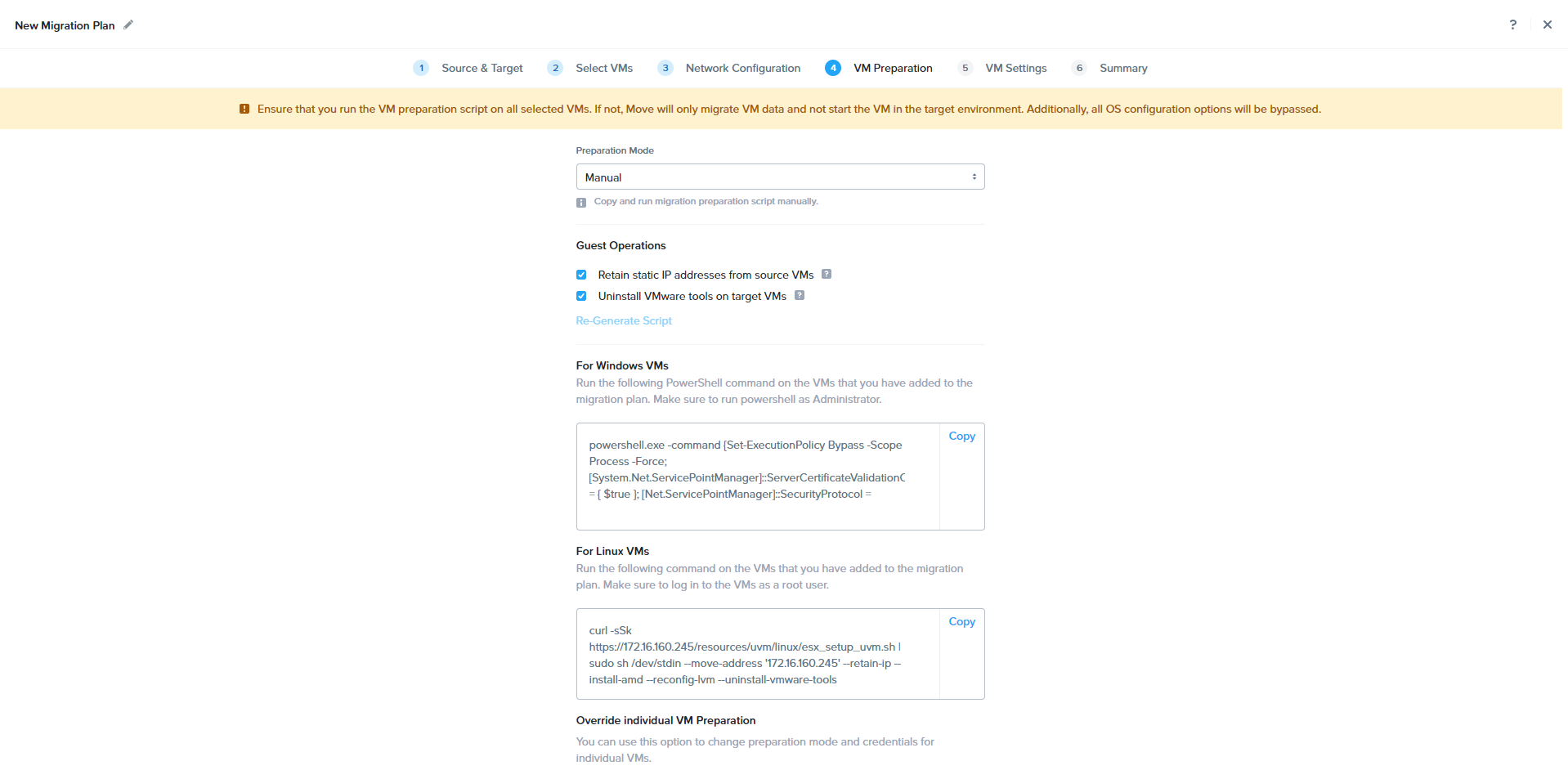
In the manual Preparation method, based on the OS type above mentioned commands need to be run manually.

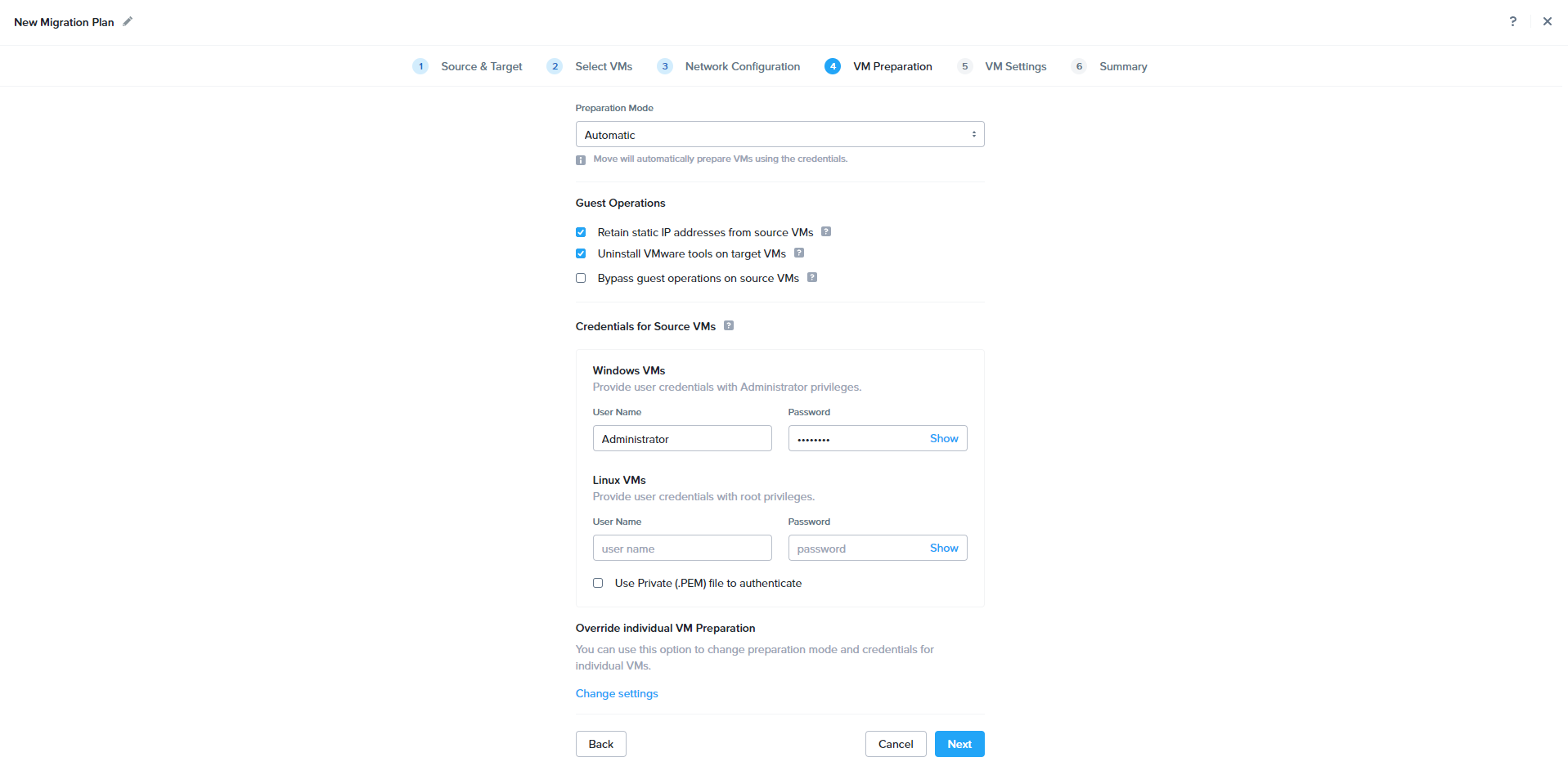
Provide Guest VM Admin permission to do the Automatic VM preparation and click next.

Review the configuration and click Save to start the migration.

During the Sync Process, Move will take the Source VM snapshot and sync the snapshot to target.

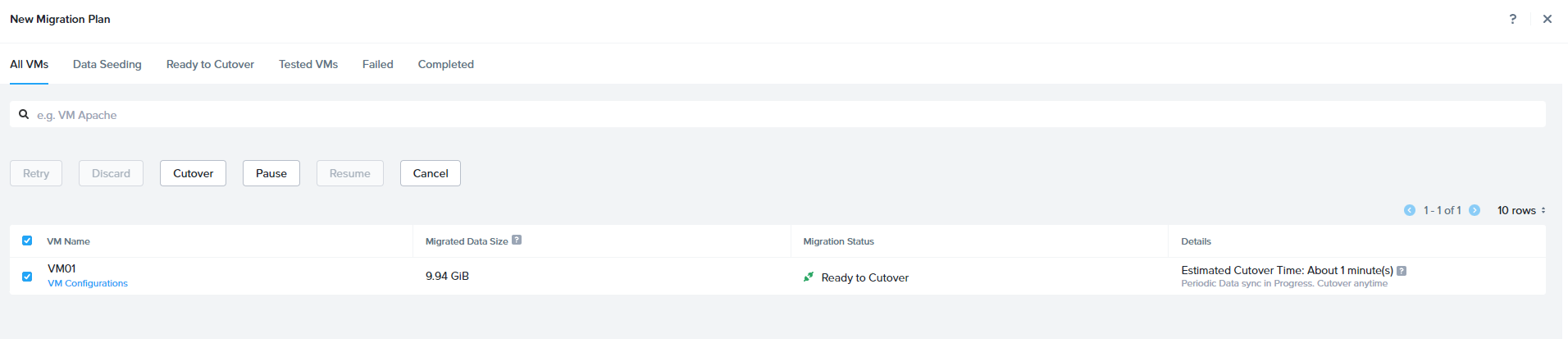
Once the Sync is completed, job status will be shown as Ready to Cutover.

Select the VM and Click Cutover. During cutover Source VM will be shutdown and final sync will be initiated. Source VM NIC will be disconnected and New VM will be registered in Nutanix and powered-on

Nutanix Prism Central – Deployment , Registration and Unregistration

Nutanix Prism Central provides an option to monitor and manage multiple clusters through a single web console. Centralized management tool runs as a separate instance it can be a single VM or a set of VMs.

Prism Central offers following features:

  • Single sign on for registered cluster
  • Dashboard Customization
  • Manage VMs, storage containers, catalog items, images, categories, recoverable entities, and subnets across the registered clusters.
  • Mange Nutanix Disaster Recovery & Nutanix Flow
  • Hardware component
  • Activity monitors for alerts, events, audits, and tasks
  • Tools to analyze system activity, plan for resource needs, create usage reports, and automate routine administrative tasks
  • Dashboards to manage inventory (LCM), projects, roles, users, and availability zones.
  • Service connection pages to enable Calm, Karbon, and Objects

Deploy Prism Central

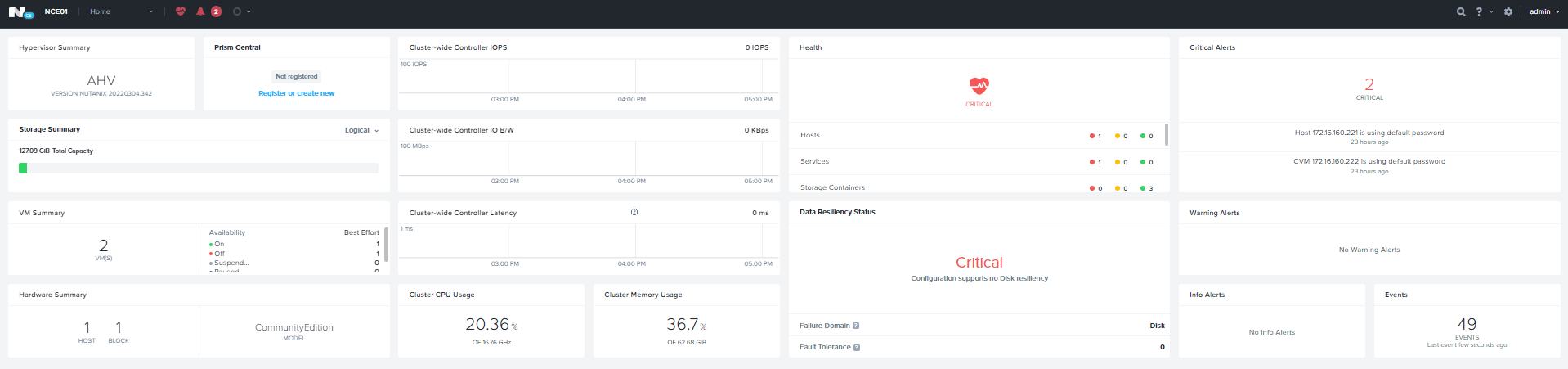
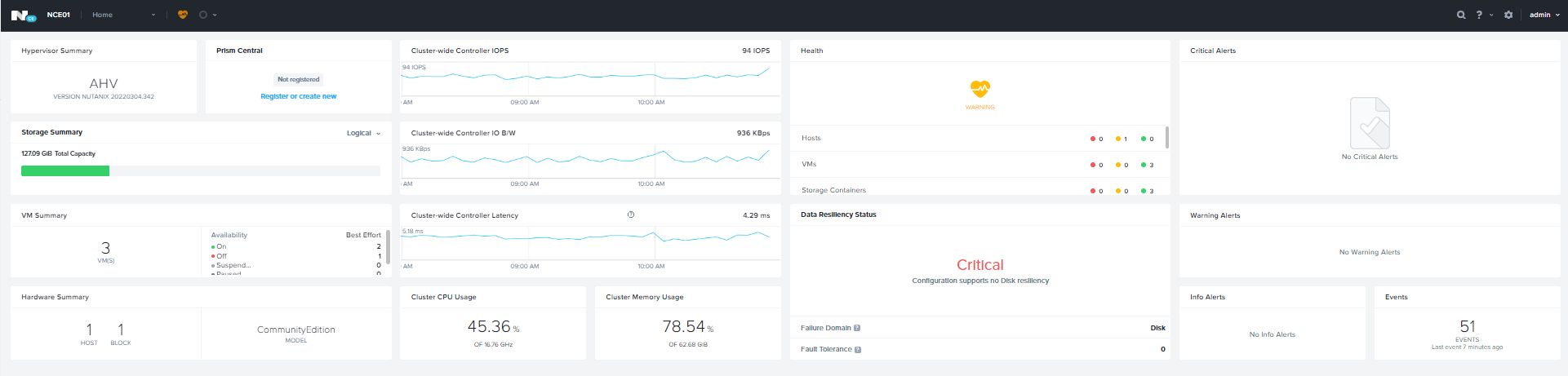
We can deploy Nutanix Prism Deploy from any cluster with 1-Click operation. Log-in to cluster

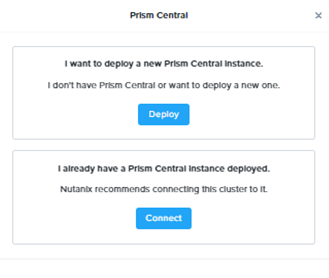
Home Page — > Prism Central Widget — > Register or Create New

Click Deploy to Start the Deployment Wizard

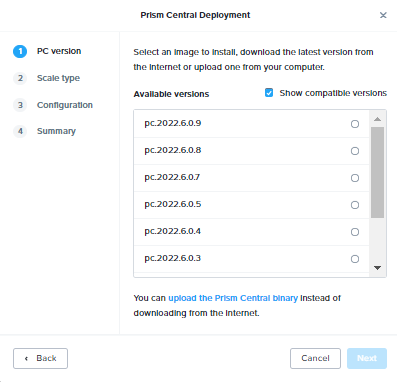
Select the Desire PC Version and click next.

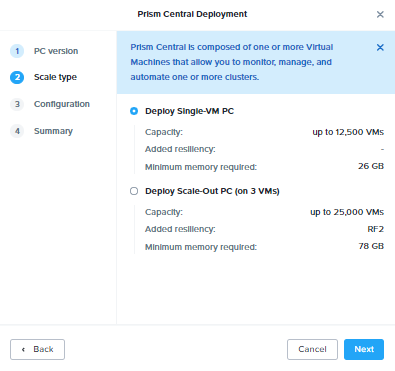
Select the PC Deployment Model and Click Next

Specify the Network, Subnet, Gateway and PC IP and click Next

Review the Deployment summary & Click Deploy to start the PC Deployment.

This will take approximately 30 minutes to complete. After task completion we can login to Prism Central using default credentials.

Update the password.

Specify the name and accept the agreement.

Enable Pulse and click continue

Register Cluster with Prism Central

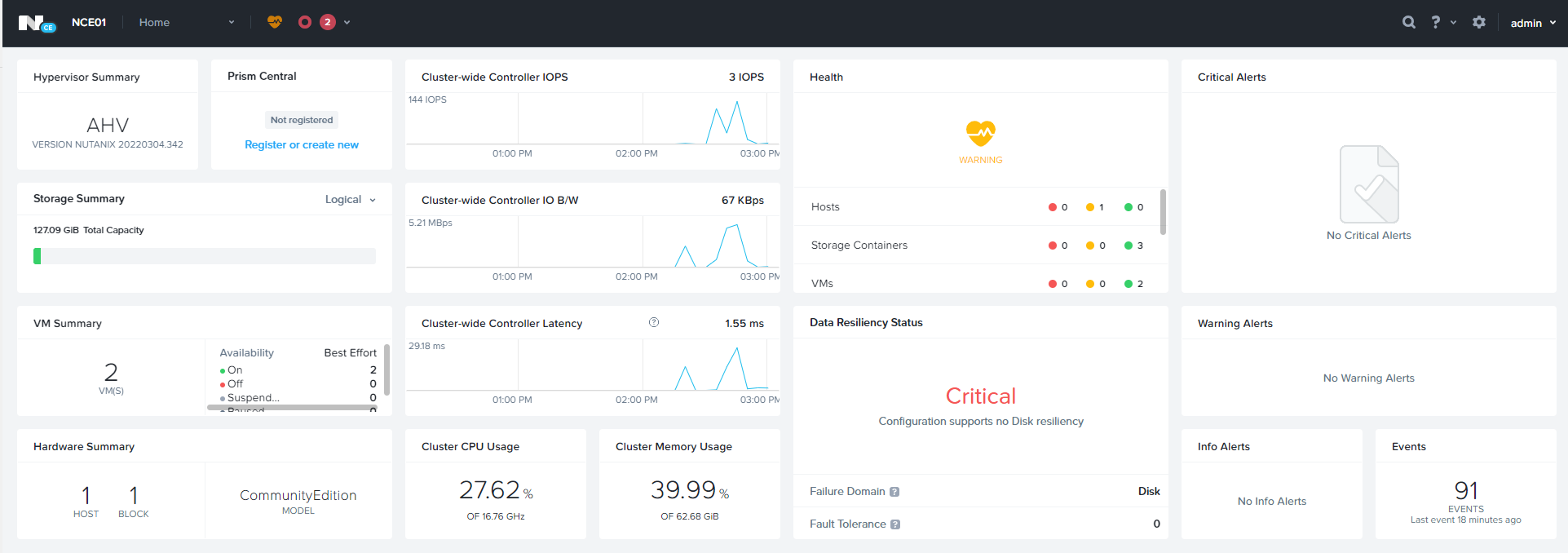
Home Page — > Prism Central Widget — > Register or Create New

Click Connect

Click Next to Continue

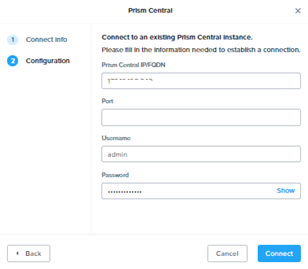
Specify the Prism Central IP , Username and Password and click Connect

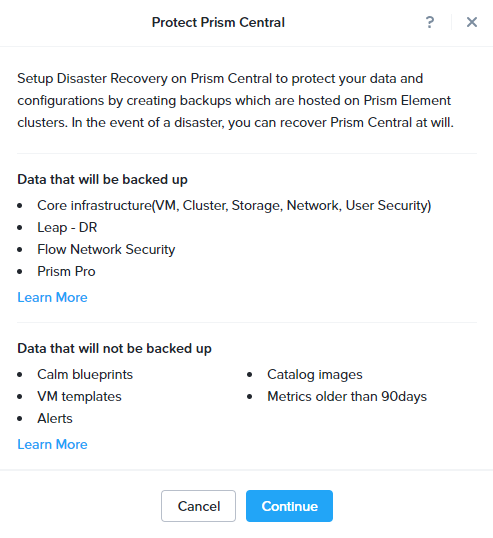
Prism Central Disaster Recovery

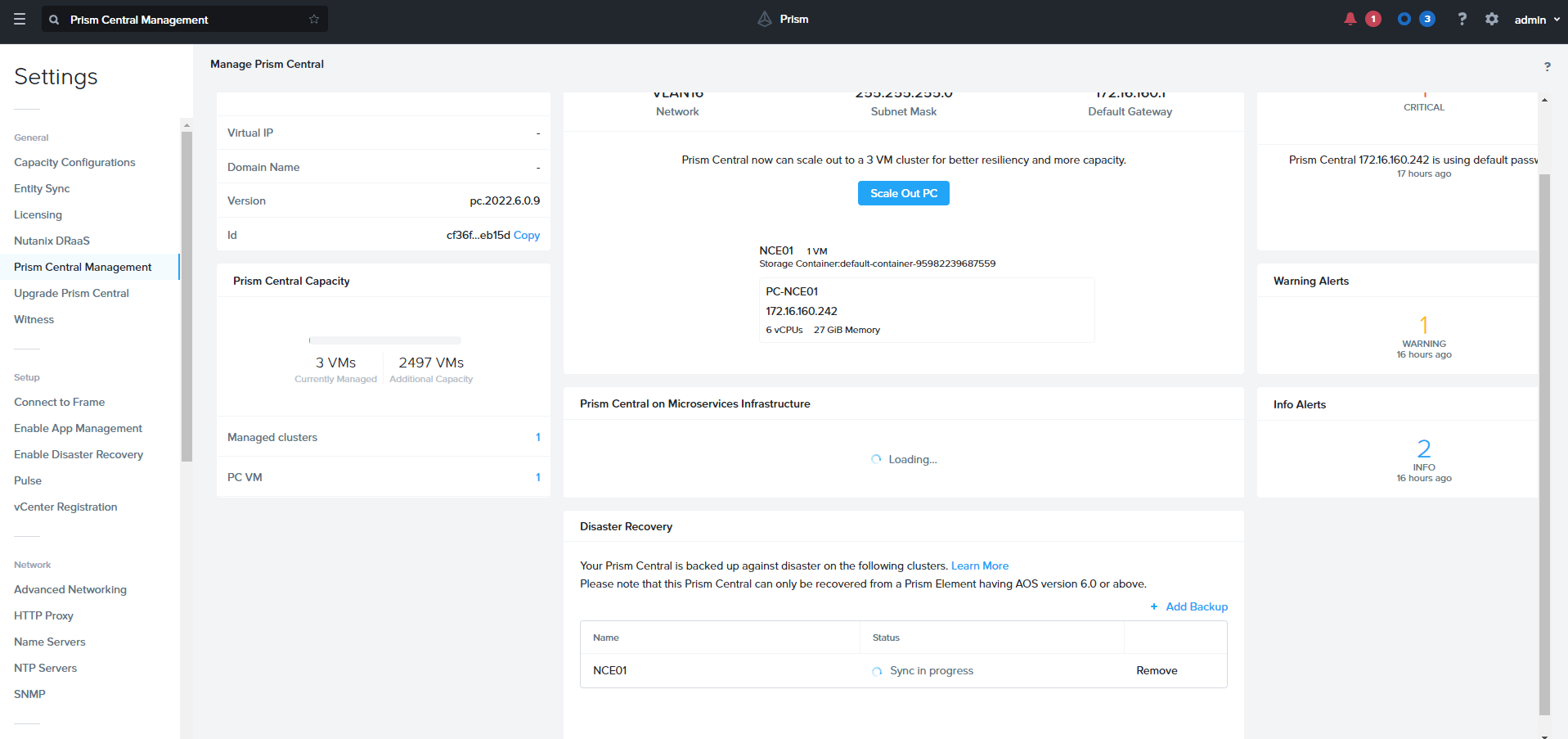
To Prism Central Disaster Recovery. Browse to Setting — > Prism Central Management

Click Protect Now under Disaster Recovery

Click Continue

Select the available Cluster where you want to sync and click proceed.

Unregister Cluster from Prim Central

  • Login to any CVM
  • Run Cluster Status and verify the Services.
  • Unregister the cluster from Prim Central
    nutanix@cvm$ ncli multicluster remove-from-multicluster external-ip-address-or-svm-ips=pc-name-or-ip username=pc-username password=pc-password force=true
  • Confirm Unregistration is complete using below command, if command output does not include the cluster details, it means that the unregistration is successful.
  • nutanix@cvm$ ncli multicluster get-cluster-state
  • Get UUID for the cluster
    nutanix@cvm$ ncli cluster info
  • Login to Prism Central and run the clean-up on prism central
    python /home/nutanix/bin/unregistration_cleanup.py uuid

Configuring Nutanix Data Protection (Legacy Protection Domain)

In this article we will discuss Legacy Nutanix Data Protection.

LAB Environment: 2 X Nutanix CE Single Node Cluster

Login to Primary Cluster: https://CVM_IP:9440

Data Protection

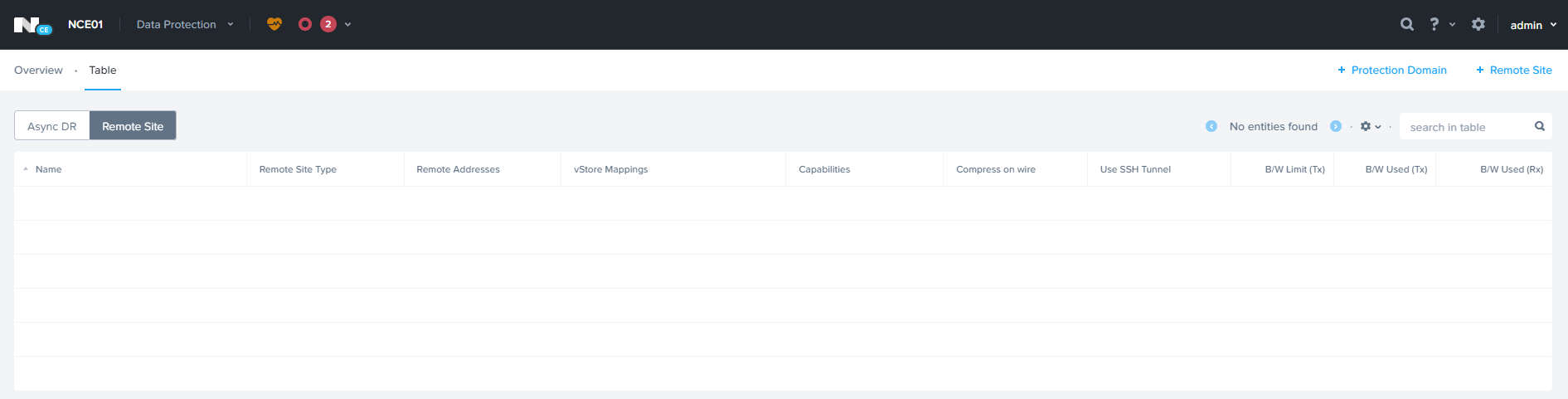
Click on Table View — > Remote Site

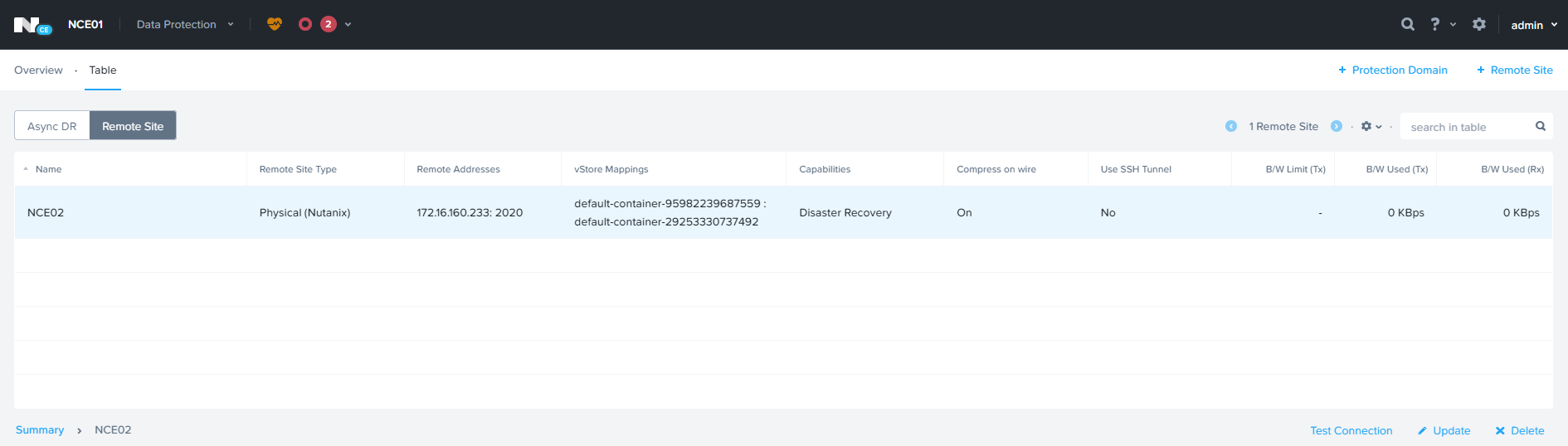
Click Remote Site à Physical Cluster

Enter Remote Site Name & Remote Cluster IP

Specify the Source & Target Network Mapping and Datastore Mapping and click Save.

ADD remote Site on the 2nd cluster.

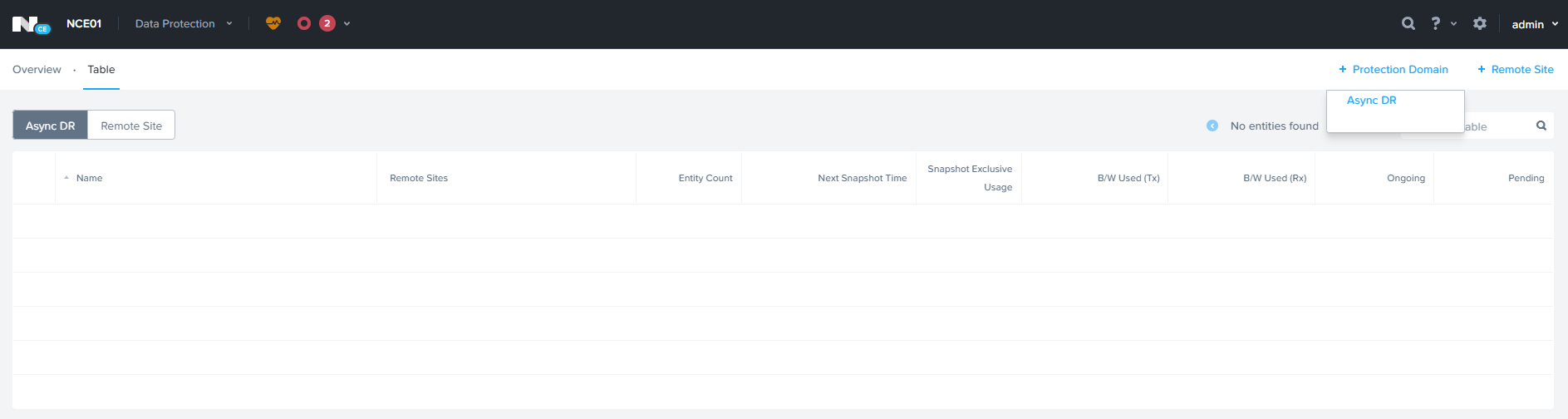
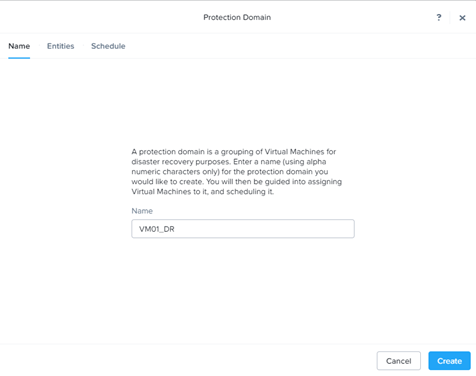
Click Protection Domain — > Async DR

Click Create

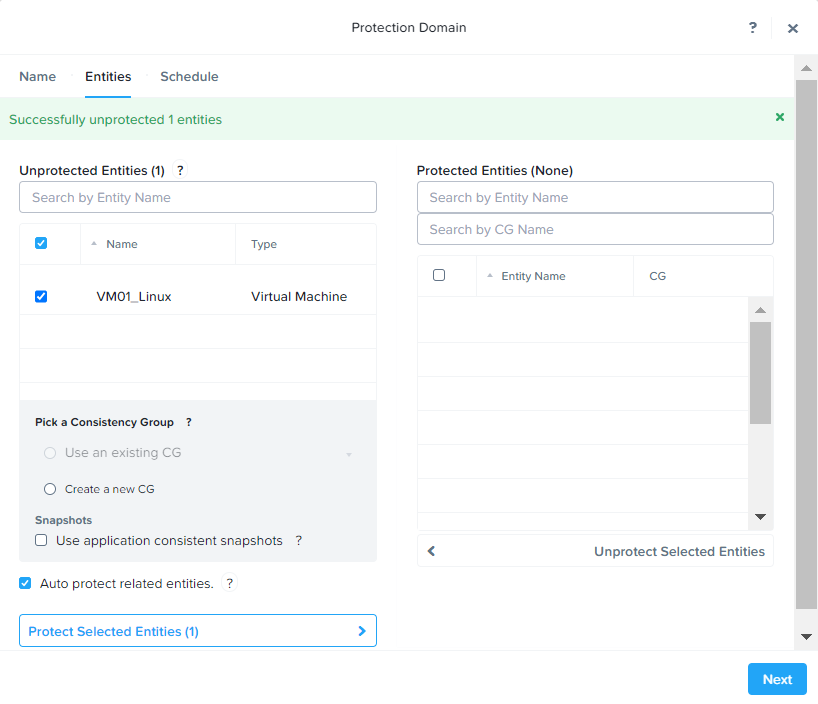
Select VM and Click Protect Selected Entities to add for protection.

Click Next to Continue

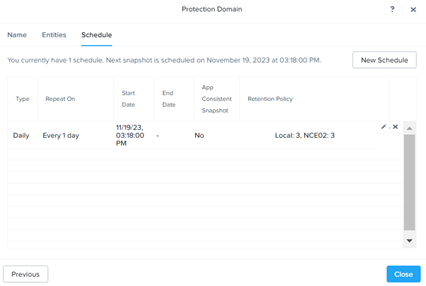
Click New Schedule to add the Schedule.

Specify the Snapshot frequency & Retention policy for local & Remote Cluster

Click Close

Planned Failover:

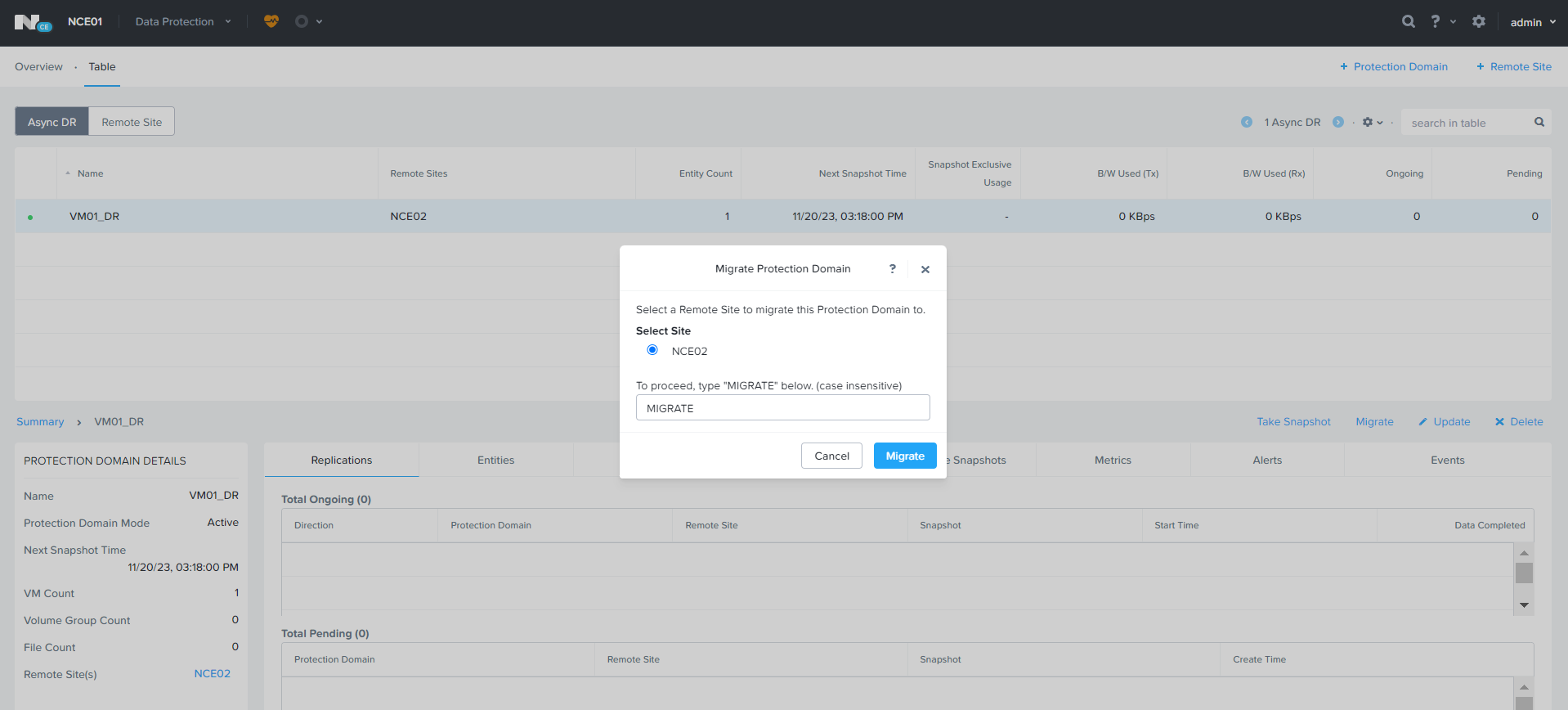
From Active Site, Select the Protection Domain — > Migrate

Type Migrate and Click Migrate for Migration.

Migration Task will be created, it will take 1-2 minutes to complete. During the process VM will be shutdown from active site and deregistered from active site and registered to the Remote Site.

Initally Active on NCE01 Cluster

Migrated to NCE02

Configuring CVM Memory

Sometimes we need to increase the CVM Memory to enable Advanced functionality like Compression, Deduplication, or performance issues.

Memory can be increased from PRISM UI. Setting –> Configure CVM

Specify the desire memory and click Apply. CVM reboot task will be scheduled for all CVMs and memory will be updated.

Memory Increase / Decrease from CLI

Login to AHV host with SSH

List all Virtual Machines on the AHV host.

[root@NTNX-b8c39436-A ~]# virsh list –all

Shutdown the CVM, SSH to CVM

Login to CVM

nutanix cvm_shutdown -P now

Modify the CVM Virtual Machine

nutanix virsh setmaxmem cvm_name –config –size 24GiB

nutanix virsh setmem cvm_name –config –size 24gbGiB

Start CVM Virtual Machine

[root@NTNX-b8c39436-A ~]# virsh list –all

[root@NTNX-b8c39436-A ~]# virsh start cvm_name(get the name from above command)

Veritas NetBackup Integration with Nutanix AHV for Virtual Machines Backup

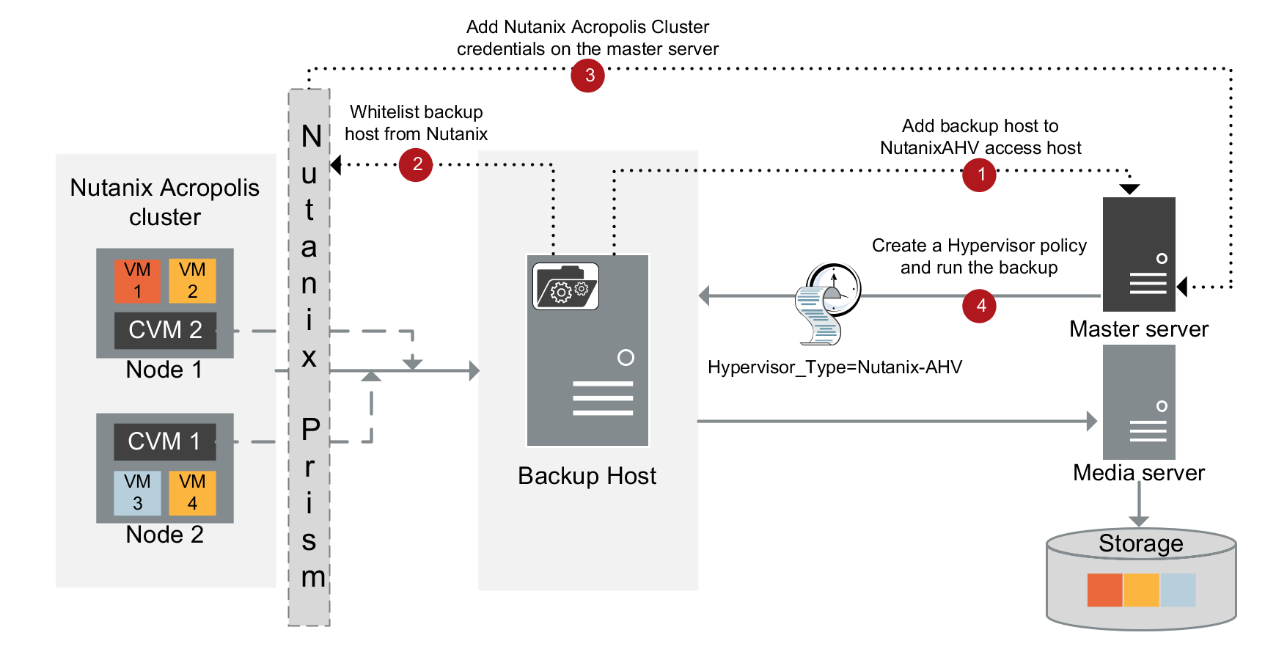
Veritas NetBackup Supports Nutanix AHV Virtual Machines Backup. In the below article will discuss how we can integrate Nutanix & Veritas NetBackup.

Establishing communication between NetBackup and Nutanix AHV

  • The NetBackup master server, media server needs to establish communication with the Nutanix Acropolis cluster through a backup host to complete a backup or restore job.

Configuring communication between the Nutanix Acropolis Hypervisor server and NetBackup host

we can go with secure or unsecure communication for the backup.

  1. Unsecure communication between Nutanix AHV & NetBackup Host.

Disable SSL Validation in nb_nutanix-ahv.conf

/usr/openv/netbackup/nb_nutanix-ahv.conf

{ “enable_ssl_validations”:false, “cert_authority_file”:””}

Default is True to keep SSL enabled, False to disable SSL

  1. Secure communication between Nutanix AHV & NetBackup Host.
    1. Use the openssl s_client -connect <Nutanix Cluster FQDN>:9440 -showcerts < /dev/null command from a Linux system to obtain the Nutanix certificates.
    2. Scroll to the end of the results and copy the last certificate which starts from:
      —–BEGIN CERTIFICATE—–
      <Certificate>
      —–END CERTIFICATE—–
    3. Paste the information to a text file and then rename it as <certificate file name>.pem and copy it to a path to your backup host. Recommended path “/usr/openv/netbackup
    4. Enter the PEM file path ECA_TRUST_STORE_PATH=/usr/openv/netbackup/<certificate file name>.pem in the bp.conf on the backup host.
Use the nbsetconfig command to configure the following NetBackup configuration options on the access host.
ECA_TRUST_STORE_PATH
Specifies the file path to the certificate file that contains all trusted root CA certificates.
ECA_CRL_PATH Specifies the path to the directory where the certificate revocation lists (CRL) of the external CA are located.
VIRTUALIZATION_HOSTS_SECURE_CONNECT_ENABLED This option affects AHV, RHV, and VMware secure communication. Without this option, each workload and plug-in separately determine the secure or the insecure communication.Disabling this option lets you skip the security certificate validation. It is recommended by NetBackup that secure communication should be enabled using the ECA_TRUST_STORE_PATH option.
VIRTUALIZATION_CRL_CHECK Let you validate the revocation status of the virtualization server certificate against the CRLs. By default, the option is enabled.

Whitelist NetBackup backup host IPs on Nutanix.

Adding Nutanix Cluster in NetBackup Console

Create AHV Protection Plan:

  • Create Protection plan for AHV Backup, Protection à Protection Plan
  • Click Add to add the new Protection plan.
  • Specify the Protection Plan, Select the Workload and Click Next
  • Create the Desire backup schedule & Specify the Backup retention.
  • Click Next to continue.
  • Specify the Backup Destination Storage and click Select to continue.
  • Click Next to Continue
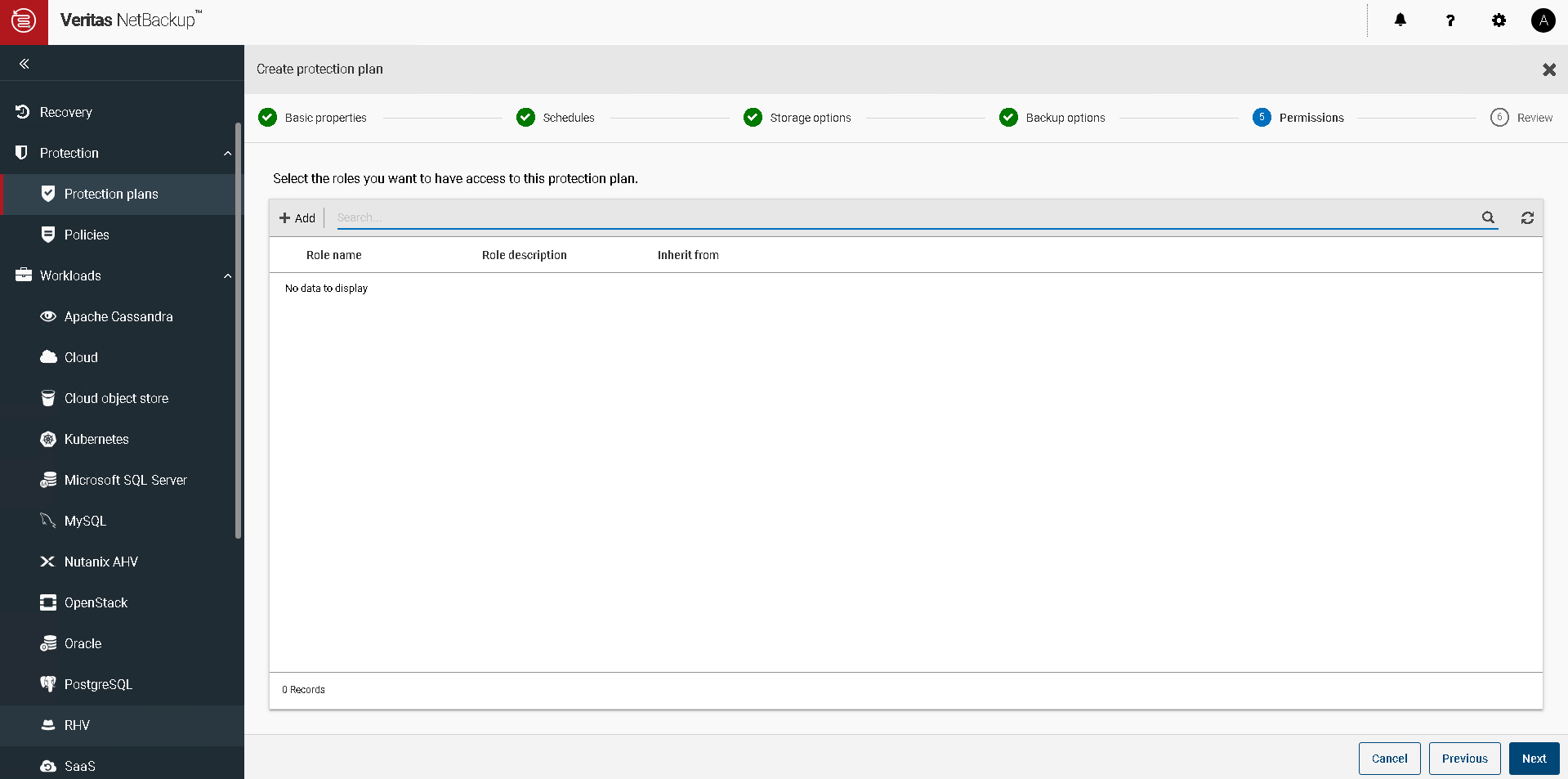
  • Specify the user if you want to enable the RBAC
  • Click Next to Continue, review the configuration and click Finish.

Add AHV Cluster:

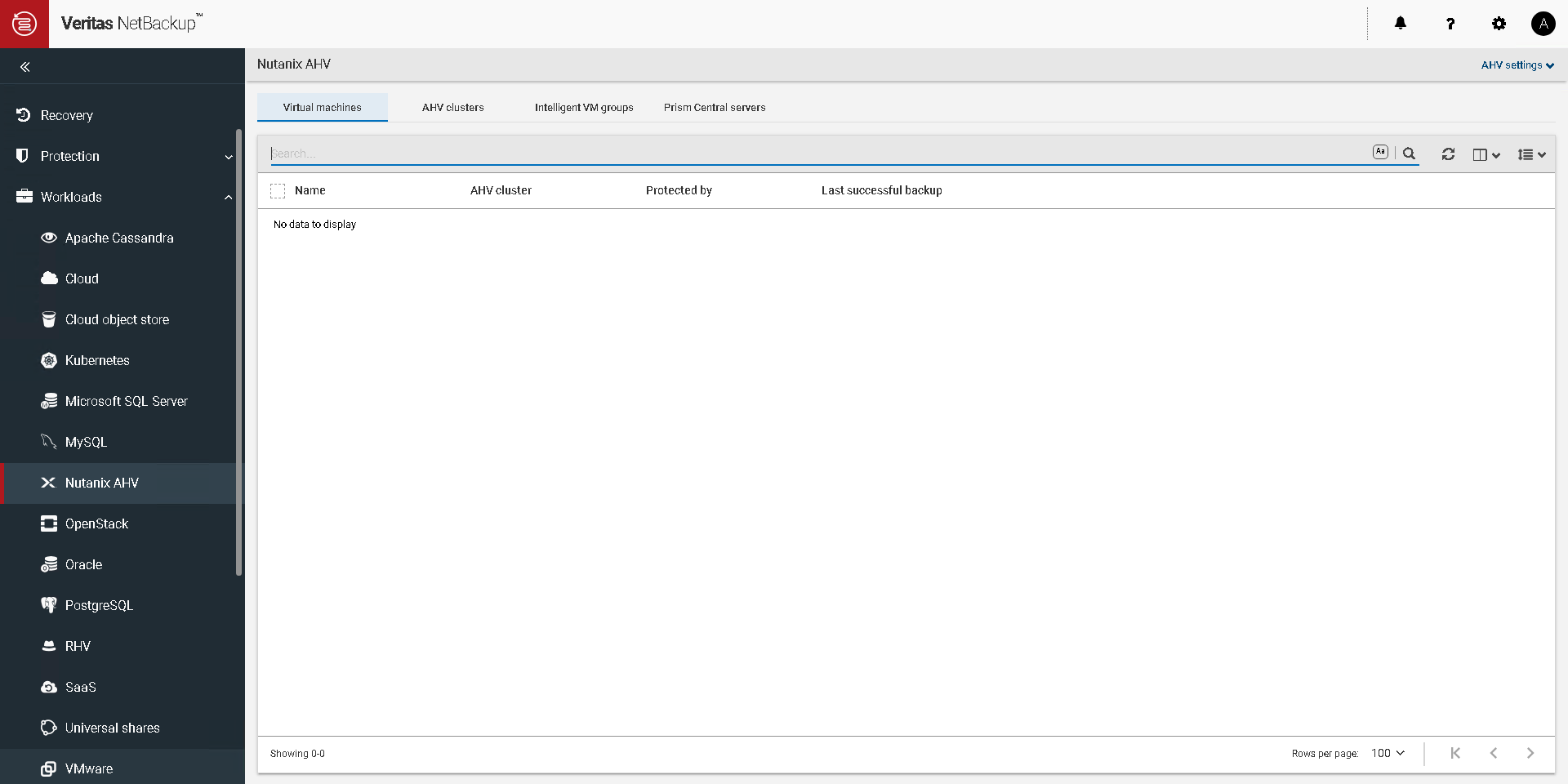
  • Expand workload à Nutanix AHV
  • Click on AHV Cluster to add the AHV Cluster
  • Click Start
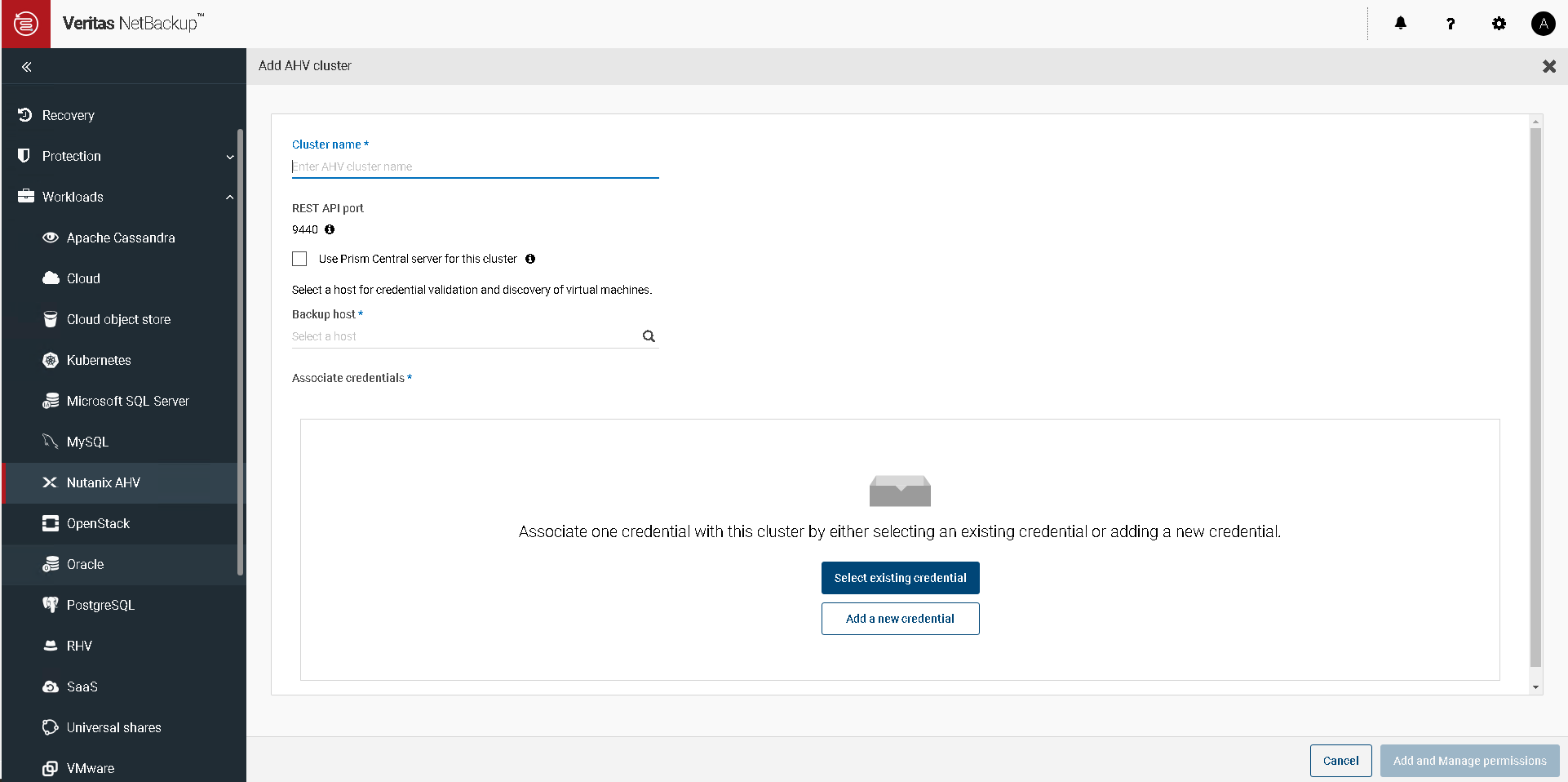
  • Specify Nutanix Cluster IP, Specify Backup host and add a new credential.
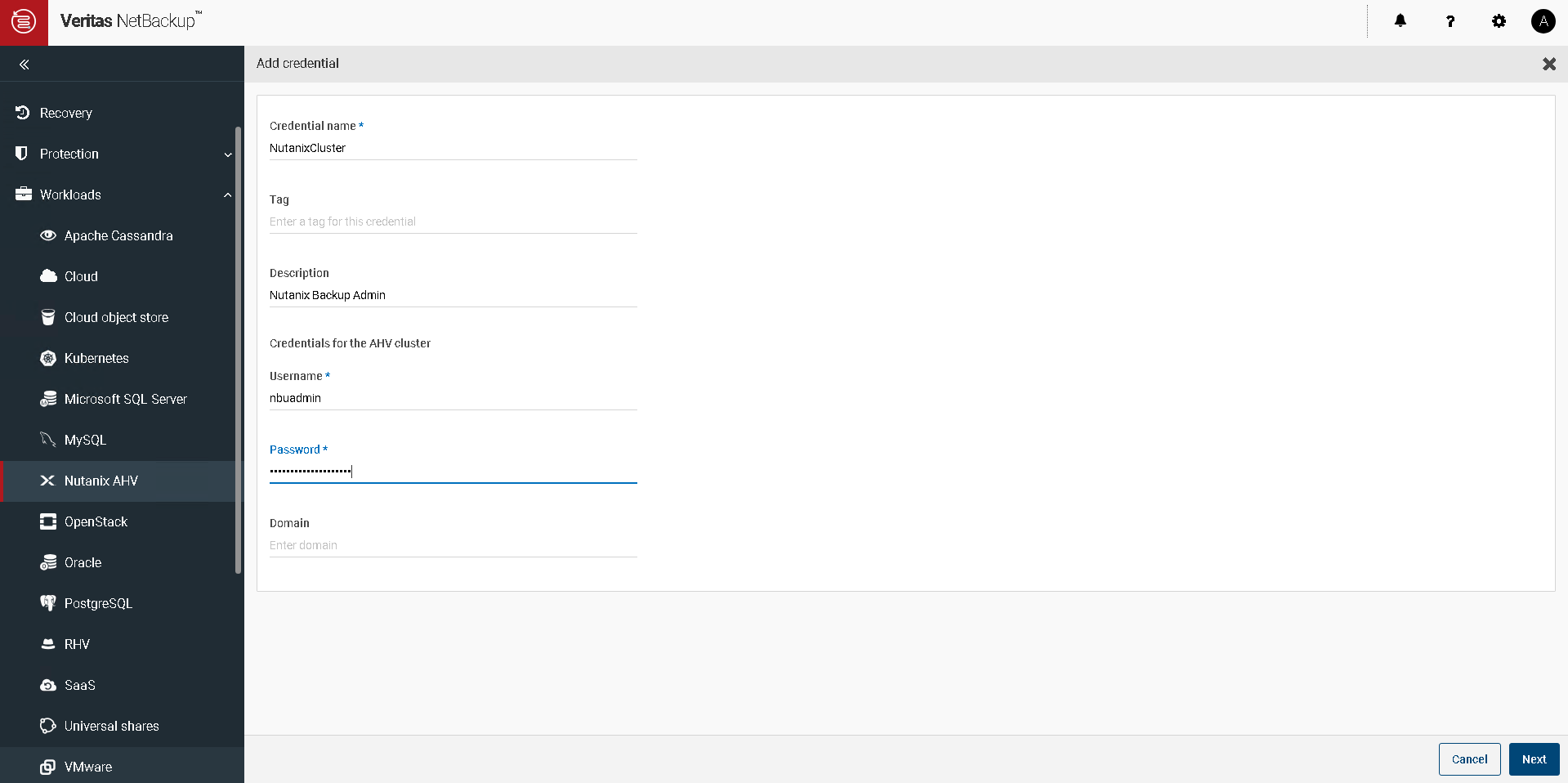
  • Specify the Credential name, username, password for Nutanix Cluster and click next
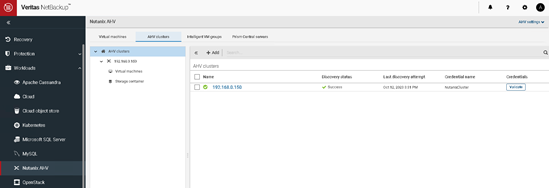
  • AHV Cluster is added in NetBackup & AHV VMs will be discovered under Virtual Machines Section.

Assign AHV VMs to Protection Plan:

  • Workload à Nutanix AHV à Virtual Machines
  • Select Virtual Machine and click Add Protection to assign VM to Protection Plan.
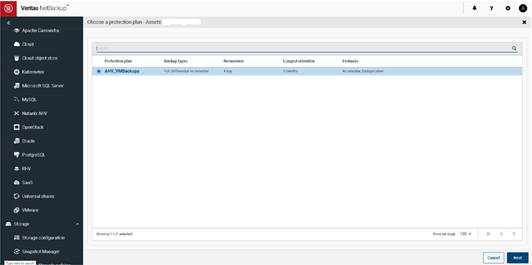
  • Select Protection Plan and click Next to continue.
  • Click Close

Nutanix Common Commands

In Today’s article will look at some of the common Nutanix CLI Commands you must know. Commands listed below are some of the most useful and most frequently used Nutanix CLI commands.

How to Start Nutanix Cluster

To Start the Nutanix Cluster you need to run the below command on any of the CVM.

nutanix@NTNX-b8c39436-A-CVM:~$ cluster start

How to Stop Nutanix Cluster

To Stop the Nutanix Cluster you need to run the below command on any of the CVM.

nutanix@NTNX-b8c39436-A-CVM:~$ cluster stop

How to Check Nutanix Cluster Status

To check the Nutanix Cluster status need to run the below command on any of the CVM.

nutanix@NTNX-b8c39436-A-CVM:~$ cluster status

output will be as below.

How to get Nutanix Cluster Info

To get the Nutanix Cluster information need to run the below command on any of the CVM.

nutanix@NTNX-b8c39436-A-CVM:~$ ncli cluster info

How to get all Host IP Address in the Cluster

To get all hosts IP Address in the Cluster you need to run the below command on any of the CVM.

nutanix@NTNX-b8c39436-A-CVM:~$ hostips

How to get all CVM IP Address in the Cluster

To get all CVM IP Address in the cluster you need to run the below command on any of the CVM.

nutanix@NTNX-b8c39436-A-CVM:~$ svmips

How to Check if Hypervisor Upgrade State

To Check the Hypervisor(AHV, VMWare) Upgrade State, you need to run the below command.

nutanix@NTNX-b8c39436-A-CVM:~$ host_upgrade_status

Install Nutanix Community Edition (CE) in VMWare WorkStation Home LAB

Nutanix Community Edition is ideal for learning to manage your infrastructure on your own hardware. Included is Prism, the user-friendly interface that provides unified management.

You can download the Nutanix CE from the link below.

https://next.nutanix.com/discussion-forum-14/download-community-edition-38417

CE Can be configured as Single Node cluster , 3-Node Cluster.

Virtual Machine Specifications:

  • CPU: 4 VCPU (Enable Expose Hardware assisted virtualization to guest OS)
  • RAM: 16GB (Better 32GB)
  • HDD: 70GB (For Hypervisor)
  • HDD2: 200GB (For CVM)
  • HDD3: 200GB (For DATA)
  • NIC: Single NIC
  • 2 IP Address per Node: 1 for Hypervisor & 1 for CVM

Create New Virtual Machine:

Click next

Browse & Select Downloaded ISO and Click Next

Select Linux as Operating System and click next.

Specify the Virtual Machine name and click Next.

Specify the First HDD 60GB for Hypervisor and click Next.

Click Finish to Create the VM. Right Click VM and Edit the hardware. Add additional HDDs and enable Virtualization to Guest OS.

Power-On VM and boot from the CE download ISO.

If You are going to create the Single Node Cluster, then select Create Single-Node Cluster, Select Next to Continue.

Scroll down the license and accept the agreement, Select Start and Enter to Start the installation.

Installation will take 10-15 minutes, wait for installation, press Y to reboot. If you are creating the 3-node cluster, then repeat the above steps for node 2 and 3.

After the reboot Both AHV Host & CVM should be reachable.

SSH to CVM IP using default Credentials.

User: nutanix

Password: nutanix/4u

If you have not created the cluster initially than you can create the single node cluster using below command.

Single Node Cluster:

cluster -s –redundancy_factor=1 –cluster_external_ip= create

Multi-Node Cluster:

cluster -s Node1_CVM_IP,Node2_CVM_IP,Node3_CVM_IP create

Once cluster is created you can check the cluster status using “Cluster status” command

Once the cluster services is UP. We can login to PRISM.

https://CVM-IP:9440

User: admin

Password: Nutanix/4u

During First time login you will be asked to change the default password.

Provide New Password and enter.

Enter your Nutanix Portal Username and password.

Your Nutanix CE cluster is ready 😊 enjoy .

Let me know if you guys need any help while installating Nutanix CE.

Setting up Nutanix Disaster Recovery (LEAP) – Step by Step

Nutanix DR implementation to protect guest VMs and orchestrate disaster recovery to other Nutanix Cluster when event causing service disruption to occur at primary site.

Nutanix DR Terminologies:

Availability Zone (AZ): A zone that can have one or more independent datacenters inter-connected by low latency links. An AZ can either be in your office premises (on-prem) or in Xi Cloud Services. AZs are physically isolated from each other to ensure that a disaster at one AZ does not affect another AZ. An instance of Prism Central represents an on-prem AZ.
Recovery Availability Zone: An AZ where you can recover the protected guest VMs when a planned or an unplanned event occurs at the primary AZ causing its downtime. You can configure at most two recovery AZs for a guest VM.

Source Virtual Network: The virtual network from which guest VMs migrate during a failover or failback.

Recovery Virtual Network: The virtual network to which guest VMs migrate during a failover or failback operation.

Network Mapping: A mapping between two virtual networks in paired AZs. A network mapping specifies a recovery network for all guest VMs of the source network. When you perform a failover or failback, the guest VMs in the source network recover in the corresponding (mapped) recovery network.

Category: A VM category is a key-value pair that groups similar guest VMs. Associating a protection policy with a VM category ensures that the protection policy applies to all the guest VMs in the group regardless of how the group scales with time. For example, you can associate a group of guest VMs with the Department: Marketing category, where Department is a category that includes a value Marketing along with other values such as Engineering and Sales.

Recovery Point: A copy of the state of a system at a particular point in time.

Recovery Point Objective (RPO): The time interval that refers to the acceptable data loss if there is a failure. For example, if the RPO is 1 hour, the system creates a recovery point every 1 hour. On recovery, you can recover the guest VMs with data as of up to 1 hour ago. Take Snapshot Every in the Create Protection Policy GUI represents RPO.

Recovery Time Objective (RTO): The time period from failure event to the restored service. For example, an RTO of 30 minutes enables you to back up and run the protected guest VMs in 30 minutes after the failure event.

Protection and DR Between on-prem Availability zone:

Leap protects your guest VMs and orchestrates their disaster recovery (DR) to other Nutanix clusters when events causing service disruption occur at the primary AZ.

Before proceeding further let me introduce to my environment, I have two Nutanix Clusters, both clusters are registered with their own prism central hosting on same cluster. Logical design between two cluster will as below

Enabling Nutanix Discovery:

  1. Login to Prism Central on Both Clusters
  2. Click Gear Icon à Click Disaster Recovery

  1. Click Enable

  1. Click Enable

Nutanix Disaster Recovery is enabled.

Connect AZ:

  1. Browse Navigation Bar à Administration à Availability Zones
  1. Click Connect to Availability Zone

  1. Select Physical Location, provide 2nd Prism Central IP, User and Password and click Connect

Connection will be created between both prism Central.

Creating Category:

  1. Browse Navigation Bar à Administration à Categories

  1. Click New Category

  1. Specify the Category Name and enter value (subcategories)

Creating Protection Policy:

  1. Browse Navigation Bar à Data Protection à Protection Policy

  1. Click Create Protection Policy

  1. Specify the Primary Location, Cluster and Click Save.

  1. Specify Recovery Location PC & Cluster and click save

  1. Specify the Snapshot frequency & retention on local and remote.

  1. Specify the desire Category and click add

  1. Click Create to create the Policy

Assigning VM to Category:

  1. Navigate to VM
  2. Select the desire VM à Action à Manage Categories
  1. Select Desire Category and Click Save

Review Protection Summary:

  1. Browse Navigation Bar à Data Protection à Protection Summary

Protection Summary Dashboard, will show the RPO Status

  1. Browse Navigation Bar à VM à Recovery Points will shows the VM recovery points and protection status of selected VM.

Creating Recovery Plans:

  1. Browse Navigation Bar à Data Protection à Recovery Plans

  1. Create New Recovery Plan

  1. Specify Recovery plan name, specify primary and recovery location and click Next.

  1. Click Add VMs

  1. Select the VM and click add

  1. Click Next to proceed

  1. Select Network Type ( Stretch , Non-Stretch) and Specify source and Target Network Subnet and click Done.

Initating Failover:

  1. Select Recovery Plan

  1. Click Failover to initate failover

  1. Select the Desire Failover type, Incase of Planned Failover (Source VM will be shutdown and after finnal sync , VM will be registered in target cluster and powered-on). Incase if unplanned Failover desire recovery points and be selected for restore .

  1. Type Failover and click Failover

  1. Click Tasks for see the Failover status

  1. VM Successfully failed-over to DR successfully.

Nutanix Cross Hypervisor Disaster Recovery

Cross hypervisor disaster recovery provides the ability to migrate VMs from one hypervisor to another (ESXi to AHV or AHV to ESXi) by using protection domain.

Some of the requirements:

  • Only VM Flat files are supported, vm snapshots or delta disks are not supported
  • VMs with attached volume groups or shared disk not supported
  • Different version of AOS is supported
  • NGT need should be installed on all the VMs.

Creating Protection Domain:

  1. Login to Web Console
  2. Click Main Menu à Data Protection

If DR Site is not added, click Remote Site à Physical Cluster to add the remote site.

Provide Remote Site name and remote cluster Virtual IP and click add site.

Map Source and Destination Network & Datastore as per requirement and click Save

Remote Site Connection is creation, let proceed to setup AsyncDR.

Note: For Cross Hypervisor replication, minimum RPO is 1 hours.

Click Protection Domain à Async DR to create protection domain.

Provide Protection Domain Name and click Create

Select the VMs / Object to protect and Click Protect Selected Entries

Once desired VMs are selected click next

Click New Schedule to create the Schedule.

Specify schedule and retention on local, DR Clusters and click Create Schedule.

Once Schedule is created. Click Close

Nutanix 1-Click In-Place Conversion (VMWare to AHV)

Nutanix has built-in capacity to convert Nutanix Cluster running on ESXi to AHV.

Some of the key requirement to proceed before in-place conversion are as below

  • Resolve all NCC health Check alerts
  • HA & DRS must be enabled
  • All hosts should be managed by the Same VCenter
  • VCenter should not be running on same cluster which is being converted
  • NGT Tools should be installed on all the VMs

Some of the Cluster Limitations are as below:

  • Metro Availability protection domain cannot be enabled in you environment
  • If Free ESXi License for your cluster, you can convert the cluster to AHV but you cannot revert the cluster back to ESXi.
  • Nutanix Files deployed on cluster
  • In-Place Hypervisor conversion is not supported for single and two node cluster

Virtual Machines Requirements & Limitations:

  • VMs with flat disk are supported, delta disks are not supported.
  • Only IDE And SCSI storage controllers are supported
  • Virtual machines with attached volume groups or shared virtual disks are not supported.
  • After reverting back to ESXi from AHV, the VMs are converted to the maximum hardware version that is supported by that specific ESXi version.

Let’s proceed with conversion:

  1. Log-in to Prism
  2. Click on gear icon, Main Menu à Settings à Convert Cluster
  3. Click Validate
  4. Specify VCenter IP Address, VCenter Username and Password and click Validate

Once Validation is completed. Click Covert Cluster to start the conversion.

The entire conversion process may take 3 to 4 hours depending on the nodes that are present in your cluster. However, the VM downtime will be less than 5 minutes because all the nodes in the cluster are converted in a rolling manner.