Setting-up Nutanix Metro Availability (VMware ESX) Step by Step

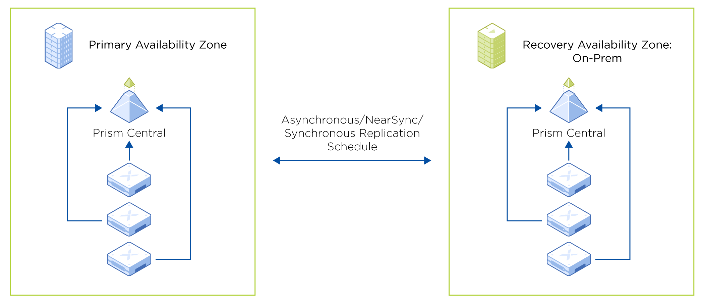
Nutanix Metro is the Nutanix DR Implementation when Zero RPO is desired. Nutanix Metro is supported by VMware ESXi, Hyper Hypervisors.
Nutanix Metro Availability works on the policy applied on datastore. It achieves by pairing a storage container on local Storage container with a storage container in remote site. containers. When metro availability is enabled, everything in the active storage container is replicated synchronously to the remote storage container. Metro availability configurations can include VMs, but they cannot include volume groups.

Metro availability policies apply per storage container, so a cluster can be active for one datastore and standby for another.

Some of the considering before proceeding:

  • There will be 2 Nutanix Clusters
  • It is recommended both Clusters hosts managed by same vcenter.
  • Less than 5ms latency between the 2 Sites.
  • In case of automatic failover 3rd site is required to setup witness

Log in VCenter, Create VMware Cluster and add both cluster hosts.

You can see Both Cluster Nodes are joined under same VCenter & VMware Cluster. Set VMware Cluster Nutanix recommended configuration as below

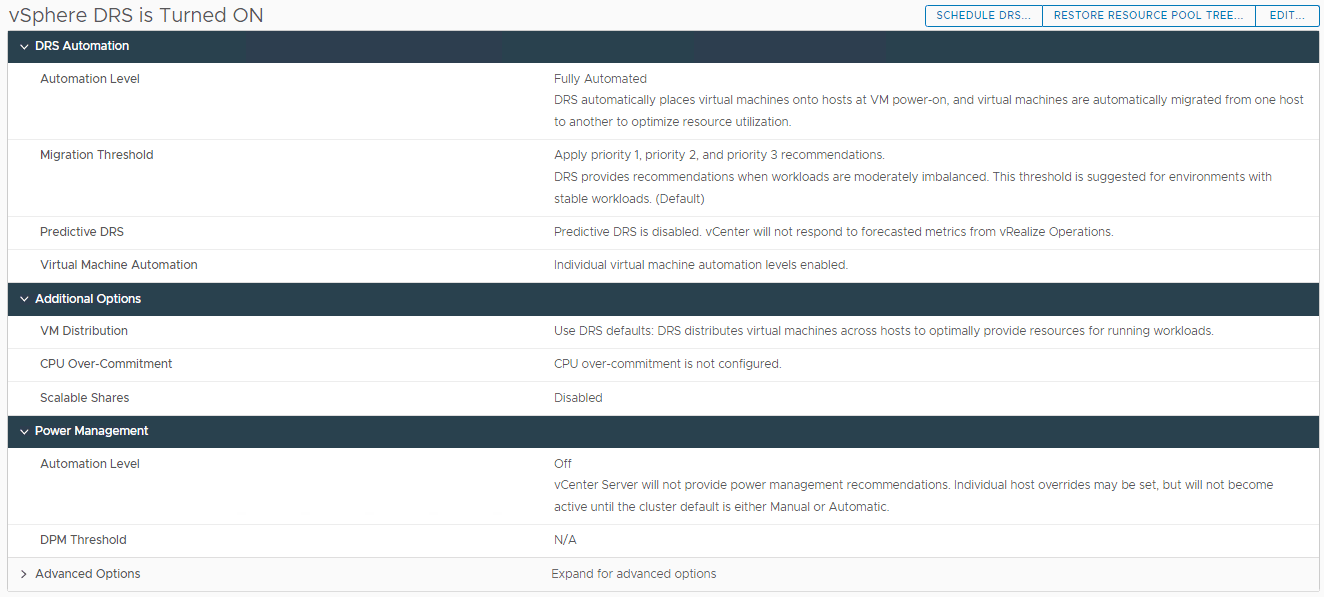
Enable DRS:

  • DRS Automation
    • Automation Level: Fully automated
    • Migration threshold: 3
    • Predictive DRS: Disabled
    • Virtual Machine Automation: Enabled
  • Additional Options
    • All unchecked
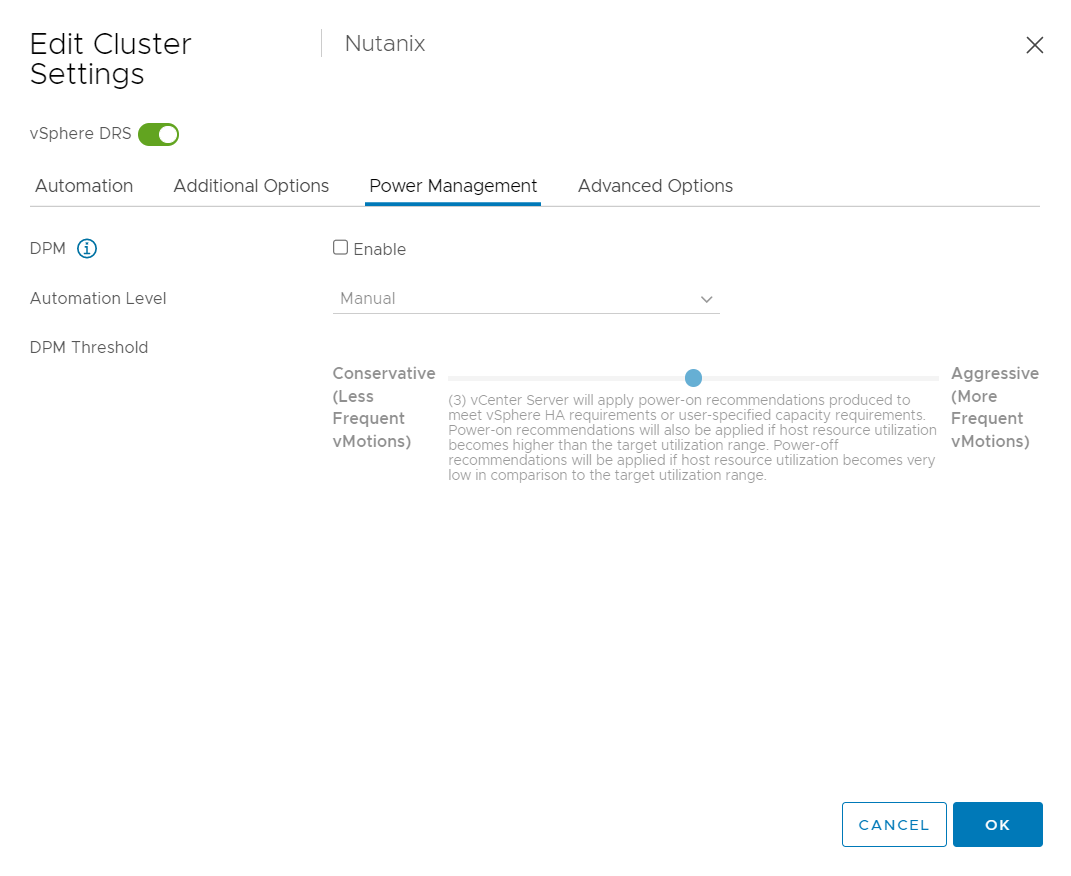
  • Power Management
    • DPM: disabled
  • Advanced Options
    • All unchecked/empty

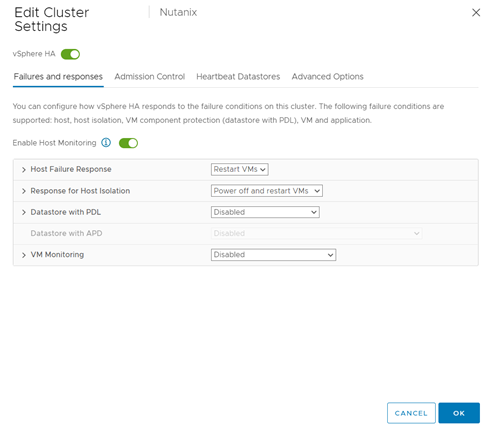
Enable HA:

  • Failures and responses
  • Enable Host Monitoring: Enabled
    • Host failure response: Restart VMs
    • Response for Host Isolation: Power off and restart VMs
    • Datastore with PDL: Disabled
    • Datastore with APD: Power off and restart VMs – Aggrassive restart policy
      • Response Recovery: Disabled
      • VM Monitoring: VM Monitoring Only
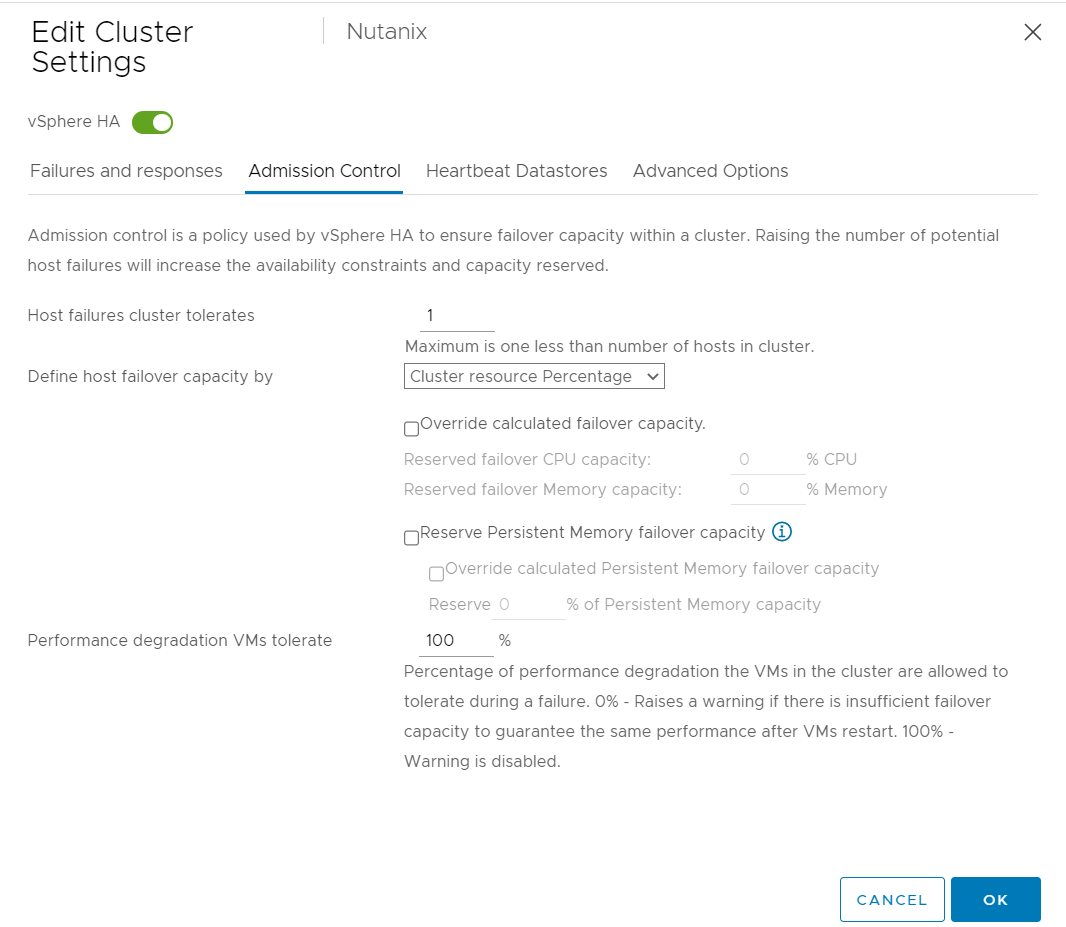
  • Admission Control
    • Host failures cluster tolerates: 1
  • Heartbeat Datastores
    • Select the two METRO datastores
  • Advanced Options
    • Leave empty/default

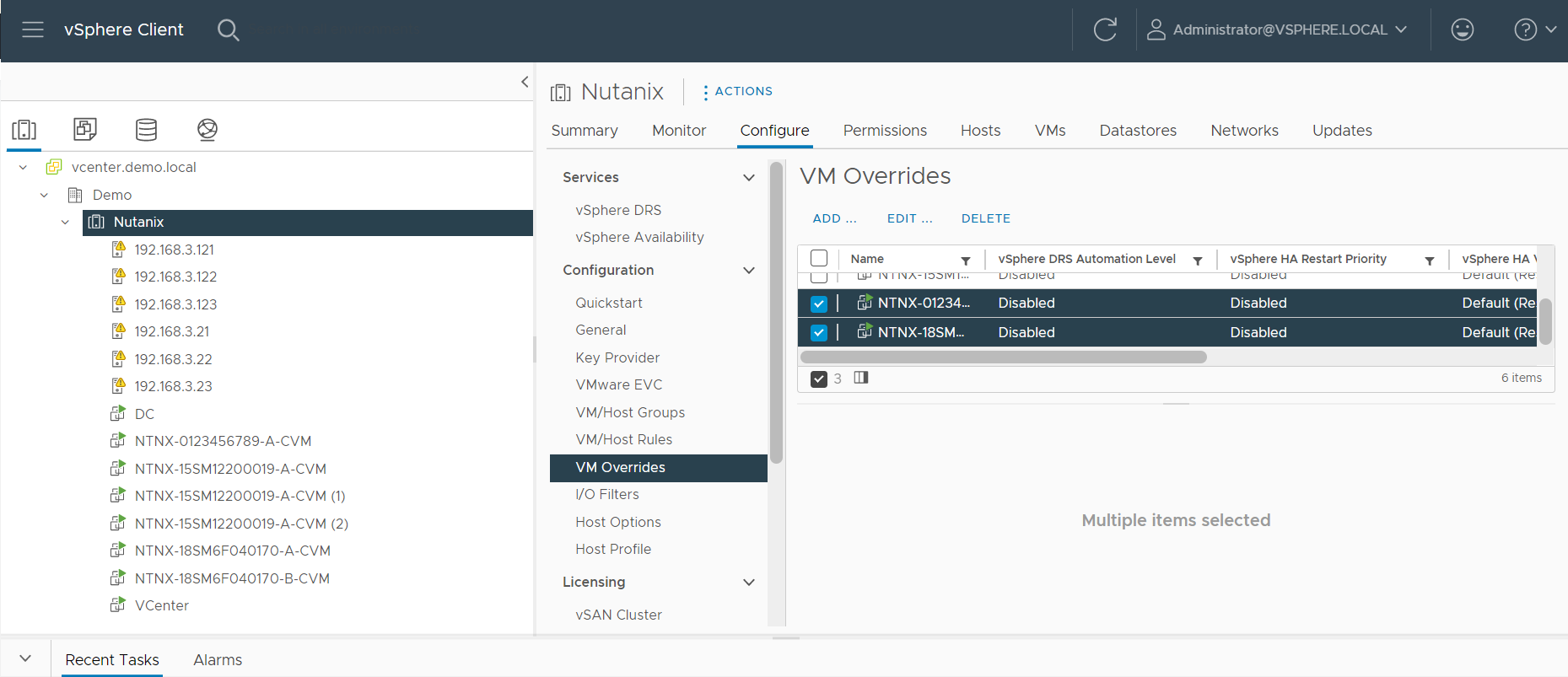
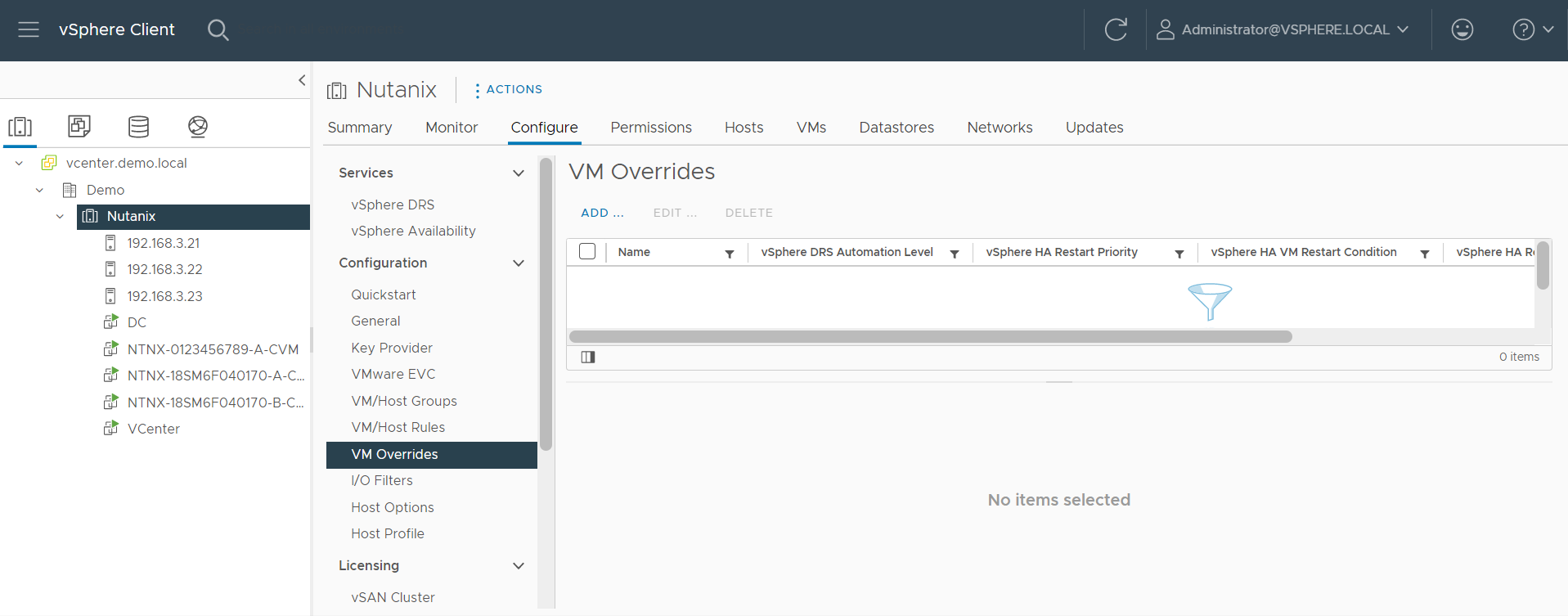
VM Override Setting:

Make sure to disable DRS and HA under VM Override Settings.

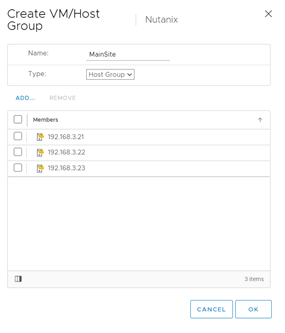
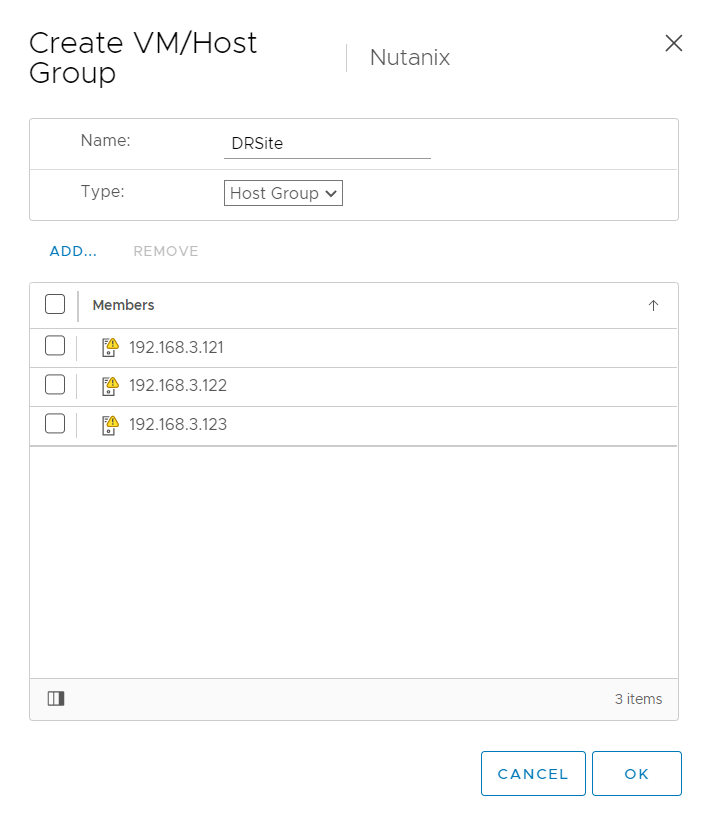
Create two Host Groups

1. Group A (Main-Site)

a. All the Main-Site Hosts

2. Group B (DR-Site)

a. All the DR-Site Hosts


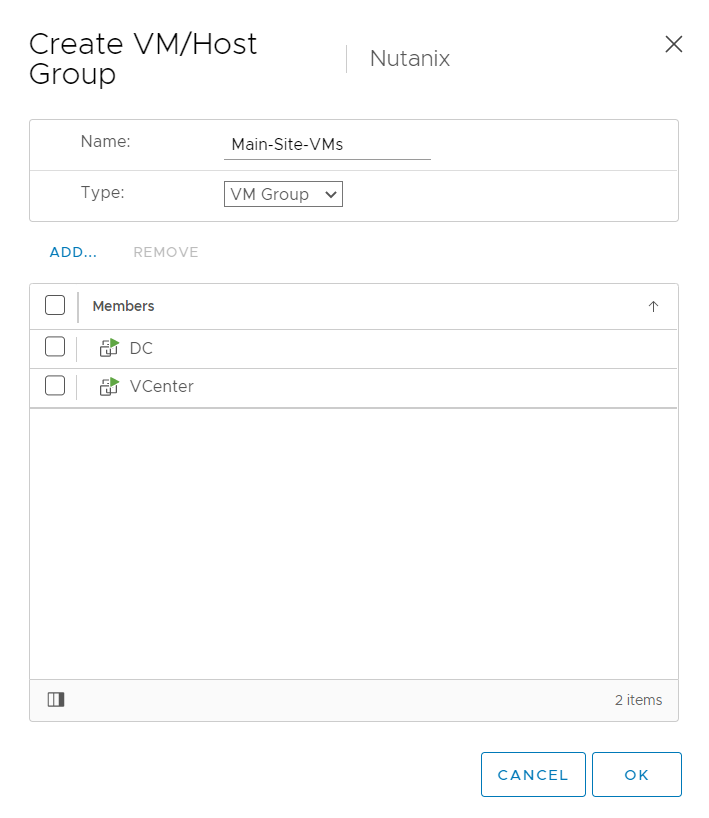
Create two VM Groups:

1. VMs on Main-Site

a. Add All the VMs which are on Main-site Cluster

2. VMs on DR-Site

a. Add all the VMs which are on DR-Site Cluster

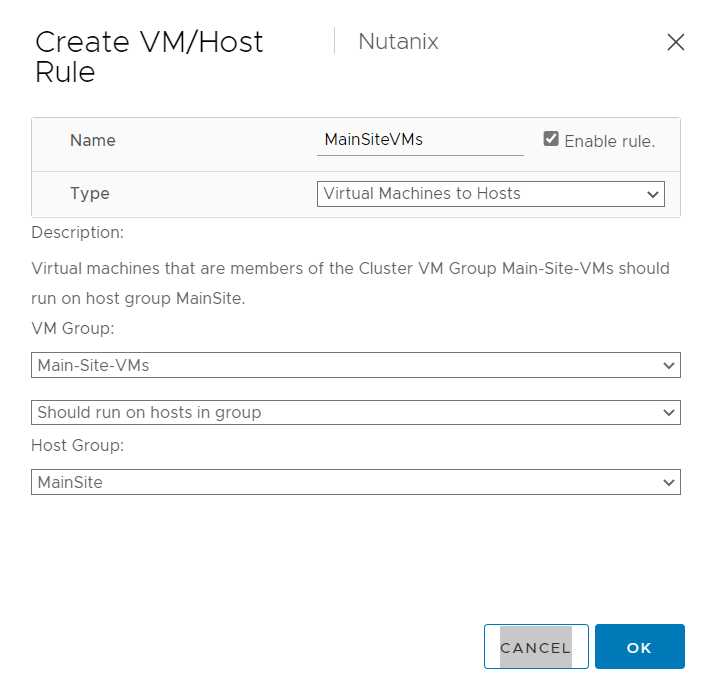
With the VM/Host Rules we will decided where the VM should run, and incase of failure they can run from other cluster.

Basically, you will create 2 rules

§ Mian Cluster, all main-site VMs should run from main Site so DRS will no move those VM to DR Hosts

§ DR Cluster, all DR-site VMs should run from DR Cluster so DRS will no move those VM to Main-Site Hosts

We are done with the VMware Configuration, lets proceed to Prism.

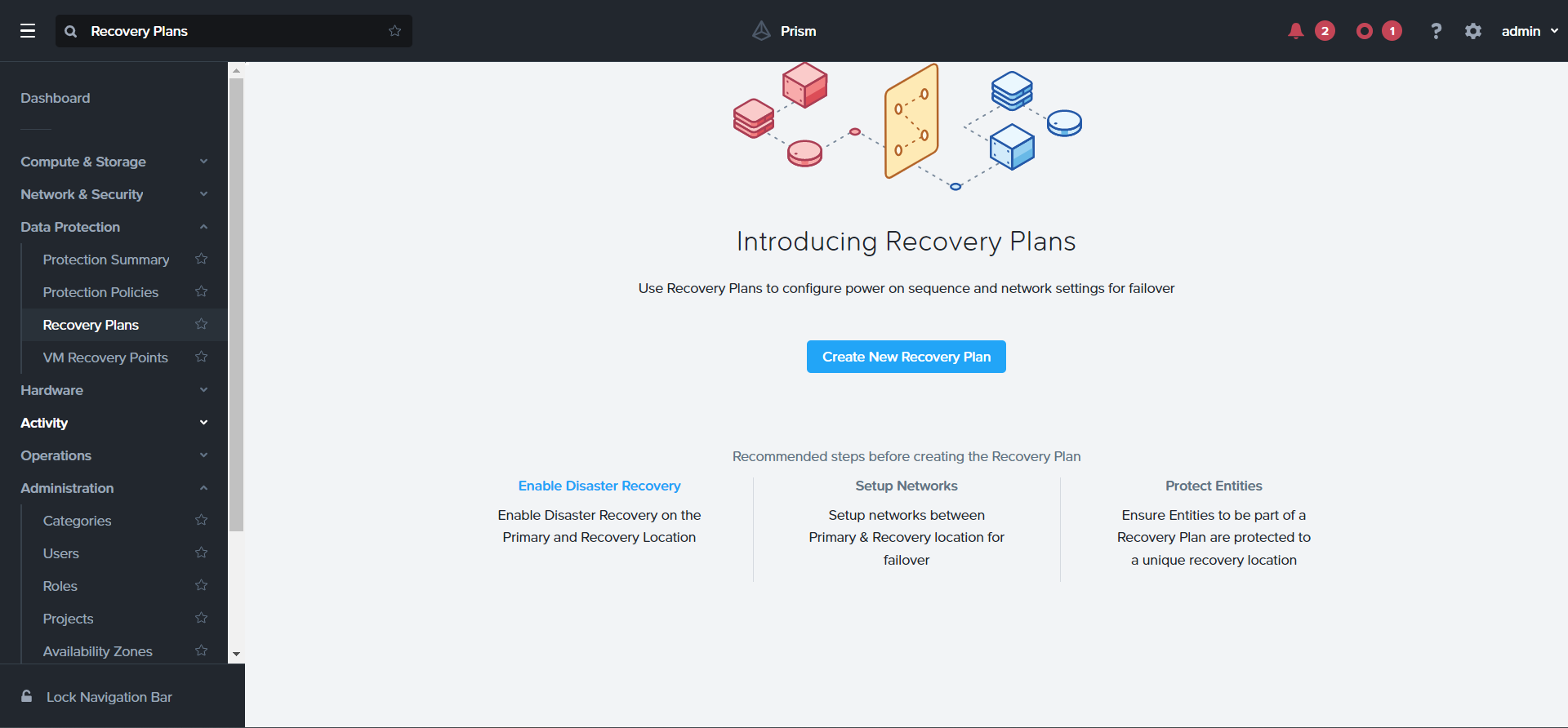
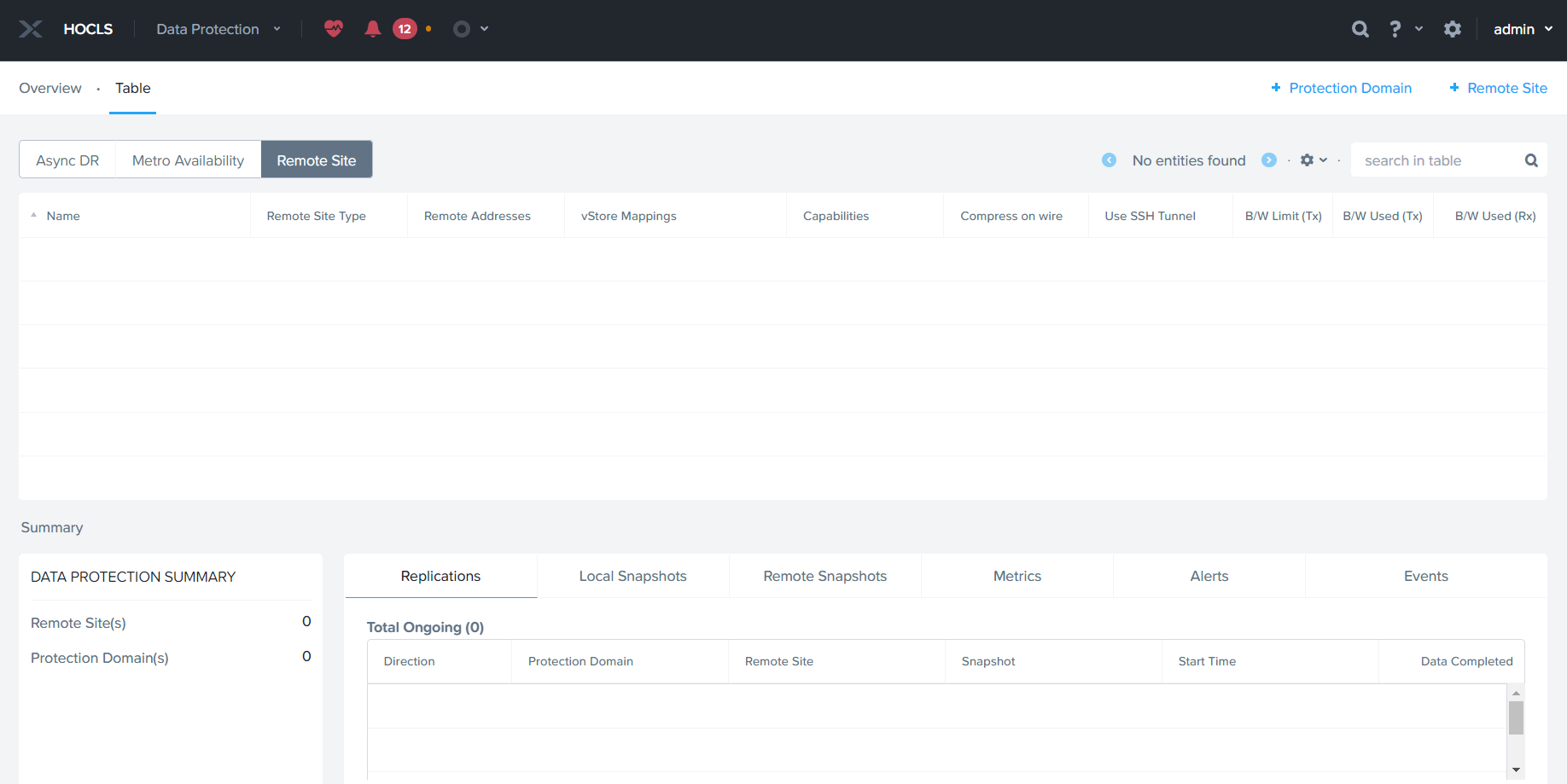
Navigate to Data Protection à Remote Site

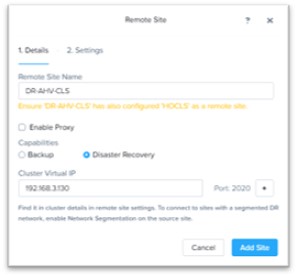
Click Remote Site à Physical Cluster

Specify Site Name and DR-Site Cluster Virtual IP , click add site to proceed.

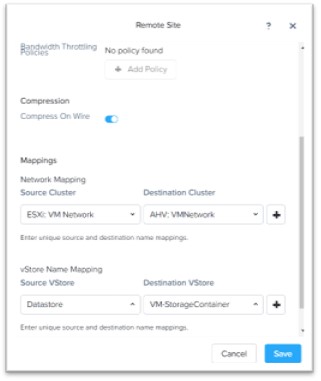
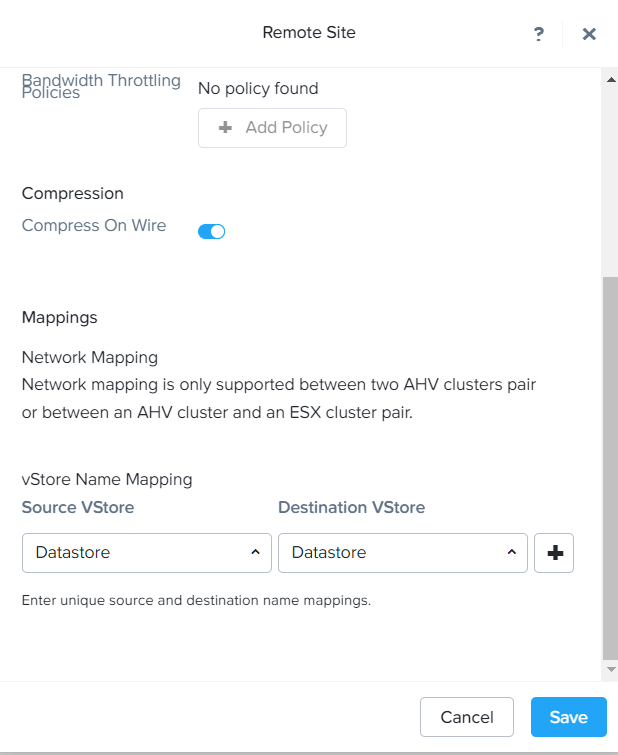
Specify Main-site & DR-Site Datastores and save

Note: For Metro both Source & Destination Datastore should have same names.


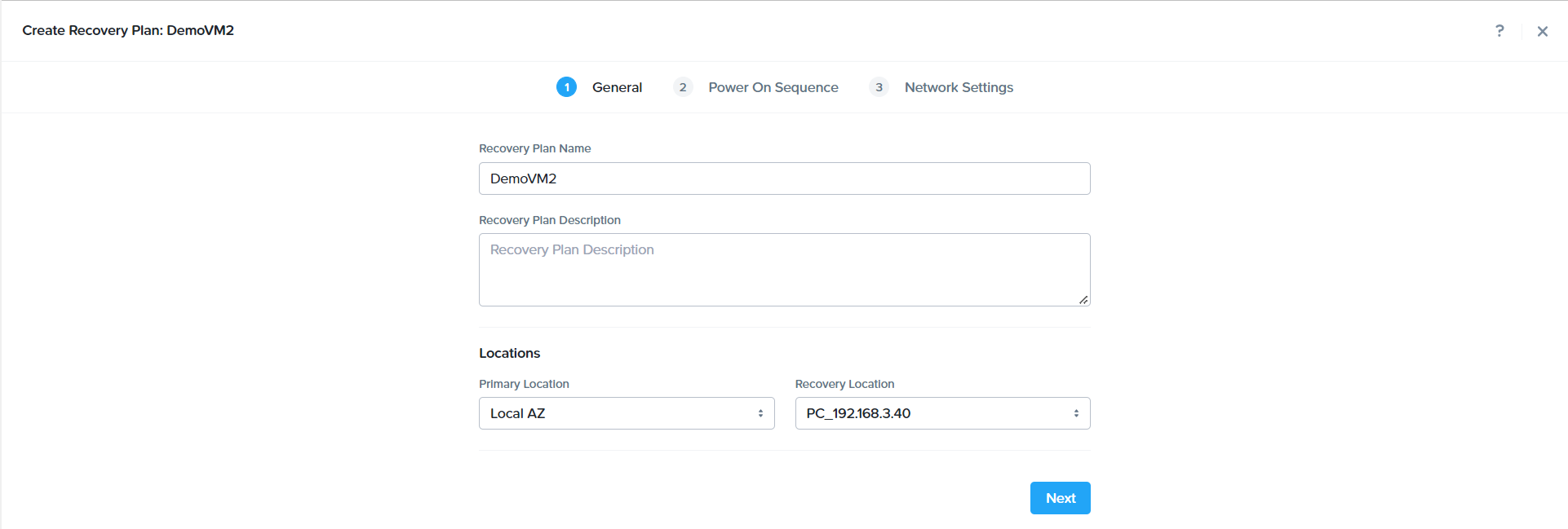
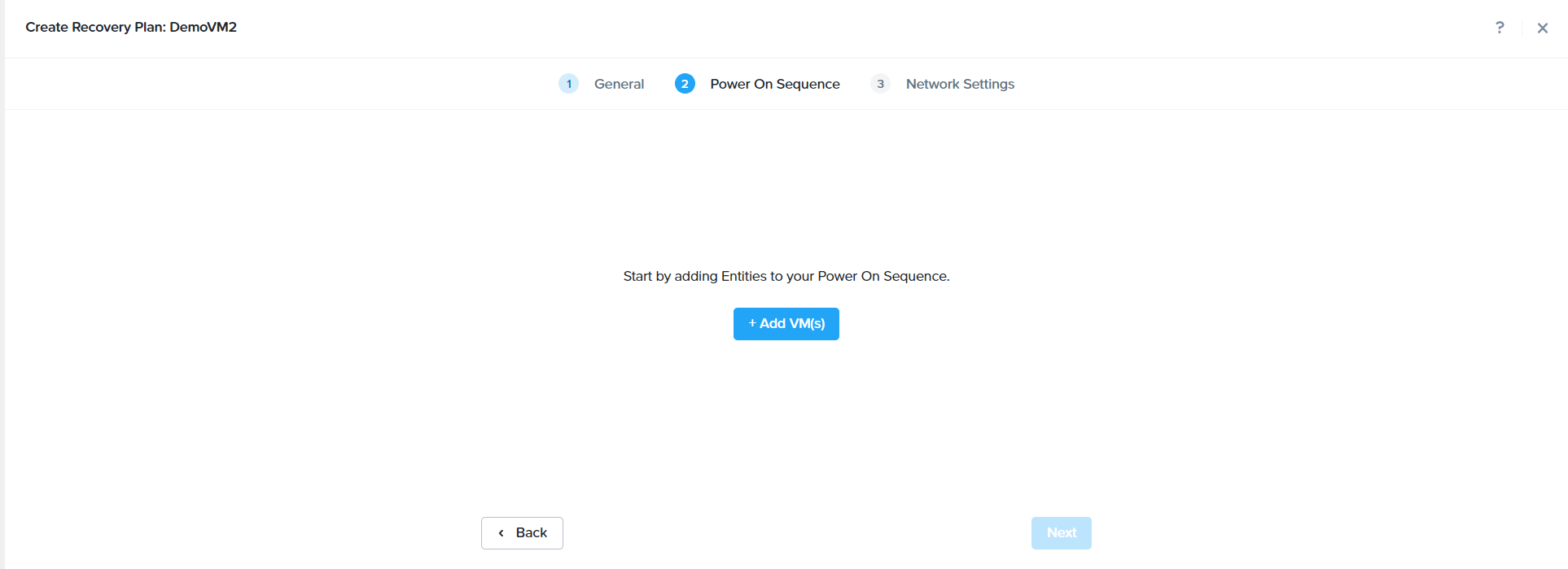
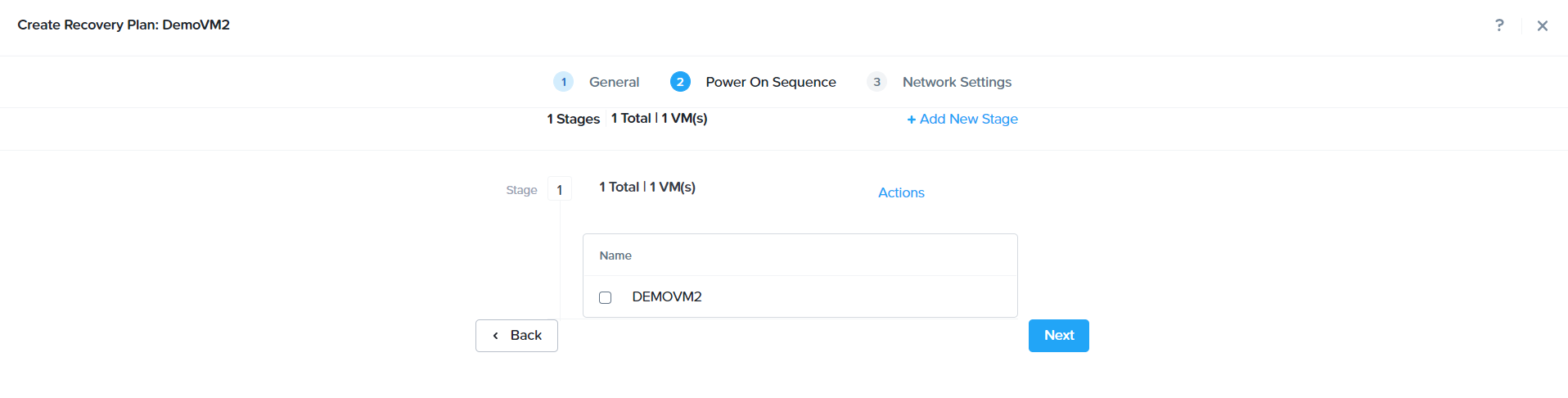
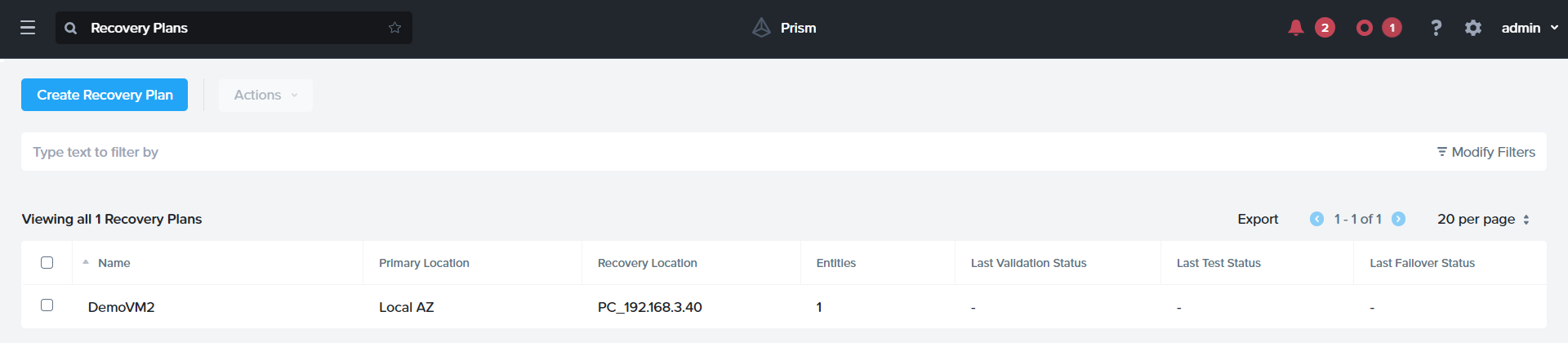
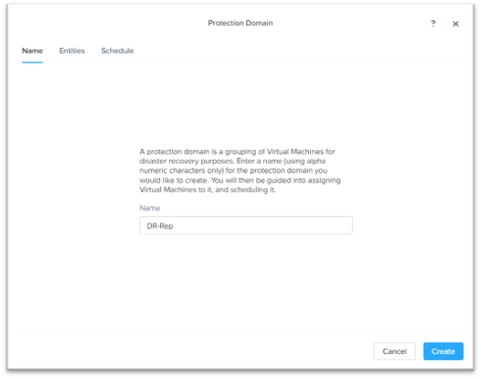
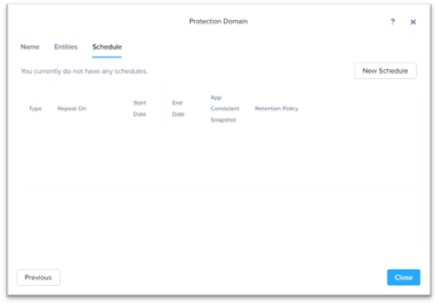
To Create the Meto Availability Protection Domain, Click Protection Domain à Meto Availability

Click Next

Specify the source storage container and click next

Specify the Target container and click next

Note: My both clusters have starter license, that’s why target is not getting listing. To setup meto adv. Replication license is required.

Now the storage container is in sync between the clusters.

Nutanix Deployment with VMWare VSphere (Part 2)

In the part 1 we had completed Nutanix Block Foundation process, today will proceed with the next activities like setting up Prism Initial Configuration and Nutanix Recommended settings on VMware Cluster end.

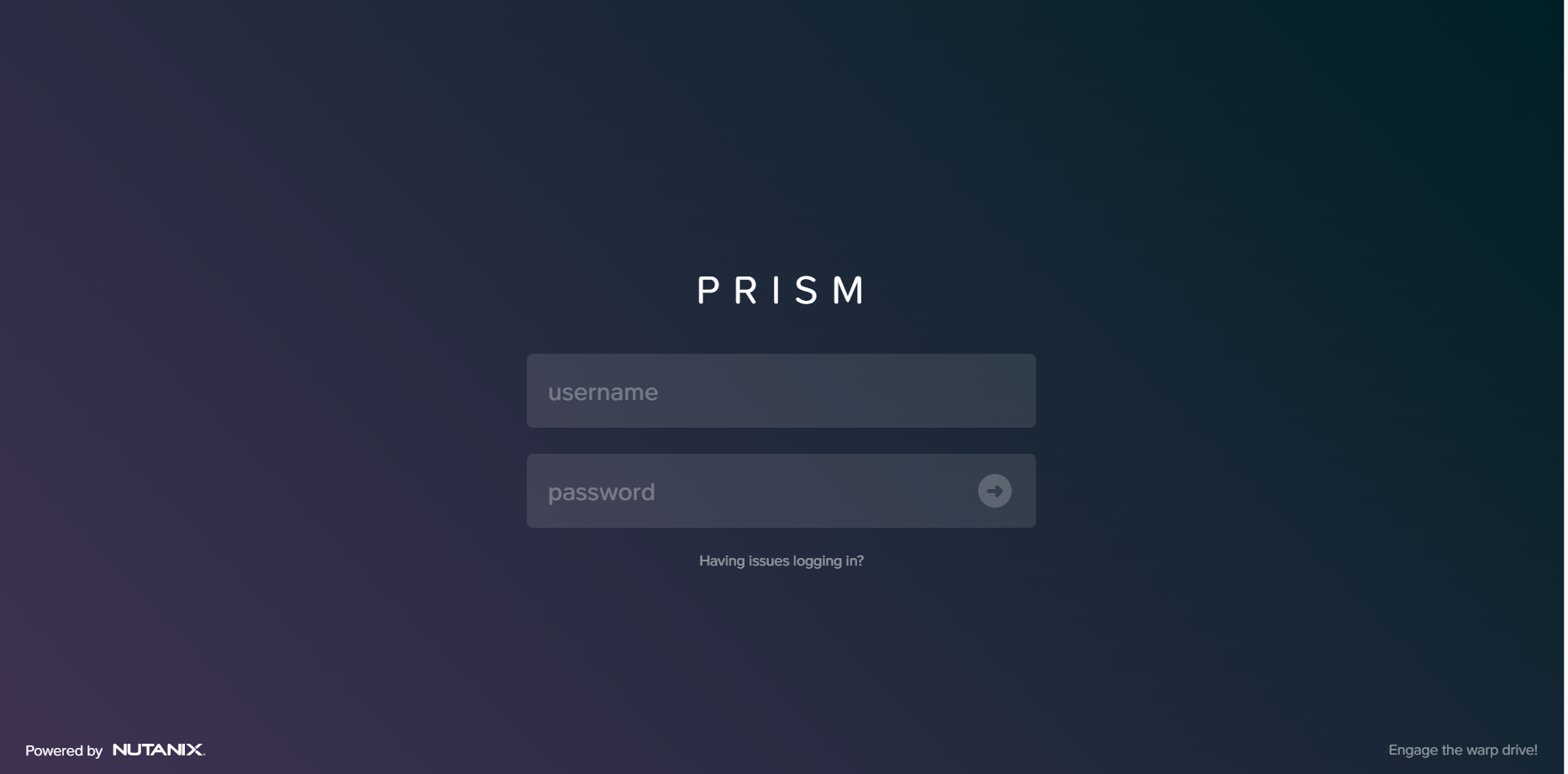
  1. Open Prism using any Browser

Login using Default Credentials, default credentials are as below

admin / Nutanix/4u

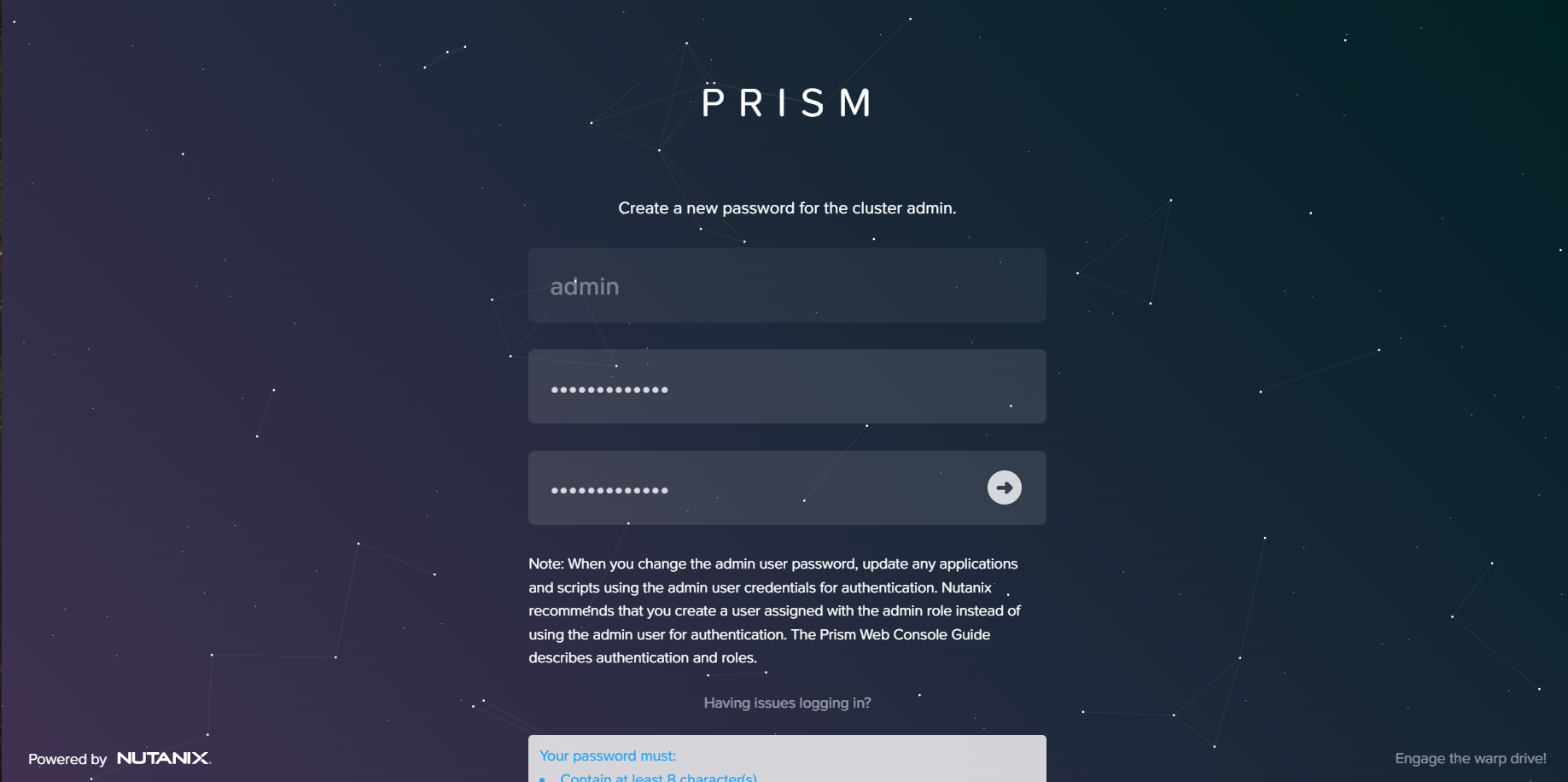
Specify new Password

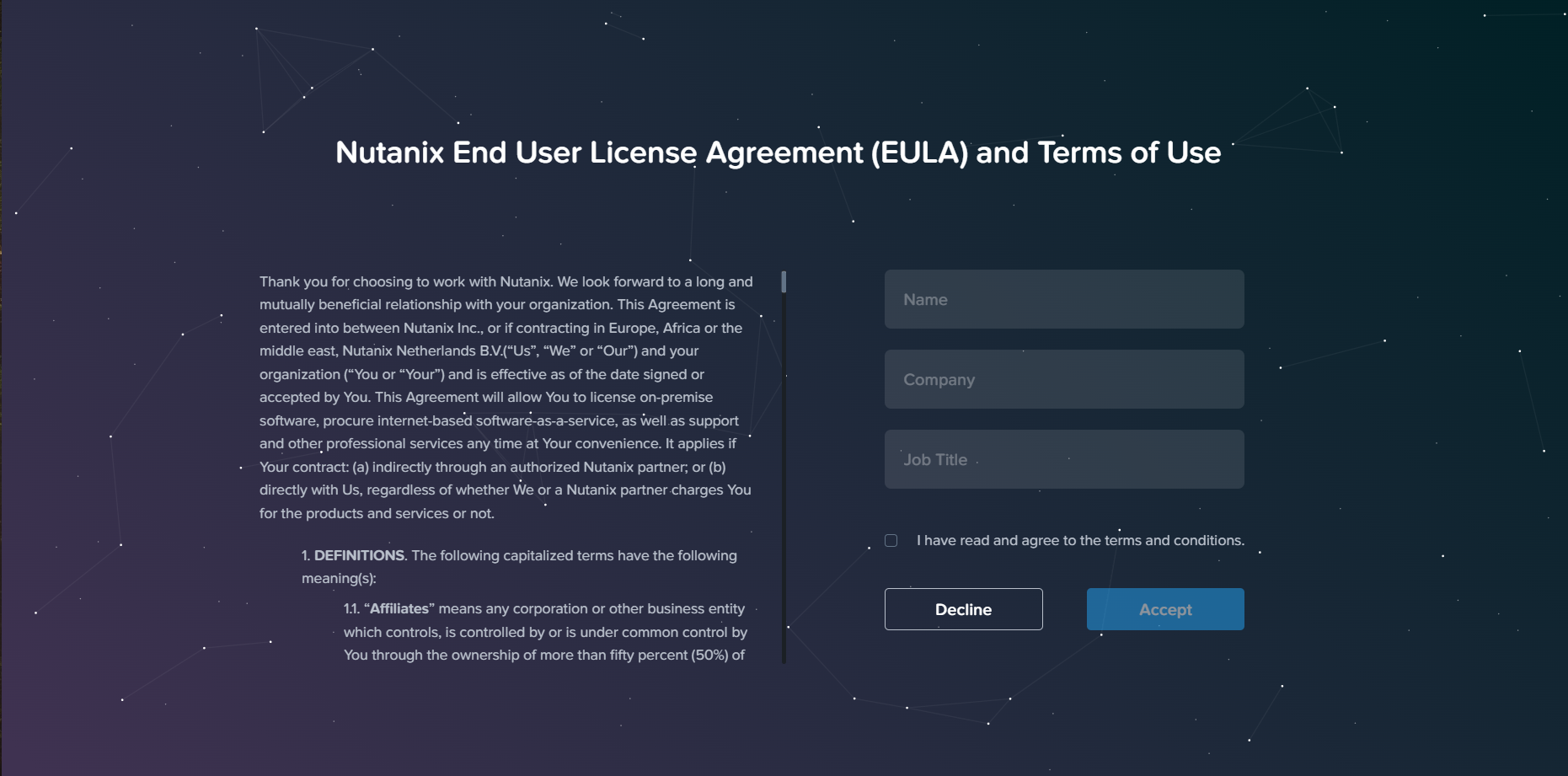
Accept User agreement , and click Accept to proceed further.

Enable / Disable Pulse and click continue

Nutanix Pulse:
Nutanix Pulse is the telemetry capability built into all Nutanix clusters that sends key health metrics to the Nutanix Insights service. Nutanix can use the diagnostic system information that Pulse sends to help build better products and provide a great customer experience.

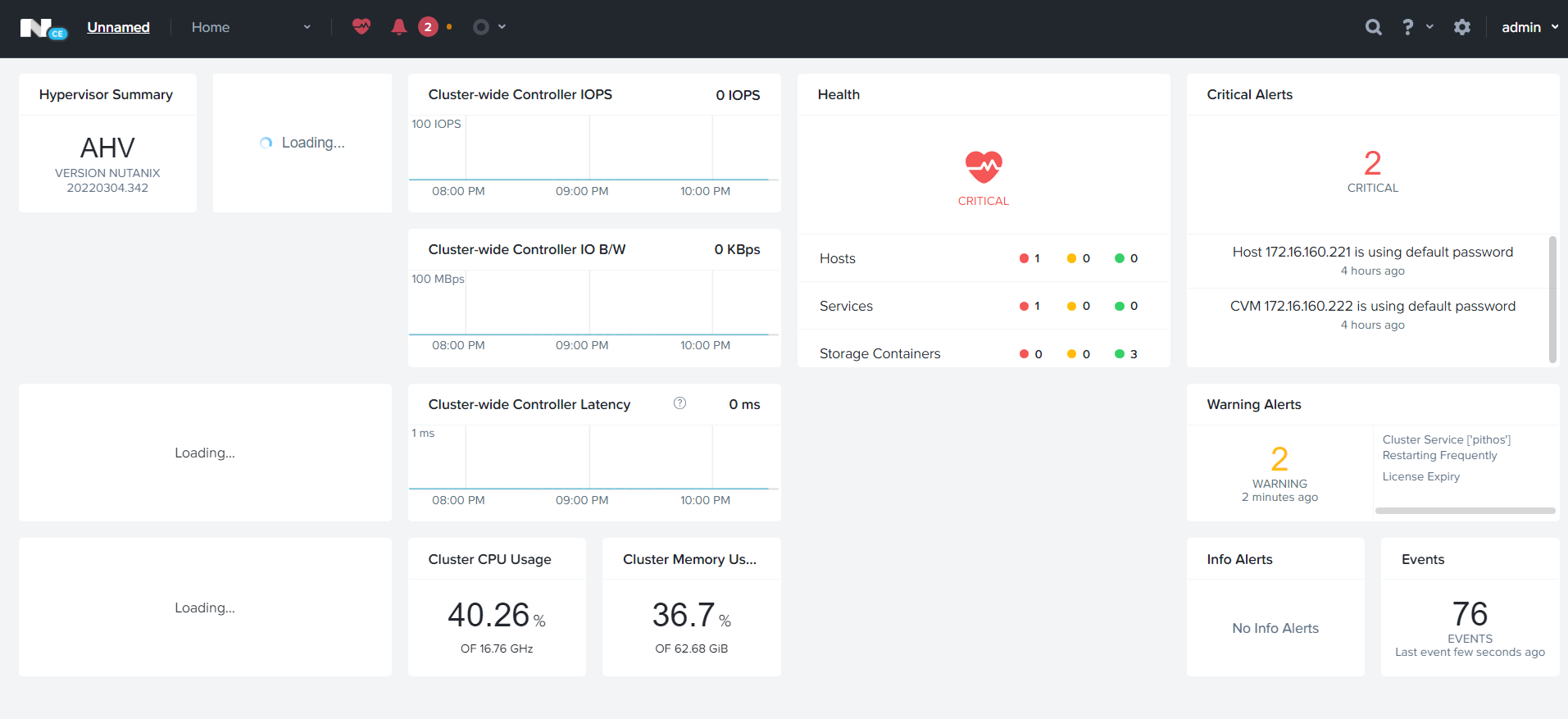
Home Dashboard

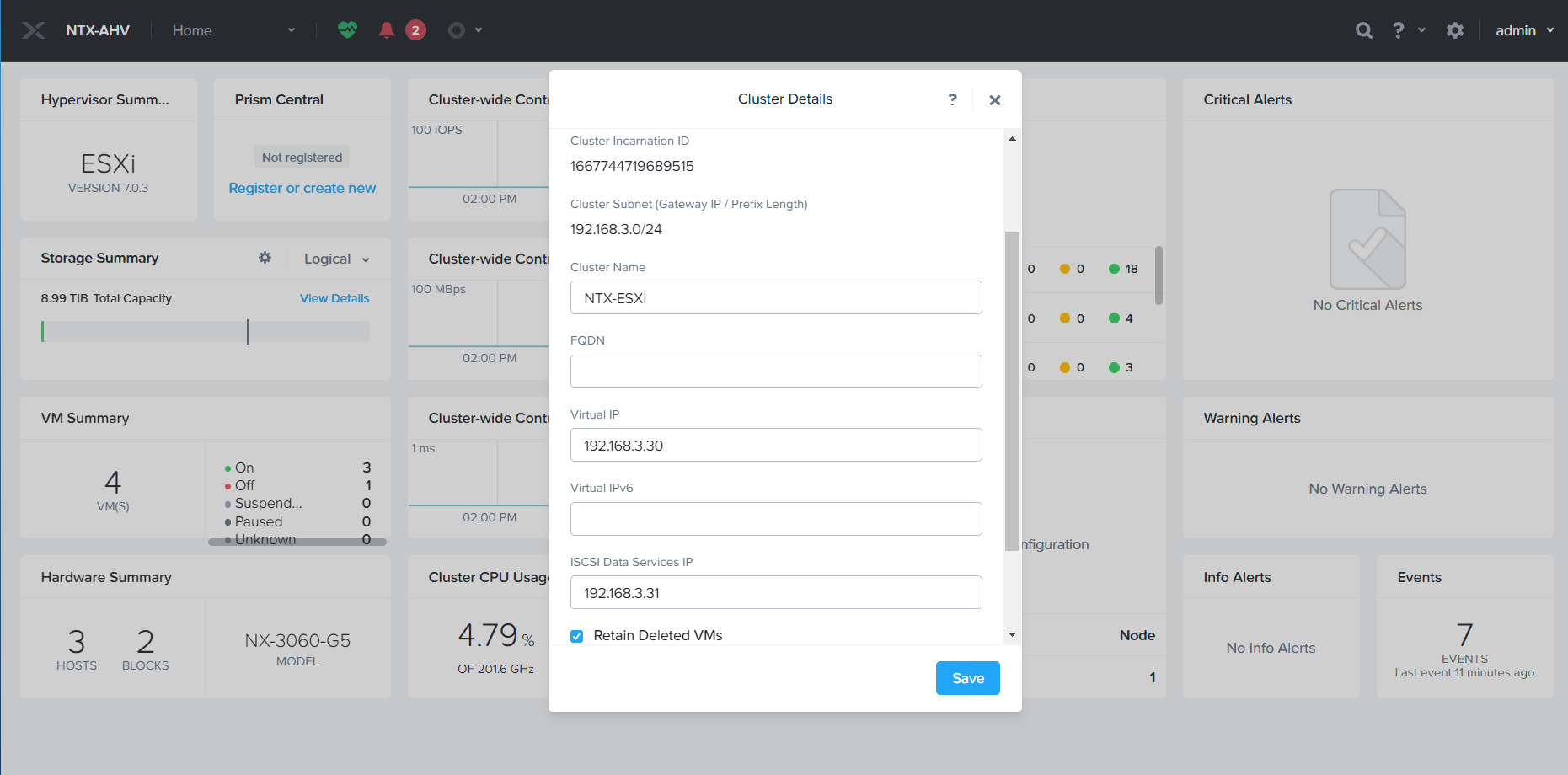
To Specify the Nutanix Cluster IP, Click on Cluster Name. Provide Cluster Virtual IP (Virtual IP should be in the CVM network).

Click on drop down Menu and click Setting to proceed with the setting menu.

To update name servers, Click Name Servers and add DNS Name Server IPs.

To update NFS Setting, Click NFS Servers and specify NTP Servers

To create Storage Container, Click Dropdown Menu à Storage

Click + Storage Container to create the storage container. Provide Datastore name, select Mount on all host and click Save.

Datastore has been Created.

Now we will proceed to add Nutanix Hosts in VCenter. Incase if you don’t know how to deploy VCenter please refer my VCenter Deployment Article.

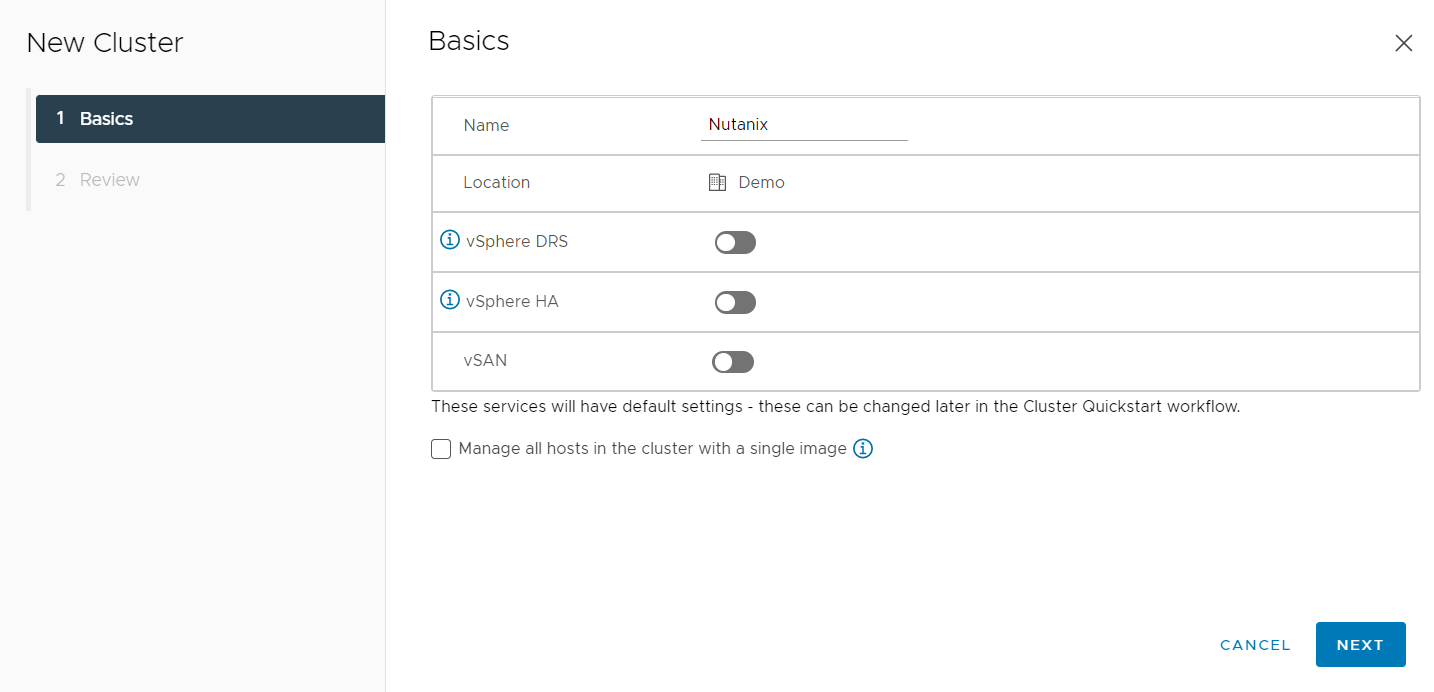
Right Click on VCenter Root and Create VCenter Cluster.

Specify Cluster Name and Click next

To Register Hosts in VCenter. Click Configure à Quickstart à Under Add Hosts à Click ADD

Provide Host IPs and username and password and click Next.

Accept Host SSL Certificate and click ok

Click Next to Proceed Further

Click Finish

Once Host has been added, we will proceed with the Nutanix Recommended HA , DRS and VM Override settings.

VMWare HA Settings:

Select Cluster à Configure à VSphere Availability

  • Host Failure Response: Select Restart VMs from the drop-down list.
  • This option configures the cluster-wide host isolation response settings.
  • Response for Host Isolation: Select Power off and restart VMs from the drop-down list.
  • Datastore with PDL: Select Disabled from the drop-down list.
  • Datastore with APD: Select Disabled from the drop-down list.
  • VM Monitoring: Select Disabled from the drop-down list.

  • Host failures cluster tolerates: Enter 1 or 2 based on the number of nodes in the Nutanix cluster and the replication factor.
  • Define host failover capacity by: Select Cluster resource Percentage from the drop-down list.
  • Performance degradation VMs tolerate: Set the percentage to 100.

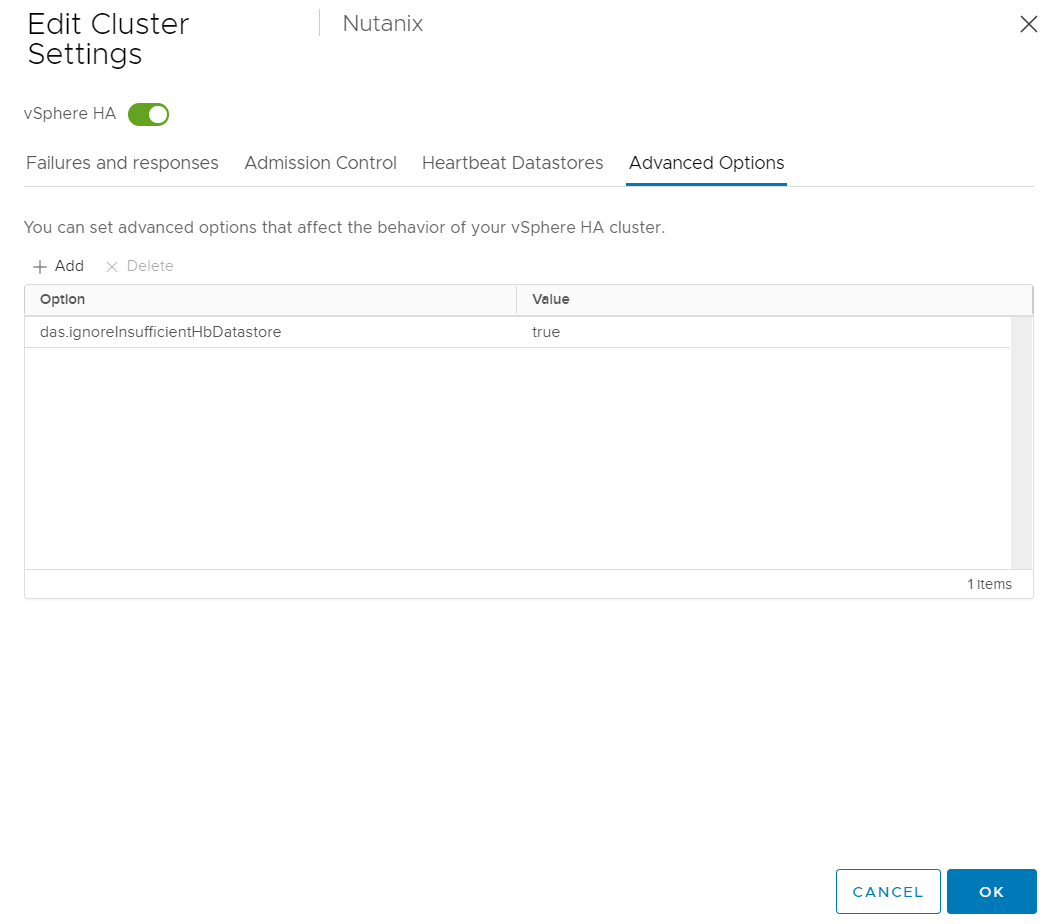
Select the Nutanix Datastore. If the cluster has only one datastore, click Advanced Options tab and add das.ignoreInsufficientHbDatastore with Value of true.

Click OK to apply the settings.

DRS Settings:

Select Cluster à Configure à VSphere Availability

Turn on the vSphere DRS switch.

Specify the following information under the Automation tab.

Leave DPM unchecked and click OK

EVC MODE :

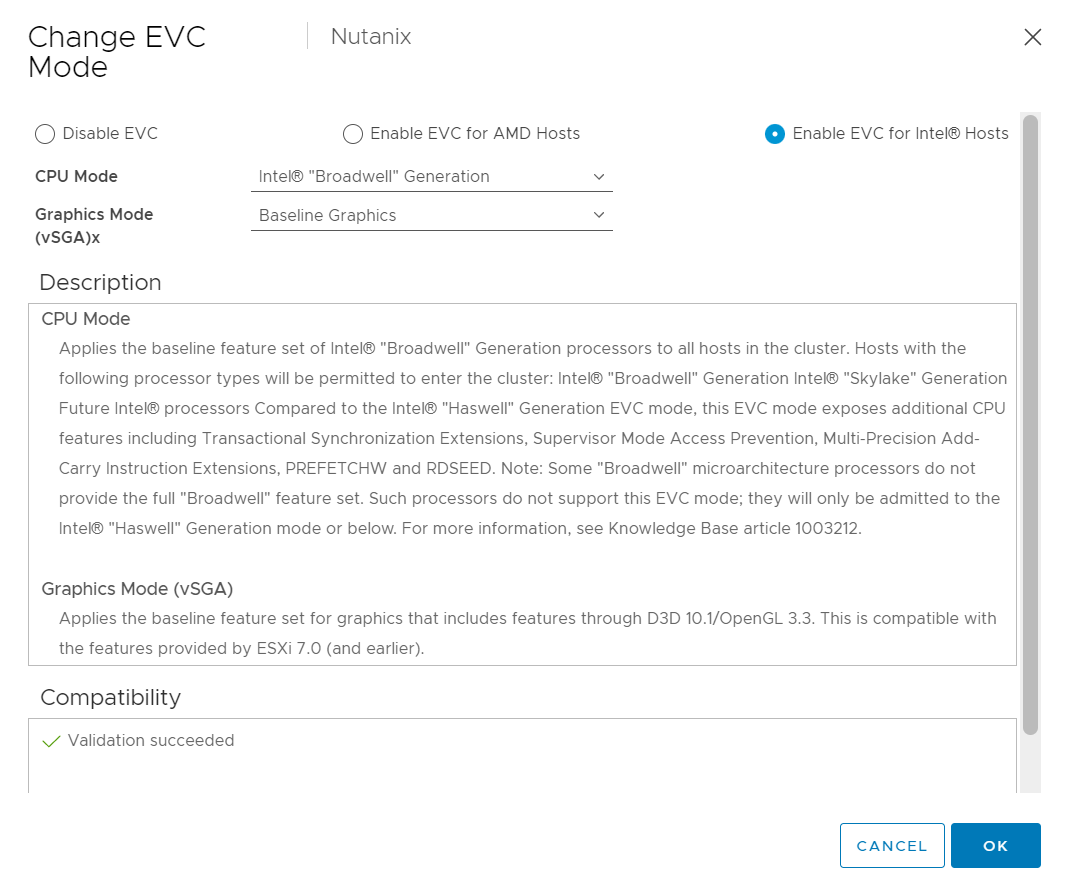
Click Configure, and go to Configuration > VMware EVC.

Enable EVC for the CPU vendor and feature set appropriate for the hosts in the Nutanix cluster, and click OK

VM Override:

Click Add

Select CVM VMs and click Next

Select Below override settings.

  • DRS Automation Level: Disabled
  • VM HA Restart Priority: Disabled
  • VM Monitoring: Disabled

Click Finish to Save the setting .

VCenter Registration:

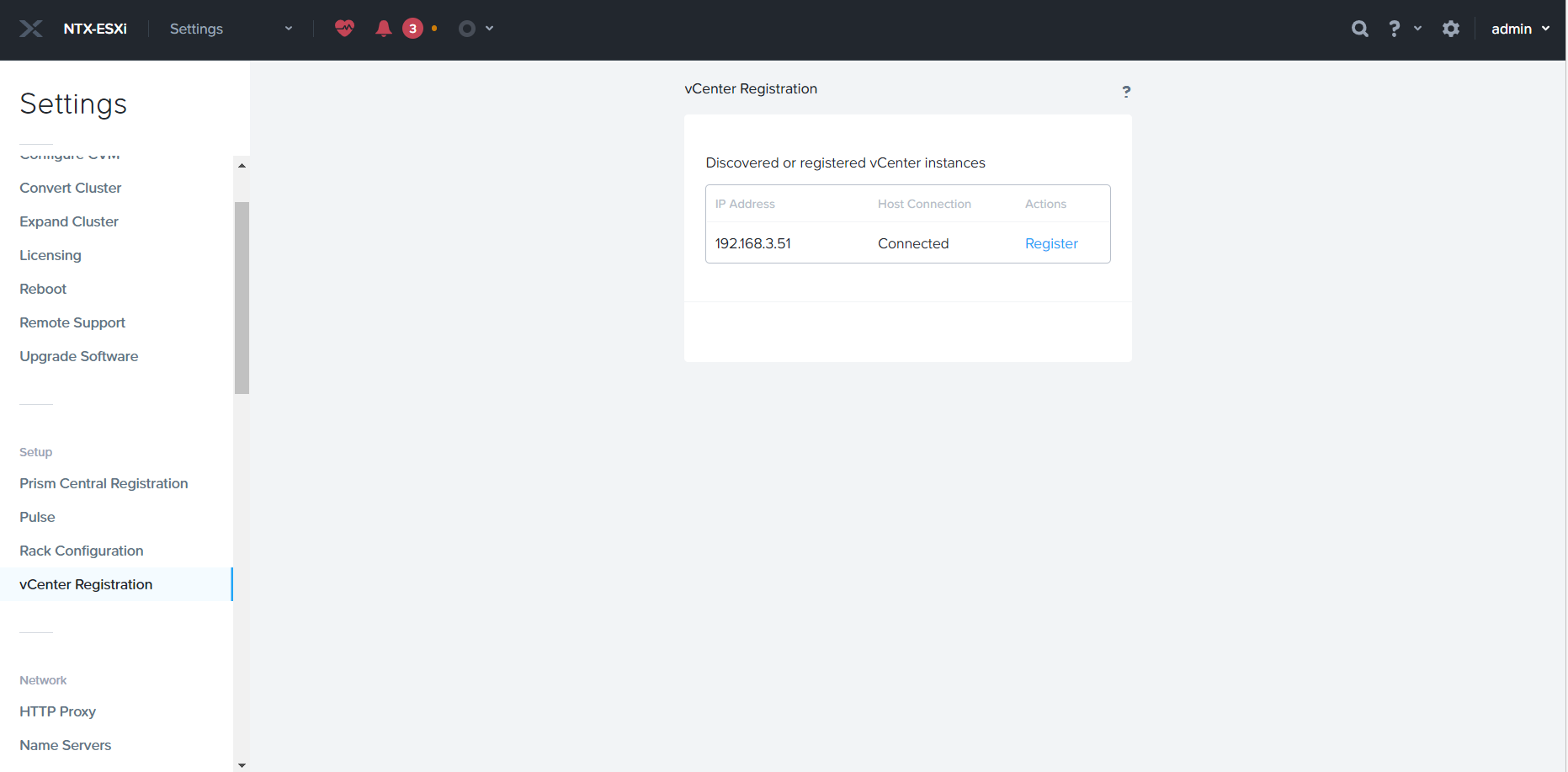
It is required to register VCenter in Prism, To do the VCenter registration Settings à VCenter Registration

Click Register

Specify VCenter Username and Password and click Register

Change Nutanix Default Passwords

The Nutanix Controller VM (CVM) ‘nutanix’ Account

To change the nutanix default password, SSH to any of the CVM and run the below command to change password, it will replicate to all the CVMs.

nutanix@cvm$ sudo passwd nutanix

The Hypervisor Local Accounts

AHV Hypervisor:
To Change root account password on all Hosts in the cluster, run below command from any of the CVM.

nutanix@cvm$ echo -e “CHANGING ALL AHV HOST ROOT PASSWORDS. Note – This script cannot be used for passwords that contain special characters ( $ \ { } ^ &)\nPlease input new password: “; read -s password1; echo “Confirm new password: “; read -s password2; if [ “$password1” == “$password2” ] && [[ ! “$password1” =~ [\\\{\$\^\}\&] ]]; then hostssh “echo -e \”root:${password1}\” | chpasswd”; else echo “The passwords do not match or contain invalid characters (\ $ { } ^ &)”; fi

To Change admin account password on all Hosts in the cluster, run below command from any of the CVM.

nutanix@cvm$ echo -e “CHANGING ALL AHV HOST ADMIN PASSWORDS. Note – This script cannot be used for passwords that contain special characters ( $ \ { } ^ &)\nPlease input new password: “; read -s password1; echo “Confirm new password: “; read -s password2; if [ “$password1” == “$password2” ] && [[ ! “$password1” =~ [\\\{\$\^\}\&] ]]; then hostssh “echo -e \”admin:${password1}\” | chpasswd”; else echo “The passwords do not match or contain invalid characters (\ $ { } ^ &)”; fi

To Change nutanix account password on all Hosts in the cluster, run below command from any of the CVM.

nutanix@cvm$ echo -e “CHANGING ALL AHV HOST NUTANIX PASSWORDS. Note – This script cannot be used for passwords that contain special characters ( $ \ { } ^ &)\nPlease input new password: “; read -s password1; echo “Confirm new password: “; read -s password2; if [ “$password1” == “$password2” ] && [[ ! “$password1” =~ [\\\{\$\^\}\&] ]]; then hostssh “echo -e \”nutanix:${password1}\” | chpasswd”; else echo “The passwords do not match or contain invalid characters (\ $ { } ^ &)”; fi

VMware ESXi

To Change root account password on all Hosts in the cluster, run below command from any of the CVM.

nutanix@cvm$ echo -e “CHANGING ALL ESXi HOST PASSWORDS. Note – This script cannot be used for passwords that contain special characters ( $ \ { } ^ &)\nPlease input new password: “; read -s password1; echo “Confirm new password: “; read -s password2; if [ “$password1” == “$password2” ] && [[ ! “$password1” =~ [\\\{\$\^\}\&] ]]; then hostssh “echo -e \”${password1}\” | passwd root –stdin”; else echo “The passwords do not match or contain invalid characters (\ $ { } ^ &)”; fi

Microsoft Hyper-V

To change local administrator password for all Hyper-V hypervisors in the Nutanix cluster. Run the below command from any from the CVM.

nutanix@cvm$ echo -e “CHANGING ALL HYPER-V HOST PASSWORDS. Note – This script cannot be used for passwords that contain special characters ( $ \ { } ^)\nPlease input new password: “; read -s password1; echo “Confirm new password: “; read -s password2; if [ “$password1” == “$password2” ] && [[ ! “$password1” =~ [\ \”\’\\\{\$\^\}] ]]; then hostssh “net user administrator $password1”; echo “Updating Host and ManagementServer Entries…”; ncli host ls | grep -i id | grep -Eo “::[0-9]*” | cut -c 3- | while read hID; do ncli host edit id=$hID hypervisor-password=$password1;done > /dev/null; ncli host ls | grep “Hypervisor Address” | awk ‘{print $4}’ | while read hIP; do ncli managementserver edit name=$hIP password=$password1;done > /dev/null; else echo “The passwords do not match or contain invalid characters (\ $ { } ^)”; fi

How to create VM Trunk NIC in AHV

VM NIC can works in two modes

  • Access
  • Trunk

Access nic are the default and NIC is associated with one VLAN. Whereas trunk can allow multiple VLAN on single NIC.

Note: Currently Trunk port can be added/ modifed from CLI only from the prism both access & trunk ports look same.

SSH on any of the CVM and run the below command.

nutanix@CVM~$ acli vm.nic_create <vm name> network=<network name> trunked_networks=<comma separated list of allowed VLAN IDs> vlan_mode=kTrunked

if VM name is DEMO & you want to allow VLAN 10,20,30,40 , we need to run below command.

nutanix@CVM~$ acli vm.nic_create DEMO network=network trunked_networks=10,20,30,40 vlan_mode=kTrunked

If incase if you want to convert Trunk NIC to Access NIC , then below is the command syntax.

acli vm.nic_update <vm name> <vm nic mac address> vlan_mode=kAccess update_vlan_trunk_info=true

Nutanix Deployment with VMWare VSphere (Part1)

In This series will discuss the Nutanix with VMWare VSphere from A to Z. Starting from New Cluster Deployment, VSphere Configuration and last not the least Migration.

Foundation is official deployment software of Nutanix. Foundation help to configure pre-imaged or reimage the nodes with the required hypervisor and AOS. Foundation can give the option to create cluster or skip the cluster formation.

Foundation can be download from Nutanix Support portal.

https://portal.nutanix.com/page/downloads?product=foundation

Foundation software is available for

  • Foundation for windows
  • Foundation for MacOS
  • Standalone Foundation VM

Beside Foundation we required desire AOS bundle & Hypervisor ISO (if we are not going with AHV)

In Today’s walkthrough will use Foundation for Windows to do the foundation. Once Foundation Application is installed. Run as admin foundation.exe

Before proceeding with the foundation, some of the keypoints need to be noted. I would recommend the flat unmanaged switch and connect all nodes shared network ports and laptop on the switch.

You can check the shared port information from hardware compatibility list.

https://portal.nutanix.com/page/documents/list?type=compatibilityList

incase if share port is not available we need to connect IPMI & ethernet ports from each node.

Select the hardware platform type, Provide CVM & IPMI Subnet and Gateway IP. Click Next to Proceed.

Provide each Node’s IPMI, HOSTIPs, CVM IPs and hostname and click Next.

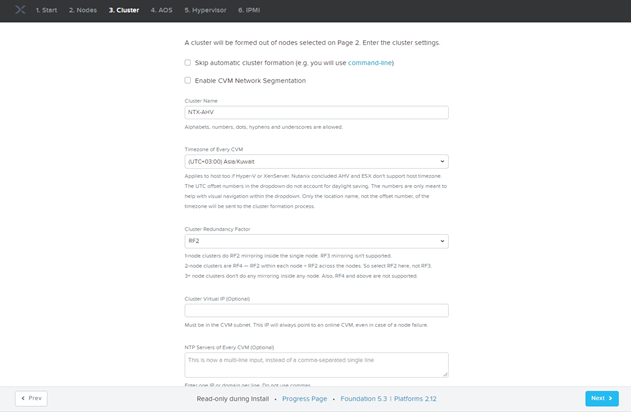
Provide Cluster Name, Specify Time Zone & CVM Memory and Click Next.

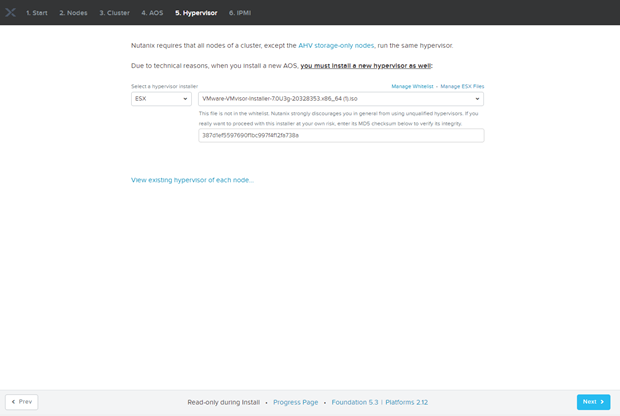
Provide AOS Bundle and Click Next

By default AHV is bundle within AOS Package, as I want to install VMware ESXI as hypervisor so we need to provide VMware ESXi ISO.

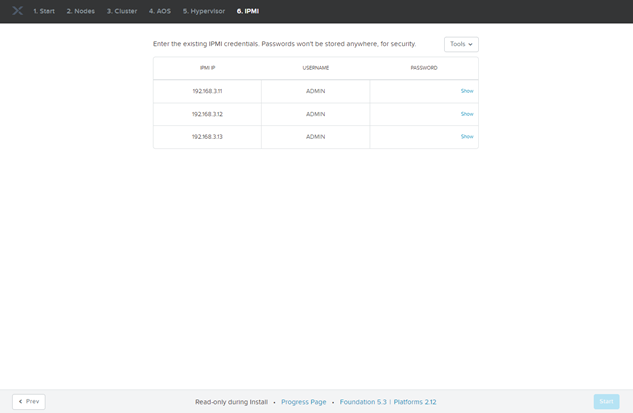
Provide IPMI Credentials and Click Next

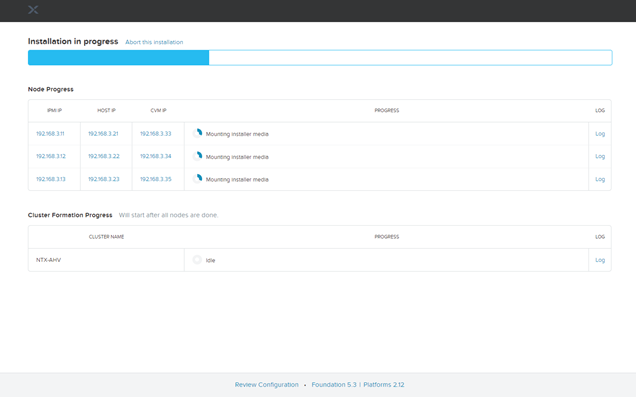
Foundation Process will take approx. 1hrs.

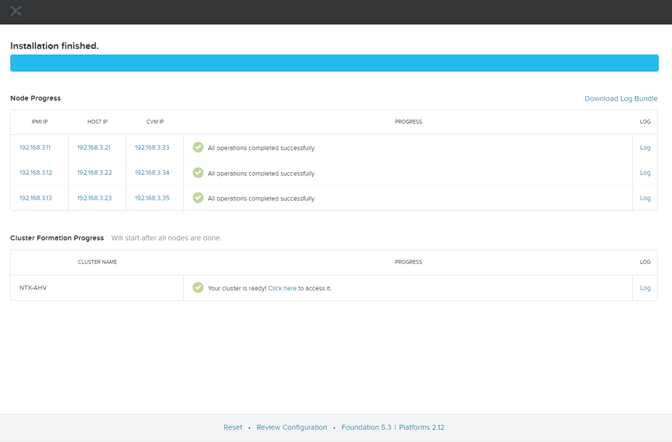
Foundation is finished. You can access the prism from any of the CVM IPs.

Default Credentials are as below:

User Password
CVM nutanix nutanix/4u
Hypervisor root nutanix/4u
Prism admin Nutanix/4u
IPMI ADMIN Node Serial Number

Create Citrix NetScaler ADC VM in Nutanix AHV

Nutanix AHV is certified to run Citrix NetScaler. Below is the procedure to create Citrix NetScaler VM on AHV.

  • Download NetScaler Virtual Appliance from Citrix Portal
  • Extract .tgz file , it will give you .qcow file
  • Login to Prism

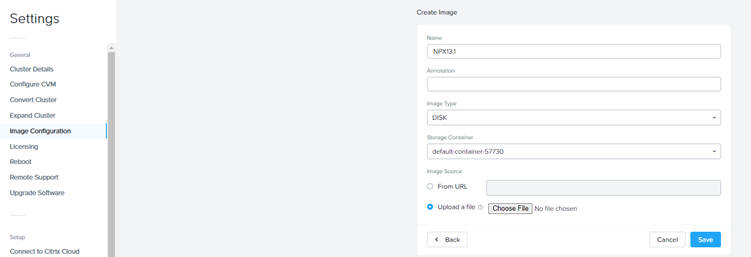
  • Click Setting à Image Configuration
  • Click Upload Image and specify below information
    • Name
    • Image Type
    • Storage Container
    • Upload a file / From URL

  • Click Save to start the upload.
  • Navigate to VM page
  • Create VM , in the VM Creation Dialogue page

    • Provide VM Name
    • Specify VCPU = 2 (recommended by Citrix)
    • Specify Ram = 2G (recommended by Citrix)
    • Click Add Disk , Select Clone from Image Service and select the Citrix NetScaler Image and click add

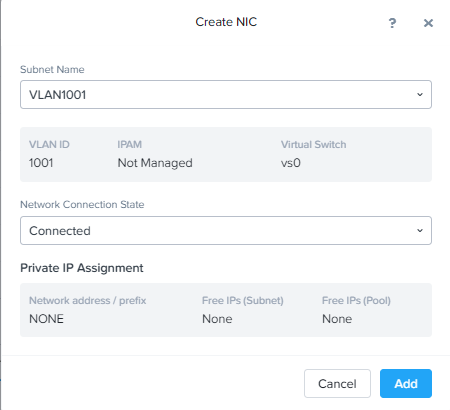
    • Add Network and click Add

    • Click Save to create the VM.
  • NetScaler required Serial Port on the VM, to add the Serial Port on the VM
    • SSH to CVM
    • Run the below command to add the serial port
      • acli vm.serial_port_create <vm_name> type=kServer index=0

  • Power-On the VM and open console from Prism.

Exchange Year 2022 Problem: FIP-FS Scan Engine failed to load – Can’t Convert “22010 10001”

FIP-FS Scan Engine

FIP-FS is probably the anti-malware virus scanner that has been on board since Exchange Server 2013. This is supposed to scan the on-premises Exchange Server installation for malicious content. This anti-malware scan engine seems to cause problems the problem.

Temporary Solution is to disable anti-malware filter . You can disable it as below

Set-MalwareFilteringServer exch-19 -BypassFiltering $true

Happy New Year 😊

Setting-up Single Node Nutanix Community Edition Cluster

Nutanix Community Edition is the Free version of Nutanix OS which can be used to test drive the main features of Nutanix, it can be deployed on existing hardware in the infrastructure or in the Virtual Machines

Nutanix CE Components:

  • AHV (Acropolis Hypervisor )
  • Nutanix Prism ( Nutanix Management Plane)
  • nCLI
  • Single or Multi-Node Cluster

Nutanix CE Limitation:

  • Internet Access on the Cluster
  • Nutanix Next Account for activation
  • Must upgrade within 30-Days or once the upgrade is available

Let’s start with the setup by step hand-on

  • Download the Nutanix CE Binaries from Nutanix Portal

Browse Nutanix Community link

Download Nutanix CE Installer ISO. Once installer downloaded we can proceed with the Virtual Machines creation.

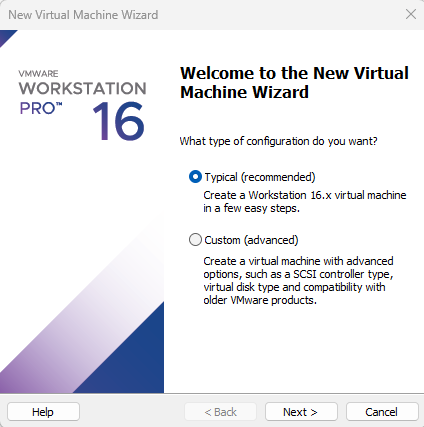
Proceed with the Typical VM Creation and click next.

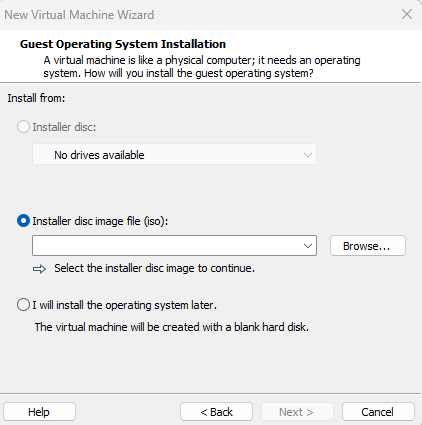
Browse the Nutanix CE Installer and Click Next

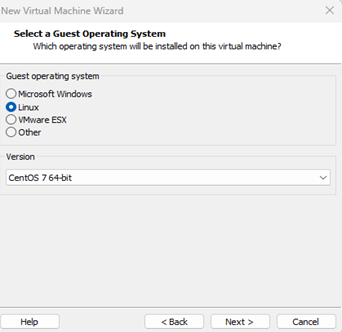
Select CentOS 64Bit as OS and click next

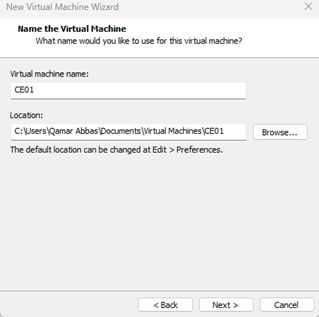
Specify the VM Name Click Next

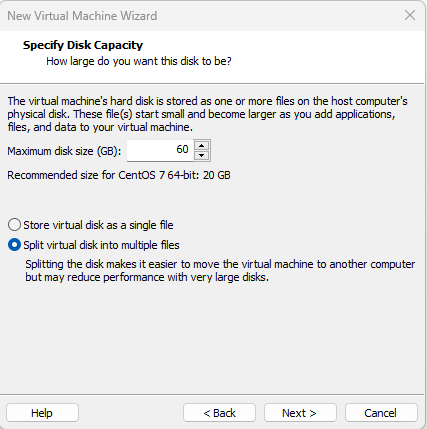
Specify the disk Size and click Next

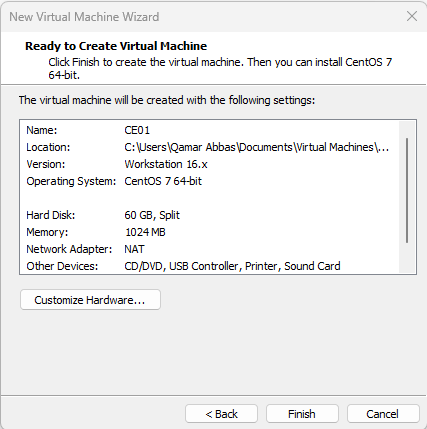
Review the VM Hardware setting & add additional 2 HDD ( 1 for Hypervisor, 2nd for CVM, 3Rd for DATA) and Virtual Machines memory should be at-least 24G.

Power -On the VM and boot VM from ISO Installer

Specify the desire Hypervisor, Select the VM disks as per the requirement and Specify the IP Address details for Hypervisor & CVM and proceed next.

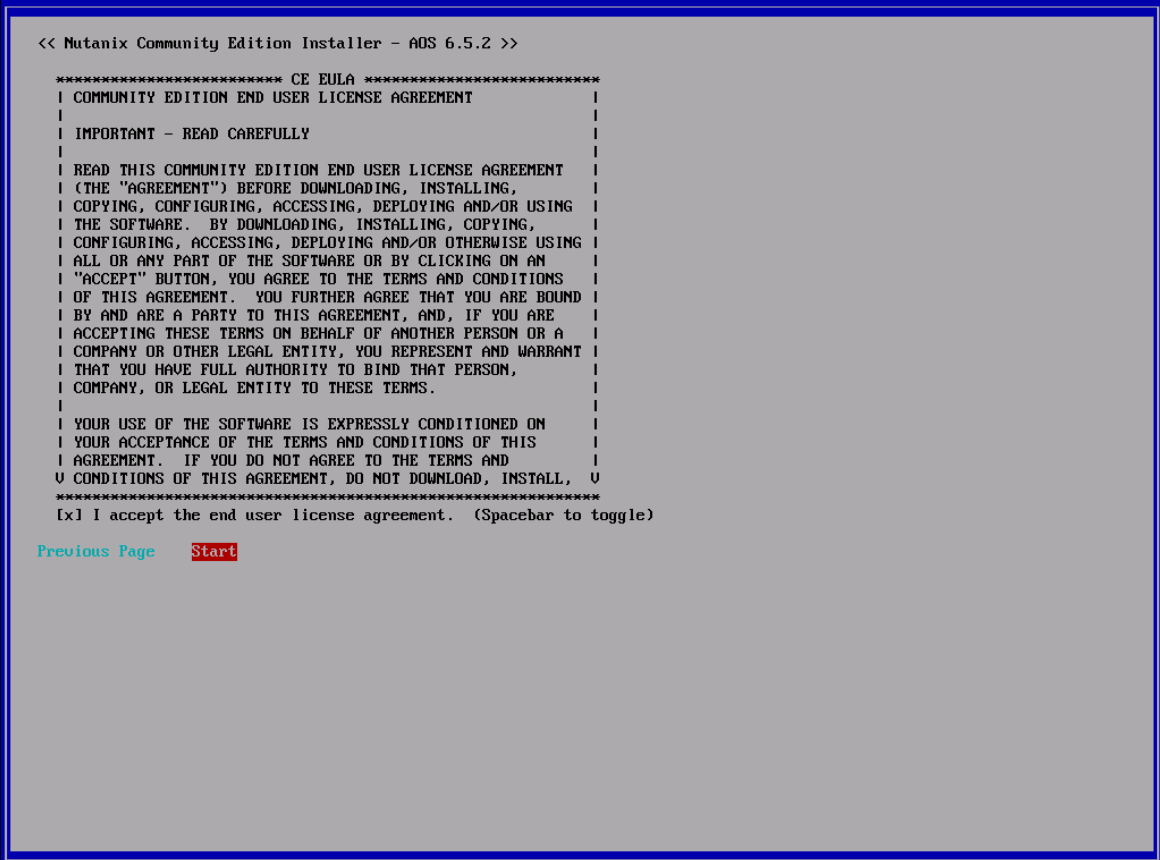
Accept the license agreement (Make sure to scroll down the license till end) and start the installation.

Installation will take approx. 30-40 mins, once installation completes disconnect the installer ISO and press Y to reboot the VM.

Once the VM boots, you can see Nutanix Prism is accessible, below are the default user name & Password for Nutanix

  User Password
AHV Root nutanix/4u
CVM Nutanix nutanix.4u
Prism admin nutanix/4u

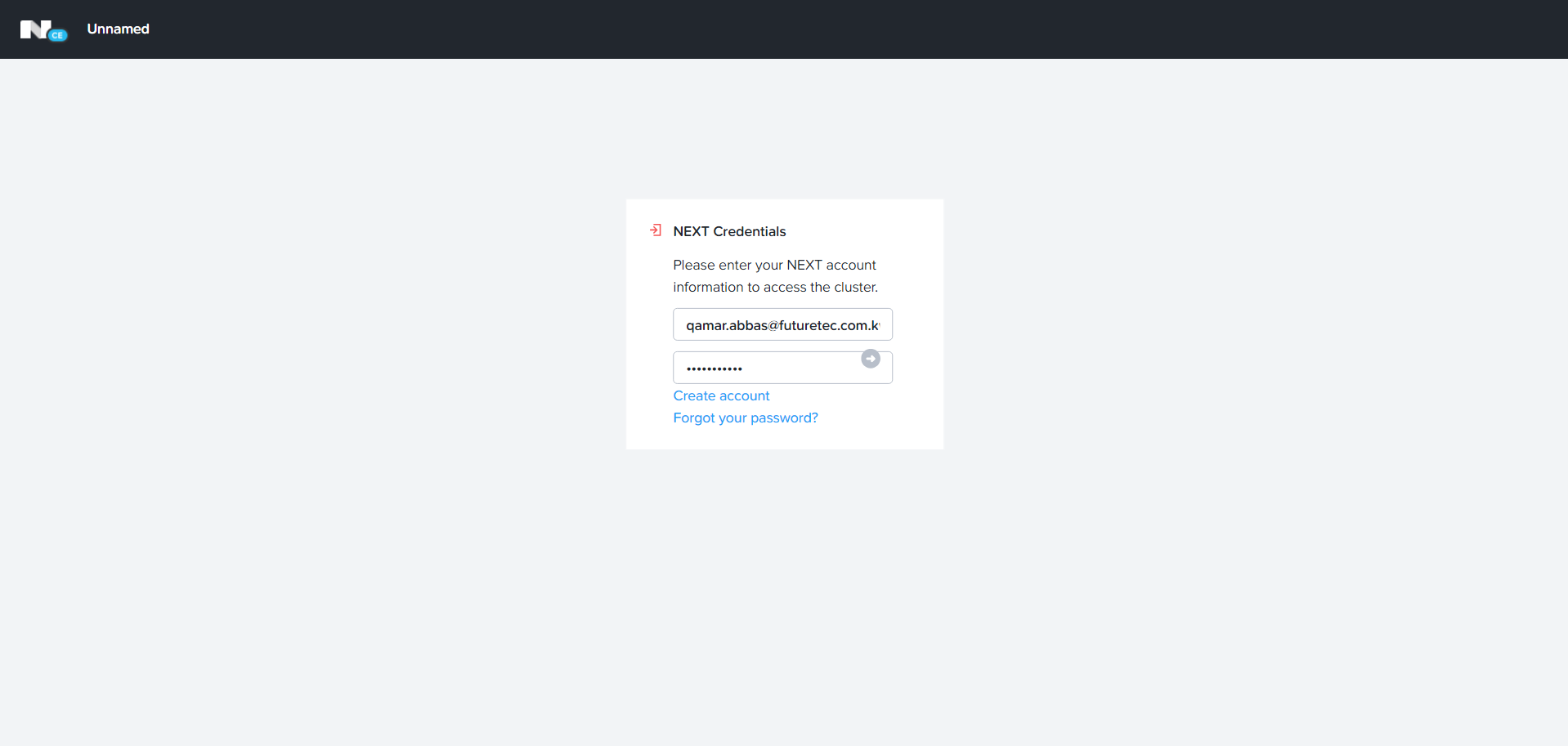
Enter the Nutanix Next account and click à , incase if you don’t have the Nutanix next account you can create one.

Cluster is register and page will be redirected to home page

Initial Cluster setup is completed, enjoy Nutanix Simplicity 😊


Nutanix AHV VLAN Configuration

CVM & AHV host should be on the same VLAN, by Default CVM & AHV Hosts are untagged and shown as VLAN 0 placed as native VLAN.

Assign VLAN on AHV Host:

  • Login to AHV host using root account
  • Put the host & CVM into maintenance mode
  • Assign the port br0 to VLAN

root@ahv# ovs-vsctl set port br0 tag=host_vlan_tag

Replace host_vlan_tag with the desire VLAN ID.

  • Confirm VLAN tagging on port br0.

root@ahv# ovs-vsctl list port br0

  • Confirm the tag parameter

Assign VLAN on CVM:

  • Login to AHV Host using root account
  • Login to CVM

ssh nutanix@192.168.5.254

  • Assign VLAN to public interface for CVM

change_cvm_vlan vlan_id

  • Replace vlan_id with the desire VLAN ID.
  • Restart the network service
  • sudo service network restart

Tips:

  • Nutanix Recommend to configure CVM & Host VLAN as native VLAN or untagged, as New nodes send and received untagged traffic. If tagged VLAN is used VLAN must be updated on the new Nodes before adding new nodes.