Nutanix Bare-metal nodes Foundation
Nutanix Foundation is the process to install Hypervisor & CVM on the Nodes.
Bare Metal Imaging can be performed from workstation with the access to Shared port or IPMI and Network ports on the node. Imaging a cluster required Nutanix Foundation & AOS Binaries.
- AOS Binary
- Foundation Software (anyone of below can be used to do the foundation)
- Foundation VM
- Foundation for Windows
- Foundation for MAC
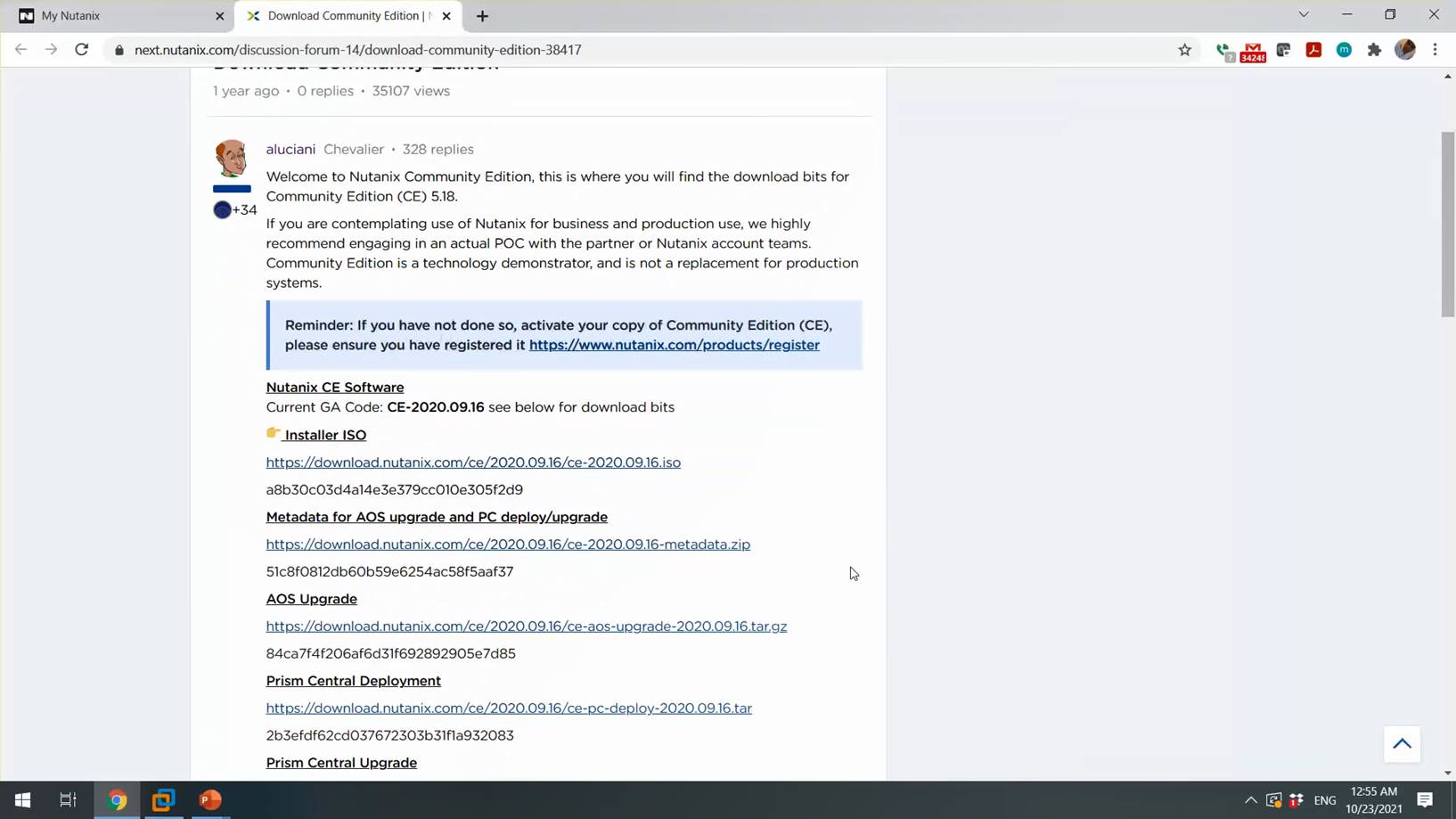
You can download the foundation & AOS Binaries from Nutanix Support Portal à Download à Foundation / AOS
Prepare Workstation for Foundation.
Multiple option is available for Foundation, Foundation for Windows can be installed directly on Windows Laptop connected with Nutanix Nodes or Foundation VM can be imported in VMware Workstation / Oracle Virtual Box.
In this article I will proceeding with the imaging with Nutanix Foundation VMs.
Installing the Foundation VM
- Start Oracle Virtual Box / VMWare Workstation / Foundation
- Click the File menu and select Import Appliance… from the pull-down list.
- In the Import Virtual Appliance dialog box, browse to the location of the Foundation .ovf file, and select the Foundation_VM-version#.ovf file.
- Click Next.
- Click Import.
- In the left pane, select Foundation_VM-version#, and click Start.
- If the login screen ask for password, Foundation VM password is Nutanix/4u
- On the desktop you can find the set_foundation_ip address script to set the foundation VM IPs
- Once IP set, we are ready to do next stop
Copy Installation files to Foundation VM
Copy the Nutanix AOS Binaries (nutanix_installer_package-release-euphrates-X.XX.X.tar.gz) to /home/Nutanix/Foundation/NOS directory. Copy the hypervisor ISO to as below
- ESXi ISO image: /home/nutanix/foundation/isos/hypervisor/esx
- Hyper-V ISO image: /home/nutanix/foundation/isos/hypervisor/hyperv
- AHV: AHV is bundled with the Nutanix AOS package
Launch Foundation Applet
- Double click Foundation Applet, to start the foundation
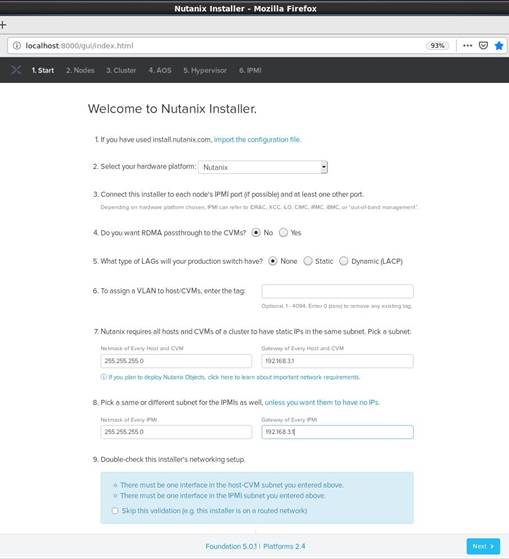
- Select the Block hardware, CVM, IPMI Netmask and Gateway and click next to proceed.
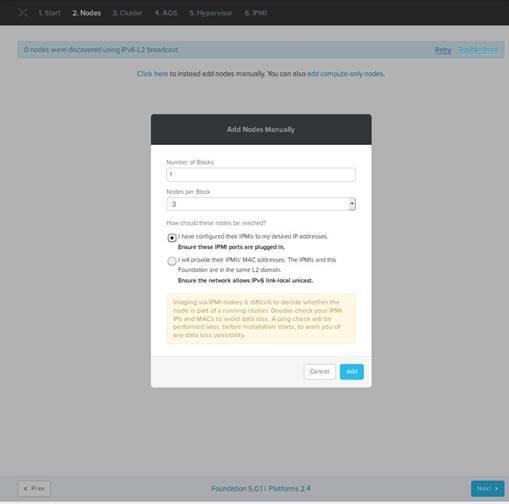
- Click retry to discover the Nutanix node, currently new Nutanix Block comes with the discoveryOS so nodes are discoverable from Nutanix Foundation.
- As my LAB nodes are old one so I am proceeding with the manual add
- Specify the Number of Node per Block, Select how these nodes will be reached
- I have configured the IPMI as my desired IP Address
- This option is good if IPMI IP Address are already set
- I will provide the IPMI MAC Address
- This option is used to avoid setting up the IPMI Address manually, NODE IPMI MAC Addresses are mention on the backside on each node.
- I have configured the IPMI as my desired IP Address
- Click Next to proceed.
- Specify the required IP Address (IPMI, CVM, HOST) , Hostname and click Next
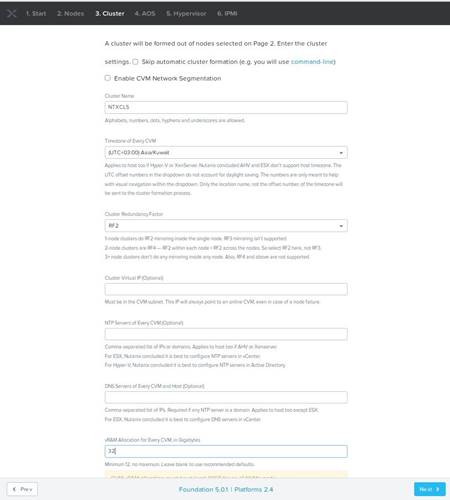
- Specify the desired Cluster Name, Time Zone , Cluster Redundancy Factor, memory for CVM and click Next.
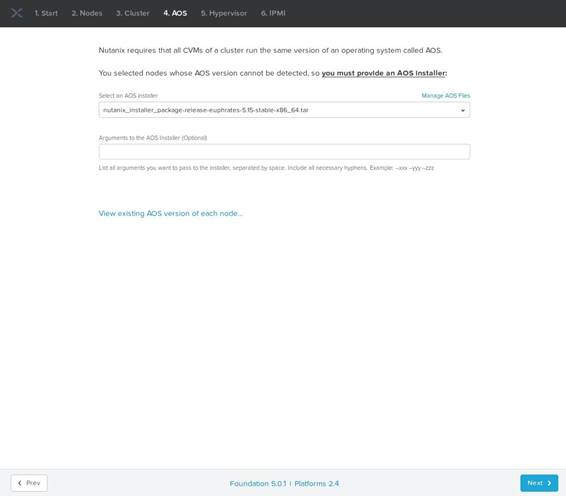
- Provide the AOS installer and click Next.
- Select the Desire Hypervisor and provide the Hypervisor ISO for installation. AHV is already bundled with AOS package. For Hyper-V & VMWare ESXi, whitelisted ISO need to provide before proceeding.
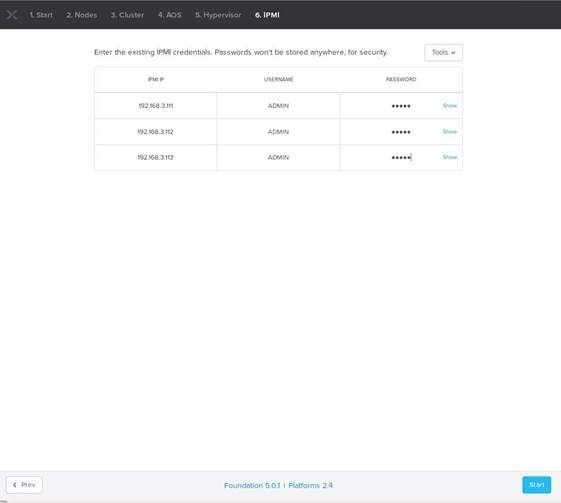
- Specify the IPMI username/password and click Start
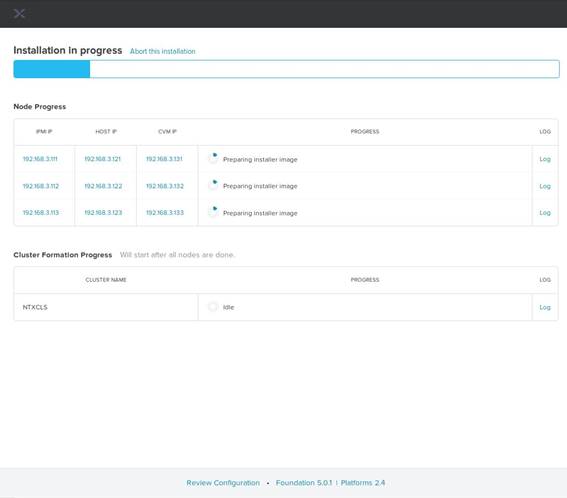
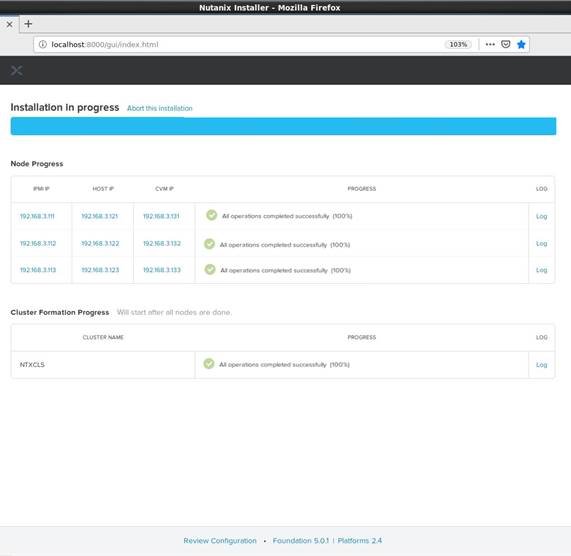
- Foundation will validate the IP Addresses and proceed with the installation.
Tips:
- IP ver6 need to enable on the Laptop for the discovery
- Incase Symantec Endpoint protection is installed on the Laptop, disabled it even if you using the foundation VM as I saw Symantec Network Threat Protection is even blocking the Foundation VM Traffic
- Always use latest version of Foundation Software
- Use Flat Switch during the foundation
Happy Foundation 😊