NCA & NCP-MCI v6.10 Free Exam Attempt

NCA and NCP-MCI v6.10 certifications are now live! For the limited time you can take either exam for free.

Book your exam appointment today!

Both exams are now open for scheduling, with exam appointments starting Tuesday, December 10, 2024. The exams can be scheduled for remote proctoring or in-person at a testing center.

For a limited time, you can take either certification exam for free (up to $199 value)! Use the discount codes below at checkout by Friday, December 13, 2024.

  • NCA 6.10 Discount Code: NXFRNCA24
  • NCP-MCI 6.10 Discount Code: NXFRNCP24

To register for either exam, visit My Certifications on Nutanix University and schedule your desired exam. Use the discount code provided above at checkout.

New Release – Nutanix Move 5.4.1

Nutanix Move (Move) is a cross-hypervisor mobility solution to migrate virtual machines (VMs) and files with minimal downtime. Nutanix Move is a data migration tool designed to simplify the process of migrating virtual machines (VMs) from various environments to Nutanix infrastructure. It provides a streamlined way to move workloads, whether they’re on-premises or in public clouds, minimizing downtime and ensuring data integrity throughout the process.

Key features of Nutanix Move include:

  1. Seamless Migration: Supports moving VMs with minimal disruption to applications.
  2. Multi-Cloud Compatibility: Facilitates migration across different cloud platforms and hypervisors.
  3. Incremental Transfers: Allows for incremental data transfers, reducing the amount of data moved in the final cutover.
  4. Centralized Management: Offers a user-friendly interface to manage and monitor migration tasks.

Some of the new features in 5.4.1 are as below

  • Automatic installation of Nutanix Guest Tools on the migrated VMs.
  • Configuring Nutanix Self-Service runbooks for execution post VM migration.
  • Migration of vTPM-enabled VMs from Hyper-V to AHV.
  • Installation of Move Agent on Hyper-V hosts on a custom port. The default port is 8087.
  • Report generation for Files migration.
  • Scanning of shares. It also shows the progress of shares migration for Nutanix Files 5.0.0 and above.
  • Automatic target share creation for Files Migrations.

Move supports VM migration from the following sources to targets, where first platform is the source, and second platform is the target.

  • VMware ESXi (legacy infrastructure or Nutanix) to AHV
  • VMware ESXi (legacy infrastructure or Nutanix) to VMware ESXi on Nutanix
  • VMware ESXi to Nutanix Cloud Clusters (NC2) on AWS
  • VMware ESXi to NC2 on Microsoft Azure
  • VMware Cloud (VMC) on AWS to AHV
  • VMC on AWS to NC2 on AWS
  • Microsoft Hyper-V to AHV
  • Microsoft Hyper-V to VMware ESXi on Nutanix
  • Microsoft Hyper-V to NC2 on AWS
  • AWS EC2 to AHV
  • AWS EC2 to VMware ESXi on Nutanix
  • AWS EC2 to NC2 on AWS
  • Microsoft Azure Cloud to AHV
  • Microsoft Azure Cloud to VMware ESXi on Nutanix
  • Microsoft Azure Cloud to NC2 on Azure
  • Nutanix AHV to Nutanix AHV
  • Nutanix AHV to AWS EC2
  • Nutanix AHV to Microsoft Azure Cloud
  • Nutanix AHV to NC2 on AWS/Azure
  • NC2 on AWS/Azure to Nutanix AHV
  • NC2 on Azure to NC2 on Azure

Nutanix AOS 6.10 LTS

AOS 6.10 is designed for both current and new Nutanix users. It meets the needs of organizations who demand the ability to run any workload now and in the future, without being constrained by IT silos. Let’s explore how this new release can help transform your IT landscape.

1) Unprecedented Storage Capabilities

AOS 6.10 combines faster, denser storage capabilities with superior performance from earlier releases. One of the bigger features in this storage category is the integration of AES Optimized Metadata from AOS 6.8. This feature enables higher performance, particularly sustained random access patterns that are common with high-end databases. This enhancement is crucial for businesses that manage large volumes of data and require quick access without sacrificing security or integrity.

Other new storage and data service features range from dedupe enhancements, capacity planning improvements, an optimized database solution, easier to use storage policies, and more.
2) Nutanix AHV: Enterprise Readiness

The Nutanix AHV hypervisor in AOS 6.10 showcases the latest advancements in hypervisor technology and enterprise features. It includes on-demand cross-cluster migration, AOS storage optimizations, intelligent virtual machine (VM) placement, and robust security – all supported by an ever-growing partner ecosystem. This makes Nutanix AHV with AOS 6.10 the ideal choice for those seeking an alternative hypervisor, offering ease of use, functionality, and scalability.

3) Disaster Recovery and Resiliency

AOS 6.10 elevates Disaster Recover (DR) to new heights with a wide array of replication and resiliency options. It features NearSync for Volume Groups and Consistency groups, Metro-multi site DR, and significant enhancements for DR options.

For the first time, Multicloud Snapshot Technology (MST) with Pilot Light Deployment allows snapshots to be replicated directly to Amazon S3 cloud storage, enabling the ability to recover to a Nutanix Cloud Clusters (NC2) cluster when disaster strikes. These features ensure that your organization is well-prepared to handle any unforeseen events, maintaining operational continuity and safeguarding critical data.

4) Nutanix Flow Network Security offers Enhanced Security, Connectivity, and Cyber Resilience

AOS 6.10 introduces advanced security measures with the Flow Network Security solution and the Prism Central Security Dashboard feature, designed to protect your data, safeguard your network, and elevate the management of operational security. These enhancements ensure a more secure and resilient IT environment for your enterprise. For instance, the Prism Central Security Dashboard, introduced in AOS 6.6, provides a centralized overview of your infrastructure’s security posture.

Updates to networking and security for Flow Network Security Next Gen product and Flow Virtual Networking include traffic mirroring, easier policy management, and new ways to scale across clouds are now available in AOS 6.10. These updates simplify security management and fortify your network against evolving threats.

5) Streamlined Management and Automation

The AOS 6.10 update enhances management and automation by focusing on efficiency and user experience. This release introduces VM-centric data policies, new storage policies, and efficiency improvements with the X-Small Prism Central management console for smaller deployments.

Also, fine-grained role-based access control (RBAC), added in AOS 6.8, provides greater control over users’ access to specific resources. Furthermore, v4 APIs (Release Candidate) enable your organization to leverage a single family of industry-standard APIs to meet your objectives. Paired with the simplified Nutanix Guest Tools (NGT) installs, AOS 6.10 enables your IT teams to focus on strategic initiatives rather than routine tasks.

Nutanix End User Computing Administration (NEUCA) 6.5 & Free Exam

Nutanix End User Computing Administration (NEUCA) course to v6.5. This free, self-paced online course teaches you the skills needed to design, install, configure, and manage an End-User Computing (EUC) solution on Nutanix.

In this 10-hour course, you will explore several EUC-focused subjects including:

  • Considerations when planning an EUC implementation, how to choose between Virtual Desktop Infrastructure (VDI) and Desktop-as-a-Service (DaaS), and the options available when designing your EUC solution.
  • Nutanix technologies that support an EUC deployment, including Flow Network Security, which provides increased security for desktops, and Files Storage, an integrated file server solution.
  • Configuring and operating EUC environments, including using third-party solutions, working with profile stores, and creating and optimizing gold images.
  • Optimizing and troubleshooting an EUC environment, including best practices, viewing utilization metrics, and troubleshooting various common issues.

Visit our website to learn more about the course and get started.

After you’ve completed the course, validate your skills with the Nutanix Certified Professional – End User Computing (NCP-EUC) v6.5 certification exam.

The NCP-EUC 6.5 certification exam measures your ability to successfully deploy, monitor, administer, troubleshoot and maintain end user computing environments utilizing the Nutanix platform.

For a limited-time you can take the certification exam for free (a $199 value)! Use discount code NXFREUC65 at checkout by Thursday, December 28, 2023.

Nutanix Move

Nutanix Move is a cross-hypervisor migration tool to migrate Virtual Machines workload to Nutanix & File Server to Nutanix Files. Below are the Supported Migration scenarios.

  • VMware ESXi (legacy infrastructure or Nutanix) to AHV
  • VMware ESXi (legacy infrastructure or Nutanix) to VMware ESXi on Nutanix
  • VMware ESXi to Nutanix Cloud Clusters (NC2) on AWS
  • VMware ESXi to NC2 on Microsoft Azure
  • Microsoft Hyper-V to AHV
  • Microsoft Hyper-V to VMware ESXi on Nutanix
  • Microsoft Hyper-V to NC2 on AWS
  • AWS EC2 to AHV
  • AWS EC2 to VMware ESXi on Nutanix
  • AWS EC2 to NC2 on AWS
  • Microsoft Azure Cloud to AHV
  • Microsoft Azure Cloud to VMware ESXi on Nutanix
  • Microsoft Azure Cloud to NC2 on Azure
  • Nutanix AHV to Nutanix AHV
  • Nutanix AHV to AWS EC2
  • Nutanix AHV to Microsoft Azure Cloud

Nutanix Move Can be downloaded from the link below.

https://portal.nutanix.com/page/downloads?product=move

Move VM Specifications:

  • vCPU: 2
  • Memory: 8GB
  • Storage: 50G

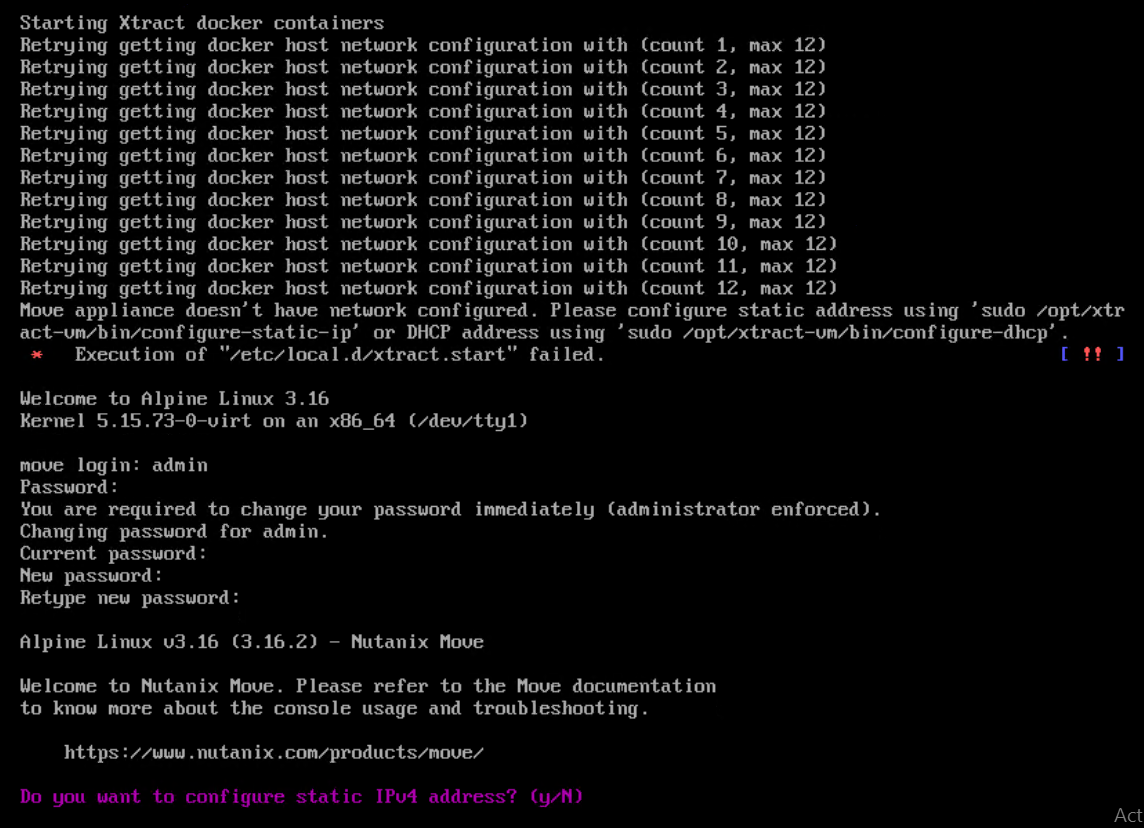
Move VM initial Configuration:

Create VM based downloaded Move OS image.

Login to Move VM with default credentials

  • User: admin
  • Password: Nutanix/4u

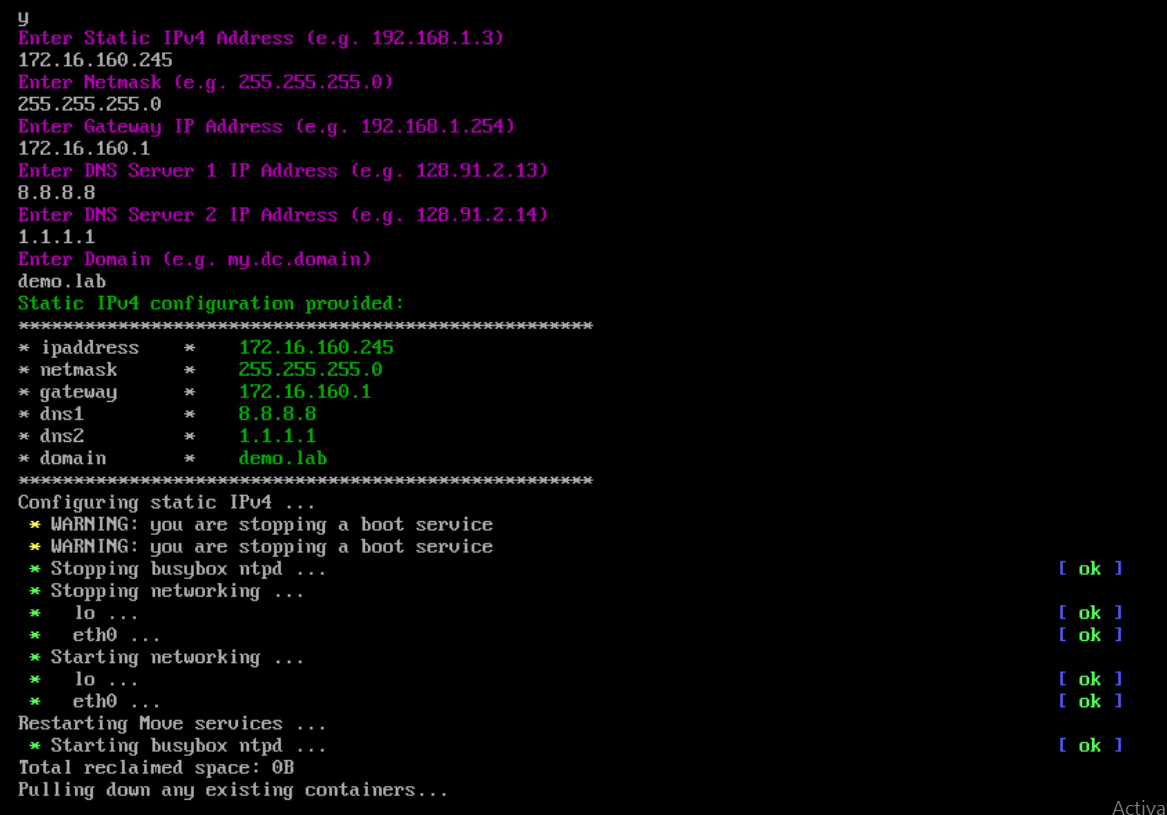
If you want to configure Static IP, press Y and enter.

Specify the IP Adress, Netmask, Gateway, DNS and domain and enter. Once IP is configured. Move can be accessible from any web browser.

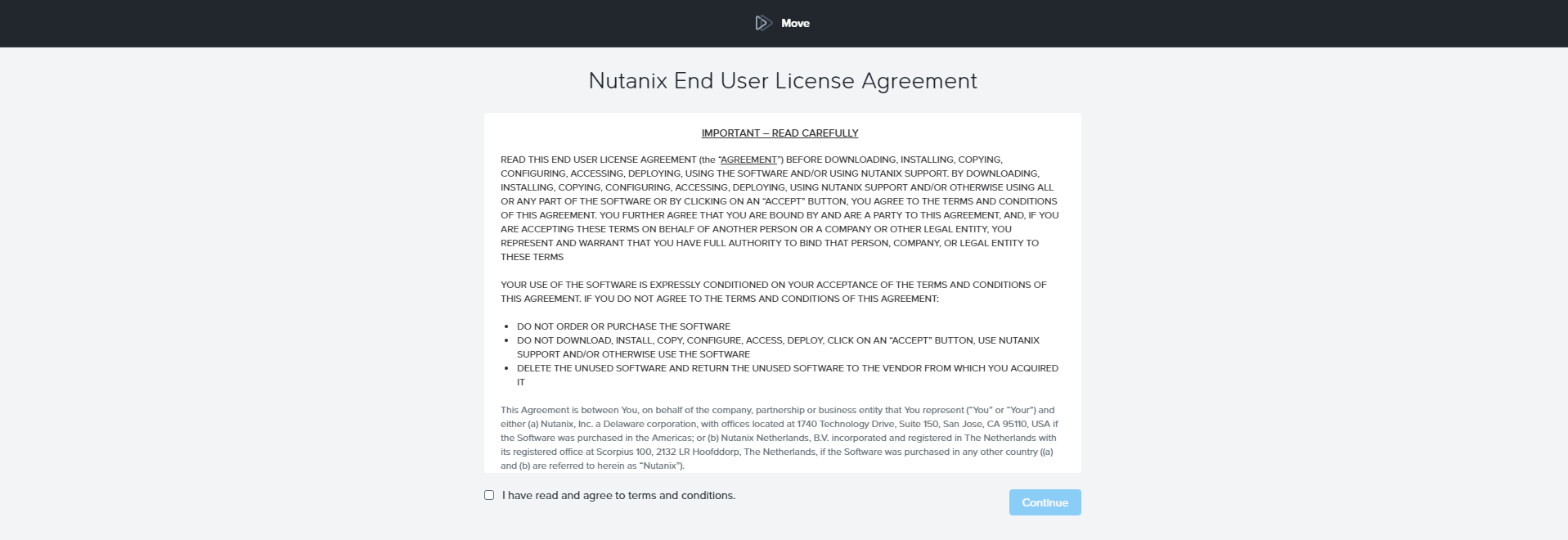
Accept the license agreement and click continue

Set Web password

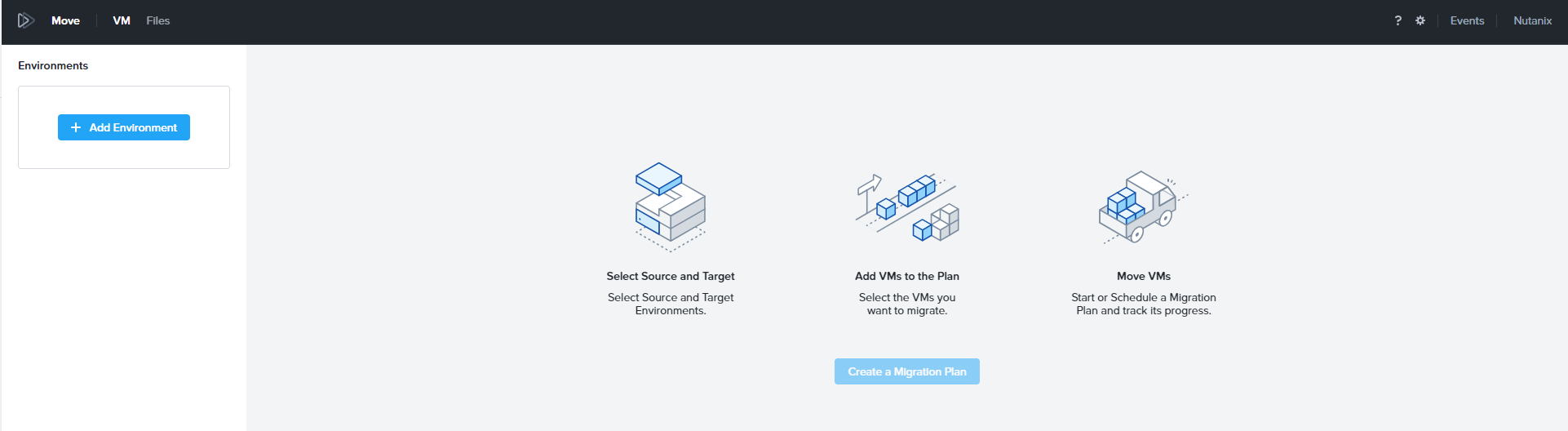
Add Environment Information

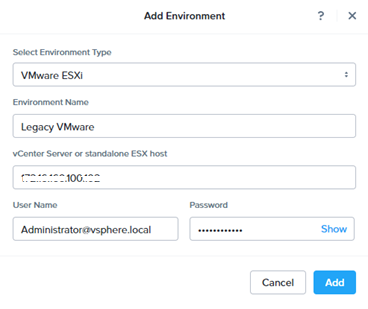
Select the Source Environment (VMware / Hyper-v / Azure etc)

Provide environment name, IP address, Username , Password and click add

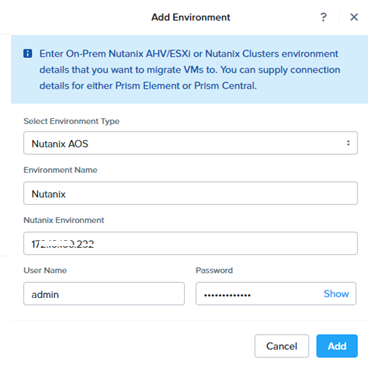
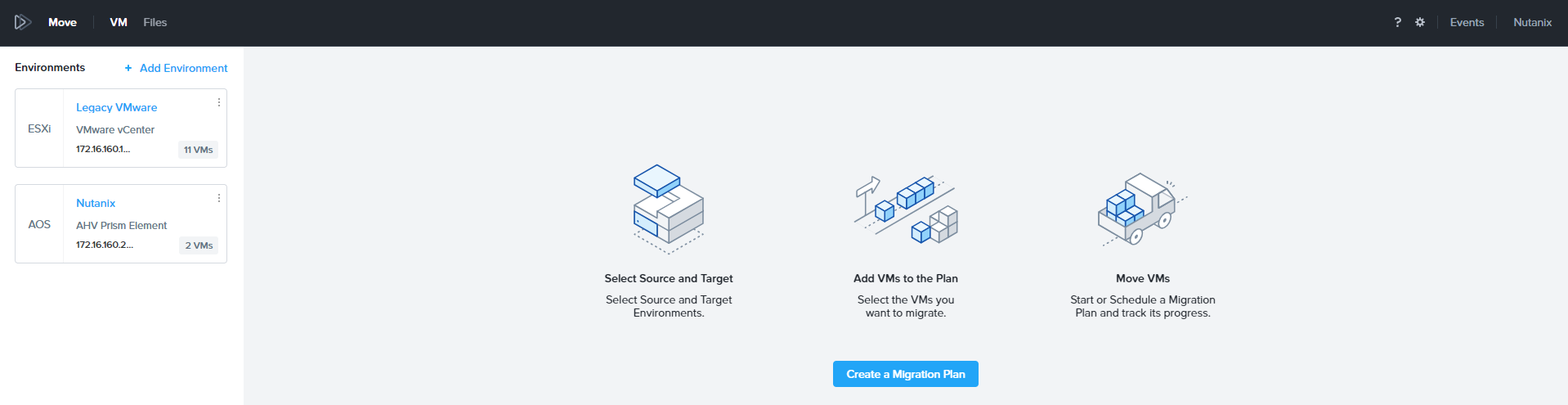
Nutanix Target (AHV /VMware) will be added as Nutanix AOS. Provide Nutanix Cluster IP, username and password and click ADD.

Create Migration Plan

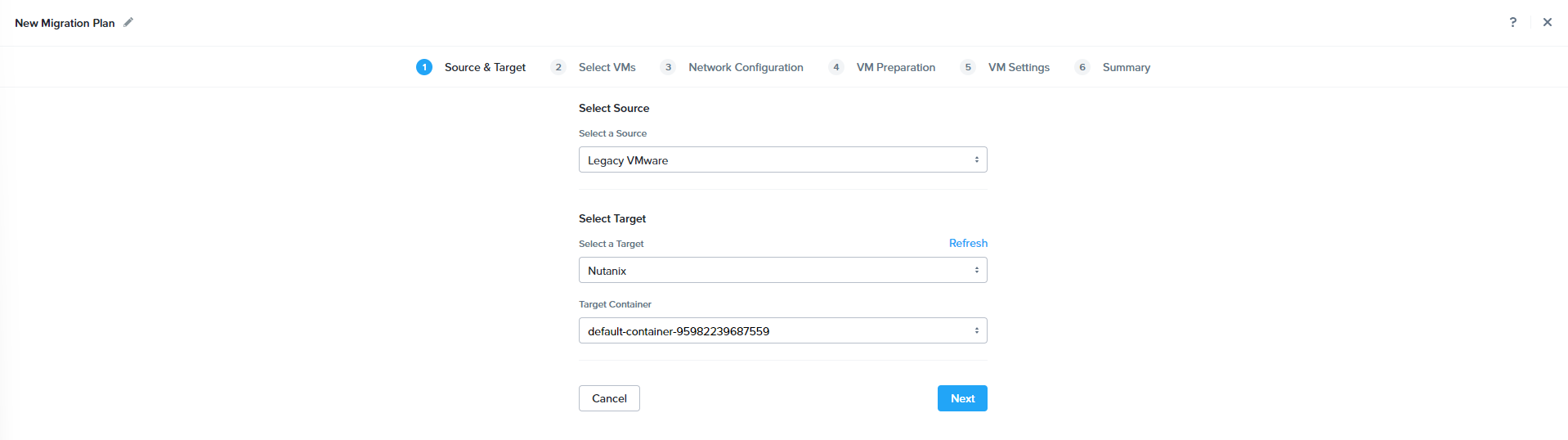
Click Create a Migration Plan.

Select the Source , Target and Target Container and click Next

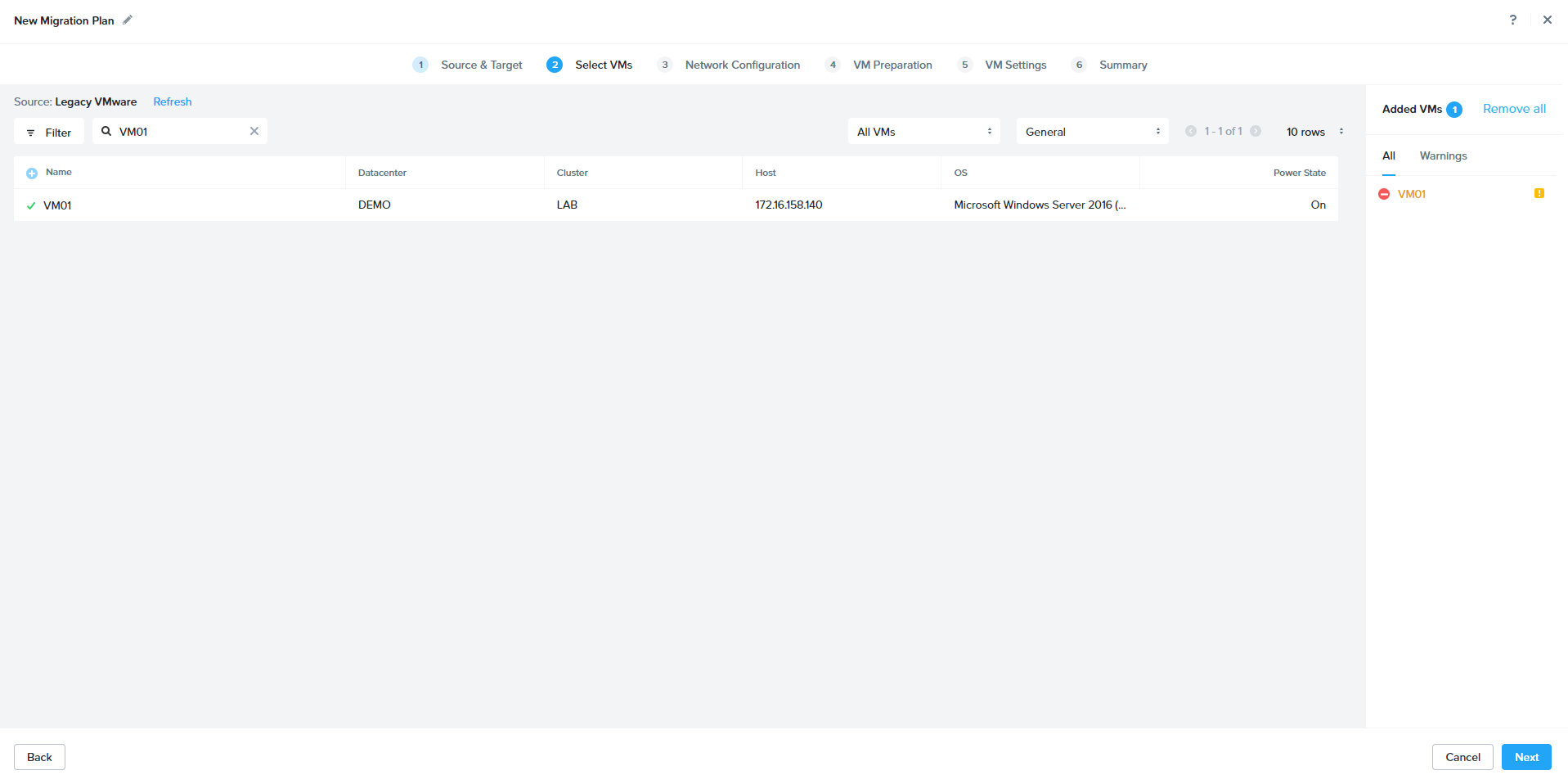
Select the Desire and Click + to add. Click next to proceed.

Specify the target network and click next to proceed.

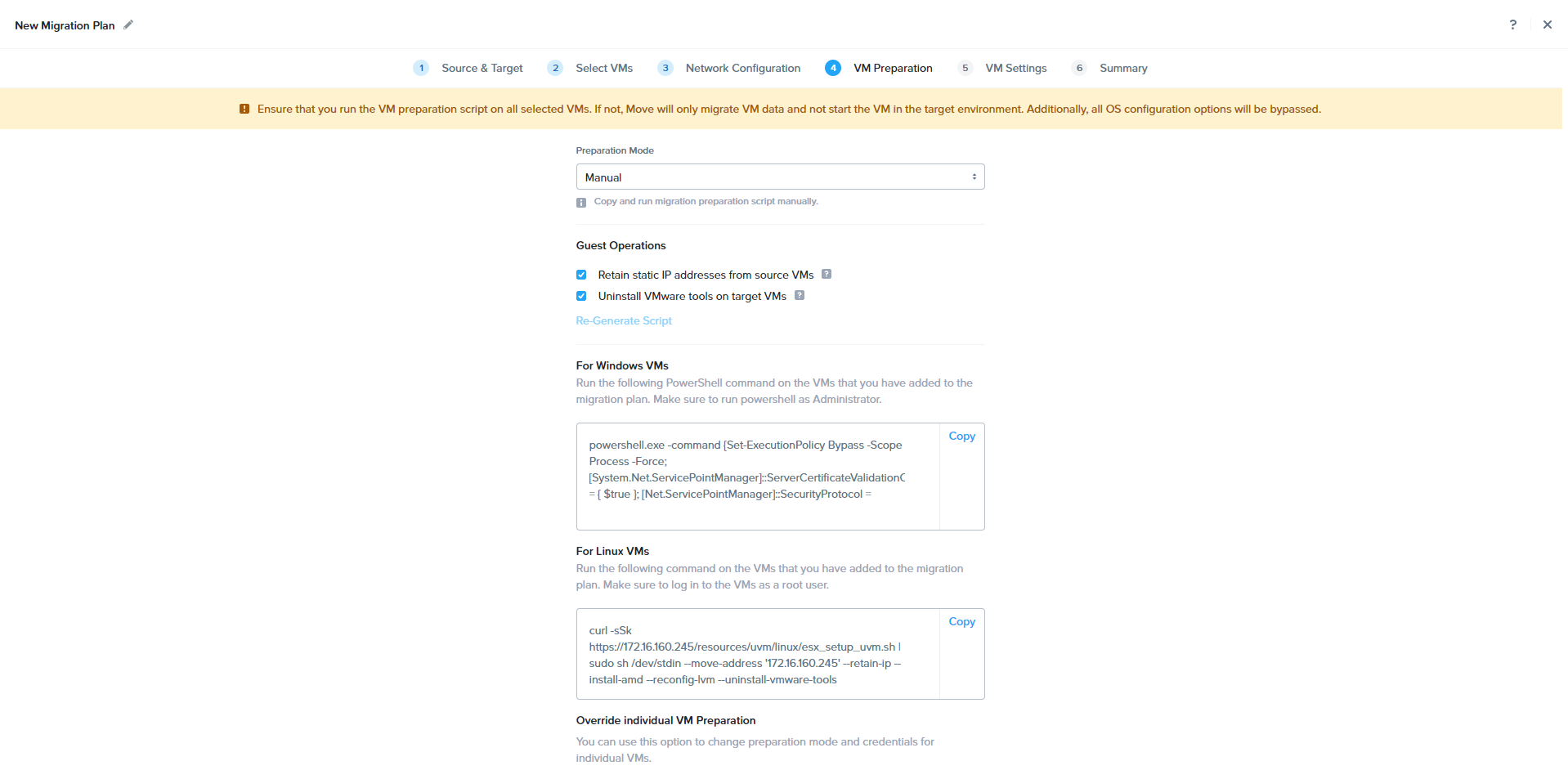
In the manual Preparation method, based on the OS type above mentioned commands need to be run manually.

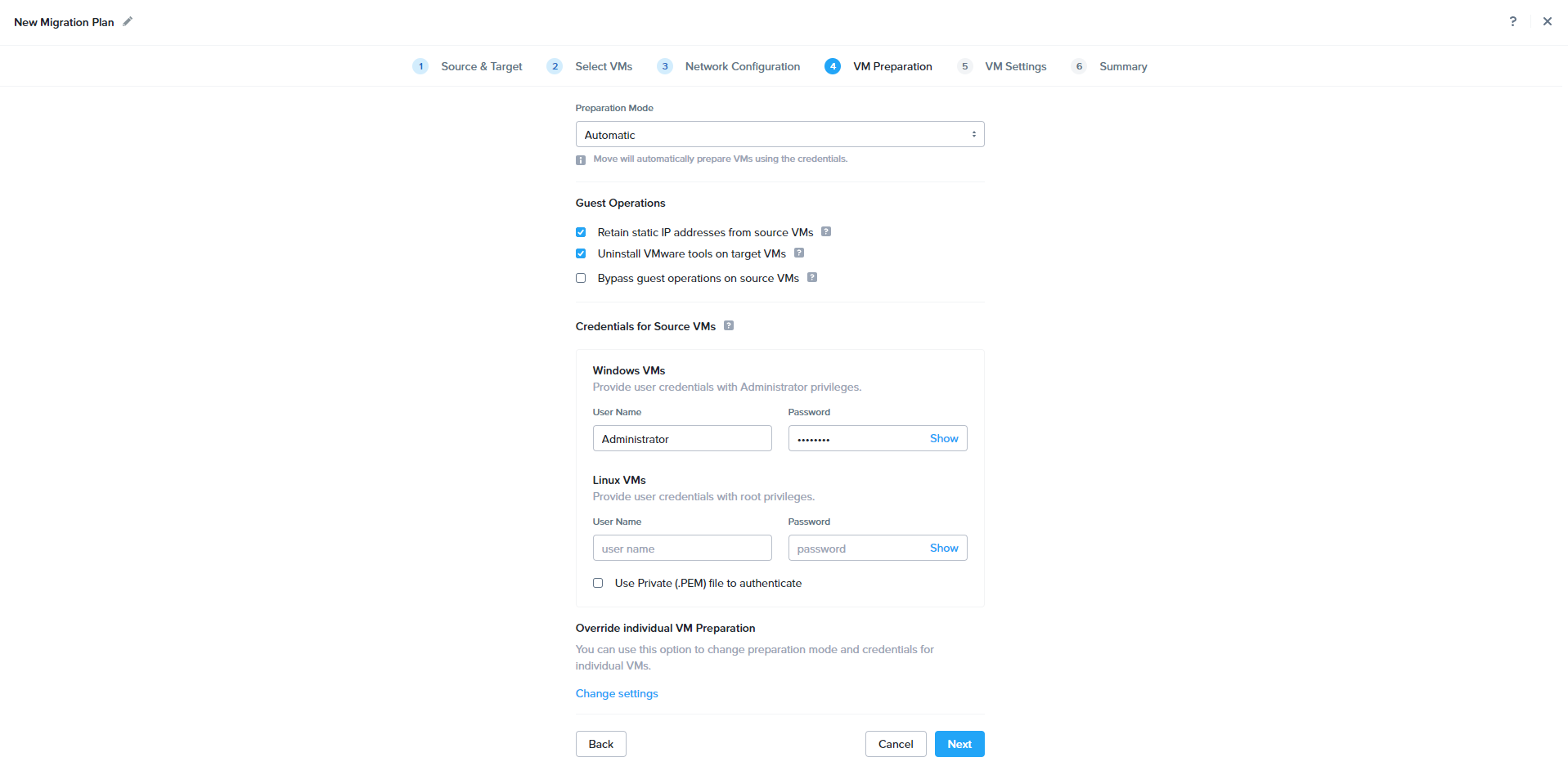
Provide Guest VM Admin permission to do the Automatic VM preparation and click next.

Review the configuration and click Save to start the migration.

During the Sync Process, Move will take the Source VM snapshot and sync the snapshot to target.

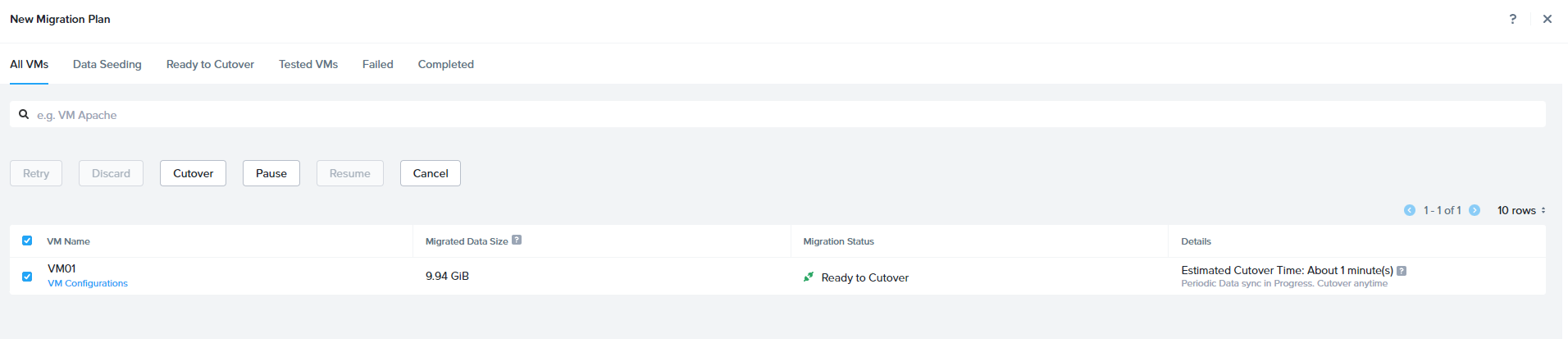
Once the Sync is completed, job status will be shown as Ready to Cutover.

Select the VM and Click Cutover. During cutover Source VM will be shutdown and final sync will be initiated. Source VM NIC will be disconnected and New VM will be registered in Nutanix and powered-on

Nutanix Prism Central – Deployment , Registration and Unregistration

Nutanix Prism Central provides an option to monitor and manage multiple clusters through a single web console. Centralized management tool runs as a separate instance it can be a single VM or a set of VMs.

Prism Central offers following features:

  • Single sign on for registered cluster
  • Dashboard Customization
  • Manage VMs, storage containers, catalog items, images, categories, recoverable entities, and subnets across the registered clusters.
  • Mange Nutanix Disaster Recovery & Nutanix Flow
  • Hardware component
  • Activity monitors for alerts, events, audits, and tasks
  • Tools to analyze system activity, plan for resource needs, create usage reports, and automate routine administrative tasks
  • Dashboards to manage inventory (LCM), projects, roles, users, and availability zones.
  • Service connection pages to enable Calm, Karbon, and Objects

Deploy Prism Central

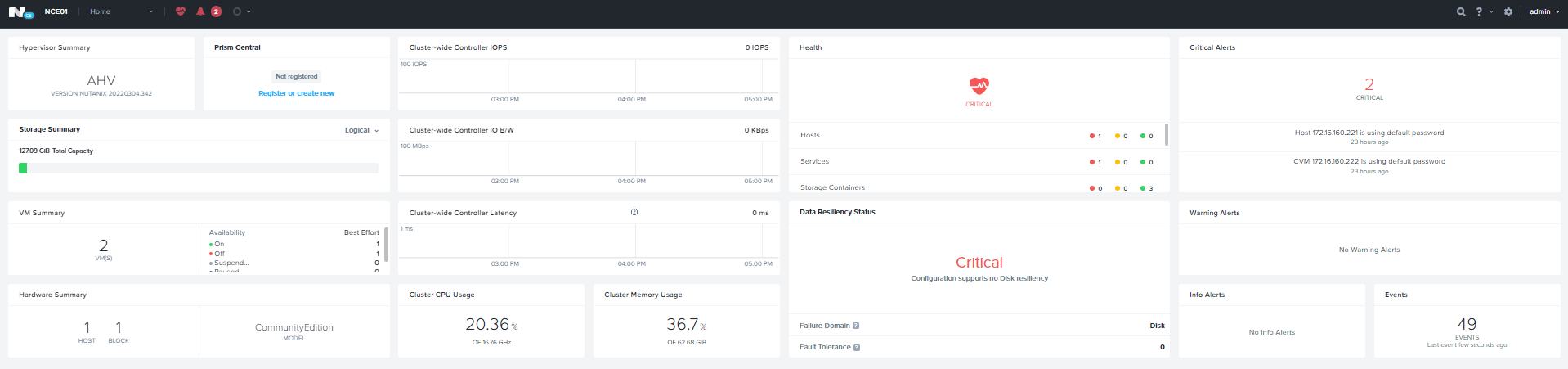
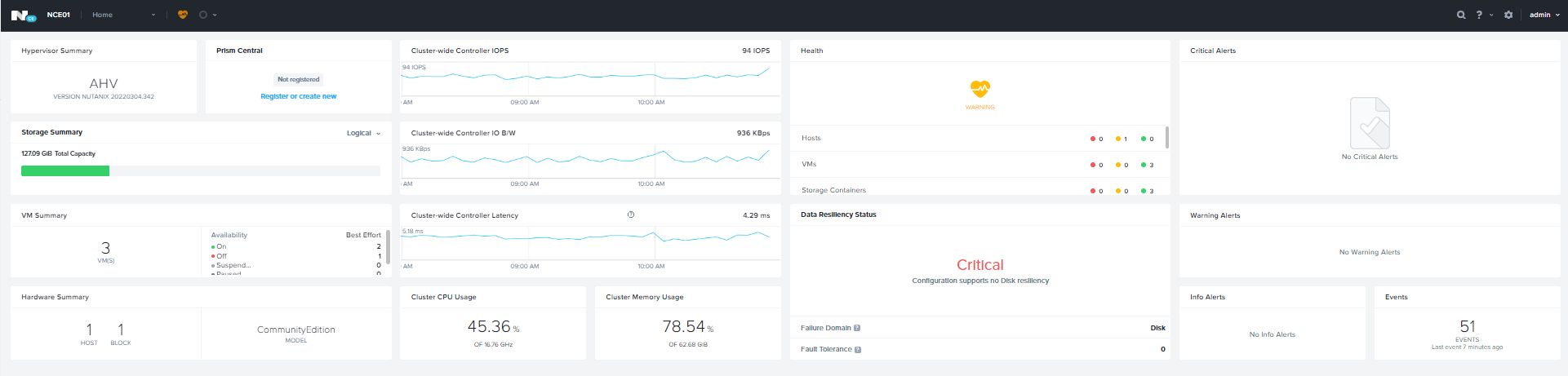
We can deploy Nutanix Prism Deploy from any cluster with 1-Click operation. Log-in to cluster

Home Page — > Prism Central Widget — > Register or Create New

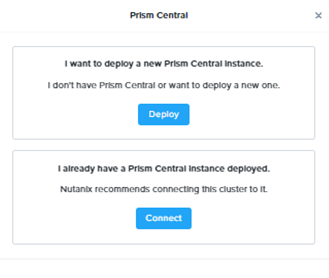
Click Deploy to Start the Deployment Wizard

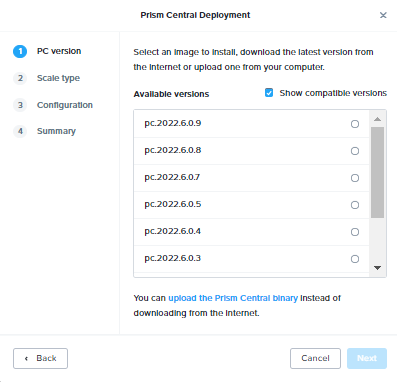
Select the Desire PC Version and click next.

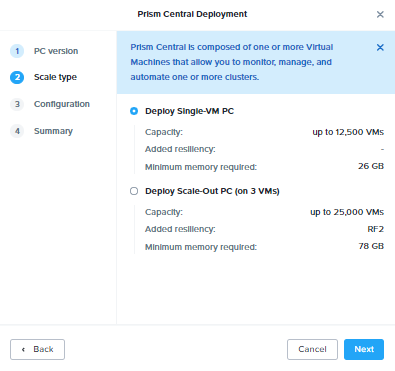
Select the PC Deployment Model and Click Next

Specify the Network, Subnet, Gateway and PC IP and click Next

Review the Deployment summary & Click Deploy to start the PC Deployment.

This will take approximately 30 minutes to complete. After task completion we can login to Prism Central using default credentials.

Update the password.

Specify the name and accept the agreement.

Enable Pulse and click continue

Register Cluster with Prism Central

Home Page — > Prism Central Widget — > Register or Create New

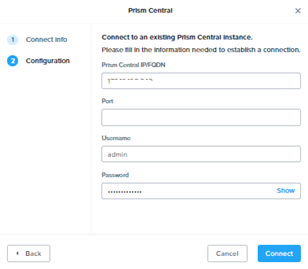
Click Connect

Click Next to Continue

Specify the Prism Central IP , Username and Password and click Connect

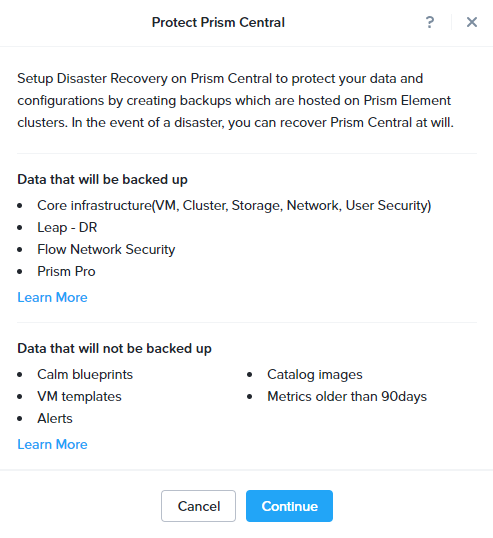
Prism Central Disaster Recovery

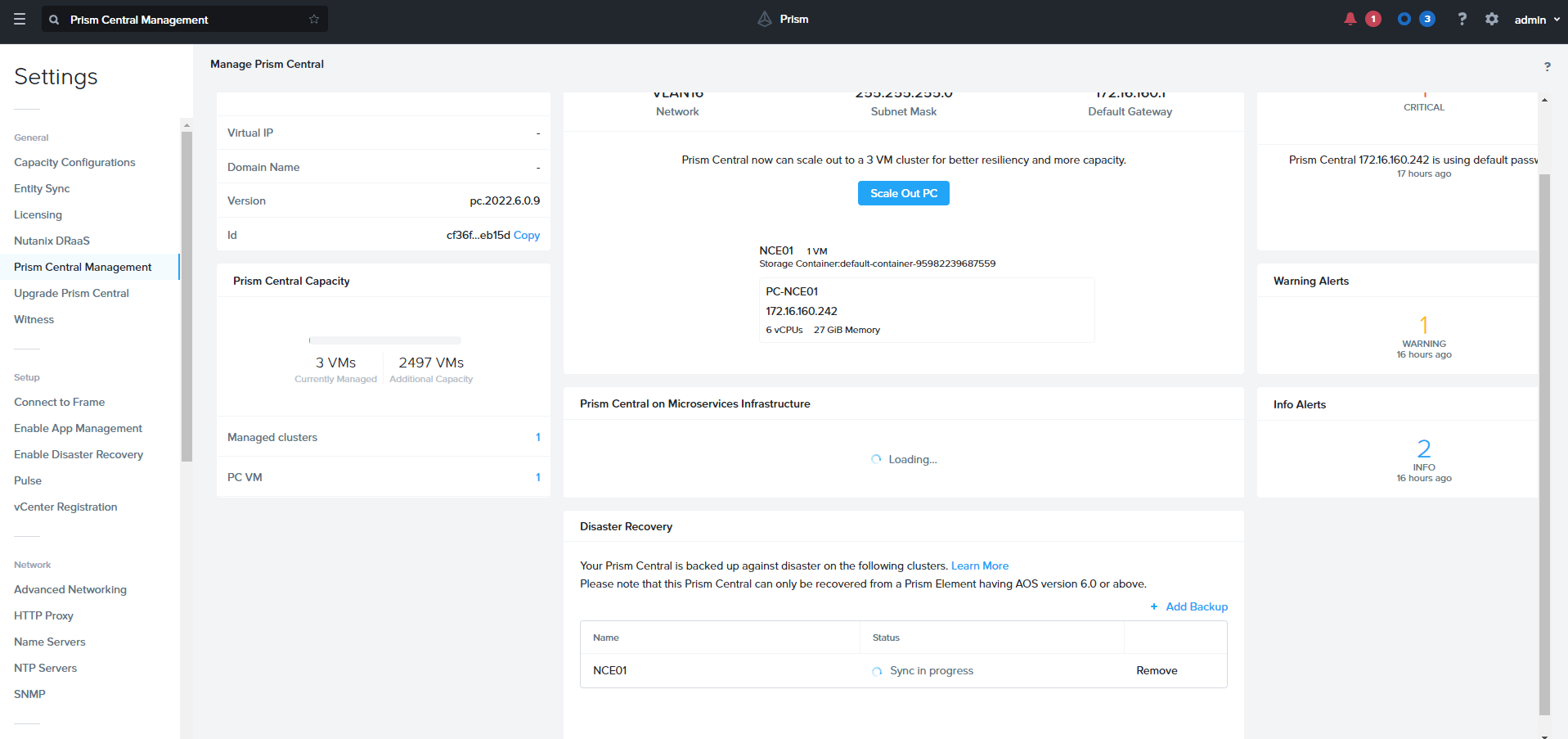
To Prism Central Disaster Recovery. Browse to Setting — > Prism Central Management

Click Protect Now under Disaster Recovery

Click Continue

Select the available Cluster where you want to sync and click proceed.

Unregister Cluster from Prim Central

  • Login to any CVM
  • Run Cluster Status and verify the Services.
  • Unregister the cluster from Prim Central
    nutanix@cvm$ ncli multicluster remove-from-multicluster external-ip-address-or-svm-ips=pc-name-or-ip username=pc-username password=pc-password force=true
  • Confirm Unregistration is complete using below command, if command output does not include the cluster details, it means that the unregistration is successful.
  • nutanix@cvm$ ncli multicluster get-cluster-state
  • Get UUID for the cluster
    nutanix@cvm$ ncli cluster info
  • Login to Prism Central and run the clean-up on prism central
    python /home/nutanix/bin/unregistration_cleanup.py uuid

Create Citrix NetScaler ADC VM in Nutanix AHV

Nutanix AHV is certified to run Citrix NetScaler. Below is the procedure to create Citrix NetScaler VM on AHV.

  • Download NetScaler Virtual Appliance from Citrix Portal
  • Extract .tgz file , it will give you .qcow file
  • Login to Prism

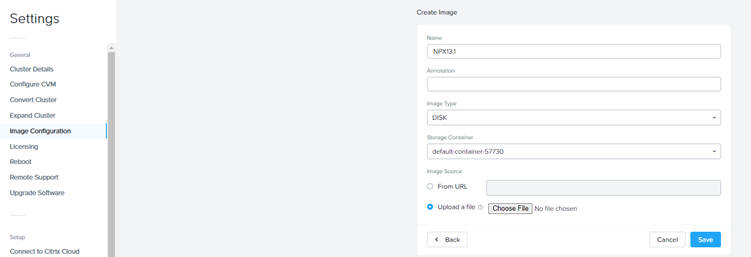
  • Click Setting à Image Configuration
  • Click Upload Image and specify below information
    • Name
    • Image Type
    • Storage Container
    • Upload a file / From URL

  • Click Save to start the upload.
  • Navigate to VM page
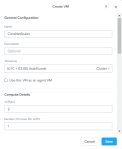
  • Create VM , in the VM Creation Dialogue page

    • Provide VM Name
    • Specify VCPU = 2 (recommended by Citrix)
    • Specify Ram = 2G (recommended by Citrix)
    • Click Add Disk , Select Clone from Image Service and select the Citrix NetScaler Image and click add

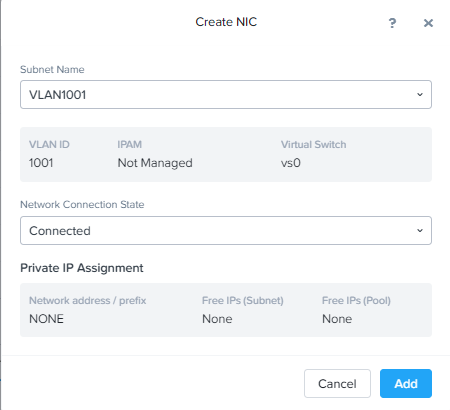
    • Add Network and click Add

    • Click Save to create the VM.
  • NetScaler required Serial Port on the VM, to add the Serial Port on the VM
    • SSH to CVM
    • Run the below command to add the serial port
      • acli vm.serial_port_create <vm_name> type=kServer index=0

  • Power-On the VM and open console from Prism.

Exchange Year 2022 Problem: FIP-FS Scan Engine failed to load – Can’t Convert “22010 10001”

FIP-FS Scan Engine

FIP-FS is probably the anti-malware virus scanner that has been on board since Exchange Server 2013. This is supposed to scan the on-premises Exchange Server installation for malicious content. This anti-malware scan engine seems to cause problems the problem.

Temporary Solution is to disable anti-malware filter . You can disable it as below

Set-MalwareFilteringServer exch-19 -BypassFiltering $true

Happy New Year 😊

75% OFF Nutanix Certification Exams

Nutanix offering 75% off ALL of our Nutanix Certification exams! That includes:

  • NCA
  • NCP-MCI
  • NCP-DS
  • NCM-MCI
  • NCSX
  • NCSE: Core
  • NCSE: EDU
  • NCSCore
  • NCSCoreM
  • NCSR

Once you’re ready to take the exam, just use the discount code P75NTXQ321 when you register.
Don’t wait too long! This offer is only available until April 30, 2021.

Enjoy 😊