I faced the strange issues with one of my customer, where Exchange Database was not getting list in GUI, as well as when I try to list the Databases using Exchange Management Shell I got the error saying unable to find “Mailbox XXXXX “ DB.
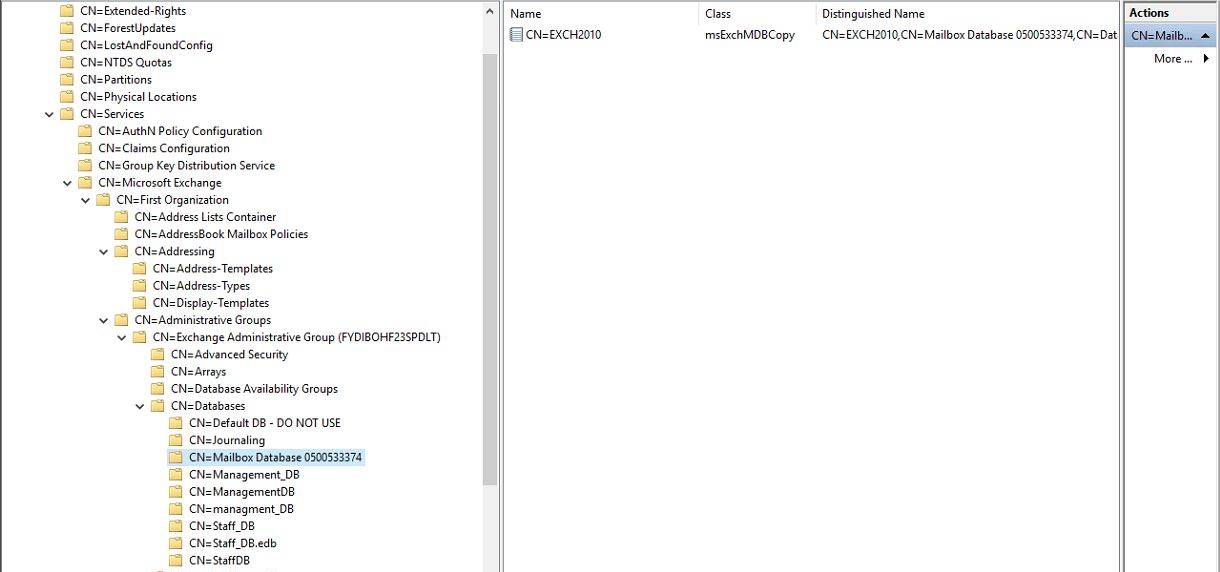
After seen this error, I opened ADSI Edit and found someone didn’t decommission the old Exchange properly. Old Exchange Sever was removed and Old Databases still exists in Active Directory Schema. After identify this , I just clean-up the old Database entries and do a refresh on ECP all databases got list immediately.
- Login to domain controller with administrative account.
- Navigate to Start –> Run –> ADSIEdit.msc and hit enter
- Click on Action –> Connect to –> Select Configuration under “Select a well known naming Context:”
Navigate to CN=Configuration, DC=DOMAINNAME, DC=COM
Replace DC=DOMAINNAME, DC=COM with your domain name
Expand the CN=Services –> CN=Microsoft Exchange

After Removing the all old DBs, my current DBs started getting listed in Exchange GUI & Management Shell.
Note: I would recommend always use proper methods to old exchange servers, use adsi edit only incase Exchange server is no more in the environment or its got crashed. Improper use of ADSI edit may harm the active directory schema, so be very careful while modifying/deleting any values /keys.






 The Hyperconverged Perspective