Nutanix Cross Hypervisor Disaster Recovery

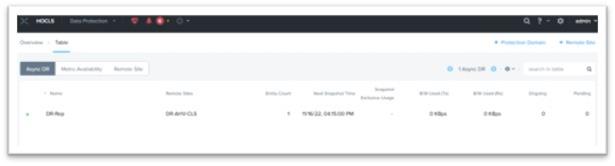
Cross hypervisor disaster recovery provides the ability to migrate VMs from one hypervisor to another (ESXi to AHV or AHV to ESXi) by using protection domain.

Some of the requirements:

  • Only VM Flat files are supported, vm snapshots or delta disks are not supported
  • VMs with attached volume groups or shared disk not supported
  • Different version of AOS is supported
  • NGT need should be installed on all the VMs.

Creating Protection Domain:

  1. Login to Web Console
  2. Click Main Menu à Data Protection

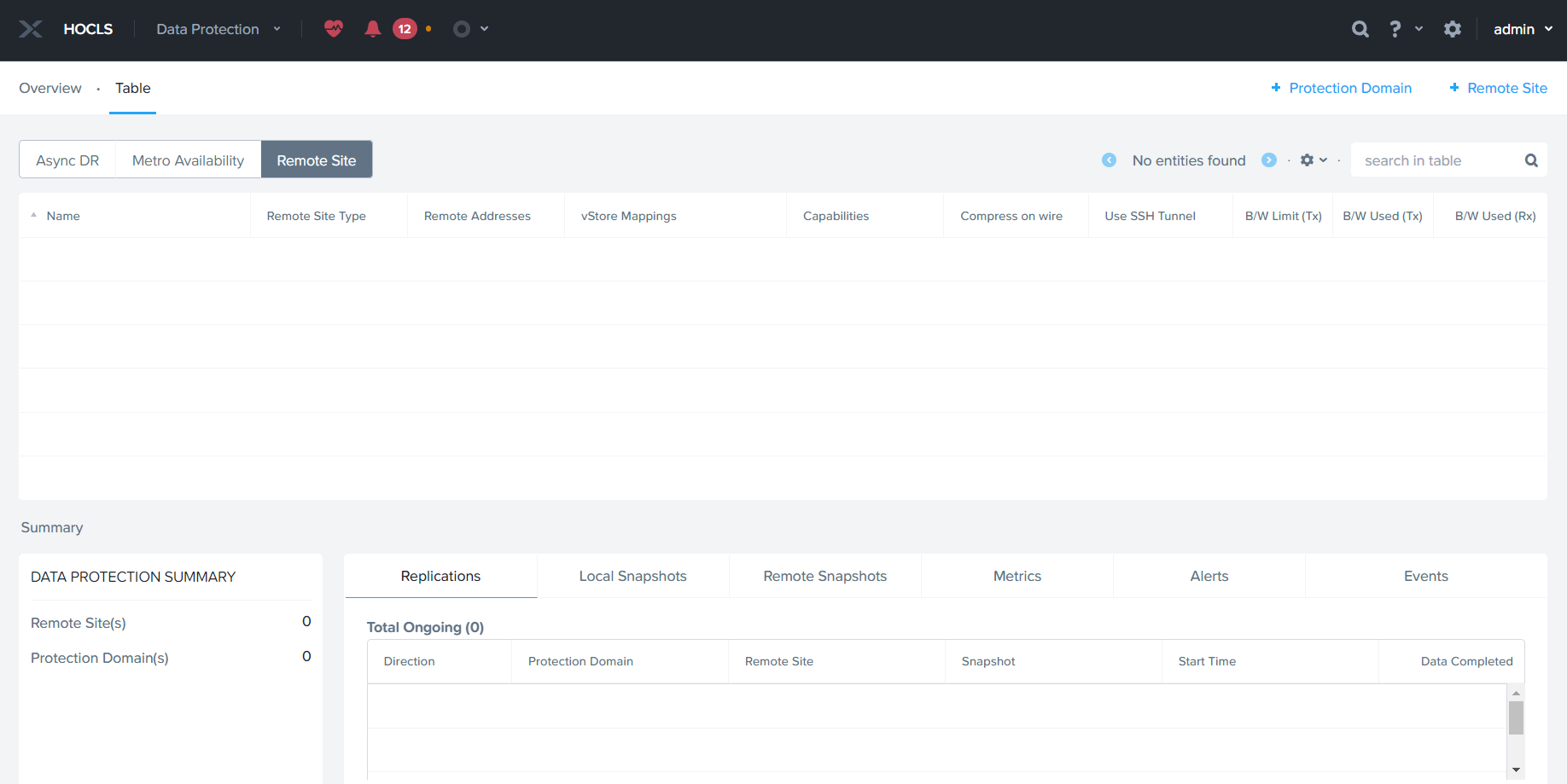
If DR Site is not added, click Remote Site à Physical Cluster to add the remote site.

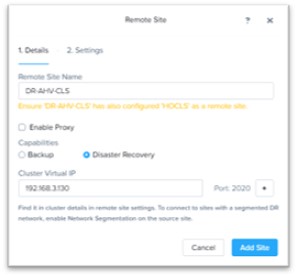
Provide Remote Site name and remote cluster Virtual IP and click add site.

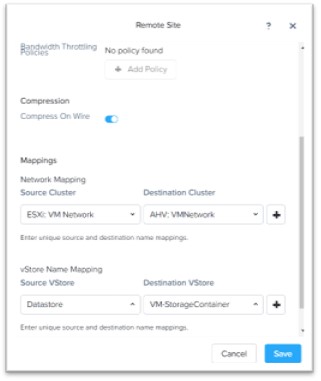
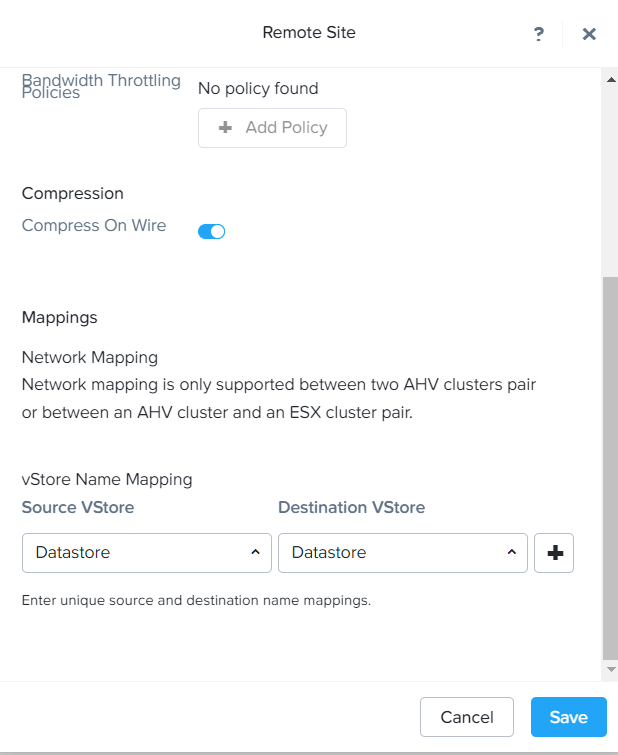
Map Source and Destination Network & Datastore as per requirement and click Save

Remote Site Connection is creation, let proceed to setup AsyncDR.

Note: For Cross Hypervisor replication, minimum RPO is 1 hours.

Click Protection Domain à Async DR to create protection domain.

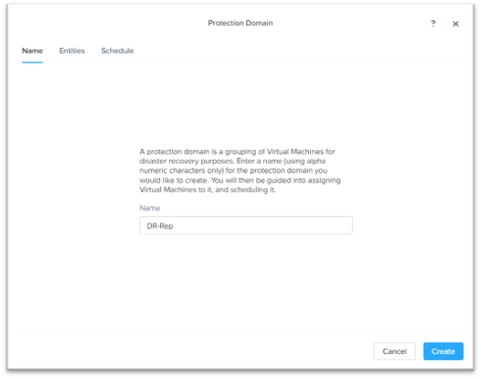
Provide Protection Domain Name and click Create

Select the VMs / Object to protect and Click Protect Selected Entries

Once desired VMs are selected click next

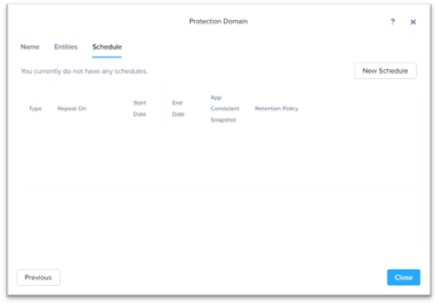
Click New Schedule to create the Schedule.

Specify schedule and retention on local, DR Clusters and click Create Schedule.

Once Schedule is created. Click Close

Nutanix 1-Click In-Place Conversion (VMWare to AHV)

Nutanix has built-in capacity to convert Nutanix Cluster running on ESXi to AHV.

Some of the key requirement to proceed before in-place conversion are as below

  • Resolve all NCC health Check alerts
  • HA & DRS must be enabled
  • All hosts should be managed by the Same VCenter
  • VCenter should not be running on same cluster which is being converted
  • NGT Tools should be installed on all the VMs

Some of the Cluster Limitations are as below:

  • Metro Availability protection domain cannot be enabled in you environment
  • If Free ESXi License for your cluster, you can convert the cluster to AHV but you cannot revert the cluster back to ESXi.
  • Nutanix Files deployed on cluster
  • In-Place Hypervisor conversion is not supported for single and two node cluster

Virtual Machines Requirements & Limitations:

  • VMs with flat disk are supported, delta disks are not supported.
  • Only IDE And SCSI storage controllers are supported
  • Virtual machines with attached volume groups or shared virtual disks are not supported.
  • After reverting back to ESXi from AHV, the VMs are converted to the maximum hardware version that is supported by that specific ESXi version.

Let’s proceed with conversion:

  1. Log-in to Prism
  2. Click on gear icon, Main Menu à Settings à Convert Cluster
  3. Click Validate
  4. Specify VCenter IP Address, VCenter Username and Password and click Validate

Once Validation is completed. Click Covert Cluster to start the conversion.

The entire conversion process may take 3 to 4 hours depending on the nodes that are present in your cluster. However, the VM downtime will be less than 5 minutes because all the nodes in the cluster are converted in a rolling manner.

Setting-up Nutanix Metro Availability (VMware ESX) Step by Step

Nutanix Metro is the Nutanix DR Implementation when Zero RPO is desired. Nutanix Metro is supported by VMware ESXi, Hyper Hypervisors.

Nutanix Metro Availability works on the policy applied on datastore. It achieves by pairing a storage container on local Storage container with a storage container in remote site. containers. When metro availability is enabled, everything in the active storage container is replicated synchronously to the remote storage container. Metro availability configurations can include VMs, but they cannot include volume groups.

Metro availability policies apply per storage container, so a cluster can be active for one datastore and standby for another.

Some of the considering before proceeding:

  • There will be 2 Nutanix Clusters
  • It is recommended both Clusters hosts managed by same vcenter.
  • Less than 5ms latency between the 2 Sites.
  • In case of automatic failover 3rd site is required to setup witness

Log in VCenter, Create VMware Cluster and add both cluster hosts.

You can see Both Cluster Nodes are joined under same VCenter & VMware Cluster. Set VMware Cluster Nutanix recommended configuration as below

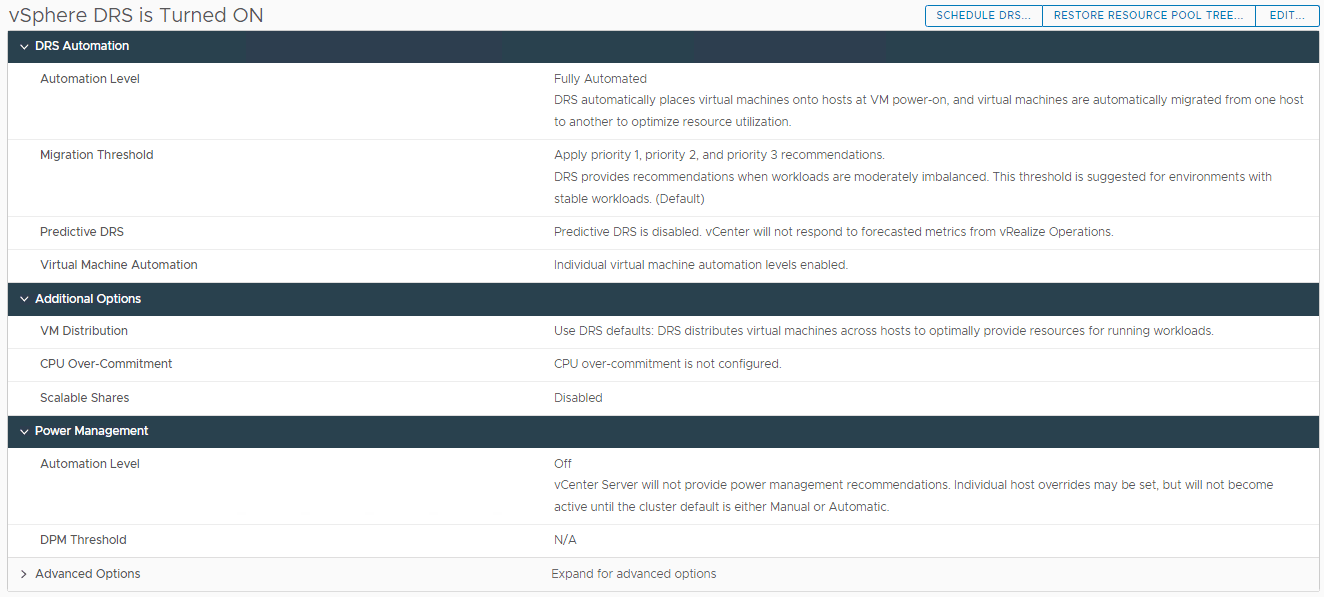
Enable DRS:

  • DRS Automation
    • Automation Level: Fully automated
    • Migration threshold: 3
    • Predictive DRS: Disabled
    • Virtual Machine Automation: Enabled
  • Additional Options
    • All unchecked
  • Power Management
    • DPM: disabled
  • Advanced Options
    • All unchecked/empty

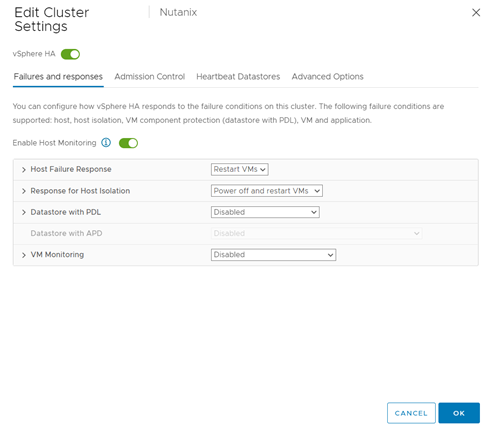
Enable HA:

  • Failures and responses
  • Enable Host Monitoring: Enabled
    • Host failure response: Restart VMs
    • Response for Host Isolation: Power off and restart VMs
    • Datastore with PDL: Disabled
    • Datastore with APD: Power off and restart VMs – Aggrassive restart policy
      • Response Recovery: Disabled
      • VM Monitoring: VM Monitoring Only
  • Admission Control
    • Host failures cluster tolerates: 1
  • Heartbeat Datastores
    • Select the two METRO datastores
  • Advanced Options
    • Leave empty/default

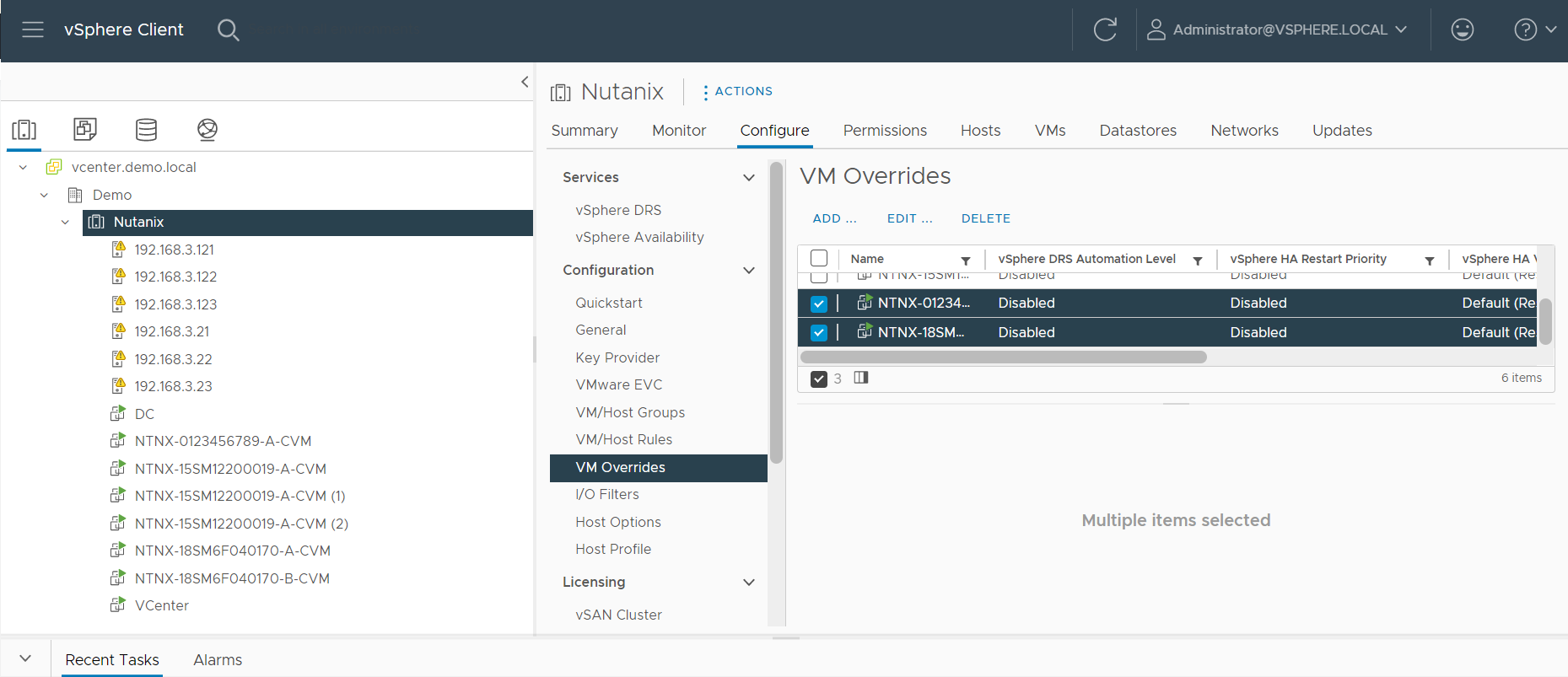
VM Override Setting:

Make sure to disable DRS and HA under VM Override Settings.

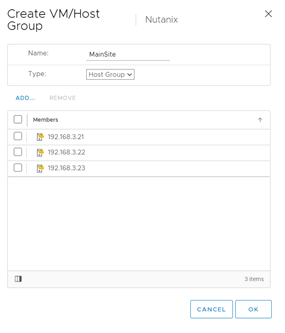
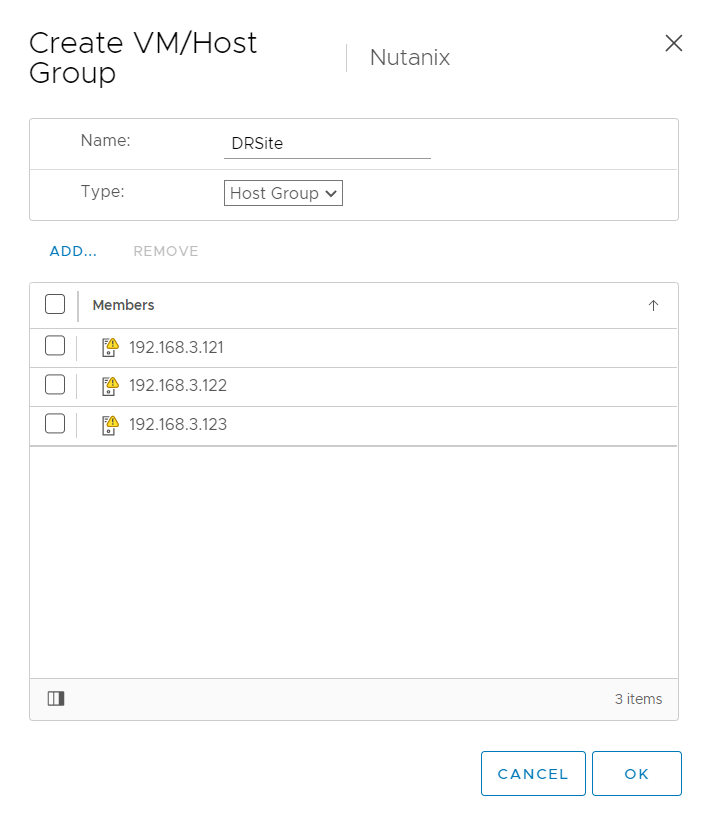
Create two Host Groups

1. Group A (Main-Site)

a. All the Main-Site Hosts

2. Group B (DR-Site)

a. All the DR-Site Hosts


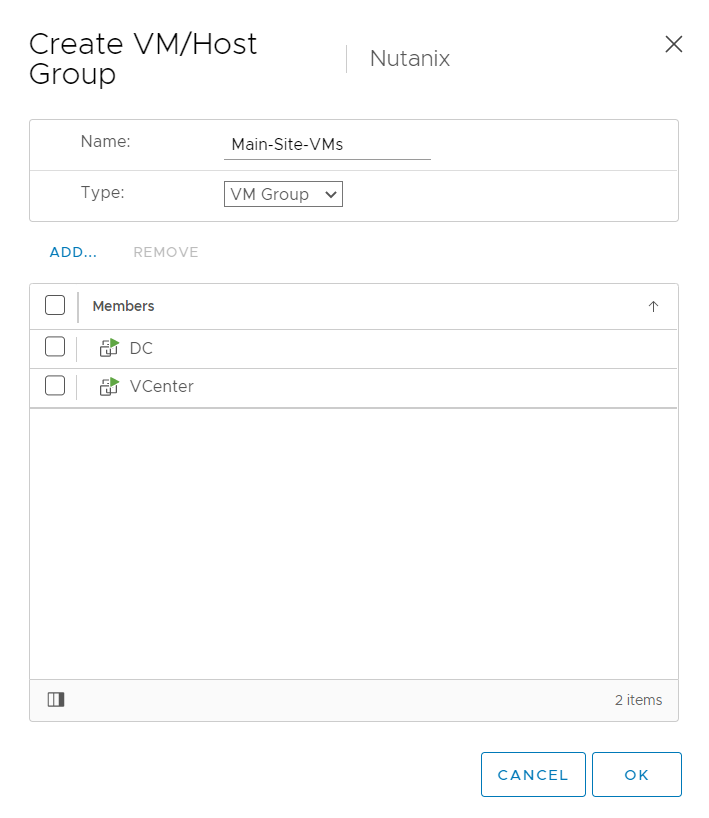
Create two VM Groups:

1. VMs on Main-Site

a. Add All the VMs which are on Main-site Cluster

2. VMs on DR-Site

a. Add all the VMs which are on DR-Site Cluster

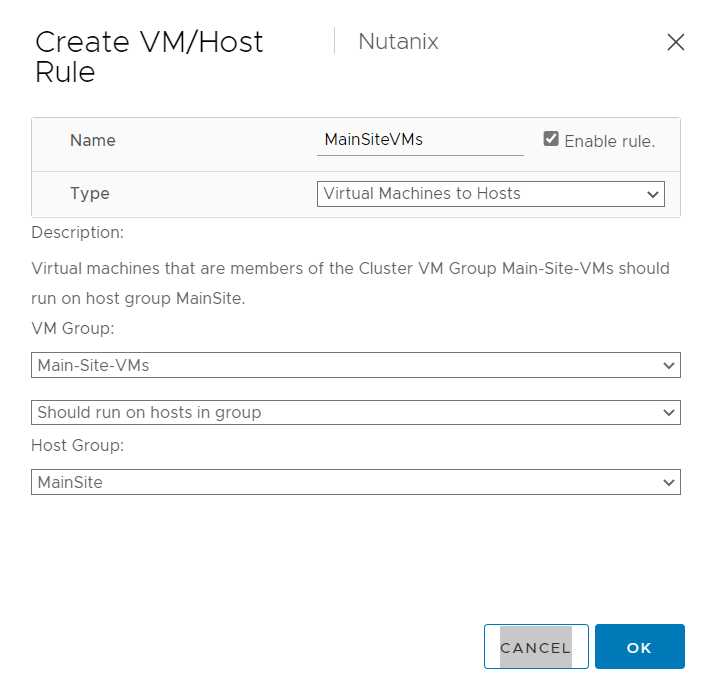
With the VM/Host Rules we will decided where the VM should run, and incase of failure they can run from other cluster.

Basically, you will create 2 rules

§ Mian Cluster, all main-site VMs should run from main Site so DRS will no move those VM to DR Hosts

§ DR Cluster, all DR-site VMs should run from DR Cluster so DRS will no move those VM to Main-Site Hosts

We are done with the VMware Configuration, lets proceed to Prism.

Navigate to Data Protection à Remote Site

Click Remote Site à Physical Cluster

Specify Site Name and DR-Site Cluster Virtual IP , click add site to proceed.

Specify Main-site & DR-Site Datastores and save

Note: For Metro both Source & Destination Datastore should have same names.


To Create the Meto Availability Protection Domain, Click Protection Domain à Meto Availability

Click Next

Specify the source storage container and click next

Specify the Target container and click next

Note: My both clusters have starter license, that’s why target is not getting listing. To setup meto adv. Replication license is required.

Now the storage container is in sync between the clusters.

Nutanix Deployment with VMWare VSphere (Part 2)

In the part 1 we had completed Nutanix Block Foundation process, today will proceed with the next activities like setting up Prism Initial Configuration and Nutanix Recommended settings on VMware Cluster end.

  1. Open Prism using any Browser

Login using Default Credentials, default credentials are as below

admin / Nutanix/4u

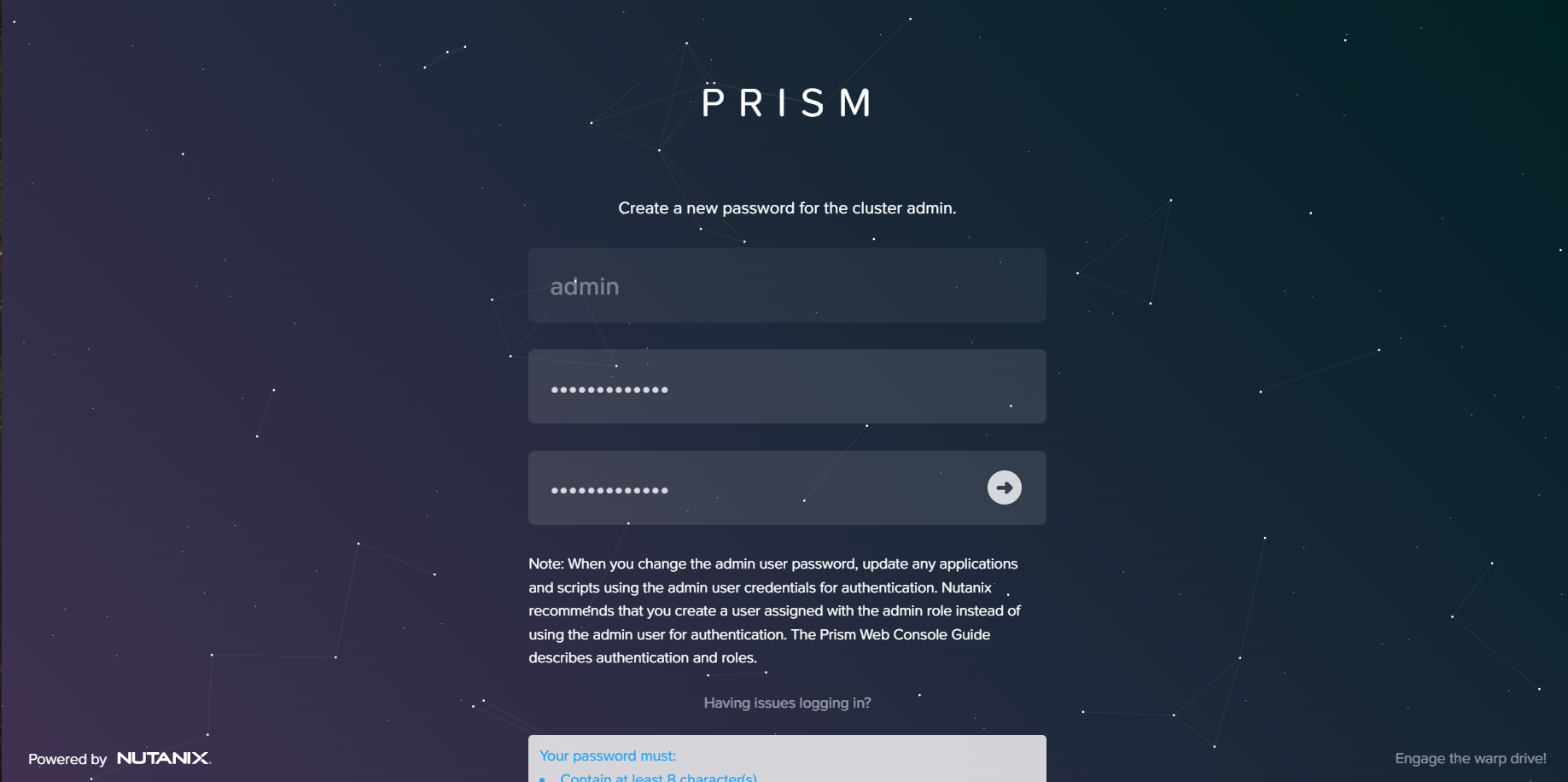
Specify new Password

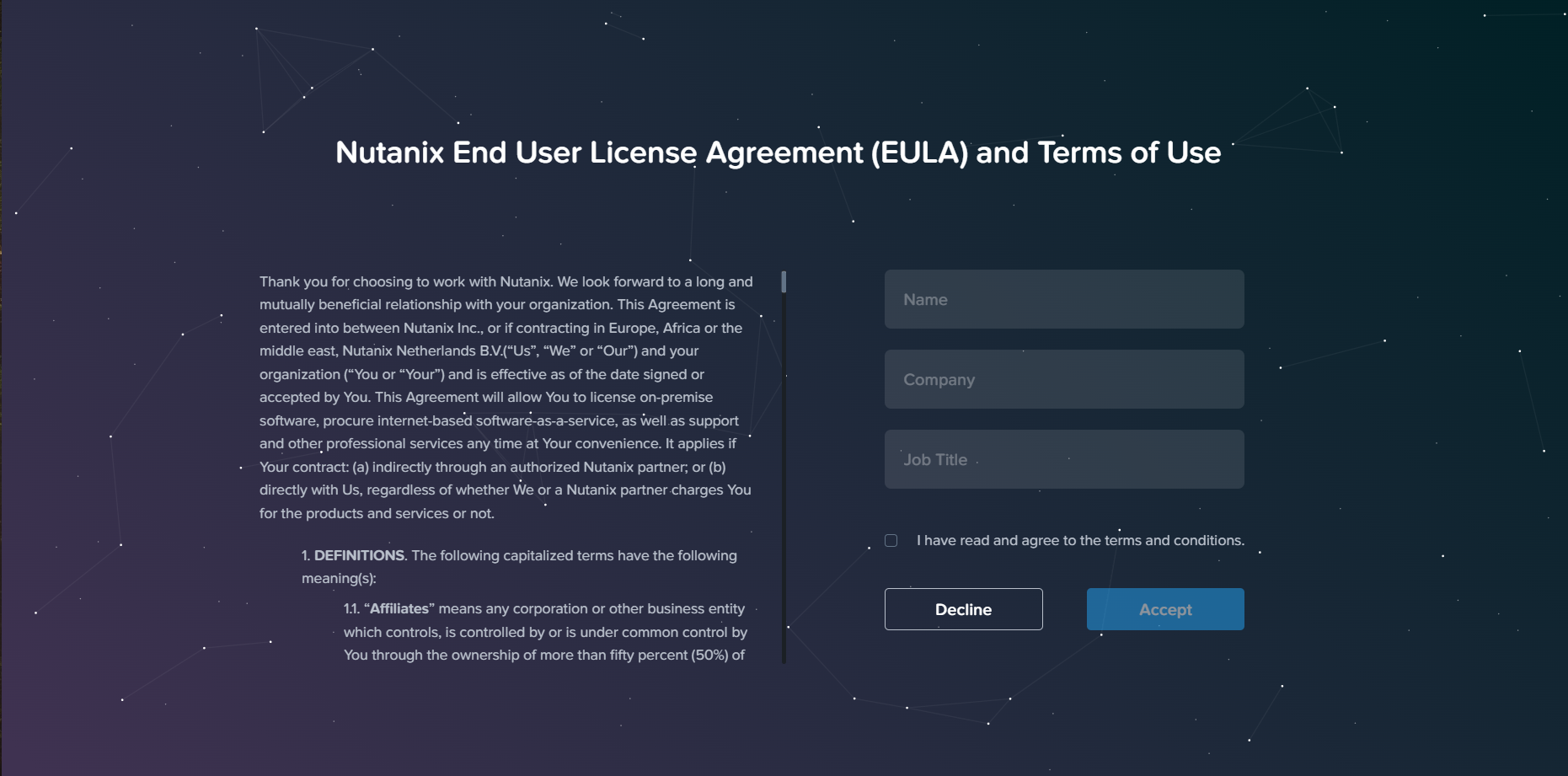
Accept User agreement , and click Accept to proceed further.
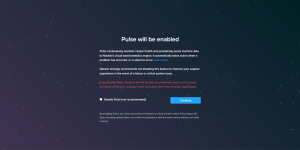
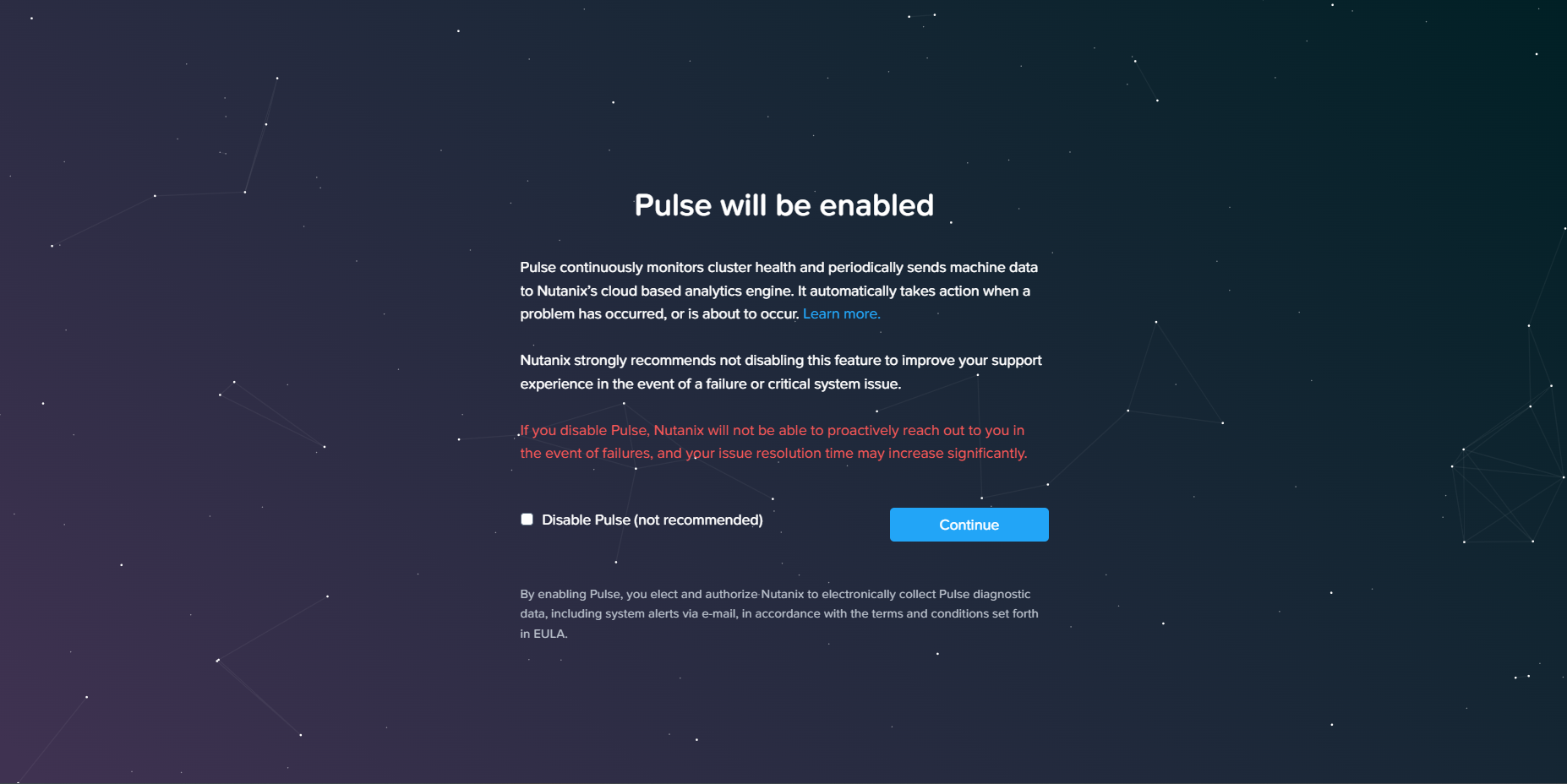
Enable / Disable Pulse and click continue

Nutanix Pulse:
Nutanix Pulse is the telemetry capability built into all Nutanix clusters that sends key health metrics to the Nutanix Insights service. Nutanix can use the diagnostic system information that Pulse sends to help build better products and provide a great customer experience.

Home Dashboard
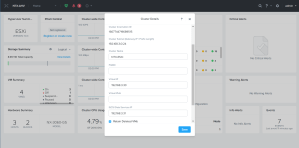
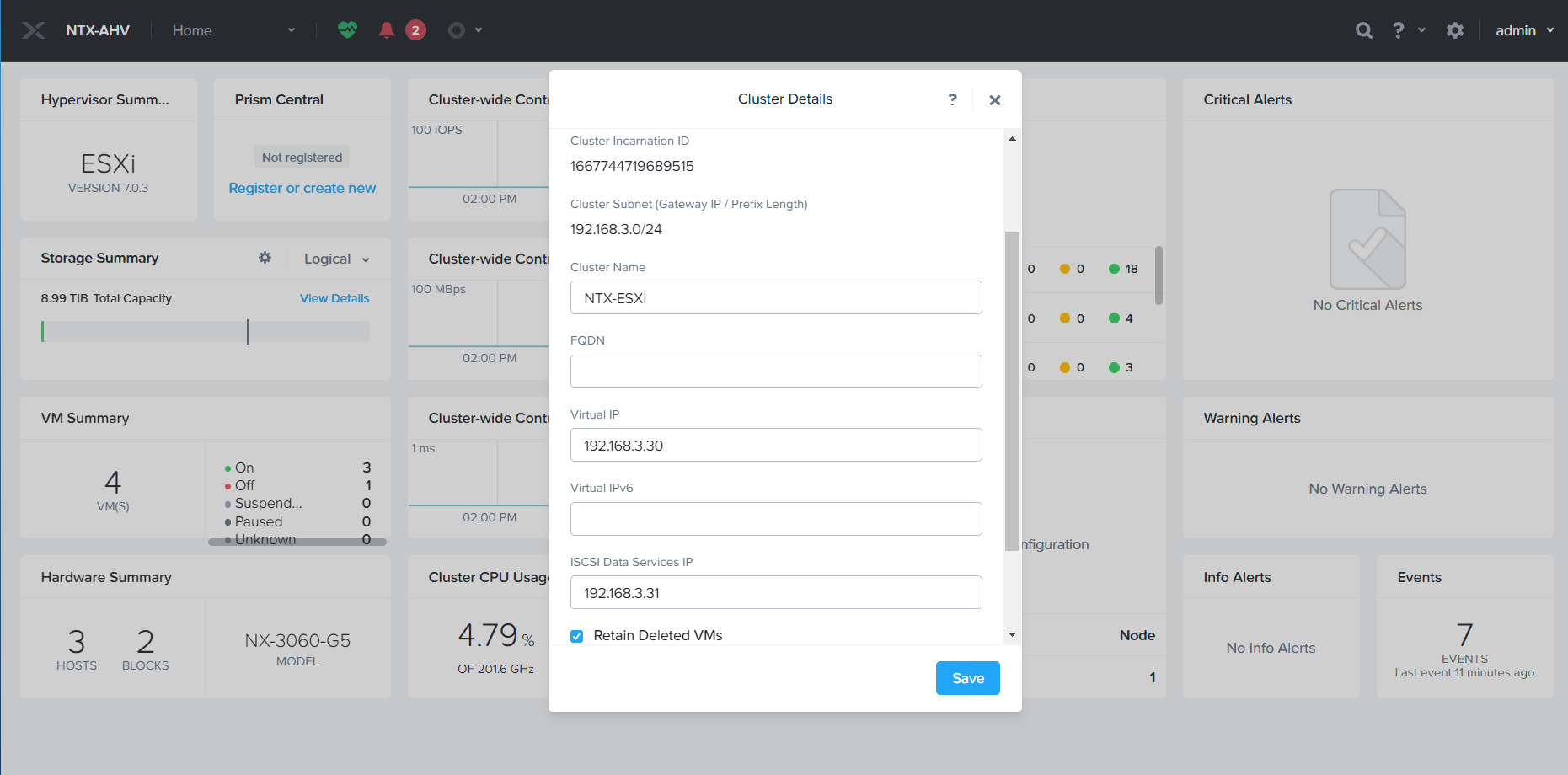
To Specify the Nutanix Cluster IP, Click on Cluster Name. Provide Cluster Virtual IP (Virtual IP should be in the CVM network).

Click on drop down Menu and click Setting to proceed with the setting menu.

To update name servers, Click Name Servers and add DNS Name Server IPs.

To update NFS Setting, Click NFS Servers and specify NTP Servers
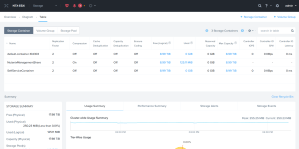
To create Storage Container, Click Dropdown Menu à Storage

Click + Storage Container to create the storage container. Provide Datastore name, select Mount on all host and click Save.
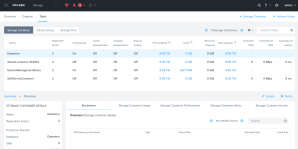
Datastore has been Created.

Now we will proceed to add Nutanix Hosts in VCenter. Incase if you don’t know how to deploy VCenter please refer my VCenter Deployment Article.

Right Click on VCenter Root and Create VCenter Cluster.
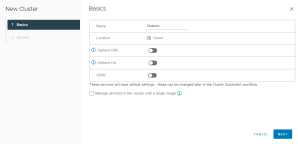
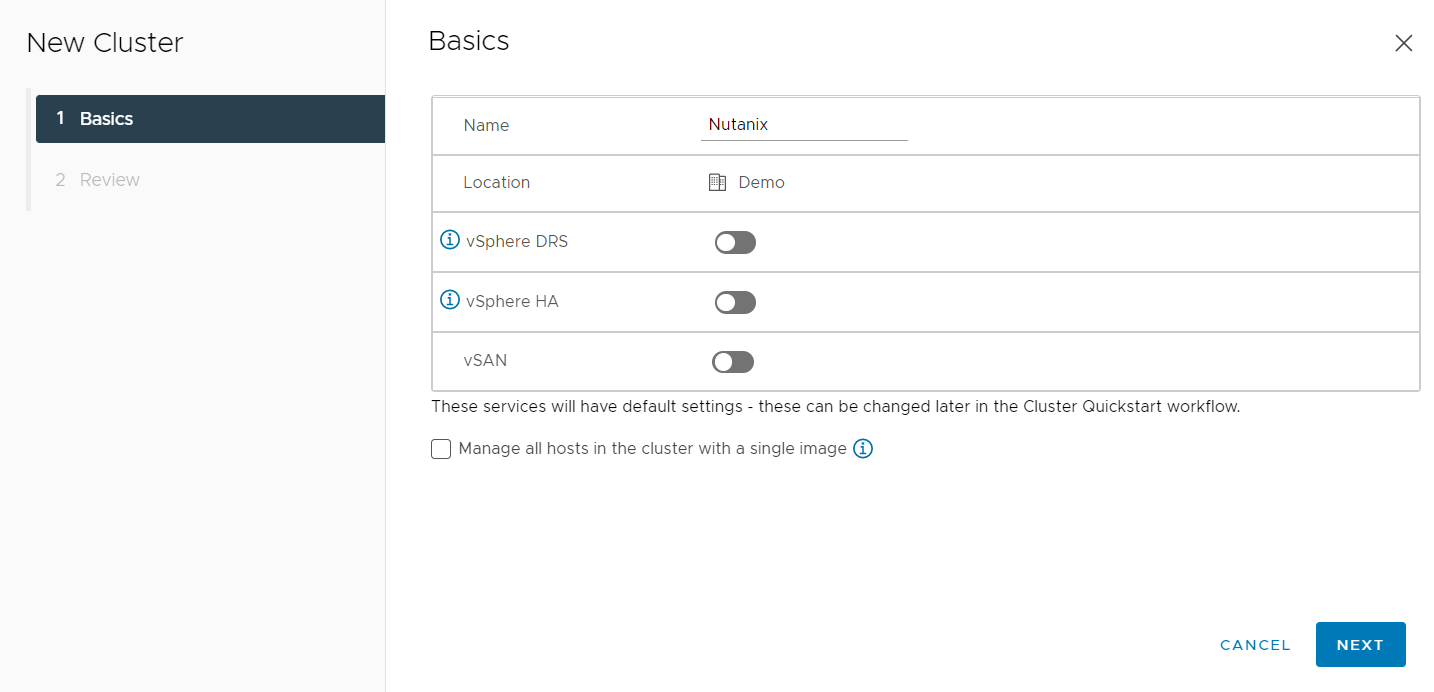
Specify Cluster Name and Click next

To Register Hosts in VCenter. Click Configure à Quickstart à Under Add Hosts à Click ADD
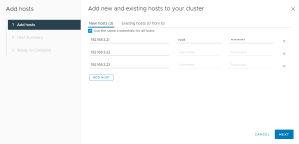
Provide Host IPs and username and password and click Next.
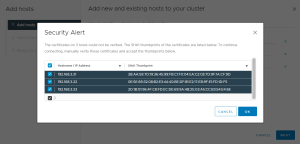
Accept Host SSL Certificate and click ok

Click Next to Proceed Further
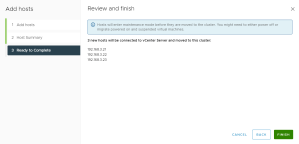
Click Finish
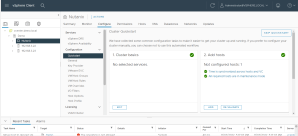
Once Host has been added, we will proceed with the Nutanix Recommended HA , DRS and VM Override settings.

VMWare HA Settings:
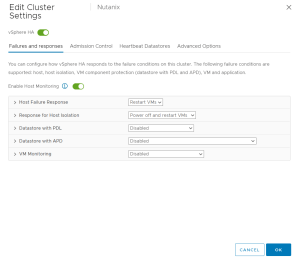
Select Cluster à Configure à VSphere Availability

  • Host Failure Response: Select Restart VMs from the drop-down list.
  • This option configures the cluster-wide host isolation response settings.
  • Response for Host Isolation: Select Power off and restart VMs from the drop-down list.
  • Datastore with PDL: Select Disabled from the drop-down list.
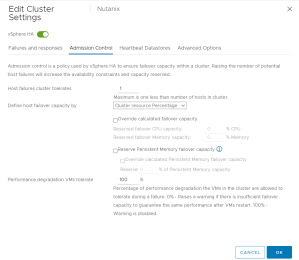
  • Datastore with APD: Select Disabled from the drop-down list.
  • VM Monitoring: Select Disabled from the drop-down list.

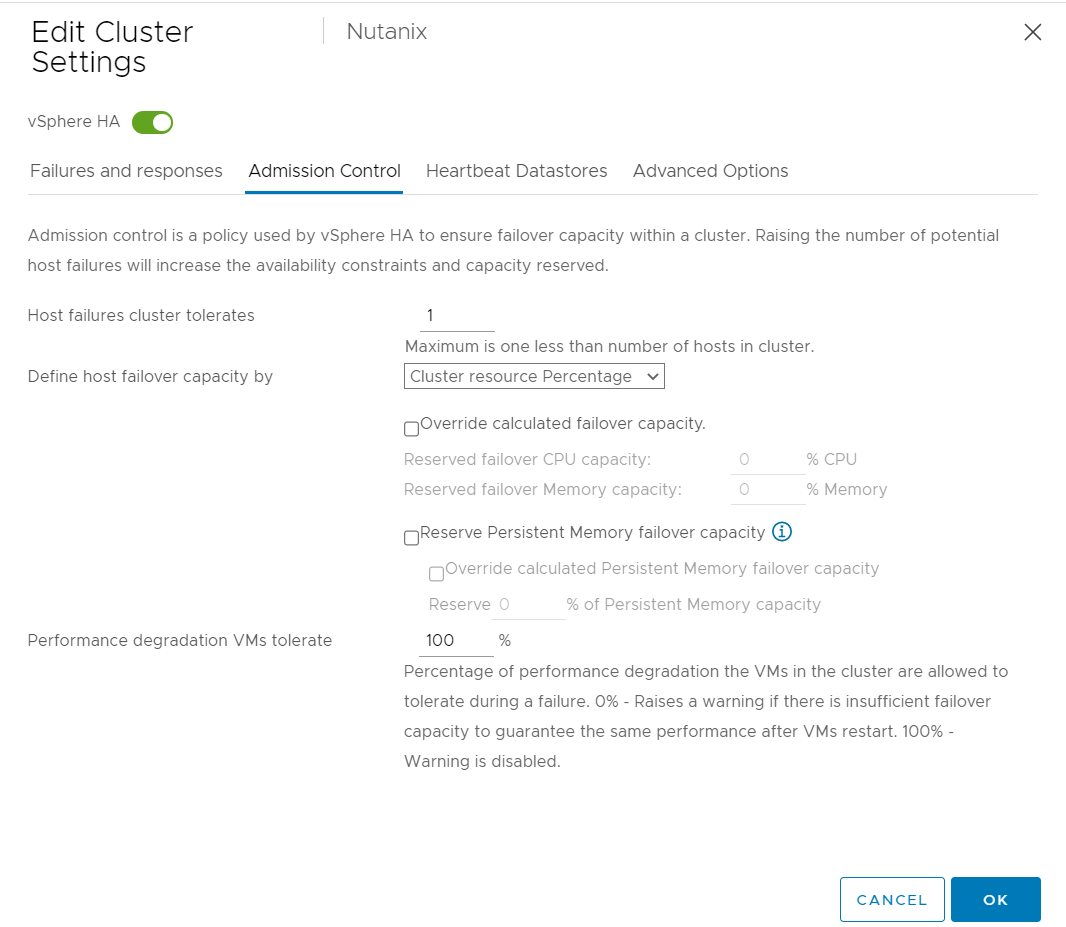
  • Host failures cluster tolerates: Enter 1 or 2 based on the number of nodes in the Nutanix cluster and the replication factor.
  • Define host failover capacity by: Select Cluster resource Percentage from the drop-down list.
  • Performance degradation VMs tolerate: Set the percentage to 100.
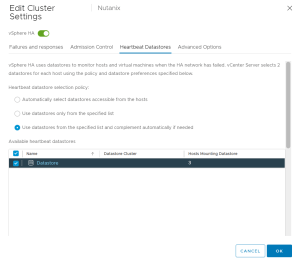
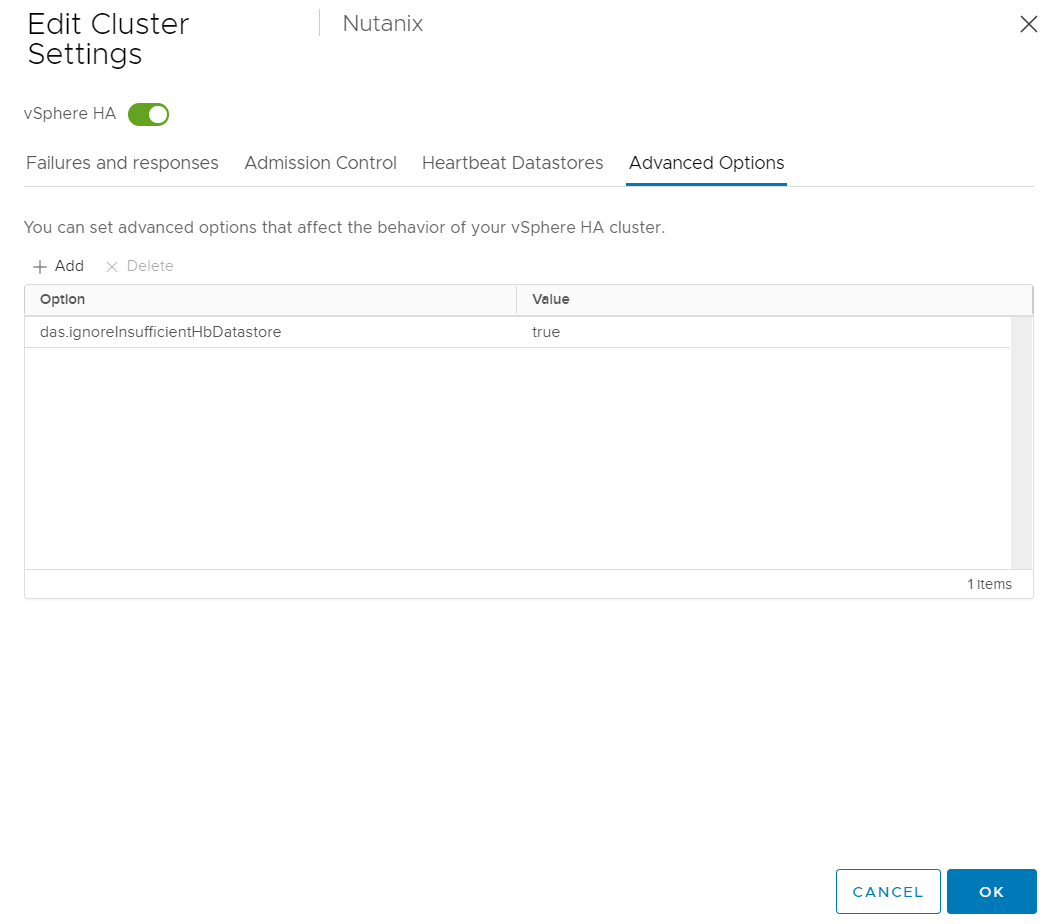
Select the Nutanix Datastore. If the cluster has only one datastore, click Advanced Options tab and add das.ignoreInsufficientHbDatastore with Value of true.
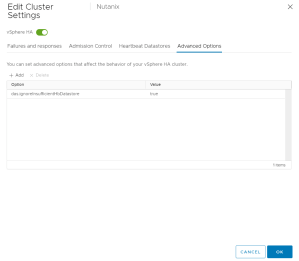
Click OK to apply the settings.

DRS Settings:

Select Cluster à Configure à VSphere Availability

Turn on the vSphere DRS switch.

Specify the following information under the Automation tab.

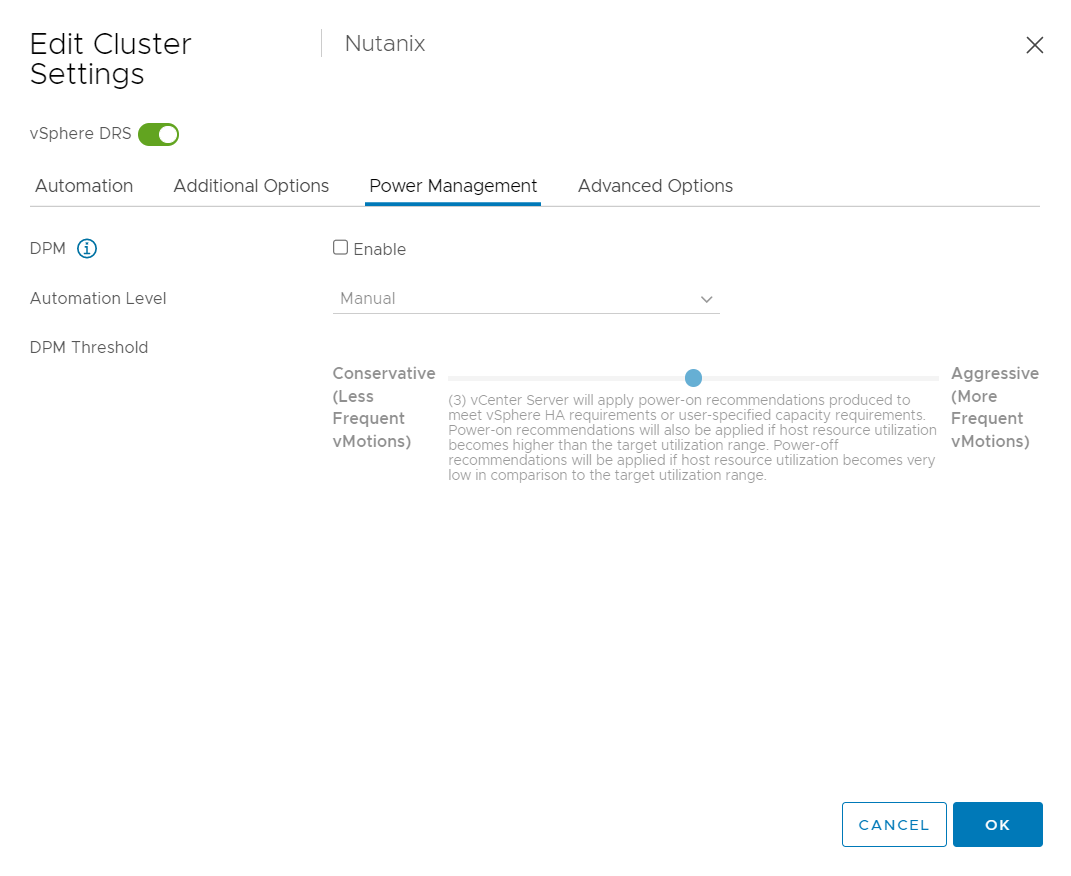
Leave DPM unchecked and click OK

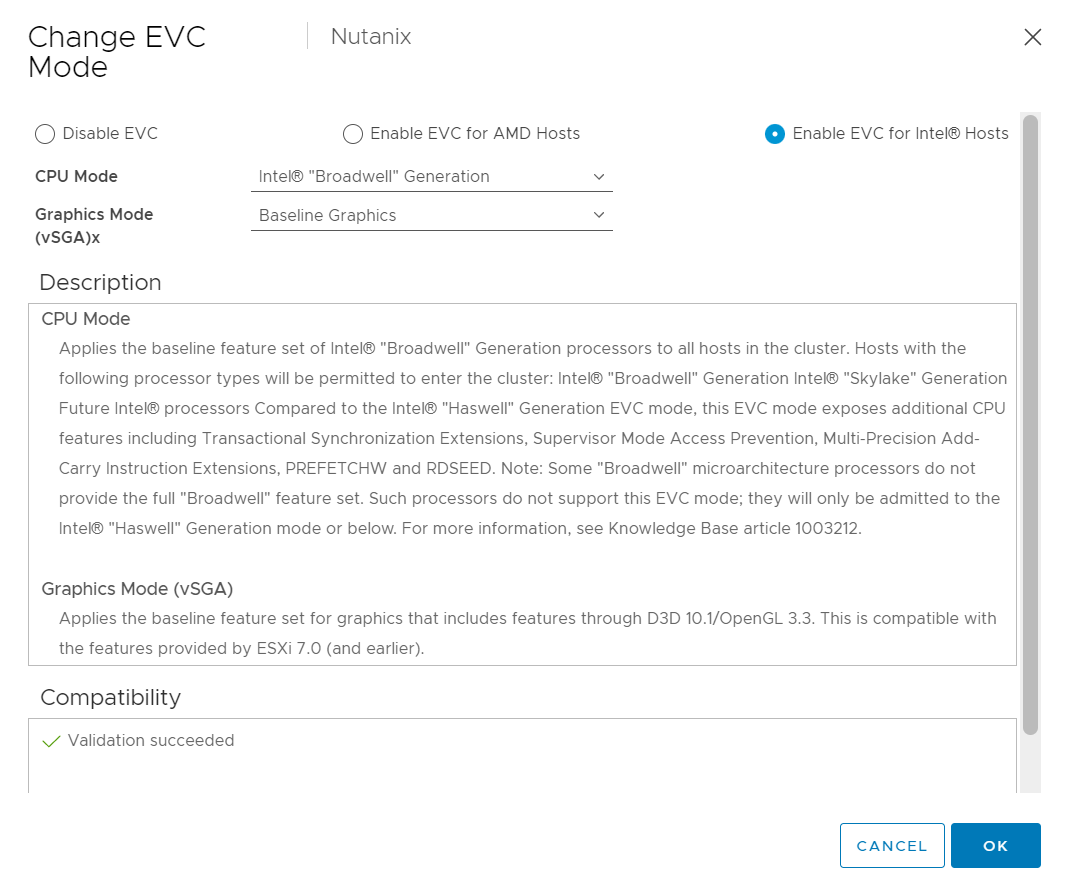
EVC MODE :

Click Configure, and go to Configuration > VMware EVC.

Enable EVC for the CPU vendor and feature set appropriate for the hosts in the Nutanix cluster, and click OK

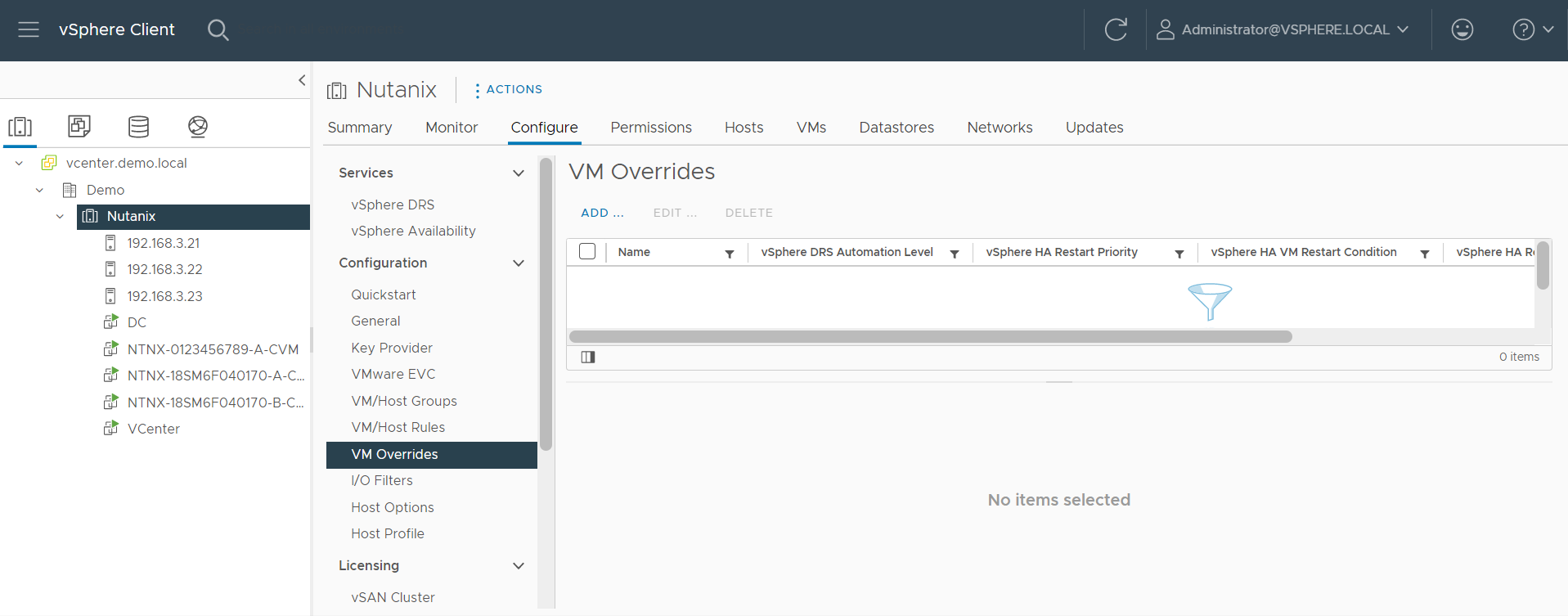
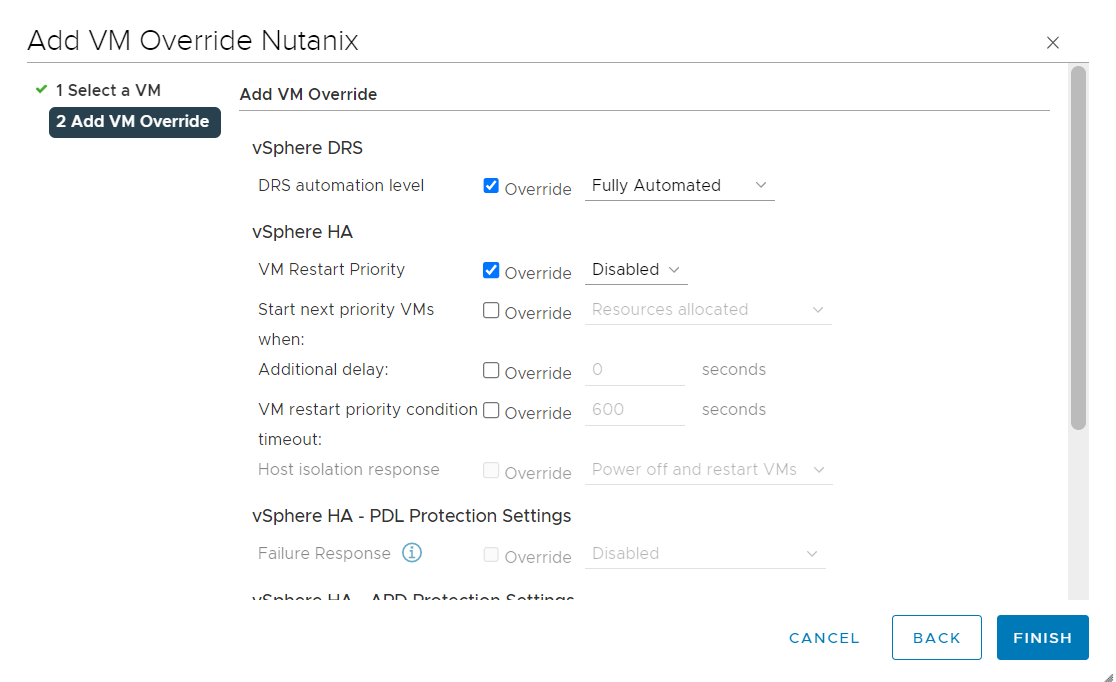
VM Override:
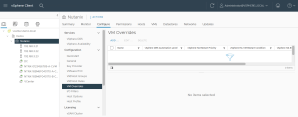
Click Add

Select CVM VMs and click Next
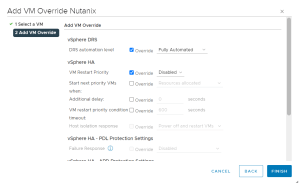
Select Below override settings.

  • DRS Automation Level: Disabled
  • VM HA Restart Priority: Disabled
  • VM Monitoring: Disabled

Click Finish to Save the setting .

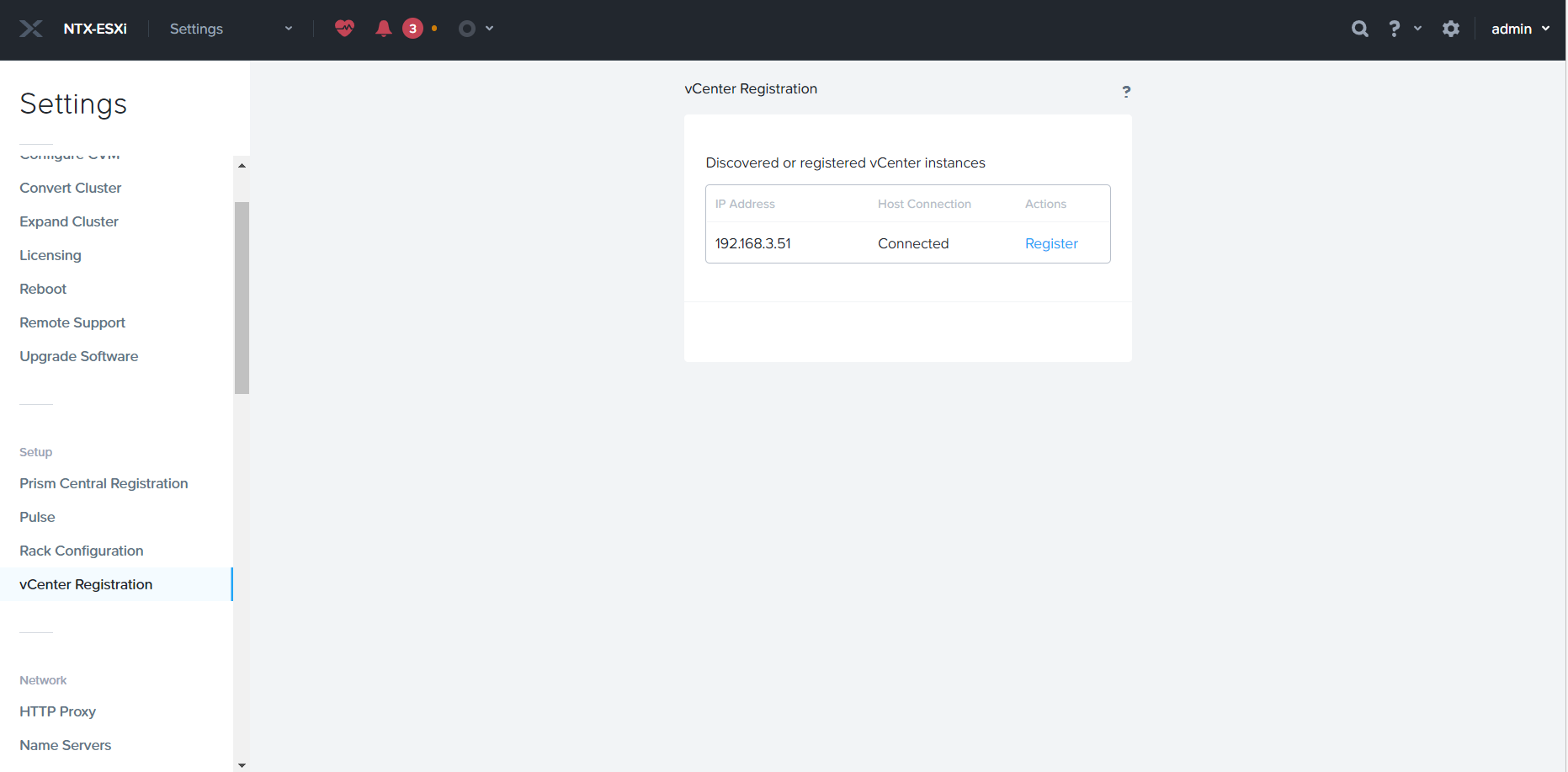
VCenter Registration:

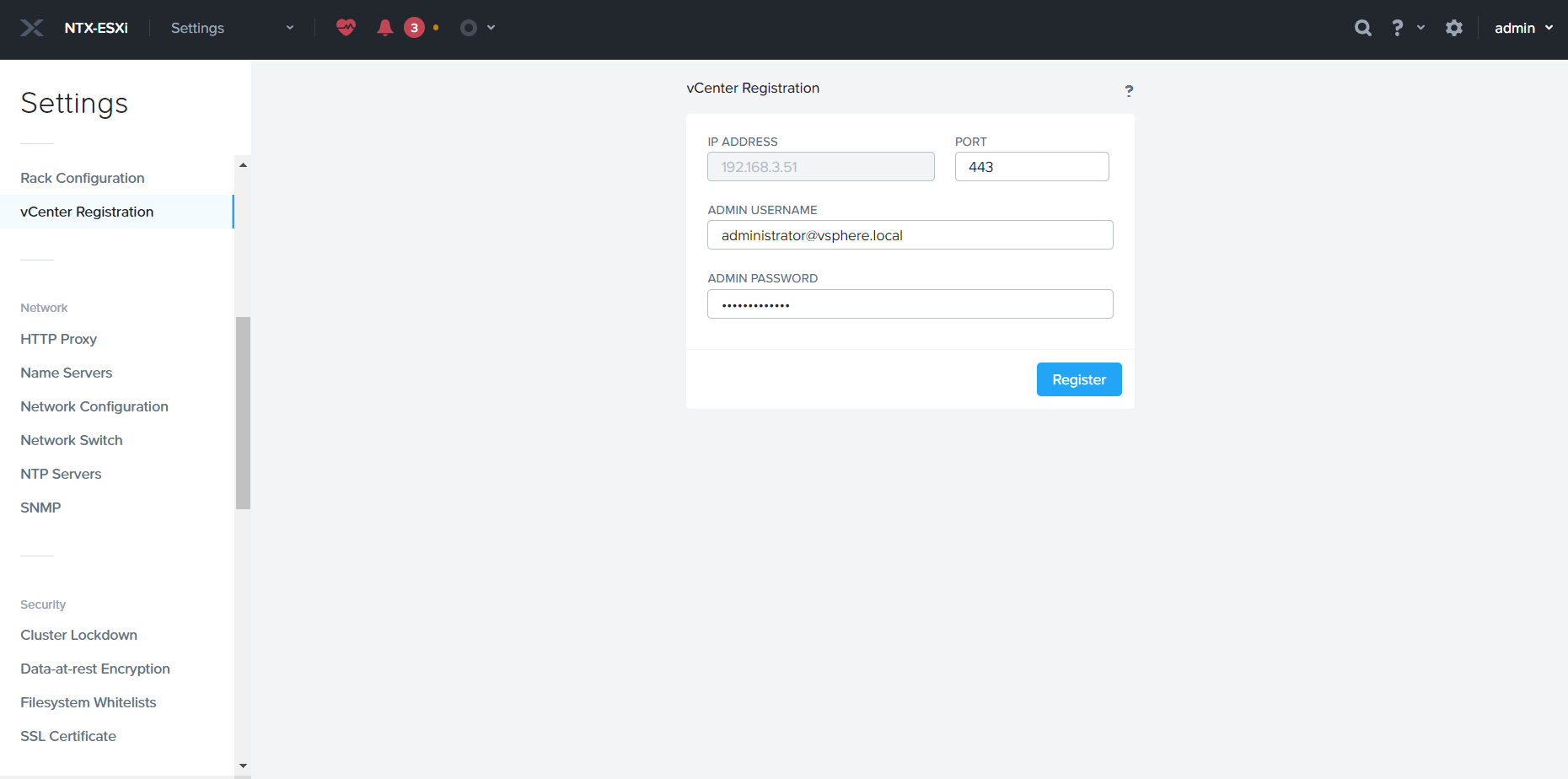
It is required to register VCenter in Prism, To do the VCenter registration Settings à VCenter Registration

Click Register

Specify VCenter Username and Password and click Register

Nutanix Deployment with VMWare VSphere (Part1)

In This series will discuss the Nutanix with VMWare VSphere from A to Z. Starting from New Cluster Deployment, VSphere Configuration and last not the least Migration.

Foundation is official deployment software of Nutanix. Foundation help to configure pre-imaged or reimage the nodes with the required hypervisor and AOS. Foundation can give the option to create cluster or skip the cluster formation.
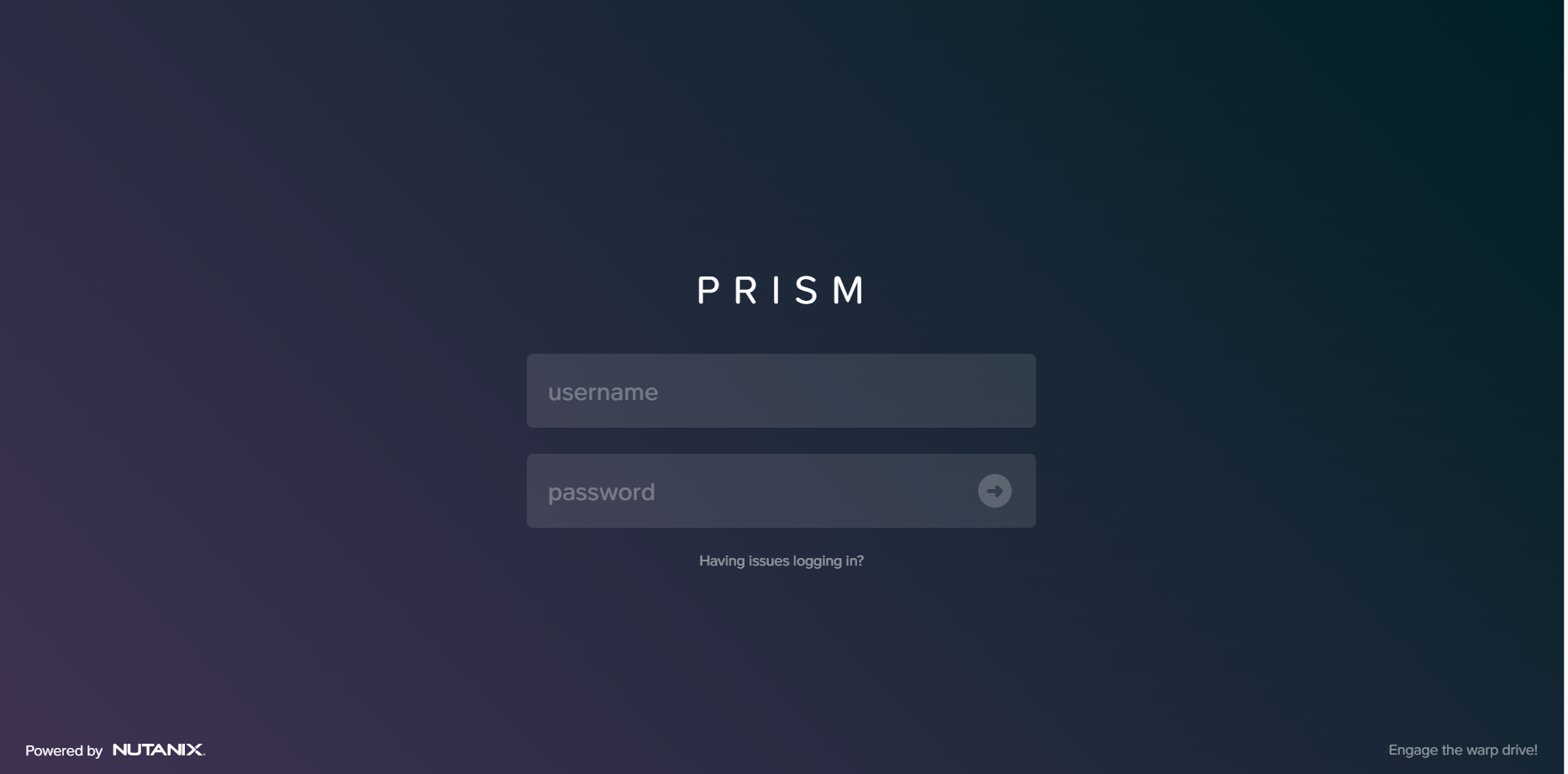
Foundation can be download from Nutanix Support portal.

https://portal.nutanix.com/page/downloads?product=foundation

Foundation software is available for
  • Foundation for windows
  • Foundation for MacOS
  • Standalone Foundation VM

Beside Foundation we required desire AOS bundle & Hypervisor ISO (if we are not going with AHV)

In Today’s walkthrough will use Foundation for Windows to do the foundation. Once Foundation Application is installed. Run as admin foundation.exe

Before proceeding with the foundation, some of the keypoints need to be noted. I would recommend the flat unmanaged switch and connect all nodes shared network ports and laptop on the switch.

You can check the shared port information from hardware compatibility list.

https://portal.nutanix.com/page/documents/list?type=compatibilityList

incase if share port is not available we need to connect IPMI & ethernet ports from each node.

Select the hardware platform type, Provide CVM & IPMI Subnet and Gateway IP. Click Next to Proceed.

Provide each Node’s IPMI, HOSTIPs, CVM IPs and hostname and click Next.

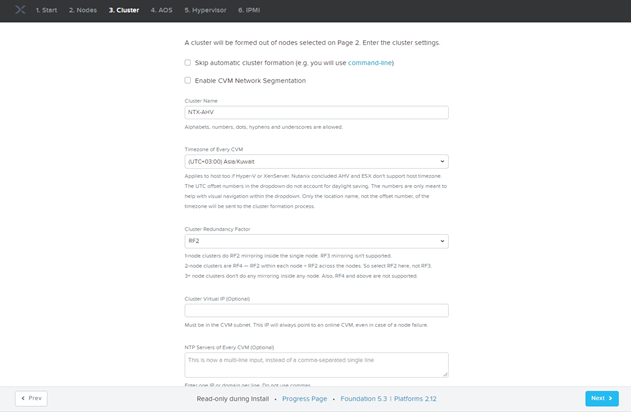
Provide Cluster Name, Specify Time Zone & CVM Memory and Click Next.
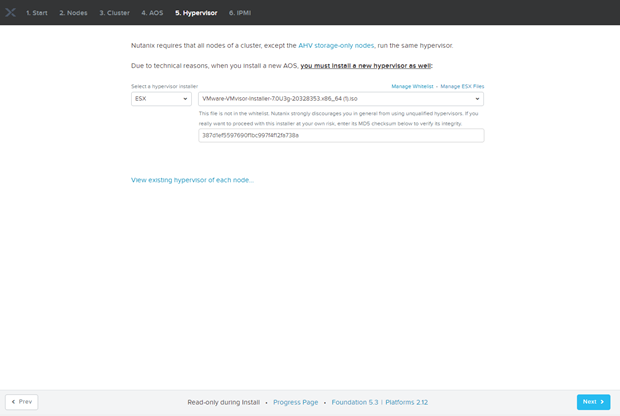
Provide AOS Bundle and Click Next

By default AHV is bundle within AOS Package, as I want to install VMware ESXI as hypervisor so we need to provide VMware ESXi ISO.

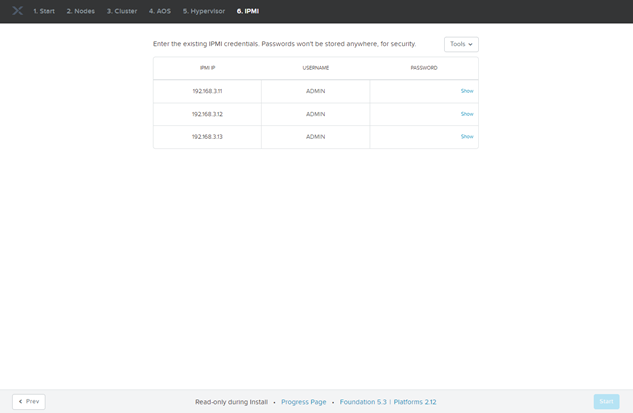
Provide IPMI Credentials and Click Next

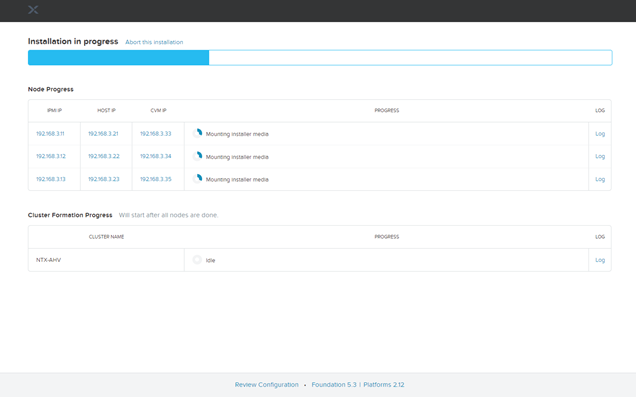
Foundation Process will take approx. 1hrs.

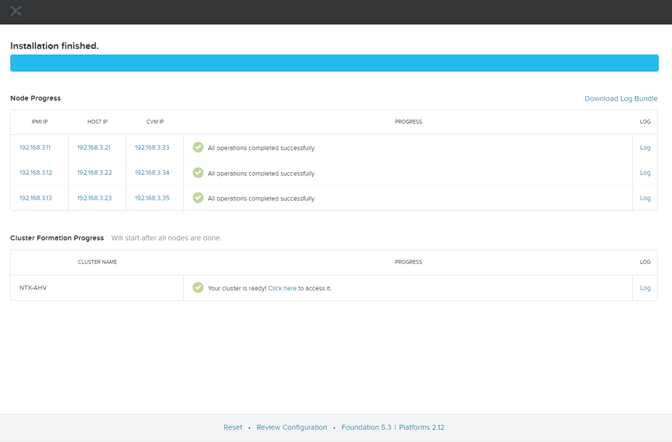
Foundation is finished. You can access the prism from any of the CVM IPs.

Default Credentials are as below:

User Password
CVM nutanix nutanix/4u
Hypervisor root nutanix/4u
Prism admin Nutanix/4u
IPMI ADMIN Node Serial Number

Unable to login to VSphere 6.7 Appliance Management UI

Today I have faced the strange issue, I tried to add new host to vcenter but unable to add to check the VCenter services I tried to login to Vcenter appliance Management UI but unable to login.
I tried to reset the Vcenter Appliance root passowrd but didn’t work. After troubleshoting I found the solution. Applmgmt Services was not running which was not allowing me login to management Console.

So Check the services status from Shell , open VCenter Appliance Console / SSH.

Access à Shell

#service-control –status

#service-control –start applmgmt

Once Services started , I am able to login to console & able to add ESXi host to VCenter.

How to Deploy VMWare VCenter Appliance in VMware WorkStation

As we all know VMware WorkStation is a great solution for testing /home lab activities. Lots of guys ask me how to deploy VMware VCenter Appliance deploy in VMware Workstation as using VCenter Installer it looks for ESXi host to deploy the VCenter Appliance. So below is the procedure you can follow to deploy VCenter Server on VMware Workstation.

  • Download the VCenter Appliance ISO
  • Extract / Mount ISO
  • Browse to folder VSA and double click on OVA file, wizard will be started to import the OVA to VMware Workstation.

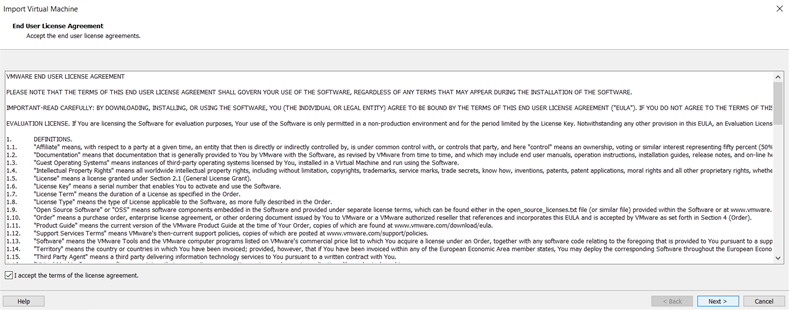
Accept the License Agreement and click Next

Specify the Virtual Machine name & location and click Next

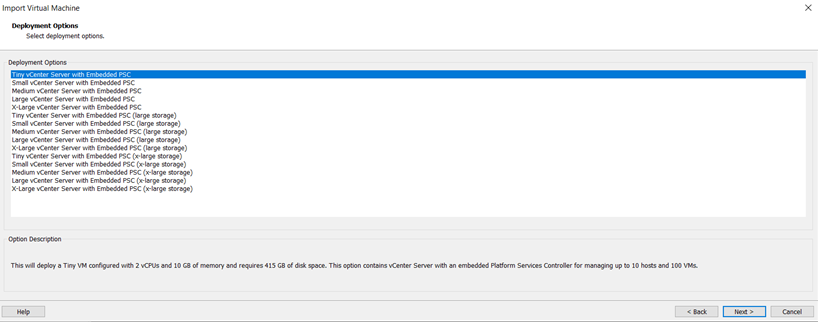
Specify the Deployment Type and click Next

  • Specify the Network Configuration
  • Host network Family: IPV4 or IPV6
  • Host Network mode : Static / Dynamic
  • Host IP Address:
  • Host network Profex / Subnet
  • Default gateway
  • DNS Server IP
  • Virtual machine DNS Name

Once provide the information Click next.

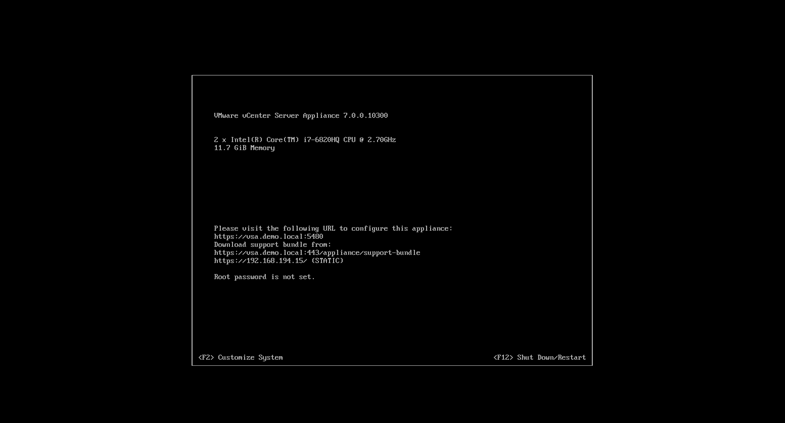
Once VCenter Appliance will be deployed. Logged into Virtual machines

Set the VCenter Appliance IP and access the Virtual Machines Management using any explorer

https:// Virtual Appliance IP:5480

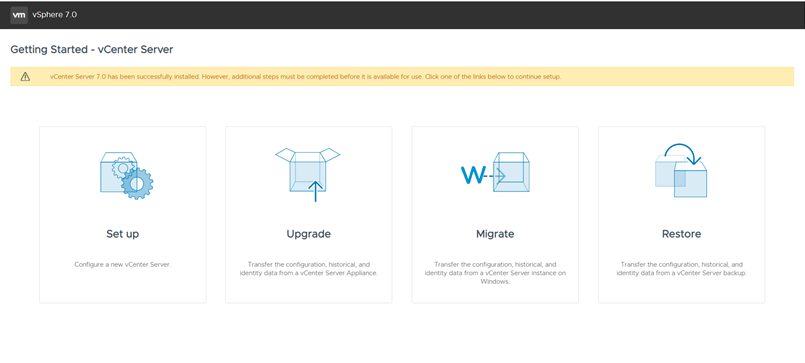
Now the Stage 2, will be started. Click Setup to proceed.

Click Next start the Stage 2

Provide the NTP information, Enable SSH Access incase if you want to configure VCenter Sever HA.

As I am planning to configure VCenter HA, hence enabling SSH Access. Click Next to continue.

Select the desire SSO Configuration, as I am going to setup the new SSO Domain. So I am providing the SSO domain name & Password for the Administrator. Click Next to continue.

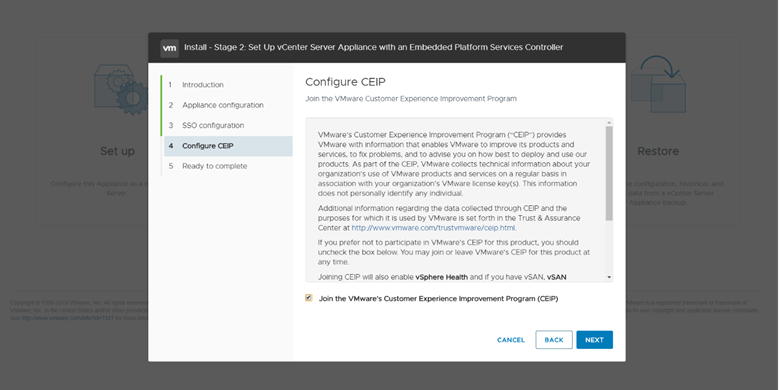
Select the CEP option you desire and click next.

Confirm the Summary information and click finish to start the STAGE 2 Configuration. Please note that once you click Next you can’t stop the process.

Process will take upto 10-15 mins to finish the deployment.

Below will the URLs to access the appliance.

Appliance Management:

https://appliance_ip/hostname:5480

VCenter

https://appliance_ip/hostname:443

How to Configure VCenter Server Appliance HA

VCenter HA is active – Passive solution, A VCenter Appliance HA Cluster consists of three VCenter Instances, 1st instance used as active and cloned 2 times as Passive & witness nodes.

VCenter HA Requirements:

  • Minimum of three ESXi 6.0 or Higher Hosts
  • Each VCenter will run on different hosts

VCenter Server 6.5 and higher

  • Deploy Small Size (4VCP & 16GB RAM) or higher is required. Not recommend to use tiny in production Environments

Network Connectivity

  • Less than 10ms. Latency between Active, Passive and witness nodes
  • VCenter HA network must be on different SUBNET than the management network. L2 network is recommended.

Setting up VCenter Appliance HA:

Select VCenter à Configuration à VCenter HA


Select “Set Up VCenter HA” to continue the VCenter HA Configuration


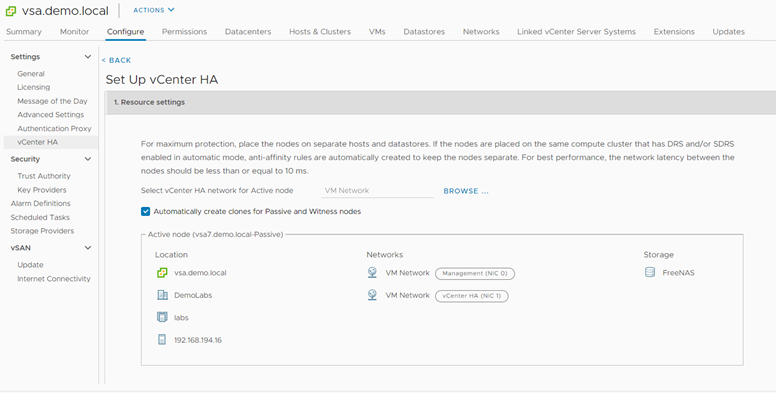
Specify the VCenter HA Network, Additional NIC (VCenter HA Network) will be added in active VCenter.


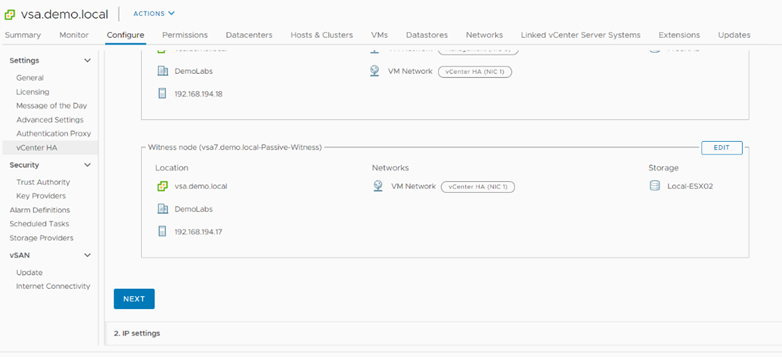
Click Edit and Specify the deployment host, Storage and network for Passive Network.


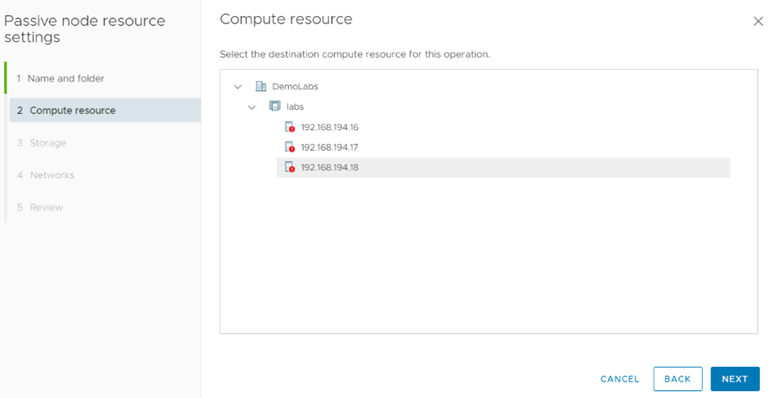
Specify the Host Click Next


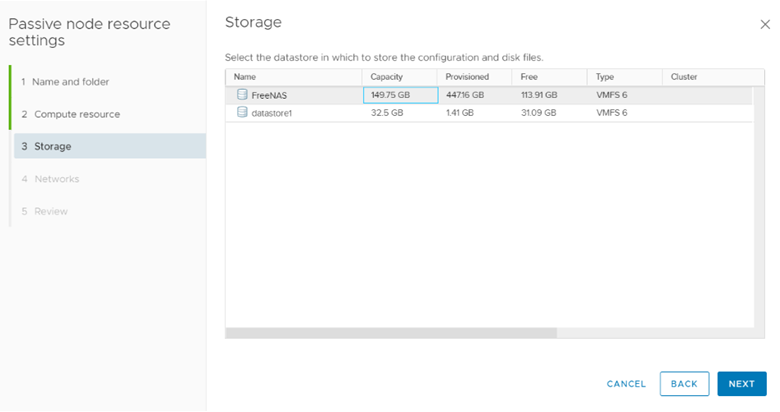
Specify the Datastore where you want to store the passive VCenter node.


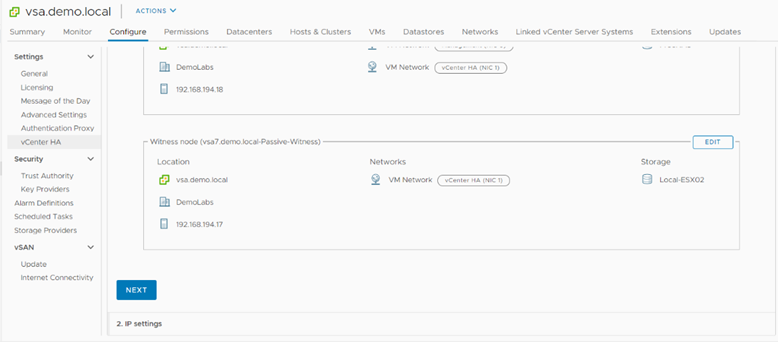
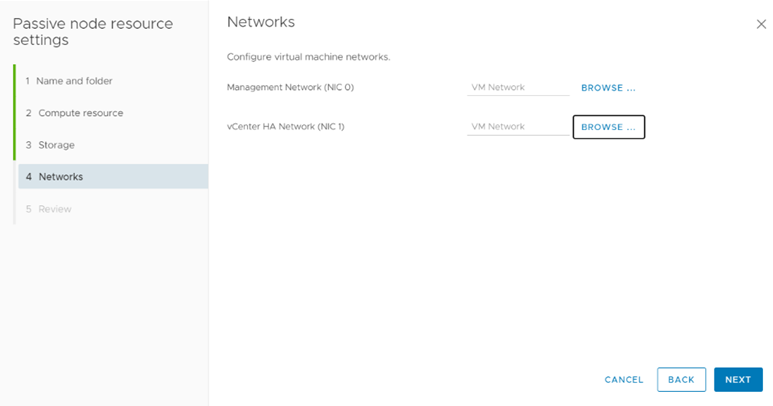
Specify the Network for passive Node


Click Finish. Repeat the same for Witness VM.


Click Next to configure VCenter Nodes HA IPs.


Click Finish to Start the Process. Whole process can take upto 15-20 min depends on the VM Clone copy process.


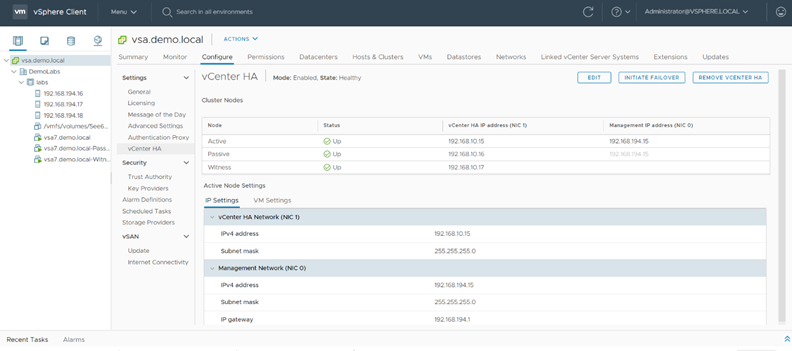
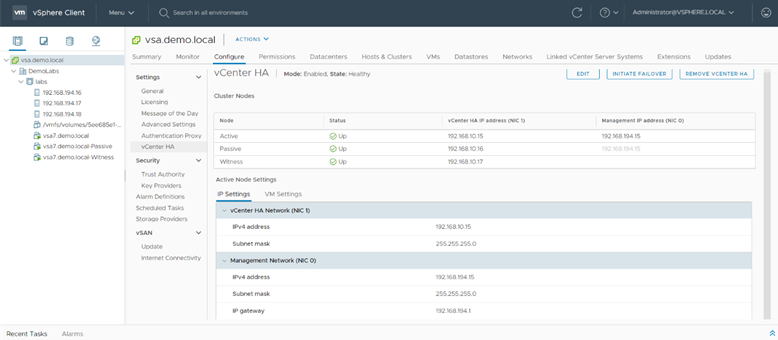
VCenter HA has been configured. You can see two new VM Named with passive & Witness has been created.

Manual Failover


Click on Initiate Failover to start the manual failover.


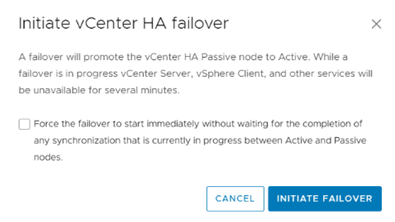
Click Initiate Failover, to confirm the failover. Select force option if you want to initate the failover immediately.

Destroy VCener HA


Click Remove VCenter HA to destroy the Center HA configuration

How to Upgrade VMWare VCenter Appliance 6.6 to 7.0

As all we know VMWare has release the VSphere 7.0. In this article I will show how to upgrade VCenter Appliance 6.7 to 7.0.

Download VCenter Server Appliance from VMware Website. And mount the ISO. Browse to vcsa-ui-installer on Mounted Media and run installer.exe

Note: Before starting the upgrade, make sure DNS record and NTP is working fine. VCenter Appliance upgrade process will deploy the new VCenter appliance and copy the configuration and data from old appliance to newly deployed appliance. This means temporary you should the enough resources to accommodate the new VM.

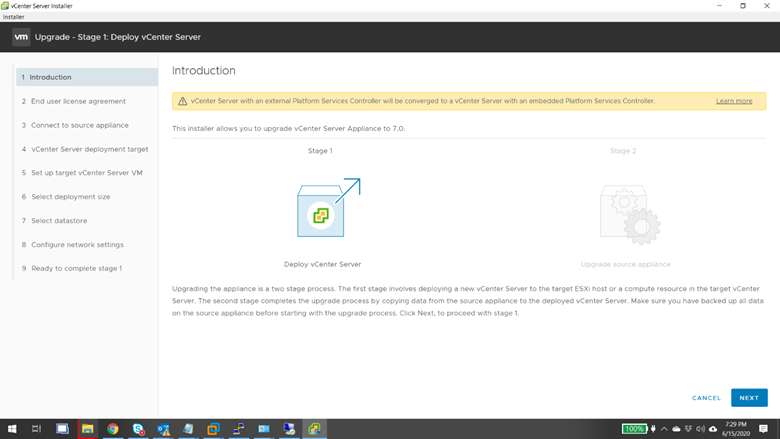
Click Upgrade to start the Wizard.

Click Next to continue

Accept the license agreement and click Next

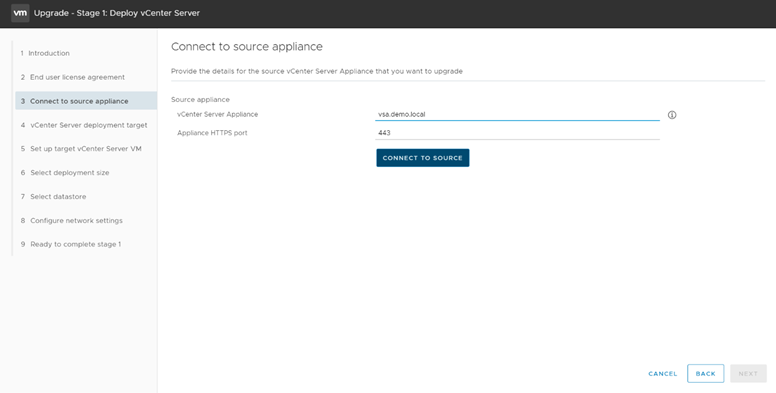
Connect the VCenter appliance

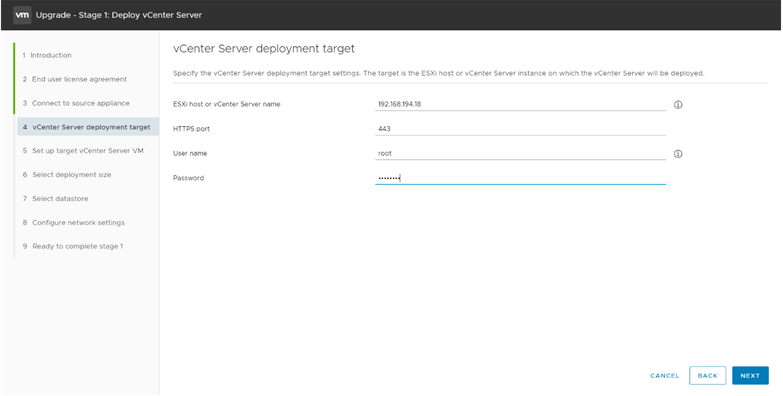
Provide the ESXi Server where you want to deploy the new VCenter VM.

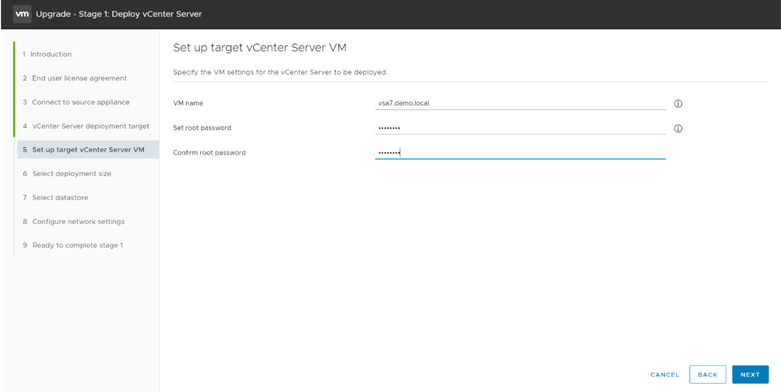
Provide the New VCenter VM name & provide the appliance Root Password.

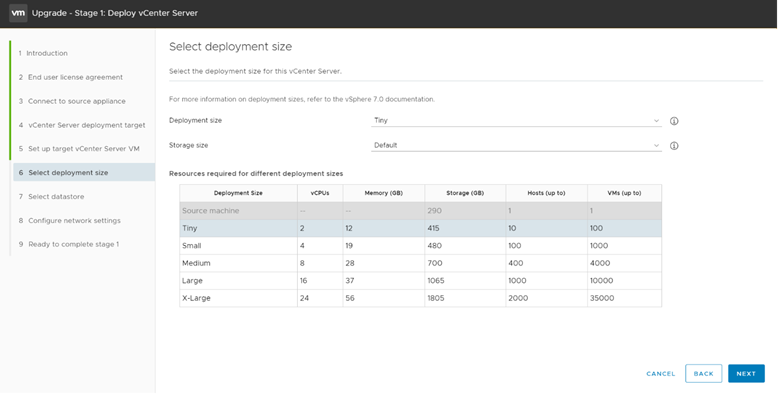
Select deployment size and click next.

Select the datastore, incase if you want to save the disk as thin format select enable thin disk mode.

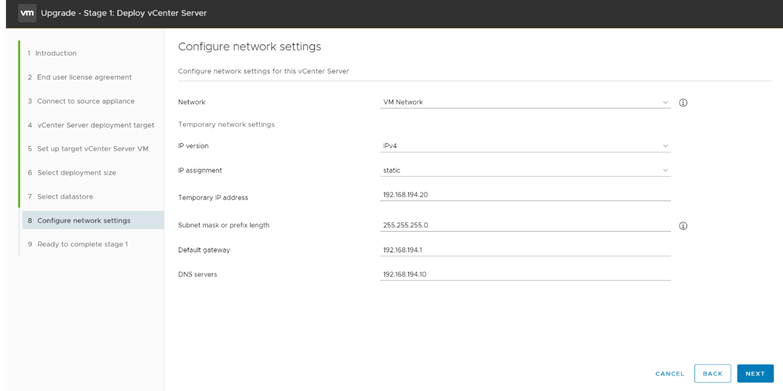
Provide the network information and temporary IP.

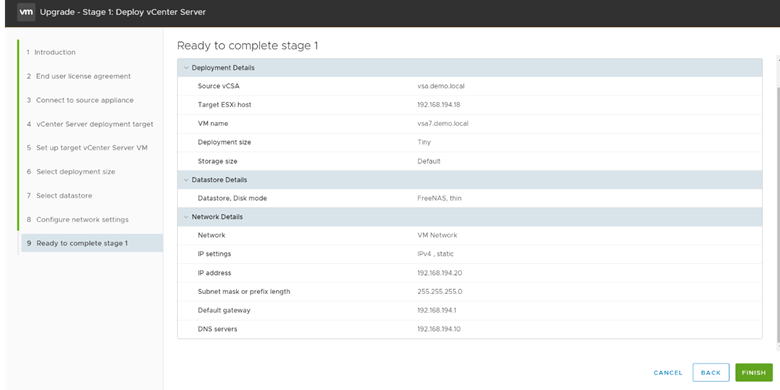
Review the configuration and click Finish to start the deployment.

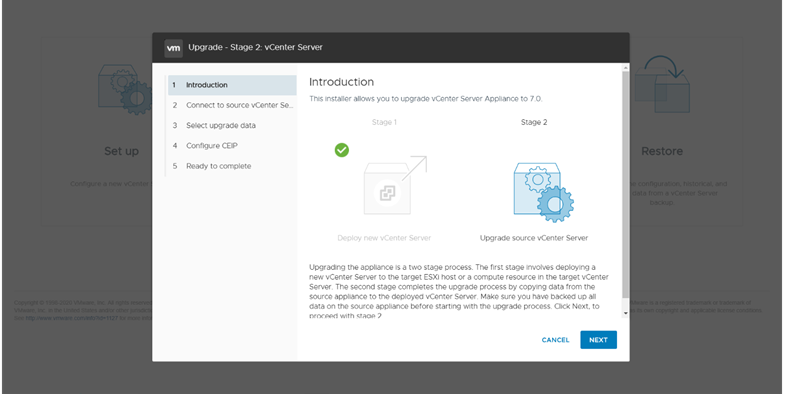
In this Stage VM is already deployed, once deployment finished you can continue to start the Stage 2. In stage 2, VM will copy the data from old appliance and configure the new appliance. Click Continue

Click the next to start the wizard.

Select the upgrade data and click next.

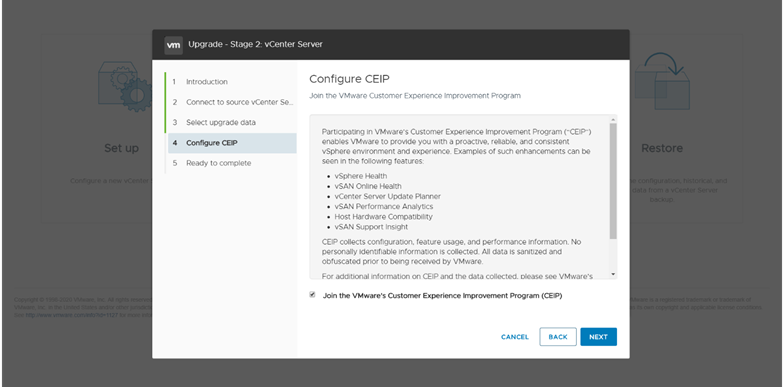
Select the desire CEP option and click next.

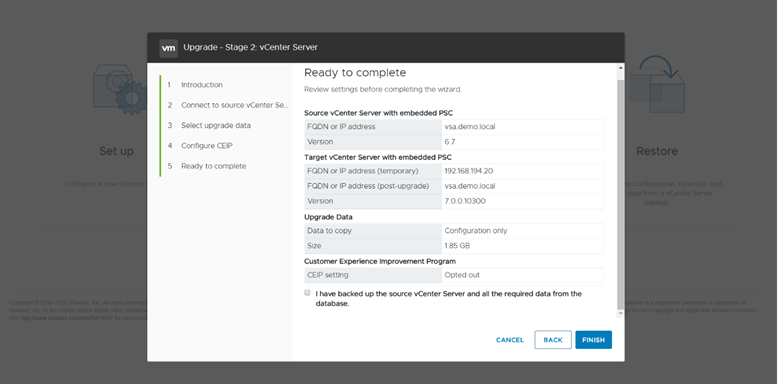
Review the configuration and click Finish to start the process.

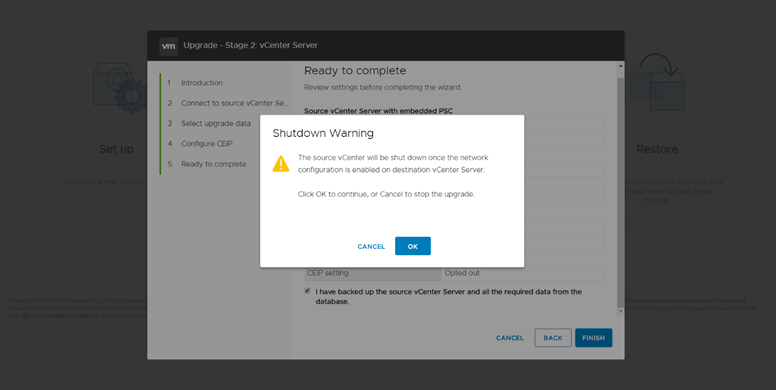
Accept the Warning, saying source VM will be shut down when new VM get the network configuration.

Whole process takes approx. 15-20 Min to finished.

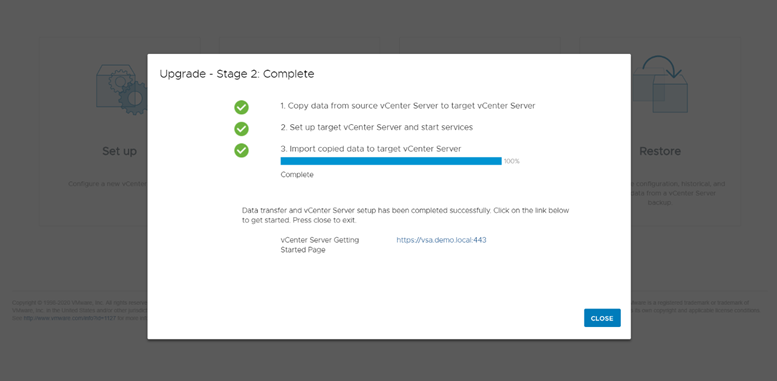
Upgrade finished, Click Close to close the installation wizard.

VCenter is upgraded. You can access the VCenter appliance

https://vsa.demo.local:443

First thing to be noticed, HTML5 is only available GUI going forward.

How to Deploy VMware VCenter Appliance

vCenter Server is the centralized management utility for VMware, and is used to manage virtual machines, multiple ESXi hosts, and all dependent components from a single centralized location. VMware vMotion and svMotion require the use of vCenter and ESXi hosts.

In this article, I will show Step by Step instruction how to deploy VMWare VCenter Server Appliance.

VCenter Server Appliance Requirements:

Resource Requirement
Disk storage on the host machine Embedded Platform Services Controller:

  • Tiny: 120GB
  • Small: 150GB
  • Medium: 300GB
  • Large: 450GB

vCenter Server Appliance with an External Platform Services Controller:

  • Tiny: 86GB
  • Small: 108GB
  • Medium: 220GB
  • Large: 280GB

External Platform Services Controller Appliance:

  • Tiny: 30GB
  • Small: 30GB
  • Medium: 30GB
  • Large: 30GB
Memory in the vCenter Server Appliance Platform Services Controller Only: 2GB Ram

All components on one Appliance.

  • Tiny: 8GB RAM
  • Small: 16GB RAM
  • Medium: 24GB RAM
  • Large: 32GB RAM
CPUs in the vCenter Server Appliance Platform Services Controller Only: 2 CPUs

All components on one Appliance.

  • Tiny: 2 CPUs
  • Small: 4 CPUs
  • Medium: 8 CPUs
  • Large: 16 CPUs

Notes:

  • Tiny Environment (up to 10 Hosts, 100 Virtual Machines)
  • Small Environment (up to 100 Hosts, 1,000 Virtual Machines)
  • Medium Environment (up to 400 Hosts, 4,000 Virtual Machines)
  • Large Environment (up to 1,000 Hosts, 10,000 Virtual Machines)

Download VCenter Server Appliance from VMware Website. And mount the ISO. Browse to vcsa-ui-installer on Mounted Media and run installer.exe

Note: Before starting the installed, make sure to create the DNS A-Record for the VCenter Server along with reverse pointer for the same.

Click Install to start the Installation Wizward.

Click Next start the Appliance Deploy.

Accept License Agreement and click next

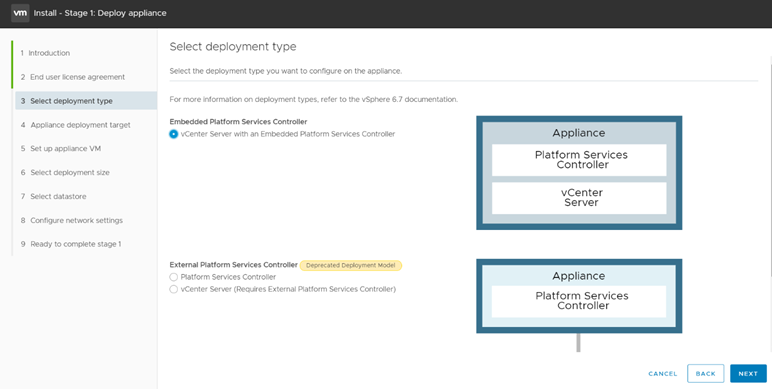
Select the Desire deployment type and click Next. I am proceeding with Embedded Platform in this article.

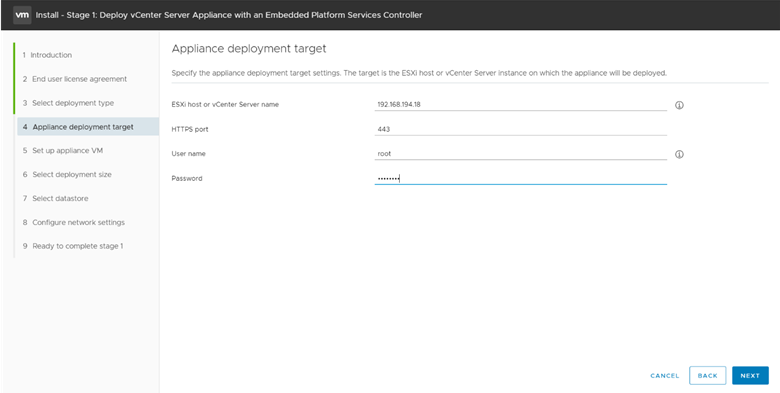
Provide the ESXI or VCenter Server information where you want to deploy the VCenter Appliance. And check ok.

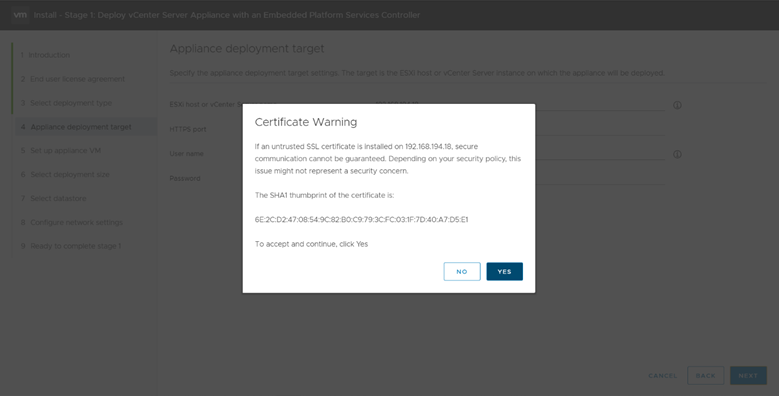
Accept the ESX Server Certificate Warning.

ESXI is connected Click Next.

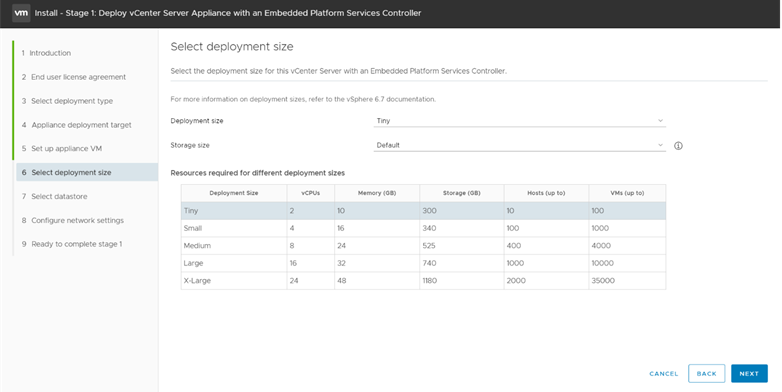
Based on the requirements select the deployment size, and storage size.

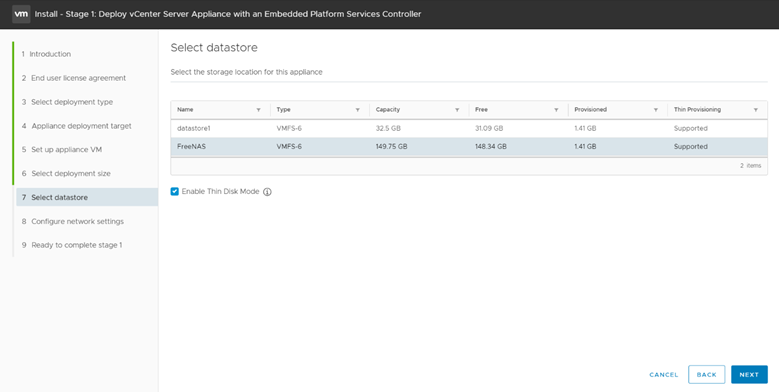
Select the datastore where you want to save the Appliance. Incase if you want to deploy the appliance in Thin Disk Mode, select the option “Enable Thin Disk Mode”

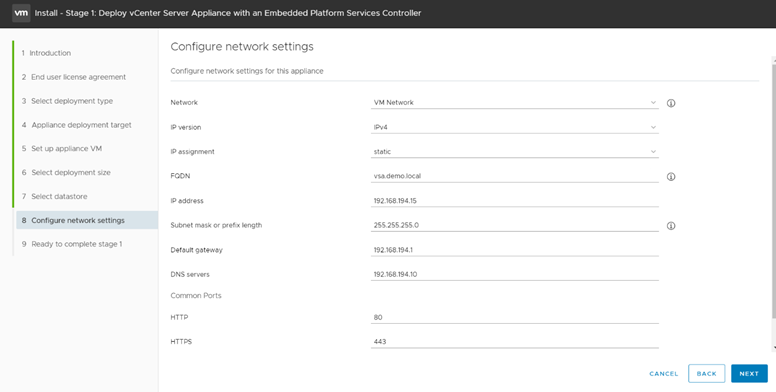
Provide the Network information, like VM IP hostname etc. Make sure before proceed next create the DNS Entries.

Click Finish to start the Appliance VM deployment.

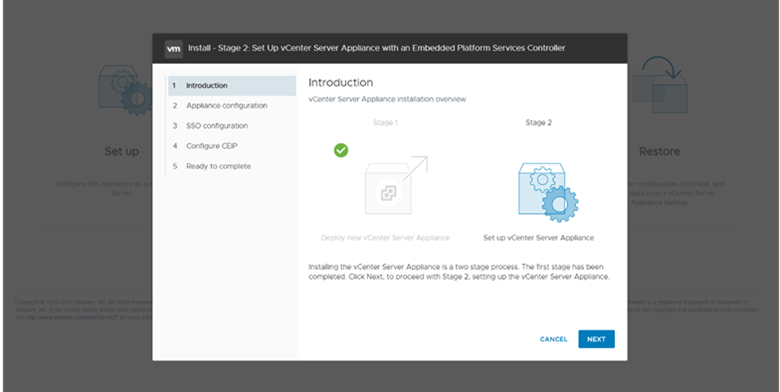
Once VM Deployment finished, Stage 1 of VCenter Appliance got finished. Click Continue to start the Stage 2 of deployment.

Click Next start the Stage 2

Provide the NTP information, Enable SSH Access incase if you want to configure VCenter Sever HA.

As I am planning to configure VCenter HA, hence enabling SSH Access. Click Next to continue.

Select the desire SSO Configuration, as I am going to setup the new SSO Domain. So I am providing the SSO domain name & Password for the Administrator. Click Next to continue.

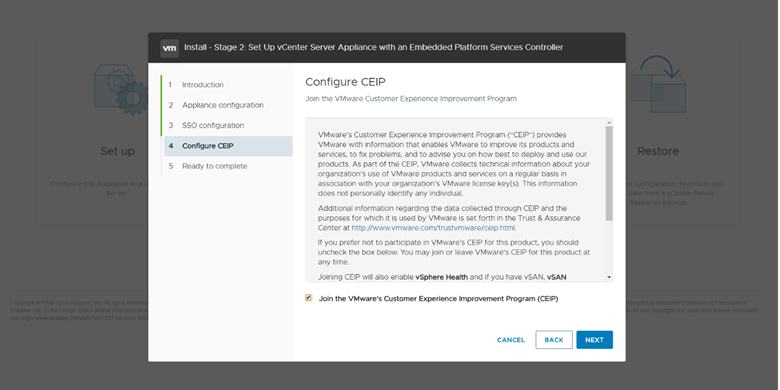
Select the CEP option you desire and click next.

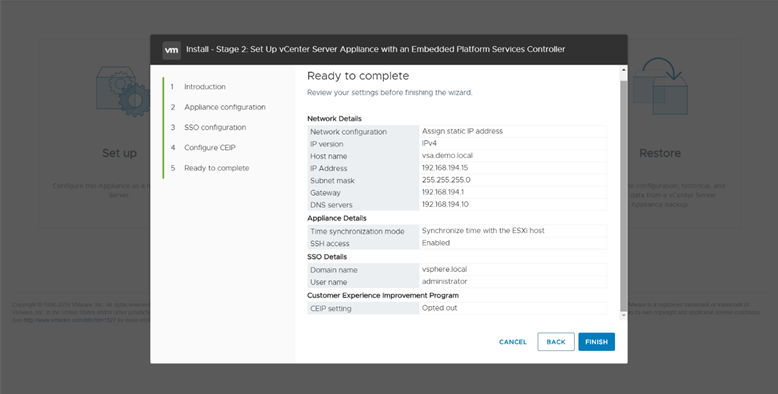
Confirm the Summary information and click finish to start the STAGE 2 Configuration. Please note that once you click Next you can’t stop the process.

Process will take upto 10-15 mins to finish the deployment.

Below will the URLs to access the appliance.

Appliance Management:

https://appliance_ip/hostname:5480

VCenter

https://appliance_ip/hostname:443