How to Configure VCenter Server Appliance HA

VCenter HA is active – Passive solution, A VCenter Appliance HA Cluster consists of three VCenter Instances, 1st instance used as active and cloned 2 times as Passive & witness nodes.

VCenter HA Requirements:

  • Minimum of three ESXi 6.0 or Higher Hosts
  • Each VCenter will run on different hosts

VCenter Server 6.5 and higher

  • Deploy Small Size (4VCP & 16GB RAM) or higher is required. Not recommend to use tiny in production Environments

Network Connectivity

  • Less than 10ms. Latency between Active, Passive and witness nodes
  • VCenter HA network must be on different SUBNET than the management network. L2 network is recommended.

Setting up VCenter Appliance HA:

Select VCenter à Configuration à VCenter HA


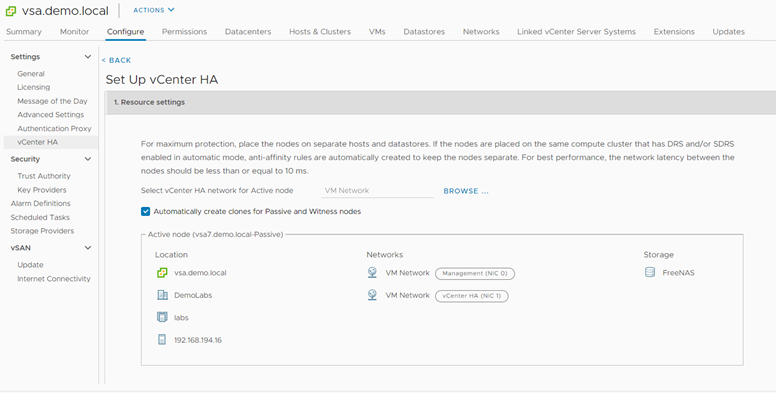
Select “Set Up VCenter HA” to continue the VCenter HA Configuration


Specify the VCenter HA Network, Additional NIC (VCenter HA Network) will be added in active VCenter.


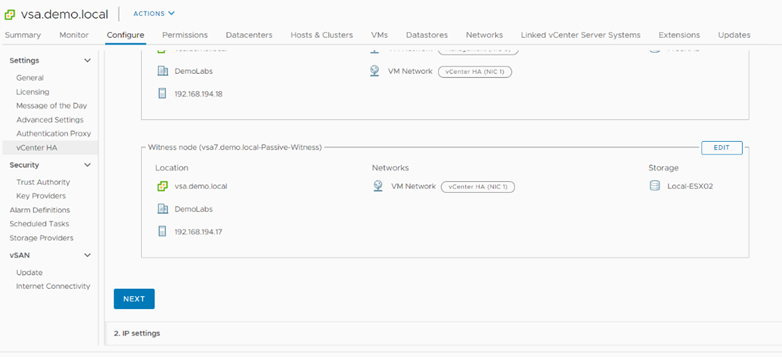
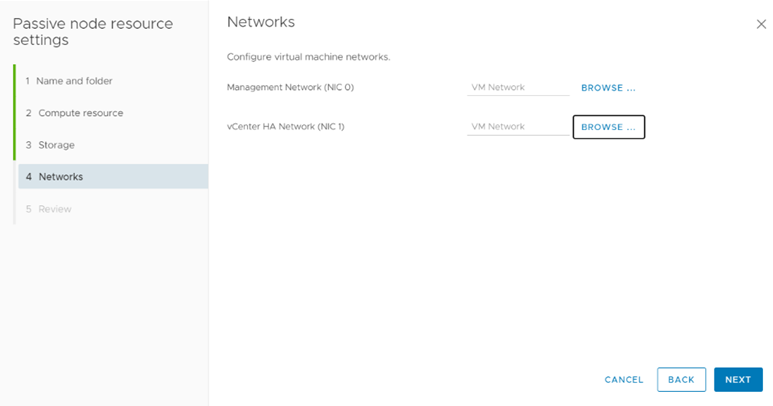
Click Edit and Specify the deployment host, Storage and network for Passive Network.


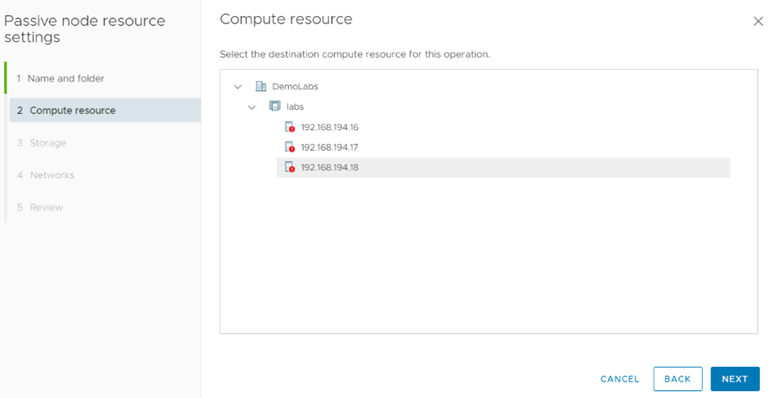
Specify the Host Click Next


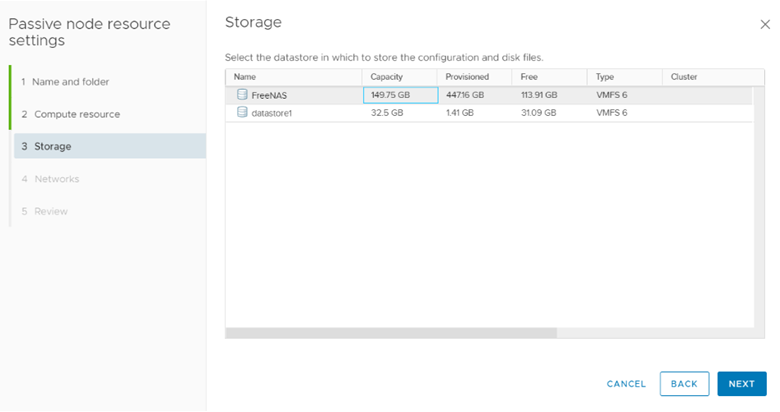
Specify the Datastore where you want to store the passive VCenter node.


Specify the Network for passive Node


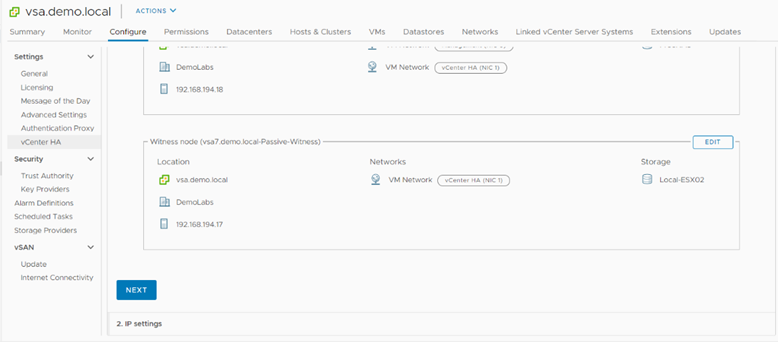
Click Finish. Repeat the same for Witness VM.


Click Next to configure VCenter Nodes HA IPs.


Click Finish to Start the Process. Whole process can take upto 15-20 min depends on the VM Clone copy process.


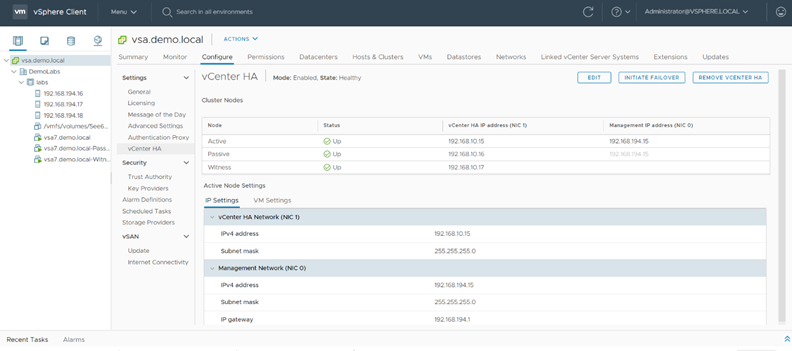
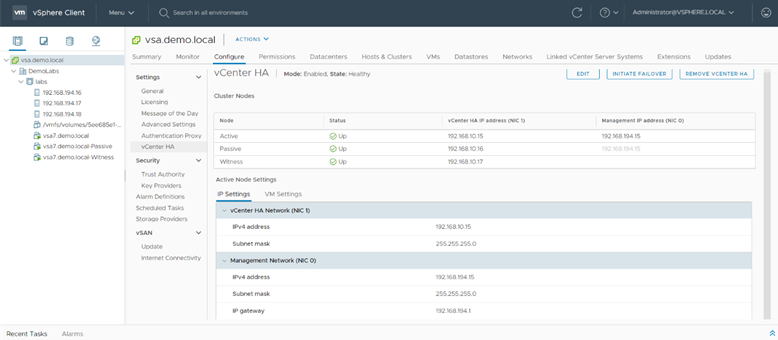
VCenter HA has been configured. You can see two new VM Named with passive & Witness has been created.

Manual Failover


Click on Initiate Failover to start the manual failover.


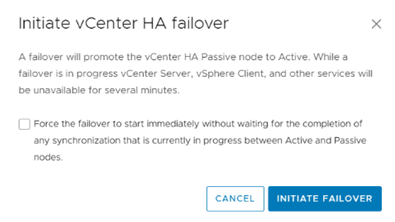
Click Initiate Failover, to confirm the failover. Select force option if you want to initate the failover immediately.

Destroy VCener HA


Click Remove VCenter HA to destroy the Center HA configuration

How to Upgrade VMWare VCenter Appliance 6.6 to 7.0

As all we know VMWare has release the VSphere 7.0. In this article I will show how to upgrade VCenter Appliance 6.7 to 7.0.

Download VCenter Server Appliance from VMware Website. And mount the ISO. Browse to vcsa-ui-installer on Mounted Media and run installer.exe

Note: Before starting the upgrade, make sure DNS record and NTP is working fine. VCenter Appliance upgrade process will deploy the new VCenter appliance and copy the configuration and data from old appliance to newly deployed appliance. This means temporary you should the enough resources to accommodate the new VM.

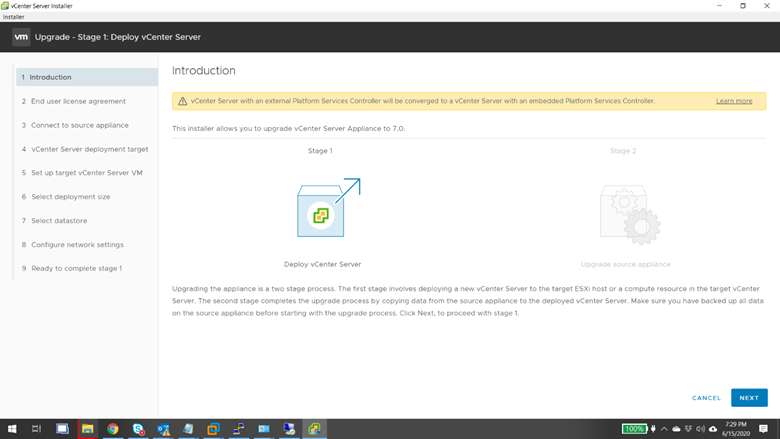
Click Upgrade to start the Wizard.

Click Next to continue

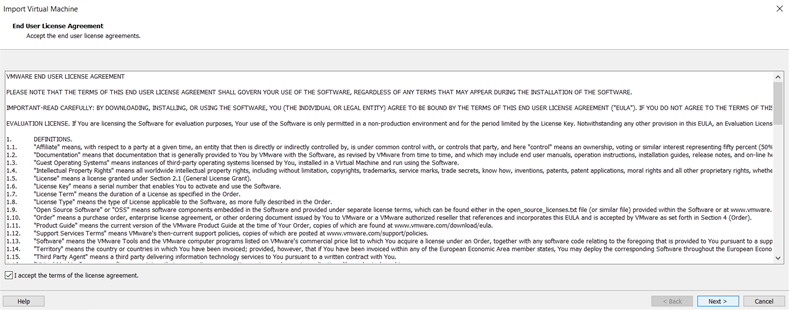
Accept the license agreement and click Next

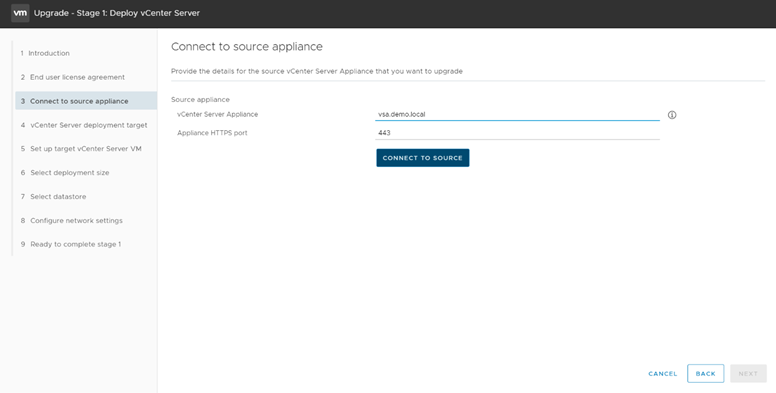
Connect the VCenter appliance

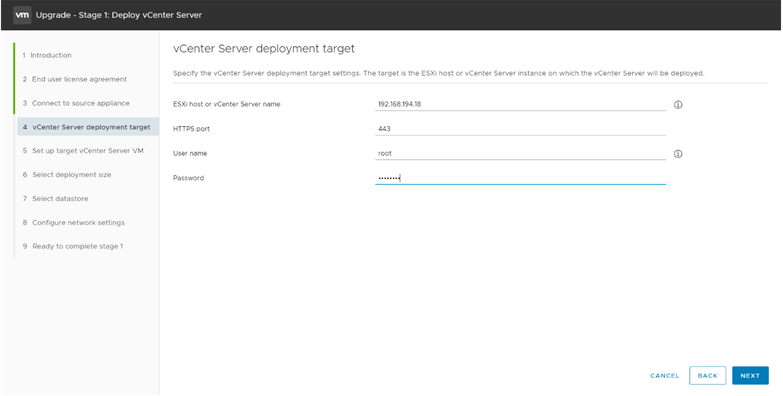
Provide the ESXi Server where you want to deploy the new VCenter VM.

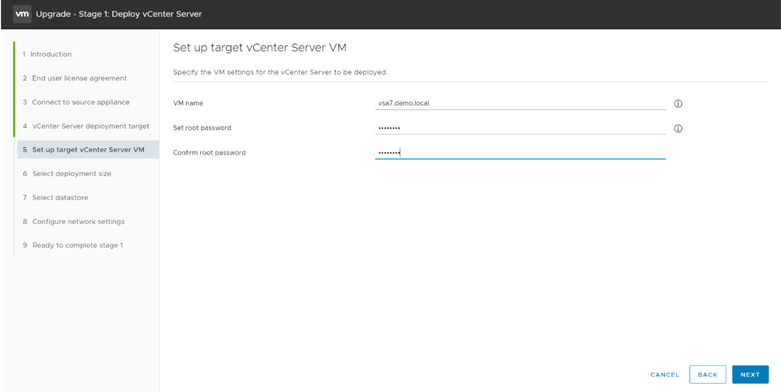
Provide the New VCenter VM name & provide the appliance Root Password.

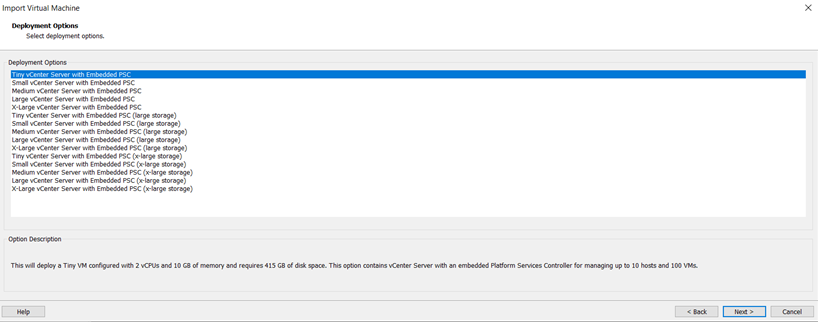
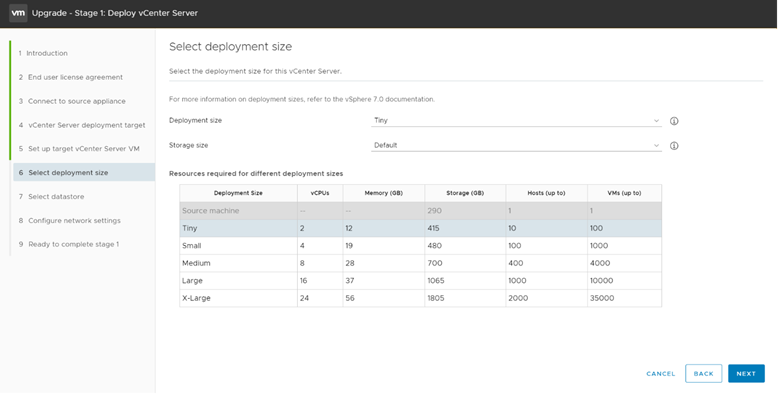
Select deployment size and click next.

Select the datastore, incase if you want to save the disk as thin format select enable thin disk mode.

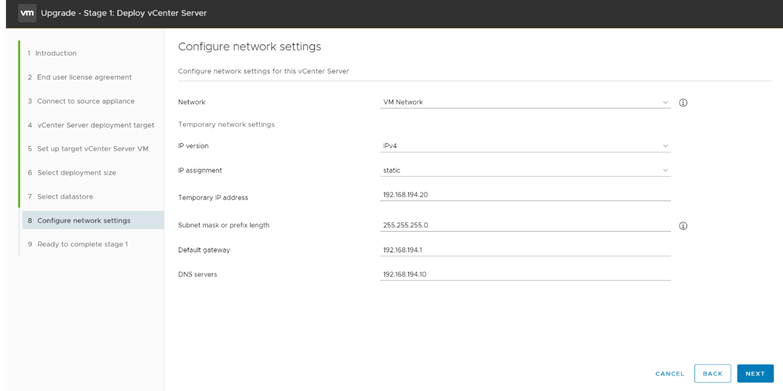
Provide the network information and temporary IP.

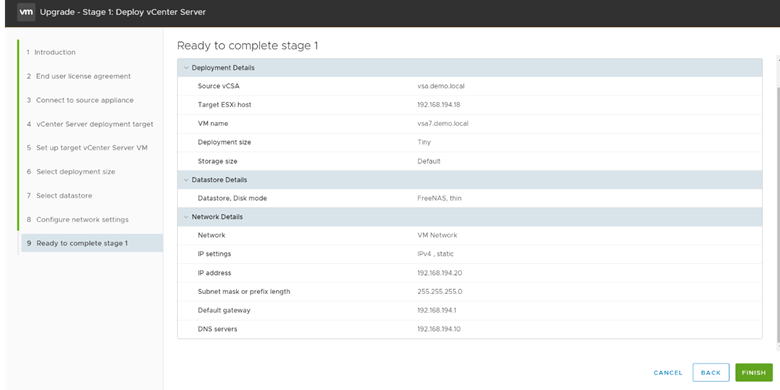
Review the configuration and click Finish to start the deployment.

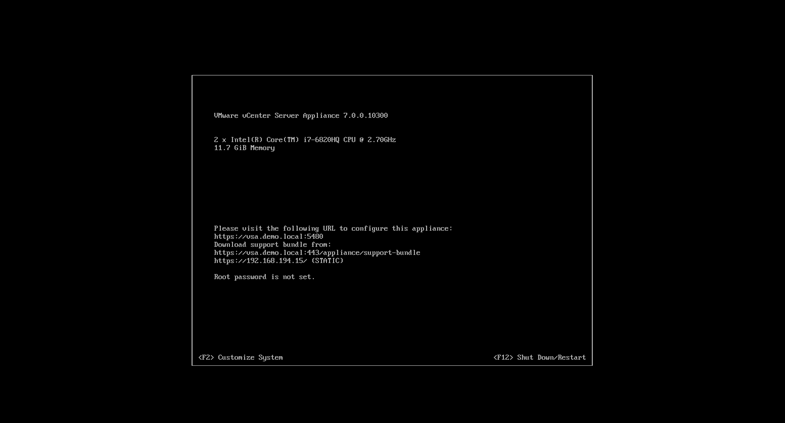
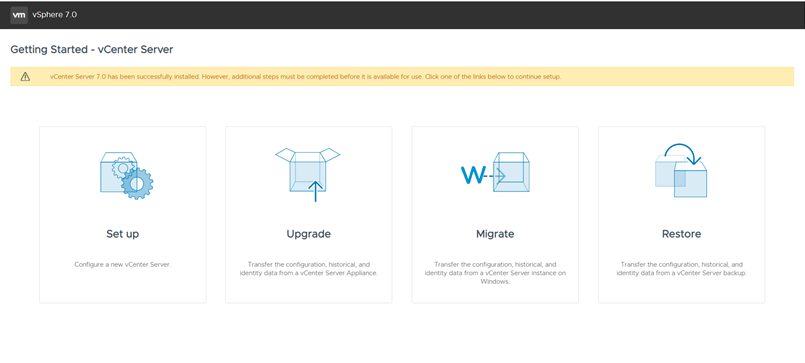
In this Stage VM is already deployed, once deployment finished you can continue to start the Stage 2. In stage 2, VM will copy the data from old appliance and configure the new appliance. Click Continue

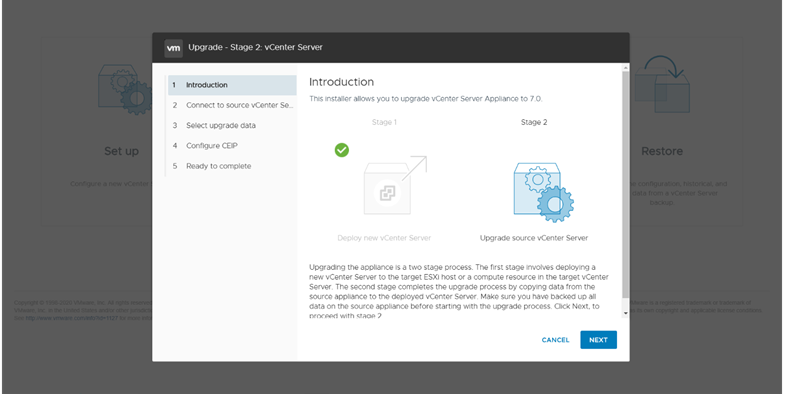
Click the next to start the wizard.

Select the upgrade data and click next.

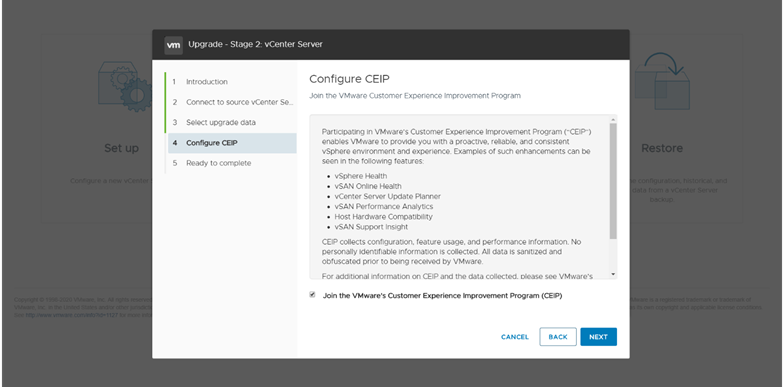
Select the desire CEP option and click next.

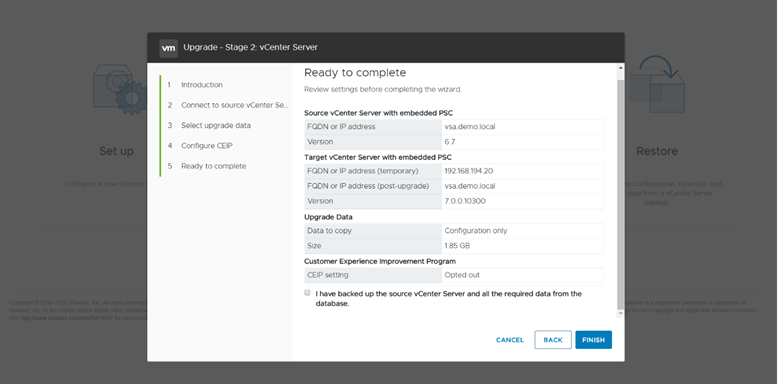
Review the configuration and click Finish to start the process.

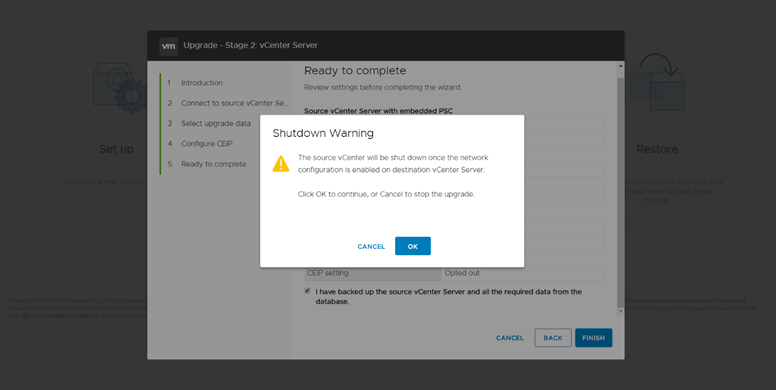
Accept the Warning, saying source VM will be shut down when new VM get the network configuration.

Whole process takes approx. 15-20 Min to finished.

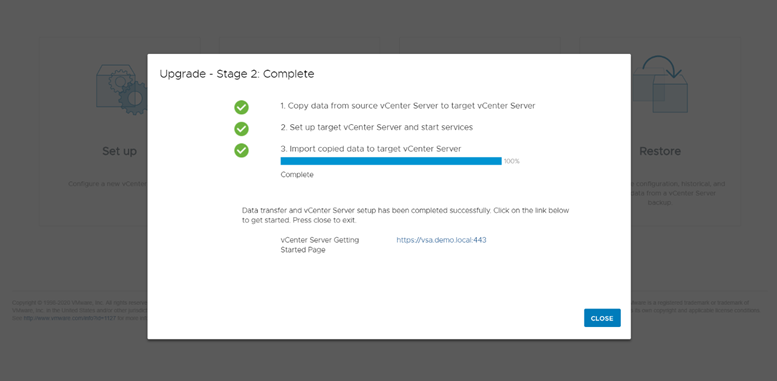
Upgrade finished, Click Close to close the installation wizard.

VCenter is upgraded. You can access the VCenter appliance

https://vsa.demo.local:443

First thing to be noticed, HTML5 is only available GUI going forward.

How to Deploy VMware VCenter Appliance

vCenter Server is the centralized management utility for VMware, and is used to manage virtual machines, multiple ESXi hosts, and all dependent components from a single centralized location. VMware vMotion and svMotion require the use of vCenter and ESXi hosts.

In this article, I will show Step by Step instruction how to deploy VMWare VCenter Server Appliance.

VCenter Server Appliance Requirements:

Resource Requirement
Disk storage on the host machine Embedded Platform Services Controller:

  • Tiny: 120GB
  • Small: 150GB
  • Medium: 300GB
  • Large: 450GB

vCenter Server Appliance with an External Platform Services Controller:

  • Tiny: 86GB
  • Small: 108GB
  • Medium: 220GB
  • Large: 280GB

External Platform Services Controller Appliance:

  • Tiny: 30GB
  • Small: 30GB
  • Medium: 30GB
  • Large: 30GB
Memory in the vCenter Server Appliance Platform Services Controller Only: 2GB Ram

All components on one Appliance.

  • Tiny: 8GB RAM
  • Small: 16GB RAM
  • Medium: 24GB RAM
  • Large: 32GB RAM
CPUs in the vCenter Server Appliance Platform Services Controller Only: 2 CPUs

All components on one Appliance.

  • Tiny: 2 CPUs
  • Small: 4 CPUs
  • Medium: 8 CPUs
  • Large: 16 CPUs

Notes:

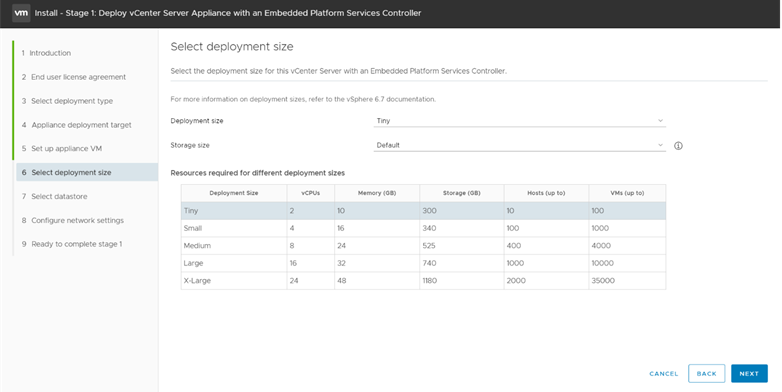
  • Tiny Environment (up to 10 Hosts, 100 Virtual Machines)
  • Small Environment (up to 100 Hosts, 1,000 Virtual Machines)
  • Medium Environment (up to 400 Hosts, 4,000 Virtual Machines)
  • Large Environment (up to 1,000 Hosts, 10,000 Virtual Machines)

Download VCenter Server Appliance from VMware Website. And mount the ISO. Browse to vcsa-ui-installer on Mounted Media and run installer.exe

Note: Before starting the installed, make sure to create the DNS A-Record for the VCenter Server along with reverse pointer for the same.
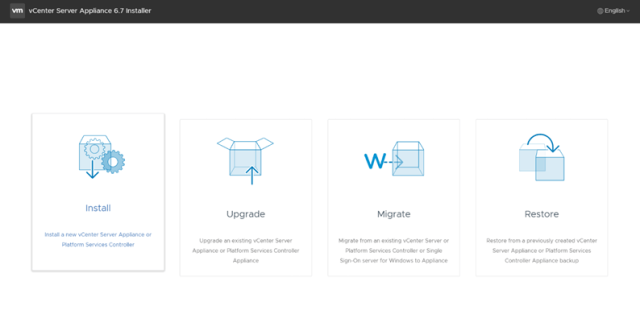
Click Install to start the Installation Wizward.
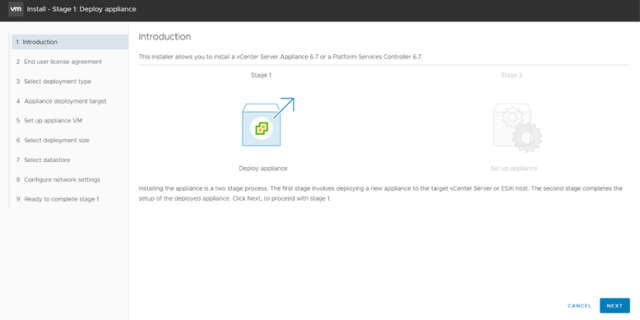
Click Next start the Appliance Deploy.

Accept License Agreement and click next
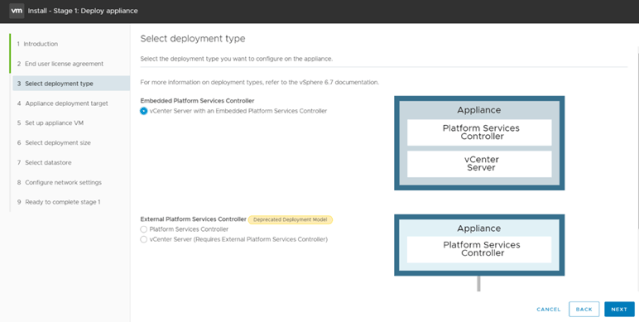
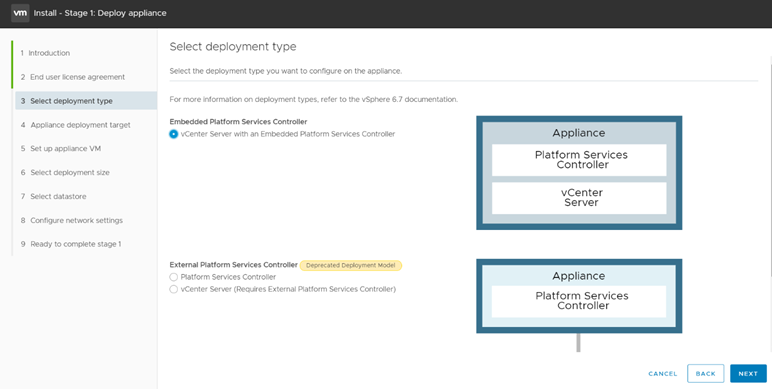
Select the Desire deployment type and click Next. I am proceeding with Embedded Platform in this article.
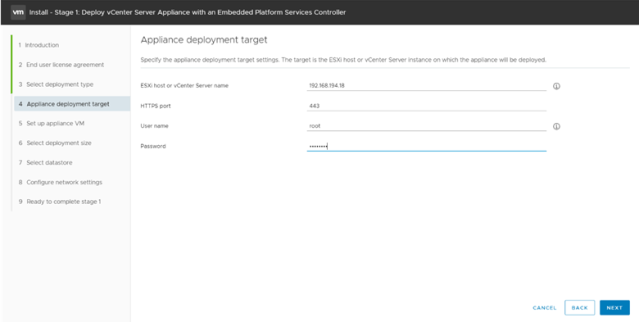
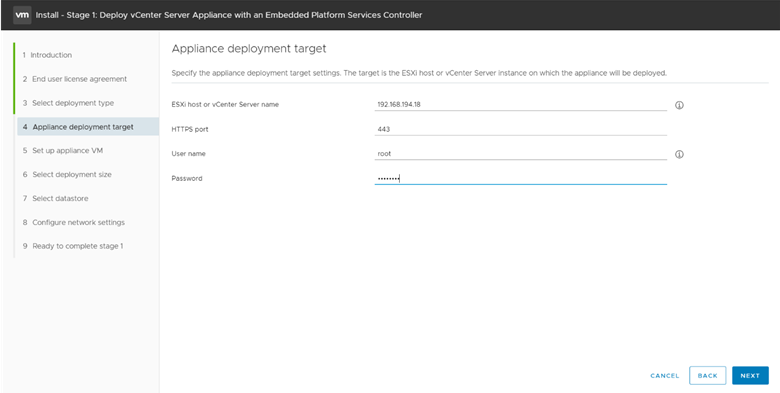
Provide the ESXI or VCenter Server information where you want to deploy the VCenter Appliance. And check ok.
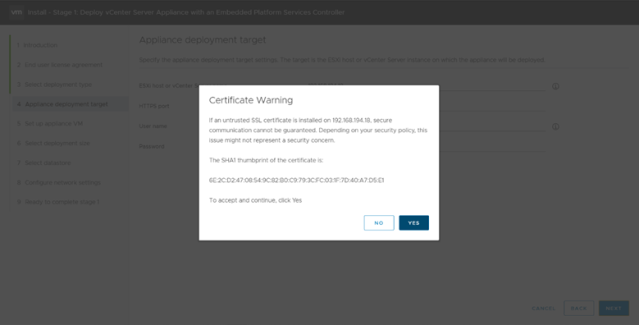
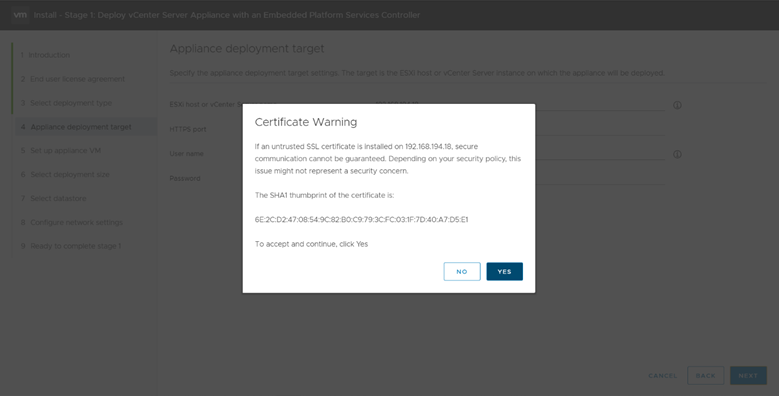
Accept the ESX Server Certificate Warning.

ESXI is connected Click Next.
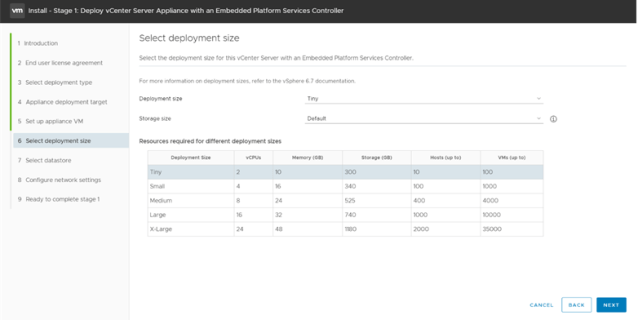
Based on the requirements select the deployment size, and storage size.
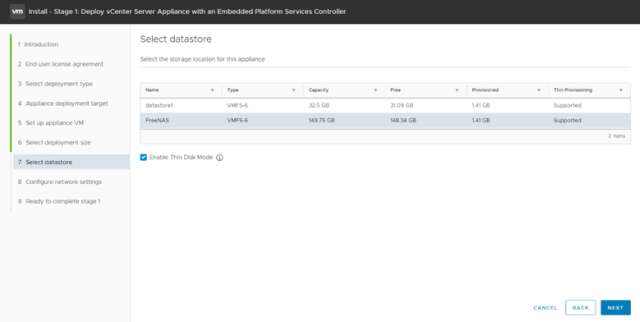
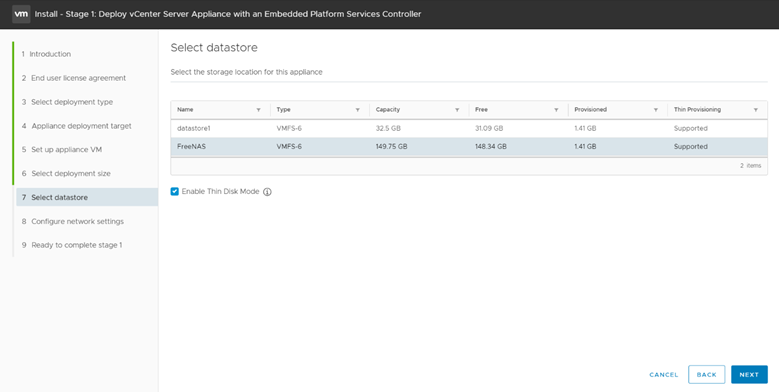
Select the datastore where you want to save the Appliance. Incase if you want to deploy the appliance in Thin Disk Mode, select the option “Enable Thin Disk Mode”
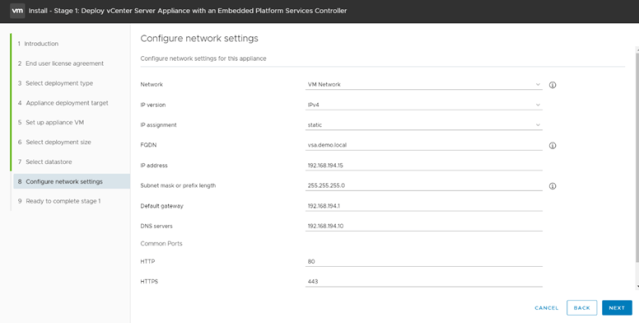
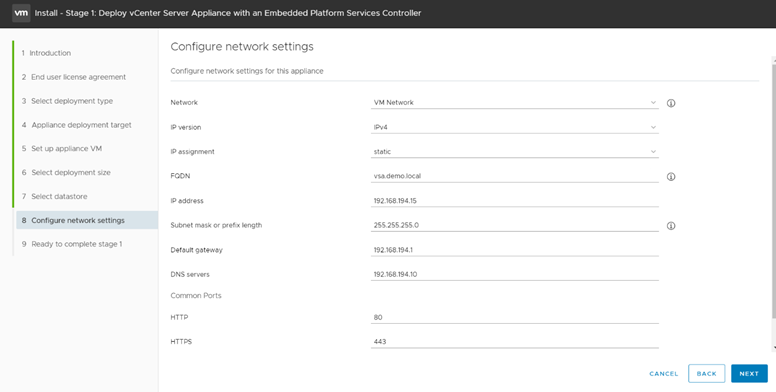
Provide the Network information, like VM IP hostname etc. Make sure before proceed next create the DNS Entries.

Click Finish to start the Appliance VM deployment.

Once VM Deployment finished, Stage 1 of VCenter Appliance got finished. Click Continue to start the Stage 2 of deployment.
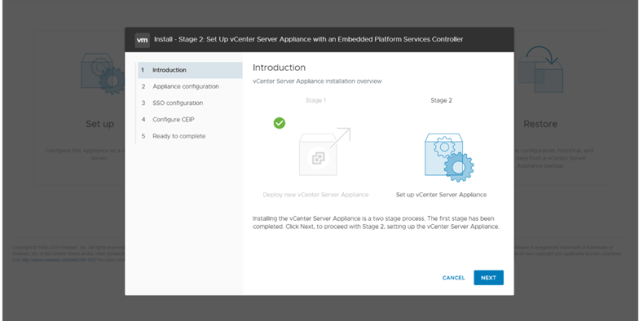
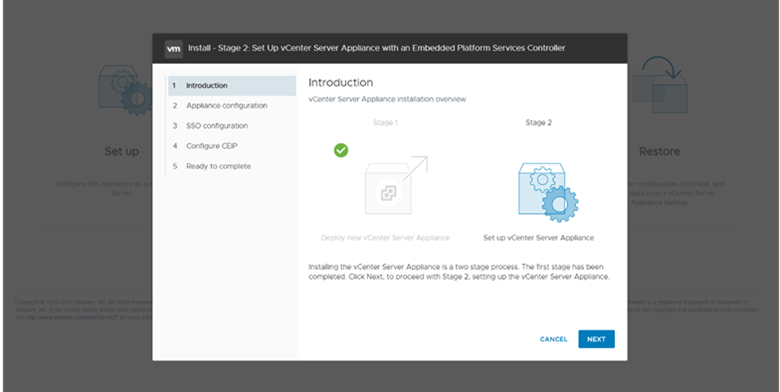
Click Next start the Stage 2

Provide the NTP information, Enable SSH Access incase if you want to configure VCenter Sever HA.
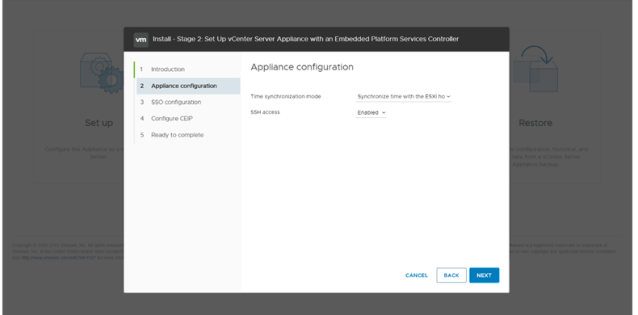
As I am planning to configure VCenter HA, hence enabling SSH Access. Click Next to continue.
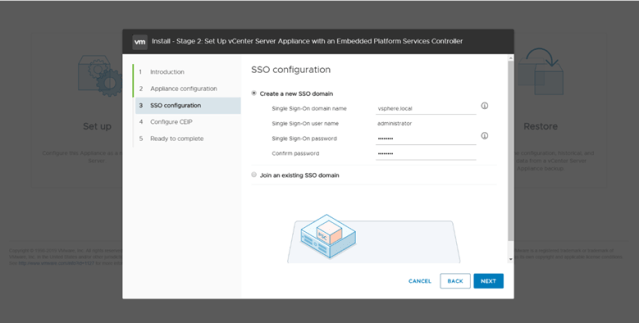
Select the desire SSO Configuration, as I am going to setup the new SSO Domain. So I am providing the SSO domain name & Password for the Administrator. Click Next to continue.
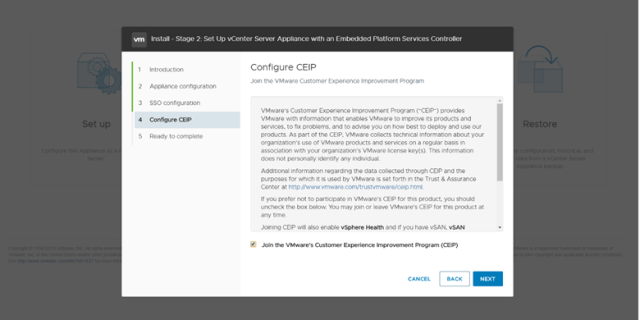
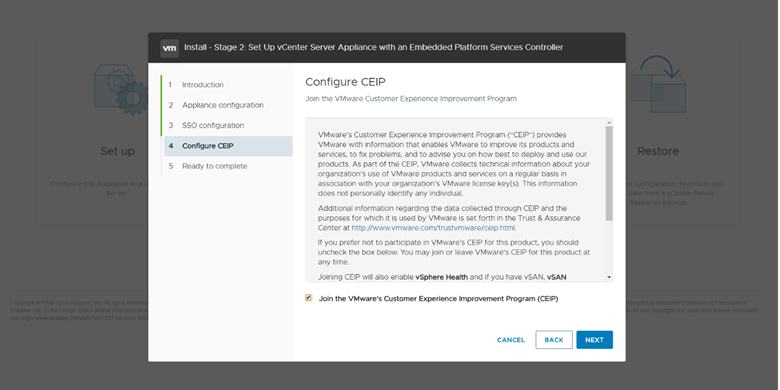
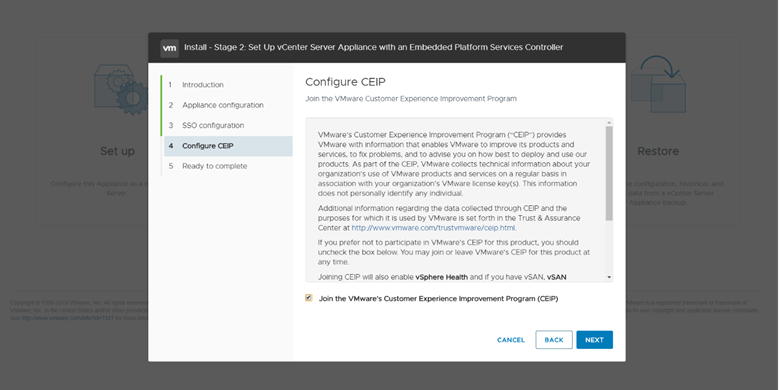
Select the CEP option you desire and click next.
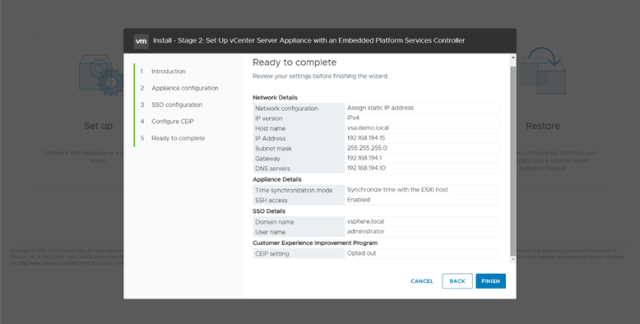
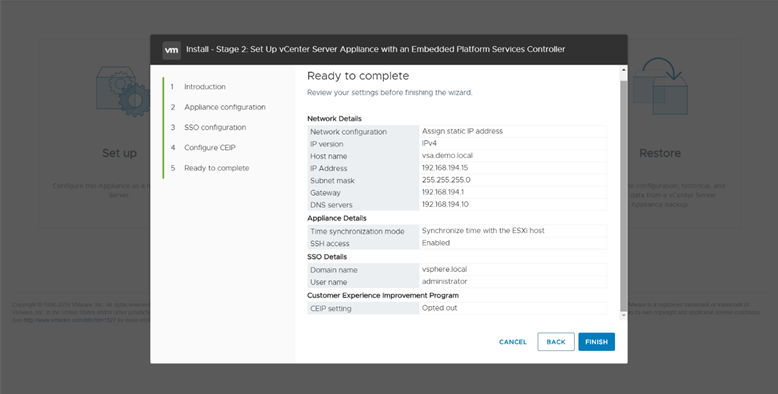
Confirm the Summary information and click finish to start the STAGE 2 Configuration. Please note that once you click Next you can’t stop the process.

Process will take upto 10-15 mins to finish the deployment.

Below will the URLs to access the appliance.

Appliance Management:

https://appliance_ip/hostname:5480

VCenter

https://appliance_ip/hostname:443

Upgrading ESXi Host using Offline-Bundle

In this article I will show how to upgrade VMware ESXi version using offline-Bundle.

  • Download the VMware Esxi Offline Bundle
  • Upload the Offline-Bundle to ESXi datastore
  • Place the ESXi host in Maintenance mode
  • SSH to ESXi Host using putty
  • Run the upgrade command , replace the DATASTORE-UUID with the UUID of your datastore where you have uploaded the Offline Bundle

esxcli software vib update -d /vmfs/volumes/<DATASTORE-UUID>/update-from-esxi6.5-xxx.zip

  • once done, reboot the host using below command
  • Reboot
  • Exit maintenance mode

Upgrade Compatibility Checks

VMware Hardware Compatibility List

https://www.vmware.com/resources/compatibility/search.php

Exchange Database not getting listed in GUI

I faced the strange issues with one of my customer, where Exchange Database was not getting list in GUI, as well as when I try to list the Databases using Exchange Management Shell I got the error saying unable to find “Mailbox XXXXX “ DB.

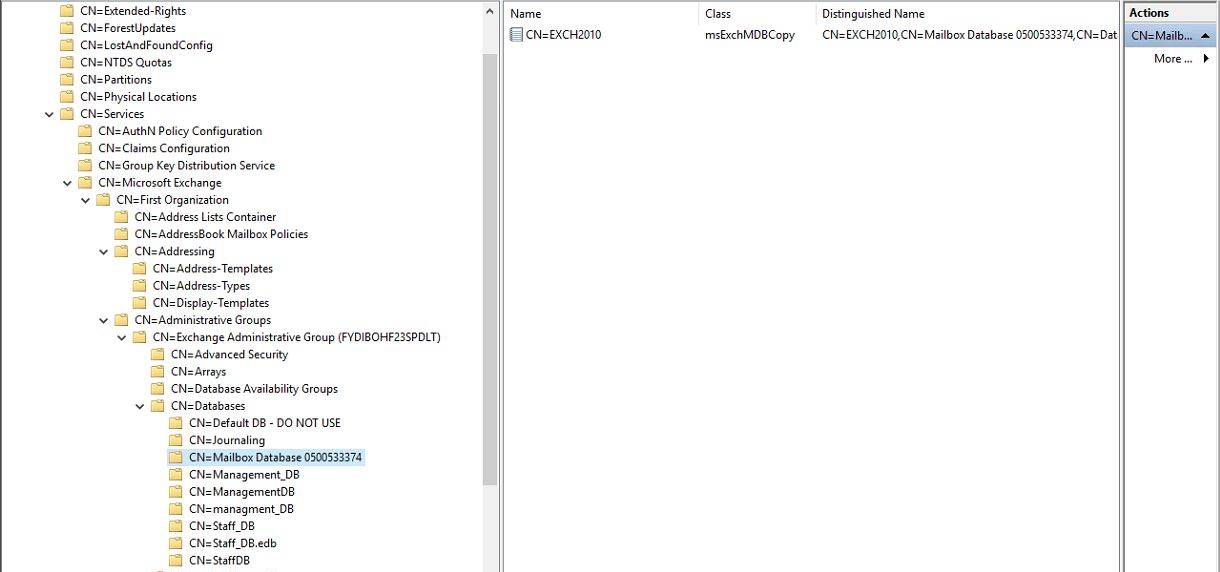
After seen this error, I opened ADSI Edit and found someone didn’t decommission the old Exchange properly. Old Exchange Sever was removed and Old Databases still exists in Active Directory Schema. After identify this , I just clean-up the old Database entries and do a refresh on ECP all databases got list immediately.

  • Login to domain controller with administrative account.
  • Navigate to Start –> Run –> ADSIEdit.msc and hit enter
  • Click on Action –> Connect to –> Select Configuration under “Select a well known naming Context:”

Navigate to CN=Configuration, DC=DOMAINNAME, DC=COM

Replace DC=DOMAINNAME, DC=COM with your domain name

Expand the CN=Services –> CN=Microsoft Exchange

After Removing the all old DBs, my current DBs started getting listed in Exchange GUI & Management Shell.

Note: I would recommend always use proper methods to old exchange servers, use adsi edit only incase Exchange server is no more in the environment or its got crashed. Improper use of ADSI edit may harm the active directory schema, so be very careful while modifying/deleting any values /keys.

How to Cancel Nutanix Stuck Task from Commanded Line.

Yesterday, I had initiated the AHV host restart task after reaching to 24% task got stuck, I wait for 1 hour but task didn’t move seems it’s got stuck. I tried to get the list using:

acli task.list

but didn’t get anything related to my task i am looking for, Finally found the solution using Egron Task manager Service. Nutanix Egron is the task manager that is responsible to start / kill the running, stuck task automatically or manually if needed.

Below are the steps to kill the running/stuck tasks.

Step 1: login to Nutanix CVM using SSH

Step 2: Get the task list

nutanix@NTNX-16SM65330119-A-CVM:XXX.XXX.XXX.XXX:~$ ecli task.list include_completed=false

Output:

Task UUID Parent Task UUID Component Sequence-id Type Status

6b2179c4-5459-474e-8521-637028e1418b Genesis 11 Hypervisor rolling restart kRunning

Step 3: Kill the desire task from the list

ergon_update_task –task_uuid='<Task UUID>’ –task_status=aborted

Replace the task_uuid with the Task UUID form Step 2. So the command will be as below

nutanix@NTNX-16SM65330119-A-CVM:XXX.XXX.XXX.XXX:~$ ergon_update_task –task_uuid=’6b2179c4-5459-474e-8521-637028e1418b’ –task_status=aborted

hopes this works incase if the TASK are not getting listed using acli / progress_monitor_cli

Attention: Above mention commands are irreversible, use it carefully if you are not confident better open the support case with Nutanix Support / local Nutanix Partner.

Just got a feedback from Nutanix Support Team, above mentioned taskkill can leads to serious issues please do not do it yourself, incase if any assistance is required please reach-out to Nutanix Support for the fix.

Restart Prism Service

Issue: Nutanix Prism Element Responding Very slow or not responding properly

Solution: I have encountered the prism each operation like VM Clone, VM update, VM Snapshot operation taking very long time or just waiting for menu to open. I have fixed the issue after restarting the Prism Service. Below is the solution to restart Prism Service

STEP 1:

Login to any CVM using SSH/ Console

Enter –> Curl Enter –> curl http://0:2019/prism/leader && echo

Above command will return the Prism Leader info.

Check if you are connected to same CVM otherwise connect to the leader CVM

Step 2:

Stop Prism Service

Enter –> genesis stop prism

Wait for few second till prism service stop

Step 3:

Enter — > Start Cluster

This will start the Prism Service again.

Ref: https://portal.nutanix.com/page/documents/kbs/details/?targetId=kA0600000008RwaCAE

How to cancel Nutanix Move Stuck Job

As all we know Nutanix Move is the great tool to migration Workload from Hyper-V, VMware and AWS to Nutanix AHV. Recently during one of migration project I faced once issue, One of the Migration Job stuck and I tried to abort the job from GUI but unable to do that. Below is the solution which I tried and its works.

login to Nutanix MOVE VM from Console/SSH

User: admin

Password: Default password (Nutanix/4u)

Type RS and enter

Now you have Elevated access on OS like a Root User. Connect to POSTGree database

STEP 1:Open Postgres-shell

Postgres-shell

psql -d datamover

STEP 2: List available Migration Plan with using below command

select mpuuid,name from migrationplans;

Step 2: locate the migratoinplan and the run below last command to delete the migrationplans (Replace ID with desire migration mpuuid you get from Step 2)

delete from migrationplans where mpuuid=’ID’;

Hopes its work

Attention: Above mention commands are irreversible, use it carefully if you are not confident better open the support case with Nutanix Support / local Nutanix Partner.

Import Disk to Nutanix AHV or Create Images using existing vmdisk

Nutanix Image Service:

The Image service allows us to import Disk Images & ISO or disk type supported in Hyper-V & VMware directly in AHV Virtualization Management. Some of the supported formats are .qcow2, vmdk, VHD, raw, vdi, iso.

We can import the disk images directly using prism UI from Http / NFS Source.

Prism à Gear Icon à Image Configuration

So the imported images will be available in repository for future use. Any prism user with permission can spin up the VM based on available images in images repository.

Note: Before importing Images to AHV, install VertiO to avoid VM boot failures.

Why we required Images:

  1. We can use disk images as temple, like install OS with latest patch and import it in Image service for future Use. Next time we can directly add bootable disk to newly create VM.
  2. Attach data disk to other VM

Create Image using existing vmdisk Attached to VM:

To create the Image using existing vmdisk, we have to use acli. Login to any CVM using SSH.

Get the vmdisk UUID from desire Virtual machine.

vm.list ‘VM Name’

image.create ‘Image Name’ source_url=nfs://127.0.0.1/<Source_Container_Name >/.acropolis/vmdisk/<vmdisk UUID> container=<Target_Container_Name> Image_type=kDiskImage

Image Name: new Image name

Source Container: Container having vmdisk stored

vmdisk UUID: vmdisk UUID you found using vm.get command

Target Container: Where you want to create new Image

Create vmdisk using available Images in Image Configuration:

Use Prism GUI > VM >Create new VM/Update existing VM. While adding disk, select “Clone from Image Service” and select the desire image and add the image as disk.